
A QuickBooks company file stores critical business financial information, and keeping it safe is the utmost priority of every organization. However, unexpected system shutdowns, power failures, or software crashes can sometimes damage the company file, leading to data inconsistencies, missing transactions, or unexpected errors. To help fix these issues, you can use Verify and Rebuild Data in QuickBooks Desktop.
The Verify Data utility scans your company file for data integrity issues, while Rebuild Data repairs many common forms of data damage. Running these utilities regularly helps maintain the accuracy, performance, and reliability of your QuickBooks company file.
In this comprehensive post, learn what Verify and Rebuild Data are, when and how to use them in both QuickBooks Desktop for Windows and Mac versions.
The Verify Data is a diagnostic tool that scans your QuickBooks company file for data damage or integrity issues. Moreover, it checks for errors that may affect reports, lists, transactions, or other accounting records.
Once the Verify Data detects any issues with the company file data, you can run the Rebuild Data utility to repair the detected data damage. This will help you regain access to a company file free from errors so that you can use it to accomplish your business tasks.
The following are the instances when you can use the Verify and rebuild data tool.
Before running the Rebuild Data tool in QuickBooks Desktop;
Here, we have provided the step-by-step instructions to use Verify and Rebuild Data to troubleshoot and fix data damage in QuickBooks Desktop.
Start running the verify utility to scan your company file for errors or data damage.
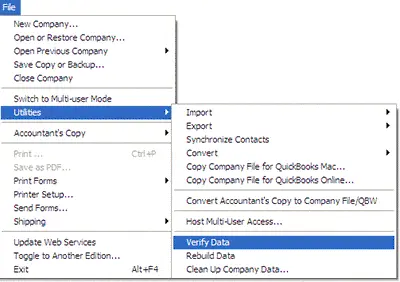
| QuickBooks detected no problems with your data | This message states that your data is clean, and you don’t need to do anything. |
| An error message | Look for the specific error message on your QuickBooks Desktop support site for the instructions on how to fix it. |
| Your data has lost integrity | This states that data damage was found in the file. Use the Rebuild company file data to fix it. |
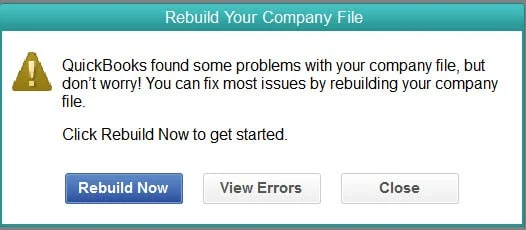
If the Verify tool detects any company file data issues, use the rebuild data to repair the damaged data. But, before running this tool, make sure to back up the company file.
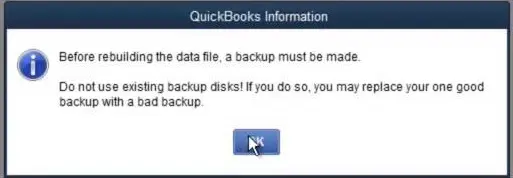
Important Tip: If you use the Assisted Payroll, connect with the experts before you rebuild your data.
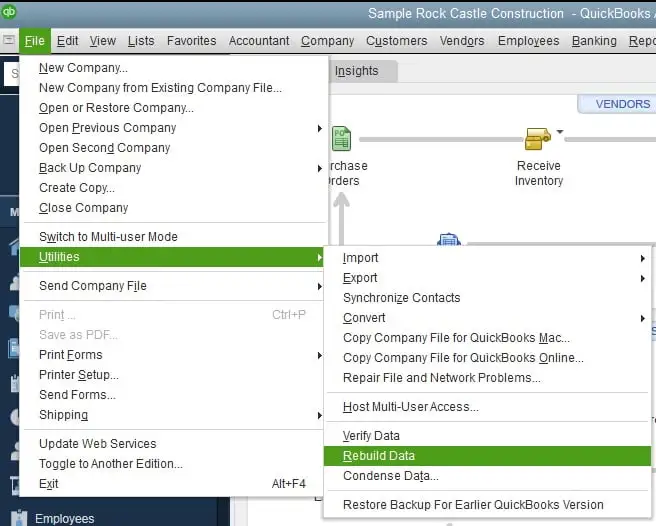
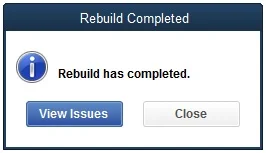
After rebuilding, verify your data again to confirm that the repair is successful.
Note: Make sure you don’t overwrite your existing company file. You have to enter the information into your QuickBooks company file again since the backup was created.
Follow these steps to run the QuickBooks Verify and Rebuild Data tool in QuickBooks Desktop for Mac versions.
Before you rebuild your company file data, run the verify tool in QuickBooks Desktop for Mac. It will scan your company file for errors or data damage.
Once you verify your company file data, you can rebuild the company data file to fix any errors or data damage that was found.
To ensure your company file is free from errors or data damage, you need to verify your data file again. If you still face errors or damage, rebuild the company file.
Before starting the troubleshooting, ensure to create a backup of the company file. Also, it is necessary to understand what the record numbers are. The record numbers are basically the list of errors that help you spot errors that QuickBooks determines while verifying your company file data. If it detects any errors in your file, you will get a link to open the QuickBooks.log file. Follow these steps to locate your QuickBooks.log file at any time.
In the QuickBooks.log file, you will find internal record references such
as RecNum and RefNum. These both are both internal record numbers that are used by QuickBooks.
For example, if you notice an error stating “Verify Employee YTD Bal: ytd out of balance. Name = Dan T.Miller. Ref = 55.” The record number is 55 in this case.
If the issue still remains the same after rebuilding the company file, consider using QuickBooks File Doctor or restoring a recent backup. If neither solution resolves the problem, contact our QuickBooks Data Service team.
Here, we have described how to repair your data file with the Rebuild Data tool.
If QuickBooks won’t detect any issue, click OK. You can continue using your data file, and it states that you don’t have any data damage.
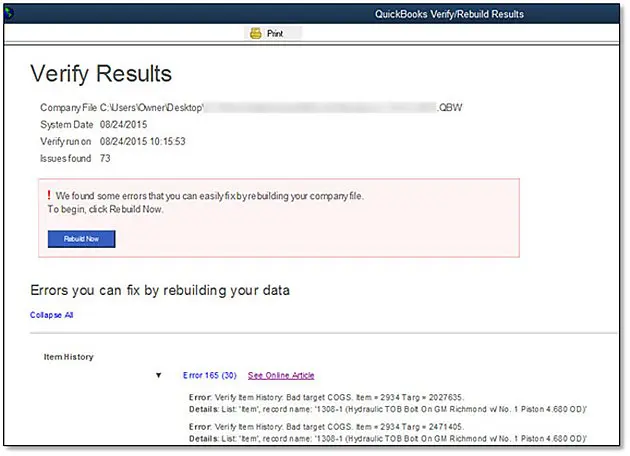
If you are comfortable while fixing the errors manually, you can look for the errors from the Verify Results window. Before proceeding further, make sure to create a backup of your company file.
To manually fix data errors;
Verify and Rebuild Data in QuickBooks Desktop is one of the most effective built-in tools, which is used to identify and repair company file issues. Running these tools regularly helps maintain data integrity, improve software performance, and minimize the risk of financial reporting errors.
If the utilities are unable to repair your company file, consider using QuickBooks File Doctor, restoring a recent backup, or contacting QuickBooks Data Service team for advanced troubleshooting +1(888)-718-7888 .
To verify your company data;
To fix company file issues with Rebuild Data, click File > Utilities > Rebuild Data, and when asked, create a backup company file. Once the repair process is completed, run Verify data to ensure that all issues are fixed.
Try to run the Verify and rebuild data tool once again to fix the issue, as problems may sometimes require multiple attempts. If the error continues, run the QuickBooks File Doctor tool to diagnose and fix company file issues.
You must run Verify and Rebuild data in QuickBooks desktop when you see error messages, there are missing or duplicate transactions, incorrect financial reports, or slow company file performance.
Verify data is a built-in diagnostic utility and is used to check your company file data for damage and other inconsistencies. It doesn’t repair the data integrity issues itself. If any issues are found, you must run the rebuild data to repair your company file.