
Encountering QuickBooks company file errors, network connectivity issues, and multi-user mode problems can disrupt your business operations. But, thankfully, Intuit has developed QuickBooks File Doctor tool, a built-in diagnostic utility designed to identify and repair common company file and network-related issues.
Whether you are facing Error H202, Error 6150, company file corruption, or connectivity problems, QuickBooks File Doctor helps restore access to company data and improve application performance.
In this guide, we have explained the complete steps to download, install, and run the QuickBooks Desktop File Doctor tool. Also, the outcomes you may see while running this tool and solutions to fix it.
QuickBooks File Doctor is a diagnostic tool available through QuickBooks Tool Hub that helps repair company file damage, network connectivity issues, Error H202, Error 6000-series errors, and multi-user mode problems in QuickBooks Desktop.
Before running the QB File Doctor tool, make sure that your system meets the following requirements:
Before running QuickBooks File Doctor, create a backup of your company file. Although the tool is designed to repair data safely, maintaining a recent backup safeguards your sensitive company data.
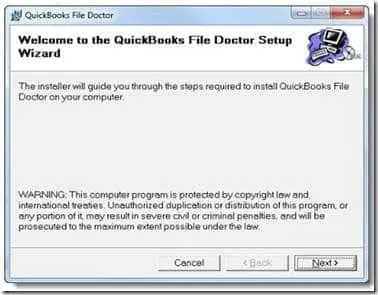
Before you run the QuickBooks File Doctor, it’s essential to download and install the latest QuickBooks Tool Hub 1.6.0.8.
By running the Quick Fix My file tool, you can get a better experience of using File Doctor, which helps in fixing company files and network issues. Perform these steps to run this tool.
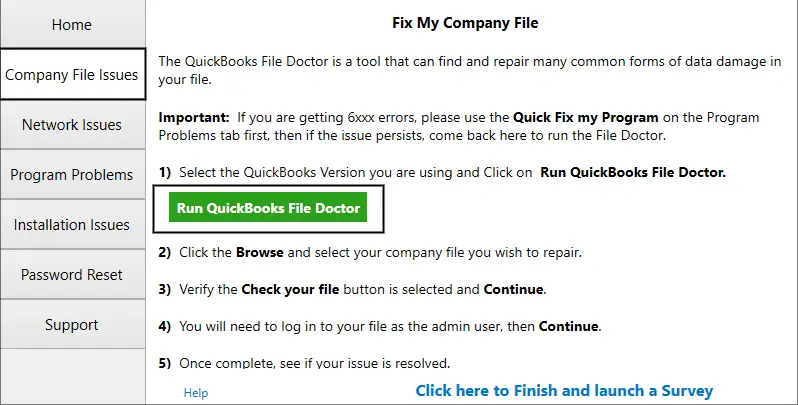
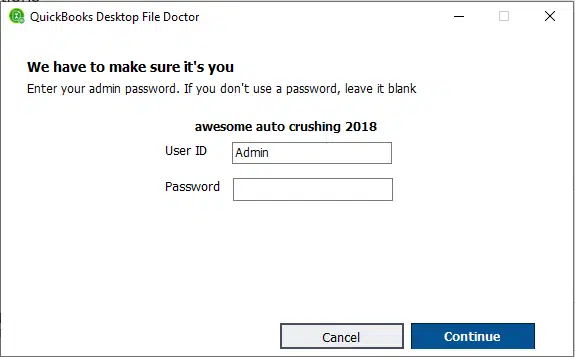
As already explained, you can run the QuickBooks Desktop File Doctor tool to get rid of the most common errors that you may get while opening the file locally or over the network.
However, there are numerous other errors that you can fix with this tool. Let’s take a look at the table below to understand the errors that the QuickBooks Desktop File Doctor tool can resolve.
| Error Code | Explanation |
| 6000 Series of Error | It includes the error codes, -6000, -301, -6150, and -6147 caused by damaged company files or improper network setup. |
| Multi-User Mode Problems | Fixes that issues that prevents users from switching to multi-user mode in QuickBooks. |
| QuickBooks Error 6147 | This issue happens if either the company file path is incorrect or file is completely damaged. |
| QuickBooks Error 6150 | It may appear if the QuickBooks cannot open or create a company file due to file corruption. |
| QuickBooks Freezing or Crashing | This tool helps repair damaged files that cause QuickBooks to stop responding unexpectedly. |
| Data Corruption Errors | It spots the data integrity issues that may restrict users QuickBooks crashing or freezing issues. |
| Company File Damage | This utility detects and repairs the corrupted or inaccessible QuickBooks data files. |
| Network Connectivity Issues | Resolves communication problems between QuickBooks workstations and the server. |
| H202 Error | This issue may occur when QuickBooks can’t connect to company file located on another computer or server in multi-user mode. |
| H505 Error | It indicates that the additional configuration is required for hosting multi-user company files. |
After running the QuickBooks Tool Hub File Doctor Tool, you will get the results on your screen. You must review each of these results and then fix them accordingly. Let’s get familiar with each of these test results, including resources to fix them in each specific area.
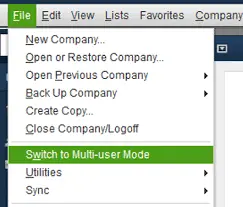
The File Doctor will start displaying “hosting mode is off” if you haven’t set the server to host the company file. So, you need to turn on hosting to access QuickBooks files over the network.
Here’s what to do to turn on hosting mode
You must require necessary permissions to access the folder containing the company file. Otherwise, users won’t be able to read/write or make certain changes in the company file.
Perform the following steps to set up folders and Windows access permissions to share company files.
See that permissions are set correctly
If your permissions aren’t set properly,
For making adjustments to the folder permissions;
Use the following steps for many of these folders. But, remember one thing that you doesn’t have all of these folders. Some of these are restricted to certain QuickBooks Desktop versions.
It’s important to have at least one functional TCP/IP adapter and the local machine’s hostname that is resolvable. This allows proper communication and connectivity within the network environment. Running the IPConfig tool will help you verify the TCP/IP configuration of your computer.
Here’s how to run the ipconfig;
Here’s the table illustrating the most common IPConfig commands that can be used to fix network connectivity issues.
| Command | Description |
| ipconfig | basic TCP/ IP information |
| ipconfig/all | detailed TCP / IP information |
| Ipconfig / renew | Renew the IPv4 address for all network adapters |
| Ipconfig/ release | Release the IPv4 address for all network adapters |
This issue mainly indicates that Windows can’t produce an IP address from a hostname or reverse the IP process. So, to fix the issue, a reverse DNS lookup is required to return the hostname of an IP address. Therefore, to verify that IP reverse lookup is working, you must turn off the Windows-based DNS servers.
Users often experience certain issues if the firewall blocks internet access required for specific QuickBooks programs or files. Therefore, updating the firewall to the latest release will help fix the issue. Also, you may be required to manually configure the exceptions and ports required for your firewall software.
Make QuickBooks Work Smarter for Your Business
Spend less time managing data and more time growing your business. Whether you need help setting up QuickBooks, cleaning up your books, reconciling accounts, or resolving errors, our team is here to make accounting easier. Get quick solutions that save time, improve accuracy, and keep your business finances on track.
QuickBooks File Doctor is one of the most effective tool available for QuickBooks Desktop users. It helps diagnose and repair company file corruption, network connectivity issues, H-series errors, and multi-user mode problems. By performing the steps described in this guide, you can easily detect the main cause of common QuickBooks errors and restore uninterrupted access to your company data.
If you still get stuck at any point while running this tool, feel free to consult with our Data Service Team professionals for the right assistance at +1(888)-718-7888.
The QuickBooks File Doctor tool detects and repairs the network-related and company file issues. Also, you can use it for repairing multi-user mode, corrupted company file issues, or QuickBooks freezing or crashing issues.
Users may encounter the issue that QuickBooks File Doctor isn’t opening due to permission issues, corrupted files, or compatibility problems.
Yes, the QuickBooks File Doctor is included within the QuickBooks Tool Hub. This tool is used to diagnose, and repair issues related to company files and network issues.
After successfully installing the QuickBooks Tool Hub, open the application and choose Company File Issues and then run QuickBooks File Doctor tool to open it.
You can use the QuickBooks File Doctor tool when you are facing issues while opening the company file, network connectivity issues, data damage errors, or multi-user mode errors.
QuickBooks File Doctor may help repair certain company file issues, but it cannot guarantee transaction recovery. Restore a recent backup if important financial data is missing.
Repair time depends on company file size, damage severity, and network conditions. Large or severely damaged files may require additional troubleshooting or professional assistance.
QuickBooks File Doctor is designed for Windows-based QuickBooks Desktop troubleshooting. Mac users should check Intuit’s support guidance for compatible diagnostic and company file repair options.

Get Free Consultation for QuickBooks Upgrade
(2021, 2022, 2023)


