
Have you ever wondered why QuickBooks Bank Reconciliation is crucial to maintain accurate financial records? It is vital to ensure that the account matches your bank statements for financial health and business owners. QuickBooks simplifies this process and makes it extra convenient to keep the books in order. Compare specific transactions in QuickBooks to the bank statement when you reconcile an account.
Here, we will acknowledge the ins & outs of QuickBooks bank reconciliation, highlight its importance, and explain how it can streamline your financial management. This guide will provide you with the knowledge you need to reconcile the accounts effectively!
It is a vital accounting process that matches the financial transactions recorded in the QuickBooks software against the actual monthly bank and credit card statements. QuickBooks Bank Reconciliation procedure ensures that the business records are accurate, catches bank errors, and helps you spot unauthorized charges. It verifies that the ending book balance aligns with the verified bank balance.
Data Service Team Tip: Simplify bank account reconciliations for your business with QuickBooks. Organize, manage, track, and report bank reconciliations in minutes. Call our experts now for help.
It is important because it compares the cash book with the bank statement to find errors, stop fraud, and more. Read the given pointers to know the importance of QuickBooks bank reconciliation:
You need your bank statement showing the period, ending date, and ending balance to do a QuickBooks Online bank reconciliation. Along with your updated software records with the correct opening balance matching the last report. Here are the essential items needed for QuickBooks Bank Reconciliation:
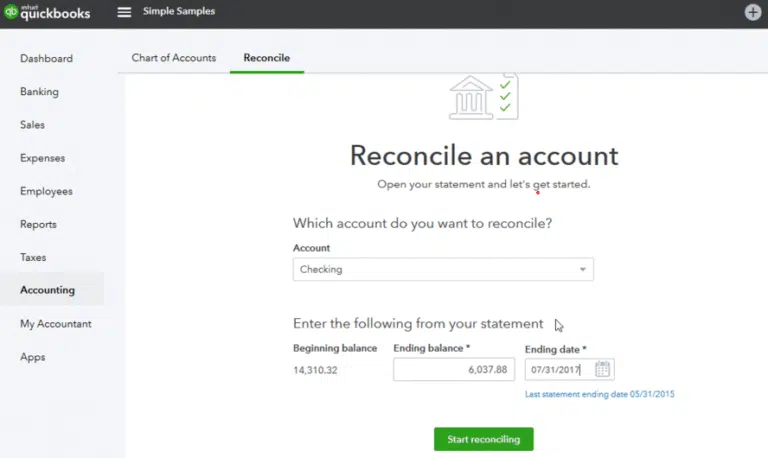
It is an essential process to ensure that the accounting records match to bank statement. All transactions must be recorded and identify any discrepancies with the help of the given steps. Here is how to proceed with QuickBooks Bank Reconciliation process:
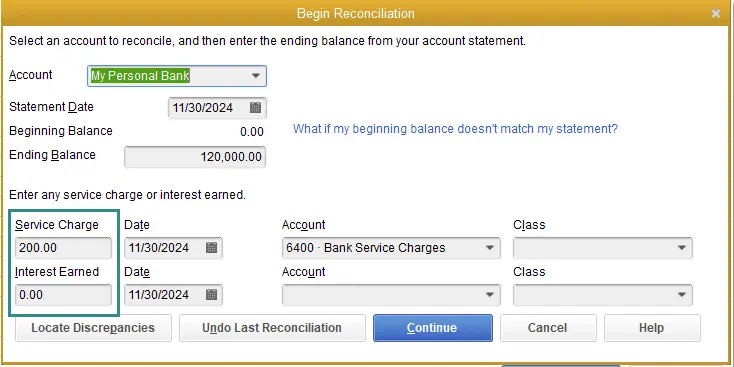
Data Service Team Tip: You can do QuickBooks Bank Reconciliation and ensure the financial records accurately reflect transactions by considering the above points. It helps to maintain the integrity of an accounting system.
Reconciliation of a credit card account is a crucial financial process. It helps ensure your records match the statement provided by the credit card company. Here is how to do it:
Data Service Team Tip: You can reconcile your credit card account and maintain accurate financial records by following these steps.
Regular bank reconciliation compares your cash records to your bank statements to keep your money accurate, safe, and organized. QuickBooks Bank Reconciliation prevents costly errors and helps you manage your business finances with total confidence. Go through the major benefits:
It is an essential process that helps ensure your financial records are accurate, as it compares your bank statements to your QuickBooks account. Here is a step-by-step guide to help you perform Bank Reconciliation QuickBooks Online smoothly:
These steps will help maintain accounting accuracy and give you peace of mind over all financial data. Regular Bank Reconciliation QuickBooks Online can prevent errors and help you keep the business finances healthy.
Note: If you need additional help maintaining accurate financial records, professional accounting and bookkeeping services can help manage your business finances and reconciliation tasks.
QuickBooks Bank Reconciliation is a straightforward process to manage the finances smoothly. It helps to catch errors, prevent fraud, and ensure the financial data is accurate when someone compares bank statements to QuickBooks records daily. Take the time to reconcile accounts each month to maintain clear and organized financial records. It makes it convenient to make informed business decisions. This task becomes manageable with user-friendly tools of QuickBooks and allows you to focus on growing your business.
Looking for professional live guidance regarding QuickBooks bank reconciliation Online? No issue! Contact Data Service Team experts at +1(888)-718-7888 now and get your bank account reconciled.
QuickBooks Bank Reconciliation is important because it matches your software records with the bank statement to catch hidden errors. It also prevents fraud and ensures accurate financial reports for taxes as well as business decisions.
You must have the general ledger, official bank statement for same period, and reconciliation report of last month to start a bank reconciliation. These documents help you compare the recorded cash balance with the bank’s records to identify and fix missing entries.
QuickBooks up to a month as soon as your monthly bank statement arrives. It will help you match your records, find errors, and keep your financial reports prepared for taxes if you do this on a monthly basis. You may want to reconcile weekly to track the cash flow more closely if your business handles a very high volume of daily transactions.
Move to the Banking menu and select Reconcile to reconcile a bank account in QB Desktop. Select the target account, enter the statement last date, and balance. Then, click Continue. Match the transactions in QuickBooks with your bank statement and ensure the difference is zero. After that, select the Reconcile Now option.
Your bank reconciliation in QuickBooks fails to balance because a previously cleared transaction was changed or because the starting opening balance was entered incorrectly. QuickBooks Bank Reconciliation alters the math and breaks the match with the bank statement.
Access the account register through the Chart of Accounts and find the transaction denoted with an “R” to amend a reconciled transaction in QuickBooks. Then, click the “R” until the field is empty to un-reconcile it and make the necessary modifications. Save the update and re-reconcile it if needed.
No! QuickBooks does not fully automate the final bank reconciliation procedure by itself. Although the software can automatically gather, align, and sort daily bank feed transactions. You are still required to start the official reconciliation, enter your closing statement balance, date, and conclude the period.
Common mistakes in reconciliation involve not accounting for timing differences. This includes checks and making data entry errors like transposed numbers. This neglect to conduct regular monthly reviews allows unresolved discrepancies to linger in the records due to failing to keep adequate documentation. These inaccuracies hinder precise financial tracking and slow down the identification of fraudulent activities.
If your QuickBooks reconciliation does not match your bank statement, check for missing transactions, incorrect opening balances, duplicate entries, or other discrepancies. If the problem continues after correcting these issues, QuickBooks Data Repair Services may help identify and resolve company file data problems.
The quickest method to resolve reconciliation issues in QuickBooks is to use the Reconcile Discrepancy Report feature to quickly identify modified items. You can then either re-enter any lost items or access an accountant account to reverse and redo the problematic reconciliation period in a single action.




