QuickBooks Desktop offers various features that help businesses manage their accounting tasks efficiently. However, users may face issues while printing forms or saving documents as PDF files. These problems can disrupt your daily accounting work and make it difficult to share important financial information.
The QuickBooks Print and PDF Repair Tool is a helpful utility created to resolve common printing and PDF-related issues in QuickBooks Desktop.
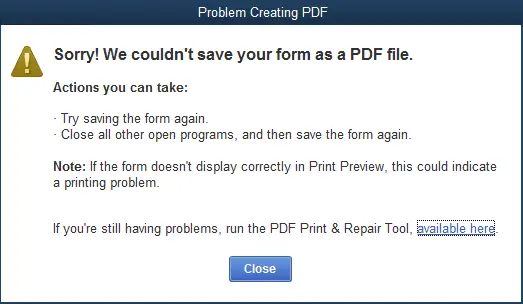
Whether QuickBooks fails to print invoices, is unable to save reports as PDF files, or shows errors while emailing documents, this repair tool can help identify and fix many underlying issues. In this guide, we will explain what the tool does, why these errors occur, how to use it, and other troubleshooting methods you can try if printing problems continue.
The QuickBooks Desktop print and PDF repair tool is a simple troubleshooting tool that helps fix problems related to printing and PDF files in QuickBooks Desktop. It checks for common issues and repairs the settings or components that may be stopping QuickBooks from printing or creating PDF documents properly. This tool can help with problems like:
Printing issues in QuickBooks Desktop can occur due to problems with system settings, printer configuration, or damaged QuickBooks components. Understanding the cause helps users apply the right solution and prevent the issue from happening again:
If QuickBooks files or printing-related components become damaged, the software may fail to complete printing tasks properly.
Incorrect printer settings, a disconnected printer, or an inaccurate default printer selection can cause printing problems in QuickBooks.
Old or incompatible printer drivers may stop QuickBooks from communicating properly with your printer.
Problems with the PDF Converter can prevent QuickBooks from creating, saving, or sending PDF files.
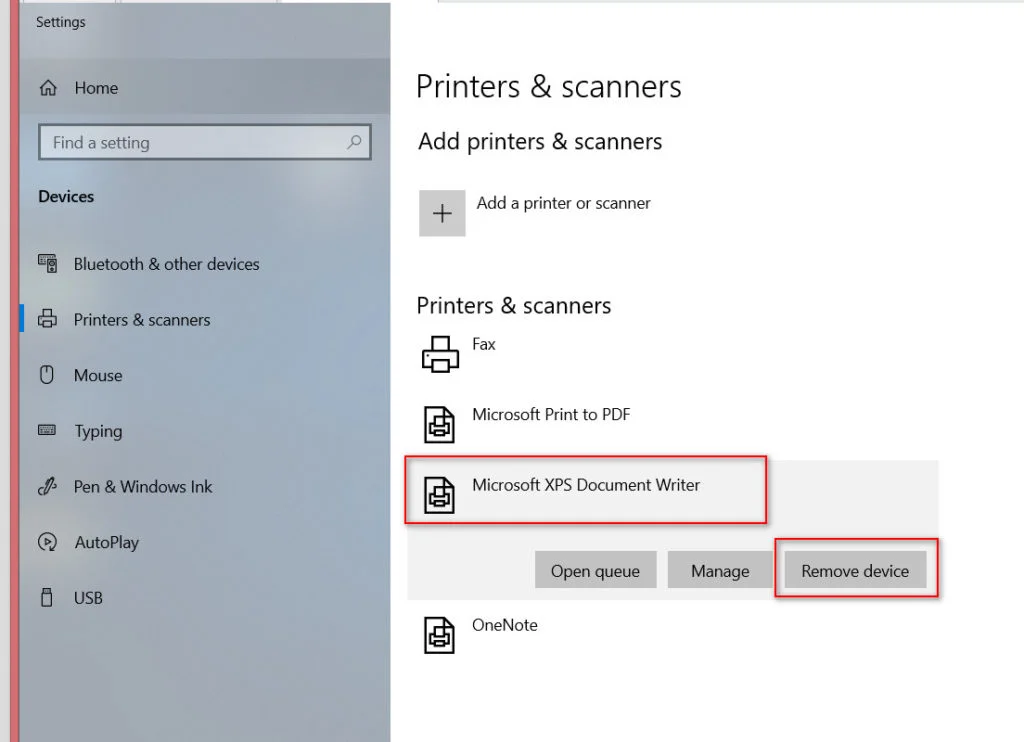
Issues with Windows features like Microsoft XPS Document Writer can affect QuickBooks printing and PDF functions.
Firewall settings, antivirus programs, or limited folder permissions may block QuickBooks from accessing required printing features.
The QuickBooks Print and PDF Repair Tool helps fix various printing and PDF-related problems in QuickBooks Desktop.
| Common Issues | Description |
| QuickBooks Unable to Print Documents | QuickBooks can not print invoices, checks, reports, or other forms due to printing component issues. |
| PDF Creation Errors | QuickBooks fails to create or save files in PDF format while generating reports or forms. |
| QuickBooks PDF Converter Problems | Issues with the QuickBooks PDF Converter prevent users from creating PDF documents. |
| Unable to Email QuickBooks Forms | Users face problems while sending invoices, statements, or reports through email. |
| Printer Connection Issues | QuickBooks cannot properly communicate with the connected printer or printing device. |
| Damages Print Settings | Incorrect or damaged printing configurations affect QuickBooks printing functionality. |
Before using the QuickBooks print and pdf repair tool, make sure your system meets the basic requirements needed to run the tool smoothly. These requirements help you ensure proper installation and repair of printing and PDF-related components.
| Requirements | Details |
| Internet Connection | Required for downloading the necessary files and updates. |
| Hard Disk Space | At least 512 MB of free space is required. |
| RAM | Minimum 1 GB RAM recommended for smooth performance. |
| Screen Resolution | 1024 × 768 or higher resolution. |
| Processor | 266 MHz or faster processor. |
| Operating System | Compatible with supported Windows versions. |
Before using the QuickBooks Print and PDF Repair Tool, you need to install QuickBooks Tool Hub, which provides access to different troubleshooting utilities. This tool helps you repair common printing, PDF, and document-related problems.
Before starting the process, make sure QuickBooks Desktop is closed. Follow these steps:
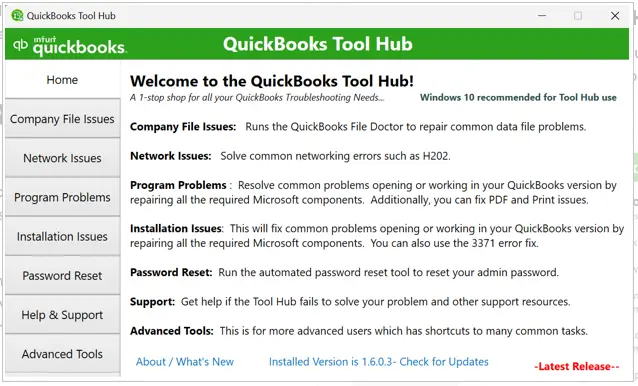
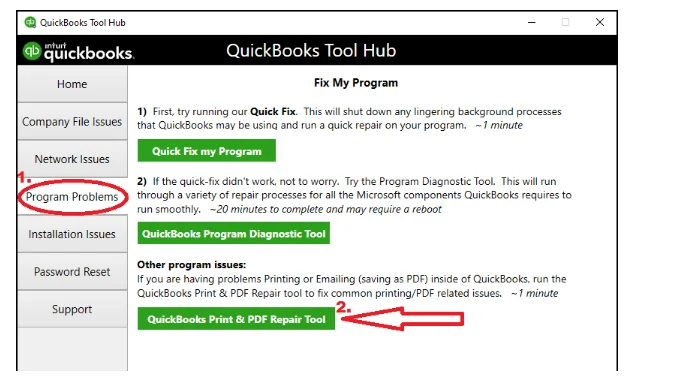
You can also download the repair tool separately and run it on your system. Follow these steps:
After installing the tool, you can run it by following these steps:
If you’re still experiencing printing or PDF-related problems after running the QuickBooks Print and PDF Repair Tool, don’t worry. Try the troubleshooting methods below to resolve the problem:
A simple restart can clear temporary glitches that may interfere with QuickBooks printing or PDF functions. Follow the steps below:
QuickBooks uses Microsoft XPS Document Writer to create PDF files. If this feature is disabled, PDF-related functions may not work properly. Here’s how:
The Print Spooler service controls printing tasks in Windows. Restarting it may resolve printing issues. Steps to follow:
If the wrong printer is selected as the default device, QuickBooks may not print correctly.
Outdated printer drivers can affect communication between QuickBooks and your printer.
Following a few best practices can help you reduce the chance of facing printing and PDF-related issues in QuickBooks Desktop.
Make QuickBooks Work Smarter for Your Business
Spend less time managing data and more time growing your business. Whether you need help setting up QuickBooks, cleaning up your books, reconciling accounts, or resolving errors, our team is here to make accounting easier. Get quick solutions that save time, improve accuracy, and keep your business finances on track.
Printing and PDF issues in QuickBooks Desktop can easily disrupt your business accounting tasks, but most of these problems can be resolved by the above-mentioned troubleshooting methods. The QuickBooks Print and PDF Repair Tool provides a quick and effective way to fix common printing, PDF, and document-related errors without requiring advanced technical help.
By keeping QuickBooks and your system up to date, you can minimize future printing and PDF errors. If you still face the same error, you can contact the Data Service Team live specialists at +1(888)-718-7888 for further assistance.
By running the QuickBooks Print and PDF Repair Tool, enabling Microsoft XPS Document Writer, and updating QuickBooks Desktop, you can fix the issue.
This can happen due to incorrect printer settings, damaged print components, outdated printer drivers, or PDF Converter issues.
No, Print and PDF Repair Tool is created for QuickBooks Desktop. Since QuickBooks Online runs through a web browser, printing and PDF issues are usually related to browser settings or the operating system rather than the repair tool.
You can enable the Microsoft XPS Document Writer, reset Temp folder permissions, update printer drivers, and restart the Print Spooler service.
If you are unable to print, save PDF files, or display the PDF converter and see printing-related errors, you can use the tool to fix these potential issues.
z
If you are unable to print, save PDF files, or display the PDF converter and see printing-related errors, you can use the tool to fix these potential issues.
You can run the repair tool first to fix common issues automatically. If the problem remains, proceed with manual troubleshooting methods.
These errors are usually caused by damaged Windows components, disabled XPS Document Writer, or outdated drivers. Running the repair tool and updating system components can usually resolve them.
Network permissions, unavailable shared folders, or connectivity problems can prevent PDF saving. Check folder access, confirm the network connection, and test saving locally.
Administrator access may be necessary for certain repairs involving Windows components or printer settings. Sign in with an authorized administrator account if permission errors occur.
Print a test page from another Windows application. If printing also fails there, check printer connections, drivers, and Windows services before troubleshooting QuickBooks.

Get Free Consultation for QuickBooks Upgrade
(2021, 2022, 2023)


