
Managing your business expenses becomes difficult when your QuickBooks subscription payment unexpectedly fails. The QuickBooks Subscription Payment Failed Error usually appears when Intuit can’t process your saved payment method. This may happen because of an expired card, incorrect billing details, insufficient funds, or a payment declined by your bank. As a result, you may receive a payment failure notification or face problems accessing your subscription. But don’t worry! You can often resolve this issue by checking your payment information and updating your billing details. If your QuickBooks subscription has already expired, learn how to resolve the QuickBooks Subscription Has Lapsed issue and restore your account access.
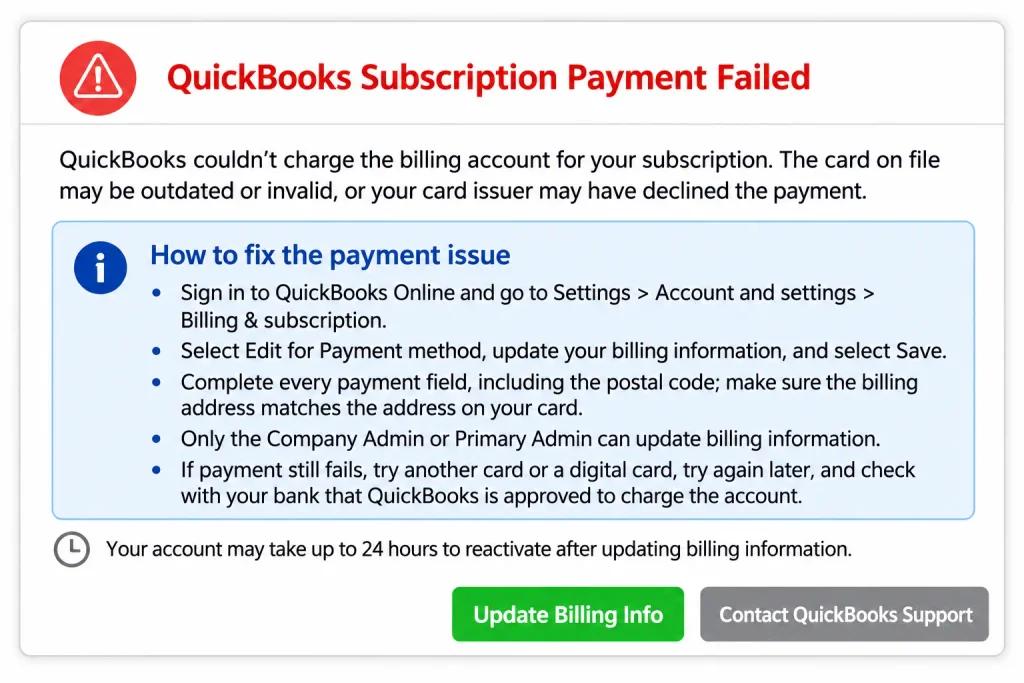
In this guide, we’ll explain the common causes and simple ways to fix this error.
A QuickBooks Subscription Payment Failed Error means Intuit could not collect the subscription fee using your saved payment method. When this happens, you may receive an email or notification saying that your payment was unsuccessful.
This usually happens when your credit or debit card has expired, your bank declines the transaction, or your billing information is incorrect. Sometimes, temporary payment processing issues can also cause this problem.
If the payment remains unsuccessful, your QuickBooks subscription may become inactive or suspended. Therefore, it’s important to check your billing details and resolve the payment issue as soon as possible.
There can be several reasons why QuickBooks cannot process your subscription payment. Sometimes, the problem is with your card or bank, while other times, incorrect billing details may be responsible.
Here are some common reasons behind a QuickBooks payment declined error:
Identifying the reason behind the payment failure will help you choose the right solution and get your QuickBooks subscription working again. For more information, read Intuit’s guide on why QuickBooks subscription credit cards get declined, which explains common card decline reasons and billing-related issues.
If your QuickBooks subscription payment failed, start by checking your saved payment method and billing information. Incorrect card details, bank restrictions, or temporary browser issues may prevent QuickBooks from processing the transaction.
Try the following troubleshooting methods to identify the cause and resolve the QuickBooks subscription payment not working issue.
An expired card, incorrect billing address, or outdated payment information can prevent QuickBooks from processing your subscription payment. To resolve this issue, review your saved payment method and update any incorrect details. After updating your billing information, check whether your subscription requires renewal. You can learn more about QuickBooks subscription renewal to maintain uninterrupted access. Follow these steps:
After saving your information, follow any prompts to resubmit the failed payment. Check your subscription status to confirm that the payment was successfully processed.
If your payment information is correct but QuickBooks continues to decline the transaction, the problem may be related to your bank.
Sometimes, banks block recurring payments or online transactions because of security restrictions. In such situations, QuickBooks may be unable to collect your subscription fee even when your card is active. To resolve this issue:
Once your bank confirms that the payment is permitted, return to QuickBooks and try the payment again.
If your existing card continues to be declined despite having correct billing information, try another payment method supported by QuickBooks in your region.
Open the Payment method section under your subscription billing settings and select Edit. Add another supported payment method, enter the required details, and save the changes.
Once you’ve updated your payment method, follow any prompts to retry the failed subscription payment. Check your payment history to confirm whether the transaction was successful.
If QuickBooks displays a blank screen, fails to load the billing page, or doesn’t save your updated payment information, the issue may be related to your browser. If you encounter other unexpected issues while accessing QuickBooks Online, read our guide on fixing QuickBooks Online login problems. Try the following steps:
If the payment continues to fail even in a private browser, investigate your billing information or contact your bank instead.
If your QuickBooks subscription payment failed, reviewing your payment history can help you understand the status of previous billing transactions. Follow these steps:
If the payment appears unsuccessful or an outstanding invoice is displayed, review your payment method and resolve the billing issue.
If you’ve tried all the troubleshooting methods but your subscription payment is still failing, you should contact QuickBooks customer support.
The support team can help investigate billing-related problems and guide you through the next steps. Here’s how to contact QuickBooks support:
When contacting support, keep the payment failure notification, relevant invoice details, and any displayed error codes available.
Do not share your QuickBooks password, full card number, or CVV through public comments or unverified communication channels. For additional assistance with common QuickBooks questions, visit our Data Service Team FAQ page
QuickBooks Error -81624 occurs when your bank blocks or fails to authorize or validate a payment transaction related to QuickBooks. This can prevent you from completing your subscription payment.
To troubleshoot this error, try the following:
For additional help, review the official Intuit troubleshooting guide for Error -81624.
Your QuickBooks subscription may remain inactive even after updating your payment information. This can happen if the payment has not been successfully processed or your account has not completed the reactivation process.
If you’re still experiencing QuickBooks billing and subscription issues, follow the suggestions below.
Sign in to QuickBooks Online and review your payment history. Check whether the subscription payment was successfully processed or if an outstanding invoice is still showing.
Make sure your new payment details have been saved correctly. Review your card information, billing address, and other required details to ensure there are no errors.
After updating your billing information, QuickBooks may take some time to reactivate your subscription. According to Intuit, the process may take up to 24 hours. Wait for the account status to update before trying additional payment attempts.
Open the Subscriptions and billing section in your QuickBooks account. Review your current subscription status and check whether any outstanding payment or expiration notice is displayed.
You can avoid recurring QuickBooks billing and subscription issues by following a few simple precautions:
Following these tips can help prevent payment failures and keep your QuickBooks subscription active.
The QuickBooks Subscription Payment Failed Error can interrupt your access to QuickBooks services and create problems with subscription management. Fortunately, you can often resolve it by updating your payment information, verifying your billing details, or contacting your bank to check for transaction restrictions. If the payment continues to fail or your subscription remains inactive, contact Data Service Team experts at +1(888)-718-7888 for further assistance.
When this error comes, QuickBooks could not process your subscription payment. It may happen because of an expired card, incorrect billing details, insufficient funds, or a payment declined by your bank.
Your QuickBooks subscription payment may fail because your card has expired, your billing address is incorrect, or your bank has blocked the transaction. Sometimes, temporary payment processing issues can also cause this problem.
To fix a failed payment, sign in to QuickBooks Online and update your payment information. Next, check the billing address and card details. If the payment still fails, contact your bank.
Sign in to QuickBooks Online and go to Settings. Open Subscriptions and billing, find your payment method, and select Edit. Enter your updated card details and select Save.
QuickBooks may decline your card because it has expired, has insufficient funds, or is blocked by your bank. Incorrect billing information can also cause a QuickBooks payment declined error.
QuickBooks Error 81624 is a payment processing related problem. To fix it, check the card details, verify your billing address, and contact your bank to confirm whether the transaction has been blocked.
Your QuickBooks subscription may become inactive or suspended if the payment remains unsuccessful. This can affect your access to QuickBooks services. To avoid further problems, update your payment details as soon as possible.
According to Intuit, it may take up to 24 hours to reactivate your QuickBooks account after updating your billing information.
First, you need to sign in to your QuickBooks Online account and select the Help option. Then look for the Contact Us page and perform the on screen instructions to connect with the support team. Explain your payment problem and provide the relevant error details.

Get Free Consultation for QuickBooks Upgrade
(2021, 2022, 2023)