Managing business finances is essential for running a successful company, whether it’s a small startup, or a growing organization. Keeping the record of income, expenses, invoices, taxes, and reports is important for maintaining financial stability.
However, manual bookkeeping can often lead to errors and unnecessary delays. This is where What is QuickBooks becomes important to understand. QuickBooks is a powerful accounting and bookkeeping software that helps businesses manage their financial data in one place.
In this guide, you will learn what QuickBooks is, how it works, its features, types, and benefits in detail.
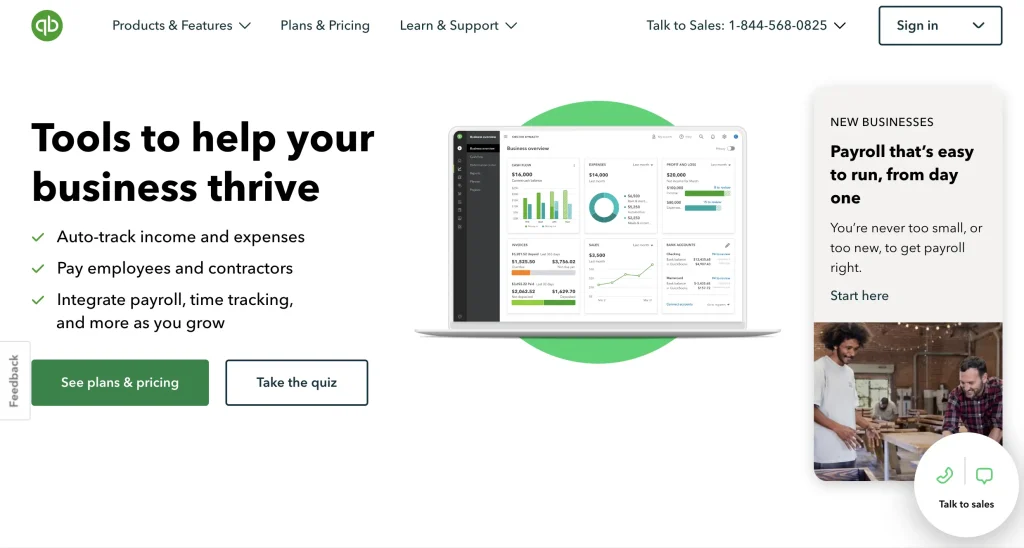
QuickBooks is a widely used financial management software that helps businesses handle their accounting tasks without needing advanced accounting skills.
Businesses use QuickBooks because it brings all financial operations into a single system. Instead of manually tracking income and expenses, users can automate most of the process.
Here’s how it helps businesses:
QuickBooks software offers a complete set of tools to manage financial data in one place. These QuickBooks features and benefits reduce manual work, improve accuracy, and automate accounting tasks.
Below are the most important features that make QuickBooks a powerful accounting solution.
QuickBooks allows businesses to create, send, and track invoices in a single platform. Users can easily monitor paid, unpaid, and overdue invoices. It also provides automated payment reminders for faster payments.
With QuickBooks, all business expenses are automatically recorded and categorized. This helps businesses stay organized and makes tax preparation easier by keeping all deductible expenses properly managed.
QuickBooks connects directly to bank accounts to import your transactions automatically. This reduces manual data entry, improves accuracy, and gives users a real-time view of their financial activity.
The software helps businesses manage tax obligations by tracking GST and VAT on income and expenses. It automatically categorizes transactions, making tax calculation and filing more accurate and stress-free.
QuickBooks offers real-time inventory tracking for product-based businesses. It monitors stock levels, identifies best-selling products, and sends alerts when stock is low, helping businesses avoid shortages or overstocking.
By using the QuickBooks mobile app, users can upload receipts directly using the mobile app. QuickBooks automatically matches receipts with transactions, keeping financial records organized and ready for audits or tax filing.
QuickBooks generates detailed financial reports such as profit & loss statements, balance sheets, and cash flow reports. These insights help businesses understand performance and make better financial decisions.
The QuickBooks mobile app flexibility allows users to manage their finances anytime, anywhere. Business owners can send invoices, record expenses, and check reports directly from their mobile devices.
QuickBooks provide strong data security with encryption, multi-factor authentication, and secure cloud storage. This protects your business sensitive financial information and ensures safe access for authorized users only.
QuickBooks is a comprehensive financial management tool that automates and tracks your business cash flow.
Start by selecting a QuickBooks subscription plan and creating your account. Then go to Settings to enter your business information, tax details, and invoice preferences. This helps customize QuickBooks according to your business needs.
Link your business bank and credit card accounts to QuickBooks for automatic transaction syncing. This removes manual data entry and keeps your financial records updated in real time.
QuickBooks allows you to design professional invoices with your logo and branding. You can create invoices, send them to customers, and track payment status directly from the dashboard.
All imported transactions are reviewed and categorized into correct accounts such as sales, utilities, or marketing. This ensures accurate bookkeeping and easier tax filing.
You can upload vendor bills and track payments easily. Businesses using inventory can also monitor stock levels and set low-stock alerts.
QuickBooks automatically creates detailed reports such as Profit & Loss, Balance Sheet, and Cash Flow statements. These reports help you understand your business performance at any time.
Finally, users can analyze reports and dashboards to track performance, manage budgets, and make informed financial decisions for business growth.
Understanding what is QuickBooks is important because QuickBooks offers different versions to meet the accounting needs of various businesses.
QuickBooks Desktop is installed locally on a Windows computer and offers advanced accounting features, detailed reporting, and industry-specific tools. It is a great choice for businesses that prefer desktop software and need stronger functionality.
QuickBooks Enterprise is the most powerful Desktop solution for medium and large businesses. It supports advanced inventory management, customizable reporting, payroll options, enhanced security, and up to 40 users depending on the subscription.
QuickBooks Online is a cloud-based accounting solution that allows users to access their financial data from anywhere with an internet connection. It is ideal for small businesses, startups, and businesses that need remote collaboration.
QuickBooks Solopreneur is designed for freelancers, consultants, gig workers, and self-employed professionals. It helps users track income and expenses, estimate quarterly taxes, send invoices, and separate personal and business finances.
Note: QuickBooks Solopreneur replaced QuickBooks Self-Employed for new customers.
QuickBooks offers subscription-based pricing depending on whether you choose Online or Desktop Enterprise.
| Plan | Monthly Price | Users | Best For |
| Simple Start | $38/month | 1 user | Freelancers & solo users |
| Essentials | $75/month | Up to 3 users | Small businesses |
| Plus | $115/month | Up to 5 users | Growing businesses |
| Advanced | $275/month | Up to 25 users | Large businesses |
| Plan | Price | Best For |
| Solopreneur | ~$20/month | Freelancers & self-employed users |
| Version | Pricing Model | Estimated Cost | Users | Best For |
| Enterprise | Annual subscription | ~$1,500 – $4,000+/year | Up to 40 users | Medium & large businesses |
QuickBooks accounting software helps users simplify their accounting operations and better control on the finances. It reduces manual work, increases accuracy, and helps business owners make better decisions using real-time financial data.
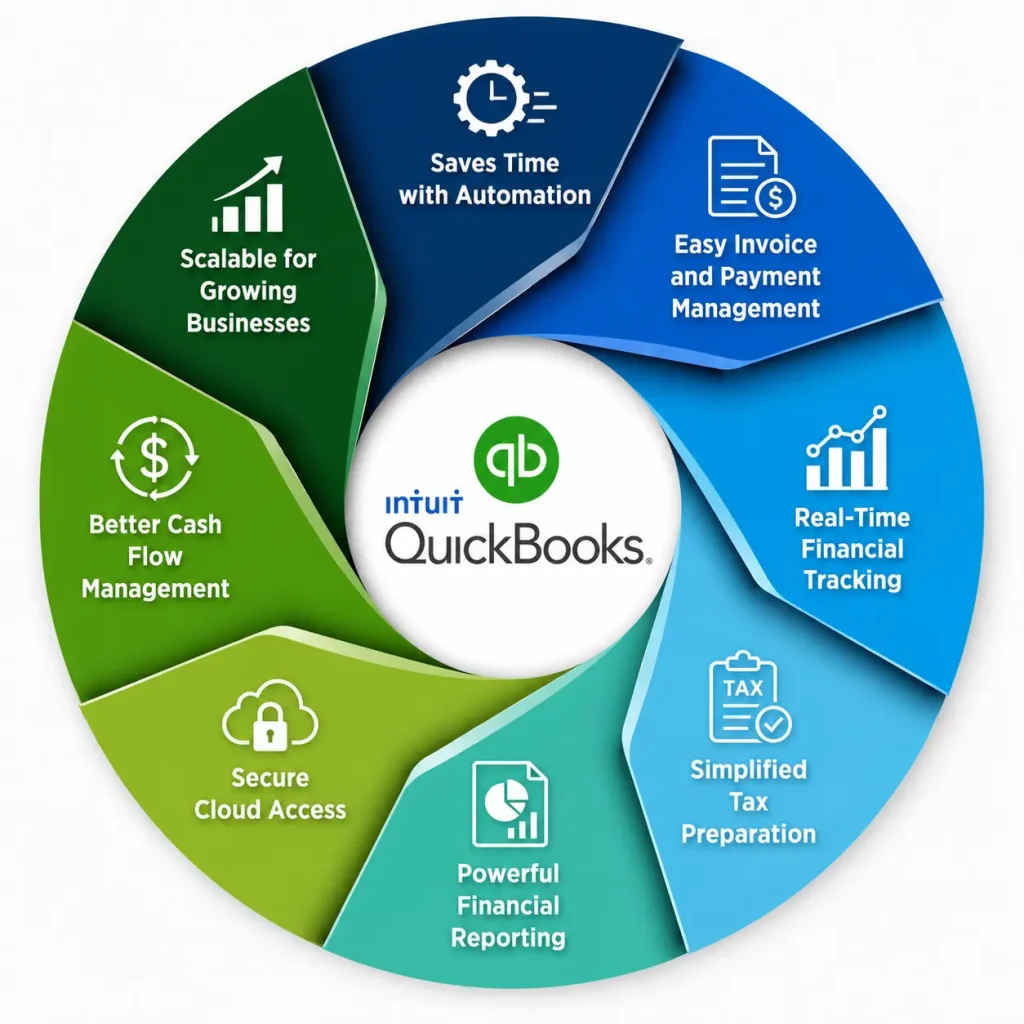
QuickBooks automation feature automates the routine tasks like transaction recording, invoice generation, and expense tracking. This reduces manual data entry and allows businesses to focus on growth instead of bookkeeping work.
Businesses can create and send professional invoices in minutes. QuickBooks also tracks unpaid invoices and sends automatic payment reminders to improve cash flow and reduce delays in payments.
QuickBooks provides real time updates of income, expenses, and bank transactions. This helps business owners to make informed decisions without waiting for manual reports.
QuickBooks organizes financial data throughout the year, which makes tax filing easier. It helps calculate taxes, track GST/VAT, and reduces errors during tax season.
The software generates detailed reports such as Profit & Loss, Balance Sheet, and Cash Flow statements. These insights help businesses understand performance and make informed decisions.
With QuickBooks Online, users can access financial data anytime, anywhere. Data is stored securely in the cloud with encryption and multi-layer protection.
By tracking incoming and outgoing payments, QuickBooks helps businesses manage cash flow efficiently and avoid financial shortages or overdue payments.
QuickBooks offers different plans and versions, allowing businesses to upgrade easily as they grow from freelancers to large enterprises.
Getting started with what is QuickBooks is simple once you understand the basic setup steps. Whether you are using QuickBooks Online or QuickBooks Desktop, the process mainly involves creating an account, setting up your business details, and connecting your financial data.
First, you need to select the version that suits your business needs. Choosing the right plan ensures you get the features required for your workflow.
If you are using QuickBooks Desktop, you need to download and install the software:
Sign up using your email and business details. After registration, you will be asked to select a subscription plan based on your business size and requirements.
Enter your business information, as it helps QuickBooks customize reports and financial tracking for your business.
Now, link your bank accounts securely to QuickBooks to automatically import transactions. This saves your valuable time and reduces manual data entry errors while keeping your records updated in real time.
Use built-in reports like Profit & Loss or Balance Sheet to understand your business performance from the beginning.
QuickBooks users most commonly struggle with technical glitches. Here is the list of the most common errors users may face:
To get the most out of QuickBooks, follow these simple tips that can help you improve accuracy, save time, and manage your finances more efficiently.
QuickBooks has become one of the most trusted accounting solutions for businesses of all sizes due to its powerful financial management tools. From tracking income and expenses to generating detailed financial reports, it helps businesses maintain complete control over their finances in a single platform.
Understanding what is QuickBooks can help you simplify your accounting processes and reduce manual errors. If you need expert help in QuickBooks setup, troubleshooting, or managing tasks efficiently, you can connect with the Data Service Team at +1(888)-718-7888.
QuickBooks is used for managing business accounting tasks such as tracking income and expenses, creating invoices, handling payroll, and generating financial reports.
Yes, QuickBooks is designed for beginners and small business owners. It has a user-friendly dashboard, automation features, and step-by-step setup tools.
QuickBooks Online is cloud-based and can be accessed from anywhere, while QuickBooks Desktop is installed on a computer and offers more advanced accounting features with offline access.
QuickBooks pricing varies by plan. QuickBooks Online typically starts around $30–$40 per month and can go higher depending on features like payroll, users, and advanced reporting.