QuickBooks Error 1402 can occur when QuickBooks Desktop cannot access a required Windows Registry key during installation or an update. Damaged Registry entries, insufficient permissions, Windows component problems, or security software interference may prevent the setup from completing.
This guide explains the common causes and symptoms of QuickBooks Error 1402 and provides step-by-step troubleshooting methods to help you complete the QuickBooks Desktop installation or update.
Need professional assistance when troubleshooting QuickBooks error 1402? If yes, connect with Data Service Team at +1(888)-718-7888.
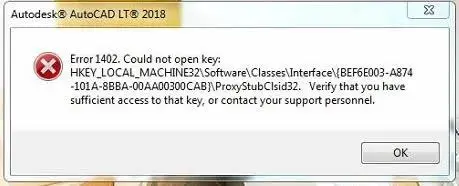
Users typically face QuickBooks Desktop error 1402 when trying to install, update, or run the software. This installation or update error in QuickBooks displays a message that stats, “Error 1402: Could not open key.” When facing this problem, the major impacts are:
QuickBooks Enterprise error 1402 typically indicates a communication failure between the QuickBooks installer and your Windows Registry. Below, we have listed the primary causes of this error. Have a look for better insights:
QuickBooks needs read and write permission to specific registry keys for software installation or updates. But, if your previous QuickBooks installation was incomplete or interrupted, or if a registry key is corrupted, the installer fails to change it. The system denies access and displays the “Could not open key” QuickBooks error 1402 message.
QuickBooks relies on major Microsoft components to function properly, and if these components are missing, corrupt, or outdated, the QuickBooks installation routine fails. As a result, it shows the error 1402 while installing QuickBooks or updating it.
If you run the QuickBooks installation file under a Windows user account and not under a local administrator account, it restricts you from accessing system folders and registry paths. Insufficient permissions make Windows block QuickBooks from making necessary changes.
The installed security software on your system can block QuickBooks installation or updates to prevent suspicious activities. Your antivirus program or Firewall can isolate installation files or block registry access, causing the error 1402 while installing QuickBooks.
When you run an older or outdated Windows version, it lacks the latest security certificates, Windows Installer updates, and system libraries. As a result, this factor can bring compatibility problems, disrupting the QuickBooks installation or update.
No matter what technical error you’re facing in QuickBooks, it can delay or hamper your daily accounting operations. The error 1402 while installing QuickBooks can put you in the following situations:
Now, as you know what primarily causes QuickBooks error 1402 and the consequences you may face, let’s continue fixing this issue with the troubleshooting methods below:
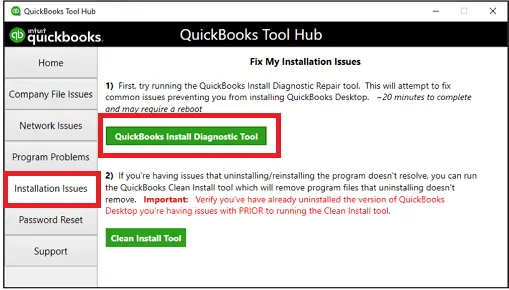
When facing installation problems such as being unable to install QuickBooks error 1402, use the QuickBooks install diagnostic tool. This tool is effective in fixing installation and update issues. Here’s the procedure to use the tool:
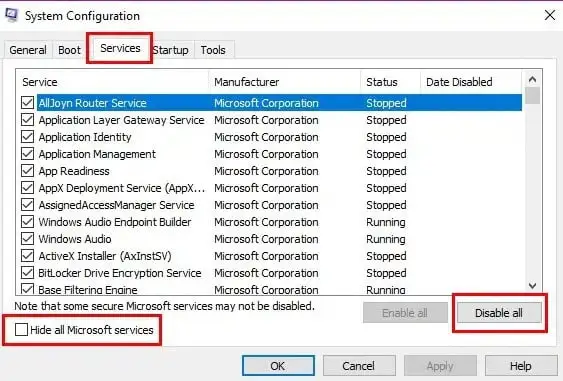
If any application is running in the background at the time when you’re installing or updating QuickBooks, it can cause error code 1402. It’s because the background activities can interfere the installation or update process. That’s why it’s suggested to install QuickBooks in selective startup mode. Carefully perform the steps below:
As mentioned above, if Microsoft components such as the .NET Framework and Microsoft MSXML are corrupt or outdated, you may face Error 1402 while installing QuickBooks. If the problem is related to an existing or damaged QuickBooks installation, you can also use the QuickBooks Clean Install Tool before reinstalling the software. To fix the Microsoft component issues, follow the steps below:
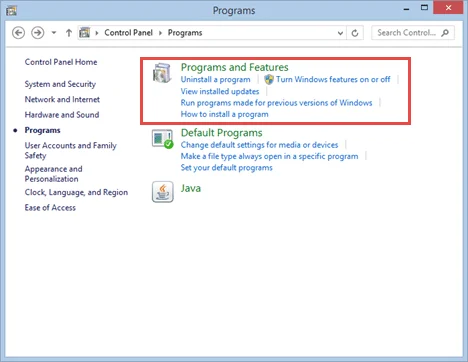
If you are trying to install QuickBooks on 64-Bit operating system and the corrupted MSXML is bringing the QuickBooks enterprise error 1402, perform the following steps:
However, if you install QuickBooks on a 32-Bit operating system, and are facing error 1402 due to damaged MSXML, register the component using the steps below:
Trying to install or update QuickBooks Desktop program on an outdated Windows OS could be another reason for facing QuickBooks Desktop error 1402. It’s because an outdated OS can bring compatibility issues. Here’s what you can do in such a situation:
When you add QuickBooks to the exclusion list, it prevents interference from Firewall and antivirus software. If your firewall is blocking QuickBooks from accessing required files or services, see our guide on Windows Firewall is Blocking QuickBooks for additional troubleshooting steps. This further help you easily install or update QuickBooks without the possible risk of error code 1402.
To reduce the chances of facing installation or update QuickBooks error 1402, you need to consider a few points that are given below:
In a nutshell, QuickBooks error 1402 can significantly interrupt the installation or update process due to issues with Windows registry permissions or damaged system components. Hopefully, the above information has helped you identify the major causes of this error. Carefully apply the appropriate troubleshooting methods given in this blog to resolve the error and get back to normal QuickBooks functionality. For any further information or professional help, feel free to contact Data Service Team experts available 24*7 at +1(888)-718-7888 .
QuickBooks Error 1402 usually occurs when QuickBooks Desktop cannot access a required Windows Registry key during installation or an update. Start by running the QuickBooks Install Diagnostic Tool from QuickBooks Tool Hub and restarting your computer. If the error continues, update Windows, try Selective Startup, and repair the affected Windows components. Avoid manually changing or deleting Registry entries unless you know which key is causing the problem.
QuickBooks desktop error 1402 is an installation or update error that a user may find when the software fails to access a required Windows registry key. It is commonly a result of damaged registry entries, insufficient user permissions, corrupted Microsoft components, such as .NET Framework or MSXML, or interference from antivirus software.
To repair the Windows Registry, you need to first create a back up of your Windows registry and create a system restore point. After this, use the System File Checker or DISM tool to repair corrupted system files that may affect registry access. If the issue persists, use the QuickBooks Install Diagnostic Tool or seek professional assistance to avoid accidental registry damage.
Yes, corrupted or missing Microsoft .NET Framework files are a common cause of QuickBooks Error 1402. Since QuickBooks relies on .NET Framework during installation and updates, damaged components can prevent the process from completing. Repairing or reinstalling the .NET Framework often resolves the error.
If QuickBooks enterprise error 1402 remains active even after you’ve tried all the recommended troubleshooting methods, try to run the QuickBooks Install Diagnostic Tool and ensure Windows is updated. You can also perform a clean installation of QuickBooks to fix installation-related issues. If the error still persists, contact our team for advanced troubleshooting.
Intuit recommends using the QuickBooks Tool Hub. Within the Tool Hub, you must run the QuickBooks Install Diagnostic tool to resolve QuickBooks installation-related errors. The Tool Hub can also fix issues with Microsoft .NET Framework, MSXML, and C++ components. When you use these tools, it often resolves common installation problems quickly and effectively.
Yes, Windows registry issues are one of the primary causes of an error 1402 in QuickBooks. Corrupted, missing, or inaccessible registry keys can prevent QuickBooks from installing or updating properly. You must opt for repairing registry-related issues and restoring proper permissions often resolves the error.
Error 1402 while installing QuickBooks can occur if the installer cannot access the necessary Windows registry key. Its causes include damaged registry entries, insufficient user permissions, corrupted Microsoft components, or interference from antivirus software. It’s suggested to resolve these fundamental issues before the time to allow the installation to complete successfully.
Yes, antivirus software or Windows Defender can sometimes interfere with the QuickBooks installation process and cause the installation error 1402. They may block access to required installation files or Windows registry keys. Make sure you temporarily disable your security software during installation can help identify the issue. Also, re-enable your antivirus or Windows Defender immediately after the installation is complete.




