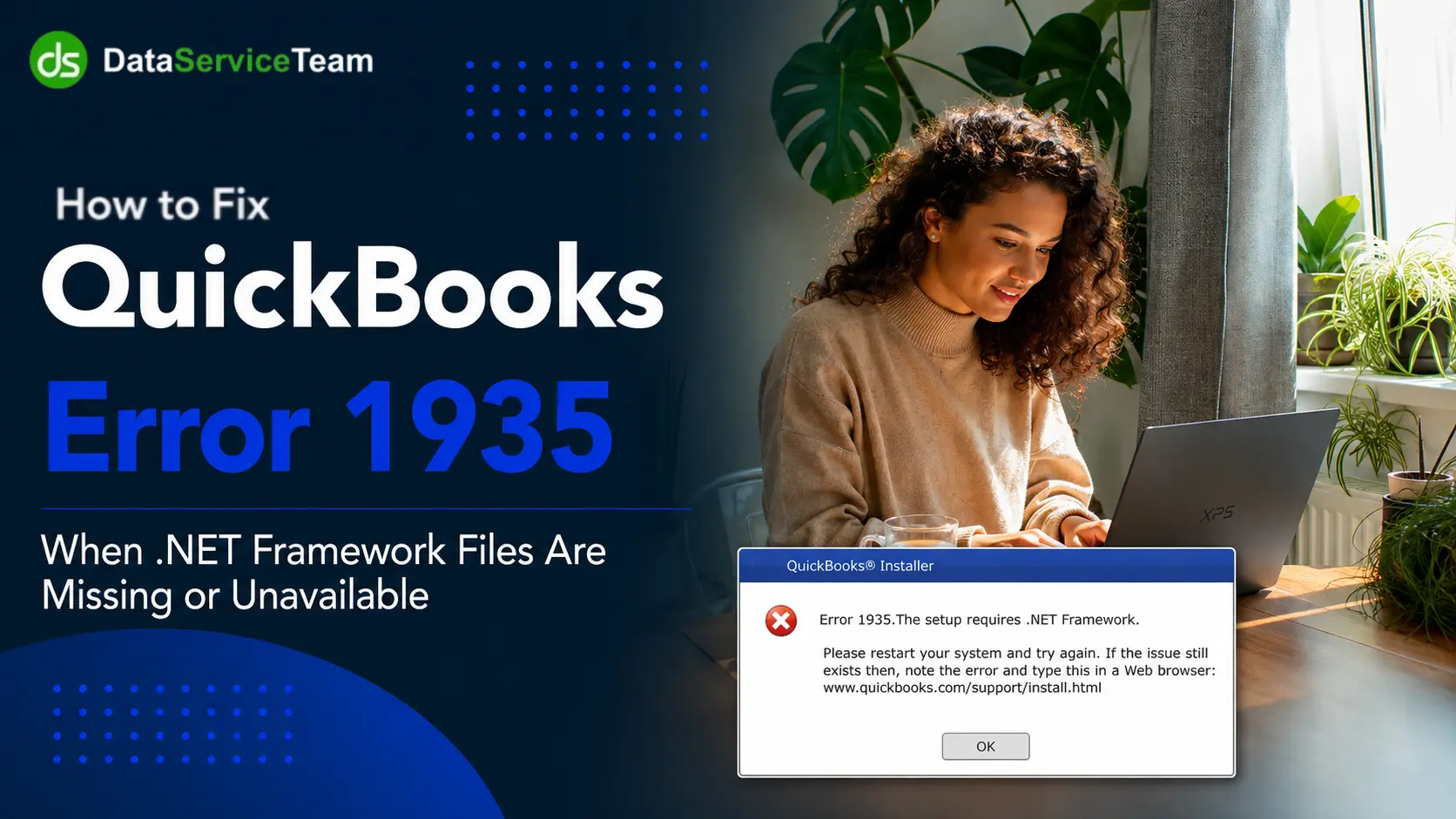
QuickBooks-Error-1935

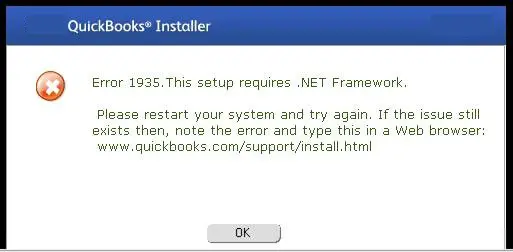
Have you encountered QuickBooks Error 1935 while trying to update your software? If so, you came to the right website. This error can halt your progress and leave you scrambling for solutions. QuickBooks Desktop Error 1935 occurs when the .NET Framework files required for installation are missing. If you Can’t Install QuickBooks Desktop, this guide explains several troubleshooting methods you can try. The reason behind this issue can be that the Microsoft .NET Framework is not installed properly.

This detailed blog will guide you in understanding the causes behind Error 1935, symptoms, and provide the best solutions to resolve QuickBooks Error 1935.

QuickBooks-Error-1935

Root Causes of QuickBooks Error 1935

This error occurs during the installation when Windows fails to update a critical system component and Microsoft .NET Framework. The setup process stops because a file cannot be installed in the Windows system. Check out the main causes of QuickBooks Install Error 1935

  • The Windows operating system lacks recent updates required by the installation files.
  • The installation package for QuickBooks is expired.
  • An active antivirus program blocks the setup process from modifying system files.
  • The Windows Installer service is damaged or disabled on your PC.
  • Invalid registry entries from an old installation block new file registration.

Main Symptoms of QuickBooks Desktop Installation Error 1935

This issue presents clear pop-up error codes indicating issues with assembly or the .NET Framework. It causes the progress bar to halt and results in unanticipated application crashes. The primary symptoms of error 1935 include:

  • The setup wizard unexpectedly closes or reverses all progress, not completing the installation.
  • The computer noticeably slows down or hangs when trying to run the installation package.
  • Other applications or background processes unexpectedly close while the installer is active.
  • The taskbar or desktop interface hangs and does not respond to mouse clicks as well as keyboard inputs.
  • The computer repeatedly prompts for system restarts to complete pending setups.

Important Prerequisites to Fix QuickBooks Error 1935

It is a critical installation error and it happens when required Windows background core framework components are damaged or blocked. QuickBooks Error 1935 and different crucial QB errors have the possibility to occur once your Windows OS gets corrupted. Here are the essential prerequisites that you must meet to resolve QuickBooks Desktop Installation Error 1935:

  • Updated Windows OS – Install all pending Microsoft operating system updates to refresh damaged system components.
  • Enable .NET Framework – Check both version 3.5 and version 4.8 boxes inside your Windows Features menu.
  • Disable Antivirus Software – Block real-time active scanning shields temporarily so security tools do not stop the installer.
  • Turn Off Firewall – Prevent your native network firewall from stopping critical background data processing validation.
  • Install Too Hub – Download the most up-to-date standalone version of the official Intuit QuickBooks Tool Hub installer.
  • Configure Selective Startup – Switch your Windows System Configuration tool to run without background application loading.
  • Verify Admin Rights – Run your installation package setup file as a Windows system administrator.
  • Close Active Programs – Shut down conflicting software like Microsoft Office before executing setup.

How to Fix QuickBooks Desktop Error 1935?

This error may occur during the installation process when Windows tries to connect to the Internet or open a port in your firewall in order to maintain the product key. Check out the given methods to fix QuickBooks error 1935:

Method 1: Run & Install Diagnostic Tool from the Tool Hub

Download the QuickBooks Tool Hub

The QuickBooks Tool Hub assists in resolving common issues. We suggest using Tool Hub on a 64-bit version of Windows 10 for optimal performance.

Data Service Team Tip: If you have previously installed Tool Hub, check the current version. Click on the Home tab, where the version will appear at the bottom right and fix QuickBooks Error 1935 with ease.

Use the QuickBooks Install Diagnostic Tool

  • Launch the QuickBooks Tool Hub.
  • Choose Installation Issues within the tool hub.
  • Select the QuickBooks Install Diagnostic Tool and allow it to run, which may take as long as 20 minutes.
  • Reboot your computer after the tool completes its process.

Method 2: Update Windows

An outdated Windows operating system is one of the common causes of QuickBooks Error 1935 that users overlook. Critical system components can fall out of sync with the requirements of latest QuickBooks versions when Windows is not updated. Installing the latest Windows updates patches these gaps and provides QuickBooks with the stable foundation it needs to install. Below are the instructions to upgrade Windows in order to resolve QuickBooks Error 1935:

  • Click on it to open the Windows Start menu.
  • Select the Settings icon.
  • Choose Update & Security in the Settings window.
  • Click the Windows Update tab on the left sidebar.
  • Tap the Check for Updates button.
  • Windows will look for any available updates and download them if it finds any.
  • After the updates have been downloaded, select the Restart now button to install them.
  • Windows will reboot and the installation of the updates will occur during this process.

Use the previously mentioned methods to resolve QuickBooks Error 1935. Additionally, if you encounter errors related to a network issue or a company file error, you may run the QuickBooks file doctor tool.

Method 3: Fix Windows Component

Hold Window + R, enter appwiz.cpl, and select the option of Turn Windows features on/off. Deselect .NET Framework and reboot the computer. Select the boxes again to rebuild it and register MSXML6.dll through an administrator Command Prompt.

Reinstalling Windows .NET Framework

  • Access Programs and Features by using appwiz.cpl.
  • Select Turn Windows features on.
  • Remove the check from .NET Framework 3.5 and .NET Framework 4.8.
  • Click OK and restart your computer to eliminate corrupted files.
  • Return to the same menu and recheck both .NET Framework options.
  • Click OK to install them anew.
  • Reboot your system once more.

Registering MSXML Components

  • Mention cmd in the search bar and right-click Command Prompt.
  • Choose Run as administrator.
  • Type cd\windows\syswow64 and hit Enter for 64-bit systems.
  • Input regsvr32 MSXML6.dll and press Enter.
  • Restart your computer before retrying the QuickBooks installation.

Note: If QuickBooks still fails to install after repairing the .NET Framework and MSXML components, you may encounter other installation-related problems such as QuickBooks Error 1904. Review the related troubleshooting guide for additional steps if this error appears during installation.
Method 4: Use Selective Startup to install QuickBooks Desktop

  • Hold Ctrl+R to launch the Run window.
  • Type misconfig and press the Enter key.
  • Select Selective Startup.
  • Navigate to the General tab and check Load system services along with Load startup items.
  • The user should click on the Services tab.
  • Click the option to Hide all Microsoft services.
  • Choose Disable.
  • Ensure to uncheck the Hide Microsoft services checkbox.
  • Look through the list of services and ensure that the Windows Installer checkbox is selected.
  • Click the OK button.
  • Choose to restart the computer.
  • The following step is to uninstall and then reinstall your QuickBooks Desktop software.
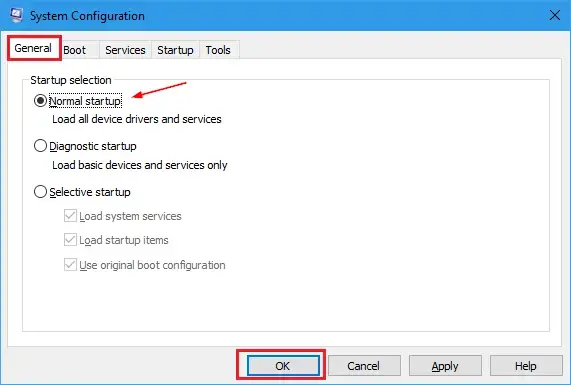
  • Open the Run window again and input misconfig.
  • Click Normal Startup and then choose OK button.
Activate-Selective-startup-mode
  • Reboot the system and apply the changes.

Method 5: Run File Doctor

  • Click on the Company File Issues within the QuickBooks Tool Hub.
Company-File-Issues-run-Quickbooks-file-docotor
  • Choose Run QuickBooks File Doctor.
  • In the File Doctor application, select your company file from the drop-down list.
  • If your file is not visible, utilize the Browse feature to locate it.
  • Select Check your file option and then select Continue.
  • Sign in to the QuickBooks application and click Next.

Method 6: Repair the Registry Entries

  • Open the Windows Start menu.
  • Type a command in the Run dialog box.
  • Press Ctrl + Shift + Enter to bring up the User Account Control prompt, which will request your admin password.
  • If you are the administrator, click Yes.
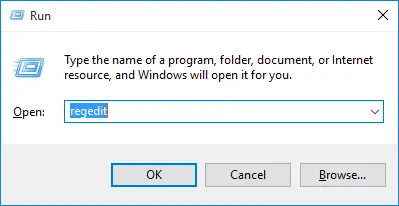
  • Type Regedit and press Enter in the prompt.
regedit-via-run
  • Look for any entry related to the QuickBooks error 1935 code in the Registry Editor.
  • Select File and choose Export.
  • Choose a convenient location to back up your company file and give it a name.
  • Select Selected branch in the Export range section.
  • Click Save to finish backing up the file with a .reg extension.

Note: If you experience registry access problems while installing or repairing QuickBooks, you may also encounter QuickBooks Error 1402. Check our detailed guide for additional solutions to QuickBooks registry-related installation issues.

Method 7: Turn Off the Antivirus

This programs are a common cause of QuickBooks Installation Error 1935. Disable antivirus and run the QuickBooks installer to remove this problem. It allows the setup to complete without issues.

  • Turn off the computer and restart the device to fix QuickBooks Error 1935.
  • Attempt to install QuickBooks again.
  • Move to the settings of the Antivirus and disable the software for some time.
  • Install the QuickBooks software after disabling the anti-spyware.
  • Activate the antivirus system once you have finished the installation process.

Data Service Team Tip: QuickBooks error 1935 may occur when there is an issue with the installation of an application. Contact our professional today for help!

Method 8: Create Windows Firewall Exceptions

You must create an exception for the QuickBooks application in your Windows antivirus settings:

  • Move to the Windows Start menu.
  • Type Windows Firewall into the search and select Windows Firewall.
  • Choose Advanced Settings option.
  • Right-click Inbound Rules.
  • Click on New Rules.
  • Choose Program and then Next.
  • Select This Program path and then Browse.

Locate and choose one of the executable files given under the table below.

  • After that, select Next.
  • Choose Allow the Connection.
  • Choose Next tab.
  • Ensure all profiles are marked when prompted.
  • Click on the Next option.
  • Create a rule and give it a name like QBFirewallException(name.exe)

The following table is provided to help with the exceptions when performing the instructions for outbound rules:

Executable FilesLocation
AutoBackupExe.exeC:\Program Files\Intuit\QUICKBOOKS YEAR
Dbmlsync.exeC:\Program Files\Intuit\QUICKBOOKS YEAR
DBManagerExe.exeC:\Program Files\Intuit\QUICKBOOKS YEAR
FileManagement.exeC:\Program Files\Intuit\QUICKBOOKS YEAR
FileMovementExe.exeC:\Program Files\Intuit\QUICKBOOKS YEAR
QuickBooksMessaging.exeC:\Program Files\Intuit\QUICKBOOKS YEAR
QBW32.exeC:\Program Files\Intuit\QUICKBOOKS YEAR
QBDBMgrN.exeC:\Program Files\Intuit\QUICKBOOKS YEAR
QBServerUtilityMgr.exeC:\Program Files\Common Files\Intuit\QuickBooks
QBCFMonitorService.exeC:\Program Files\Common Files\Intuit\QuickBooks
QBLaunch.exeC:\Program Files\Common Files\Intuit\QuickBooks
QBUpdate.exeC:\Program Files\Common Files\Intuit\QuickBooks\QBUpdate
IntuitSyncManager.exeC:\Program Files\Common Files\Intuit\Sync
OnlineBackup.exeC:\Program Files\QuickBooks Online Backup

Method 9: Reboot Your Computer

Step 1: Open the System Configuration Window

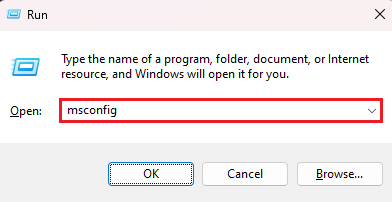
  • Press the Windows Key + R on your keyboard to open the Run dialog box.
  • Type msconfig into the field and click OK.
msconfig.webp
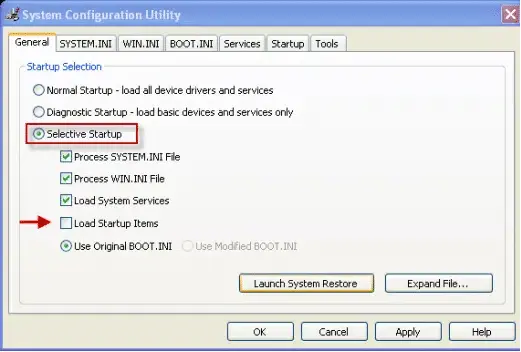
  • Navigate to the General tab in the System Configuration window that appears.
  • Select the radio button for Selective startup.
selective-startup
  • Ensure that Load system services is checked. (Note: Leave “Load startup items” unchecked).

Step 2: Protect Essential Windows Services

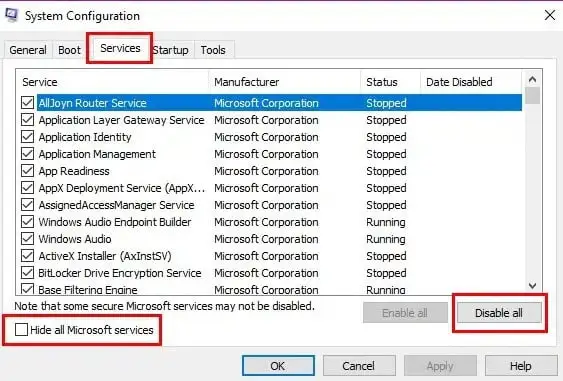
  • Go to the Services tab located at the top of the window.
  • Check the box with the option of Hide all Microsoft services.
Hide-all-Microsoft-services
  • Click the Disable all button.
  • Look through the remaining list and ensure that the Windows Installer checkbox is checked.
  • Click Apply and then click OK.

Step 3: Reboot Your Computer

  • A prompt will appear to restart the computer.
  • Click Restart.
  • Your computer will reboot into a clean state with minimal background software running.

Method 10: Run QuickBooks Component Repair Tool

QB’s component repair tools help to identify and resolve issues associated with Microsoft components. Use the repair tool by following these steps to address QuickBooks Install Error 1935:

  • Restart your computer before using the tool.
  • Close all active applications and download the QB component repair tools.
  • You can resolve the problem independently.
  • Reboot your computer again.

Important Note: If QuickBooks still does not install or launch properly after repairing the required components, you may experience another installation problem such as QuickBooks Error 1712. Follow the related guide for additional troubleshooting steps.

How to Prevent QuickBooks Desktop Installation Error 1935 in the Future?

This error is a system-level glitch that happens when the software fails to install essential components during setup. Here is what you need to know about causes and fixes of QuickBooks Error 1935:
  • The main trigger is a damaged or outdated Microsoft .NET Framework on your computer.
  • Third-party applications like antivirus programs can block background file registration.
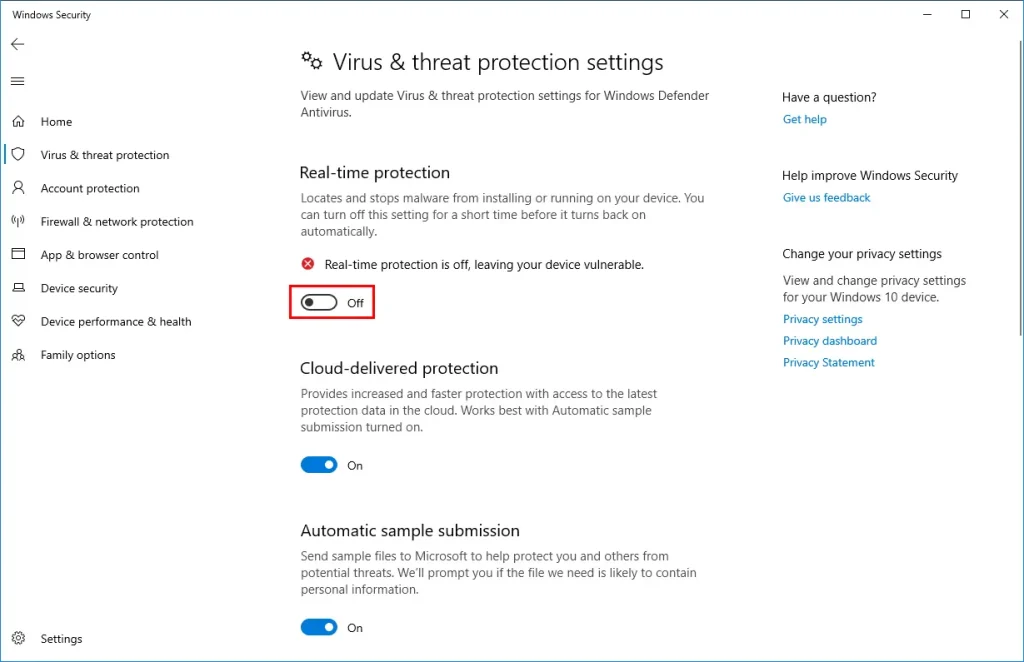
  • Restart your PC, run the setup in Selective Startup mode, and temporarily turn off your antivirus program.
Turn-off-Windows-Defender-in-Windows-10-real-time-protection-off
  • Open the Windows Control Panel and select Turn Windows features on or off. Toggle the .NET Framework off and back on to rebuild it.
  • Download the official Intuit QuickBooks Tool Hub. Then, trigger the QuickBooks Install Diagnostic Tool.
  • Keep your Windows Operating System fully updated to guarantee long-term compatibility with newer software versions.

Conclusion!

QuickBooks error 1935 is a common issue that can arise when there is an issue with the installation of the application. We hope that the above-discussed insights on this error clarify all your doubts and enable you to resolve this quickly. This detail has also outlined the causes and symptoms of QuickBooks Installation Error 1935 for your convenience. Along with, prevention tips are mentioned so you won’t face this error again and get the smooth experience with QuickBooks.

Have additional queries regarding Error 1935 in QuickBooks? No issue! Get in touch with Data Service Team experts at +1-(888)-718-7888 and fix this issue quickly with their guidance.

Frequently Asked Questions (FAQ’s)

Yes! This framework issue causes error 1935 during the installation. It blocks software updates or fresh installation when a core Windows component fails to configure.

Error 1935 happens during the installation process when Windows cannot initialize. QuickBooks Desktop Installation Error 1935 arises from corrupted system file or restricted registry permissions.

This error happens due to a damaged or malfunctioning Microsoft .NET Framework. Use the official QuickBooks Tool Hub diagnostic tool or repair your .NET Framework configurations through the Windows Control Panel. Also, execute a clean installation in Selective Startup mode to resolve QuickBooks error 1935.

QuickBooks error 1935 is a Windows system issue rather than a core QB bug. This error occurs when Windows cannot install necessary components, like the Microsoft .NET Framework, during installation.

No! This error does not affect or damage the company files. QuickBooks error 1935 is a load-required background component or a damaged Microsoft .NET Framework, as per Intuit Support. It is a failure of the software program files during installation and when your financial data remains isolated.

The error 1935 occurs when system cannot install Microsoft .NET Framework components required by the software due to conflicting system files. In contrast, QuickBooks error 1603 is a broader installation failure that happens when the installer lacks administrative permissions or faces locked files.

Both are common Windows installation failures. You are facing QuickBooks error 1935 if your installation crashes during the assembly phase due to missing or corrupted Microsoft .NET Framework components. You are dealing with QuickBooks error 1722 if your setup mechanism throws an RPC server unavailable warning. It is triggered by system data or active third-party antivirus software blocking the installation scripts.

Open the Command Prompt as an administrator and type DISM / Online / Cleanup-Image / RestoreHealth to fix the system image. Press Enter and type sfc / scan now to replace corrupted system files, then restart the PC before running the QuickBooks Tool Hub.


About The Author

Steven Moody

Steven Moody is a bookkeeping and payroll specialist dedicated to helping businesses maintain accurate financial records and efficient payroll operations. His expertise includes payroll management, tax compliance, bookkeeping solutions, and financial reporting. Steven regularly shares insights on accounting best practices and business finance strategies. Outside of work, he enjoys traveling, exploring new places, and keeping up with the latest developments in business technology.

Steven Moody

QuickBooks Error

QuickBooks Error 3371 Status Code 11104: How to Resolve It?

Read More
QuickBooks Error

QuickBooks Error 1402: Why It Happens and How to Fix It

Read More
QuickBooks Error

QuickBooks Error 12031: Why It Occurs and How to Resolve It

Read More
QuickBooks Error

QuickBooks Error 12029: Why It Happens and How to Fix It

Read More
QuickBooks Error

QuickBooks Error 12007: Why It Happens and How to Fix It

Read More