int(384)
string(19) "2026-10-26 19:25:54"
string(19) "2026-10-26 19:25:54"
Last updated on: Oct 26, 2026
Despite being an advanced accounting software, you must update QuickBooks Desktop frequently to ensure that you use the latest features and security patches that protect your crucial data from unnecessary damage, unexpected errors, or performance issues.
Failure to get the update the software can hamper the workflow in several ways, such as recurring errors, security vulnerabilities, and compatibility issues with your operating system.
In this guide, we will walk you through everything you need to know about updating QuickBooks Desktop on Windows and Mac, including step-by-step instructions, how to verify your current release, and how to troubleshoot common update issues for a smooth experience.
A QuickBooks update and upgrade are not the same. An update keeps your existing QuickBooks Desktop version current, while an upgrade moves you to a newer year or version of the software.
In short: If you want to keep your current QuickBooks version up to date, perform an update. If you want to move to a newer year version, you need to upgrade QuickBooks Desktop.
Updating QuickBooks Desktop is essential for maintaining reliable performance and ensuring your accounting data stays secure and accurate. Here are the key reasons why installing the latest updates is important:
Before you update QuickBooks Desktop, it’s a good idea to take a few simple precautions to keep your data safe and avoid any issues during installation.
These simple steps can help the update go smoothly and keep your company data safe.
In this section, we will explore how to update QuickBooks Desktop to the latest release on both Windows and Mac systems. You can choose to update your software either automatically or manually. Make sure to proceed accordingly:
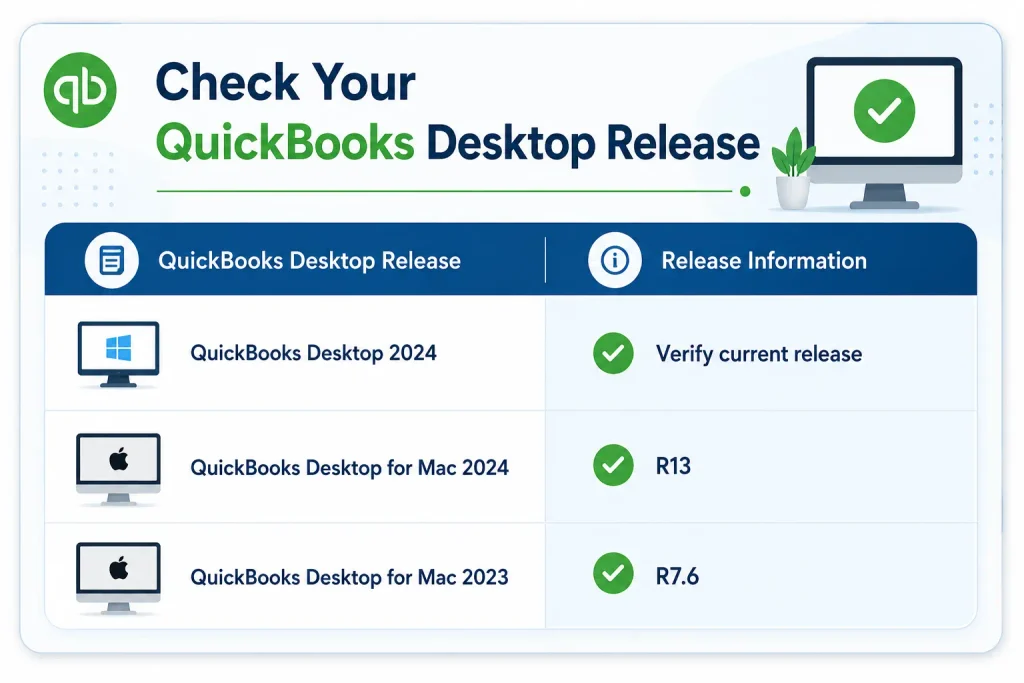
To maintain optimal performance, it’s important to keep your QuickBooks Desktop up to date with the latest release. Follow these steps to update QuickBooks Desktop 2024 to the latest version:
Check whether your QuickBooks Desktop is running the latest release:

You can either allow QuickBooks Desktop to download updates automatically or install them manually as needed.
Schedule automatic updates
Run an immediate update.
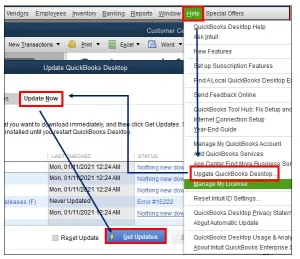
If updating QuickBooks Desktop from within the program is unsuccessful, you can manually install the latest update from Intuit’s website.
Note: If QuickBooks Desktop is installed in a multi-user environment, you may also need to update QuickBooks Database Server Manager on the server computer to keep the installed components compatible with the updated QuickBooks version.
To make sure you’re using the latest version of QuickBooks Desktop, follow the steps below to verify your current release and install any available updates:
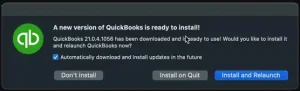
Tip: To have future updates installed automatically, turn on Automatically download and install updates in the future in the update window before proceeding.
If the update process within QuickBooks does not work or your release number remains unchanged, use the manual update method below:
Note: Payroll updates getting stuck? QuickBooks Error PS038 can prevent successful processing. Discover effective solutions to resolve the issue and keep payroll running accurately.
Follow the troubleshooting steps mentioned below to resolve the most common update-related issues such as QuickBooks error 15XXX, QuickBooks error 12XXX, and more:
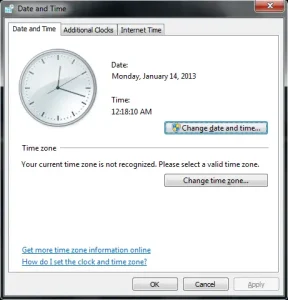
An incorrect date or time setting on your computer can prevent QuickBooks Desktop from updating properly. To verify and correct your system date and time:
Problems with your internet connection can sometimes prevent QuickBooks Desktop from downloading updates. To verify the connection, open a web browser and visit the Chase Bank website.
Keep the following in mind:
Internet security programs or firewall settings may sometimes block QuickBooks updates.
Check your firewall and internet security configuration to ensure they are not restricting access. Make sure that ports 80 and 443 are open, as these are required for updates to function properly. In addition, allow access to the necessary QuickBooks update files so the software can connect without interruption.
If those ports are already in use by other applications (which rarely happens), the QuickBooks Database Server automatically uses an alternate port, 56719, to stay connected.
The QuickBooks Tool Hub is a utility hub that allows you access to multiple tools and utilities to let you identify and resolve the common software issues.
For optimal performance, it is recommended to use Windows 11 (64-bit).
To confirm the installed version, go to the Home tab after opening the Tool Hub.
Use the QuickBooks Install Diagnostic Tool to identify and resolve common installation problems.
Make QuickBooks Work Smarter for Your Business
Spend less time managing data and more time growing your business. Whether you need help setting up QuickBooks, cleaning up your books, reconciling accounts, or resolving errors, our team is here to make accounting easier. Get quick solutions that save time, improve accuracy, and keep your business finances on track.
Finally, we have reached the end of this blog. With the information we have covered, you will have a clear understanding of the importance of updates, how to update QuickBooks Desktop on both Windows and Mac, and the key steps to troubleshoot common update issues to keep your software running smoothly and securely. If you need further assistance or get stuck at any step, we recommend consulting a QuickBooks professional. Dial +1(888)-718-7888 now!
To install the latest QuickBooks Desktop updates, go to the Help menu > Update QuickBooks Desktop. Go to the Update Now tab, select Reset Update to remove previous update files. Now, click on Get Updates to download the latest security improvements and software fixes.
A QuickBooks Desktop update refers to the continuous maintenance patches, security fixes, and feature enhancements released by Intuit throughout the year. Unlike a new annual version, these regular updates (often labeled as Release patches, like R1 or R2) are free improvements designed to keep your current software stable and secure.
Open your QuickBooks Desktop application and press the F2 key (or Ctrl + 1) on your keyboard to open the Product Information window. Look at the very top line for the Product field, which displays your current year and release version (for example, QuickBooks Desktop 2026 Release R3). You can compare this to Intuit’s official website to see if a newer patch is available.
Yes, QuickBooks Desktop can download the software updates automatically. These updates include security fixes, bug repairs, and new features. However, you will need to restart the software to install the updates.
Yes, updating QuickBooks Desktop is important to get the timely security patches and the new features. New updates fix errors, improve security, and add new features. QuickBooks can download these updates automatically, but you still need to confirm the installation when prompted to apply them.
If a QuickBooks Desktop update fails, restart your computer and try updating again. You can also run QuickBooks as an administrator, use the QuickBooks Tool Hub, or download the update manually from Intuit’s website to resolve update-related issues.
No, updating QuickBooks Desktop does not typically affect your company data. However, we recommend that you create a backup of your company file before updating.
No, downloading updates requires internet access. However, you can download the appropriate update installer on another computer and transfer it to your QuickBooks computer.
QuickBooks updates may freeze because of damaged installation files, security software interference, or network problems. Restart your computer and retry the update.
No, updates generally need to be installed on each computer running QuickBooks Desktop. In multi-user environments, update the server components and workstations as required.

Get Free Consultation for QuickBooks Upgrade
(2021, 2022, 2023)


