
Installing any financial software can feel troublesome, especially when you are dealing with important business data. Whether you are setting up your accounting system for the first time or moving to a newer version, getting the installation right from the start saves you time, prevents data corruption and avoids frustrating technical roadblocks.
In this detailed guidebook, we will walk you through every step to install QuickBooks Desktop. From download to setup, install QuickBooks Desktop, activate and troubleshoot common errors.
QuickBooks Desktop is a desktop-based accounting software developed by Intuit to assist small and medium-sized enterprises in keeping track of their financial activities. It is different from cloud-based accounting solutions, since it runs directly on your computer or local network. It gives you complete control over your data storage and security. Main features of QuickBooks Desktop include:
Install QuickBooks Desktop on your system requires eliminating any problems that may arise beforehand.
Make sure your computer meets or surpasses the minimum requirements for running the particular year version of QuickBooks Desktop. You would require:
Your Product Number and License Number can be found using these references. If the purchase was made via an actual package, these two numbers will appear on the holographic sticker on the package. Otherwise, these can be found in your confirmation email from Intuit.
Failure to update can result in installation problems. Make sure that your Windows operating system is up-to-date. QuickBooks runs on numerous applications built using the Windows Operating System, such as the .NET Framework and C++.
High-security third-party software can stop installer components from registering properly. Disable your antivirus software for some time.
After completing your system requirements, follow these guidelines for downloading and install QuickBooks Desktop software.
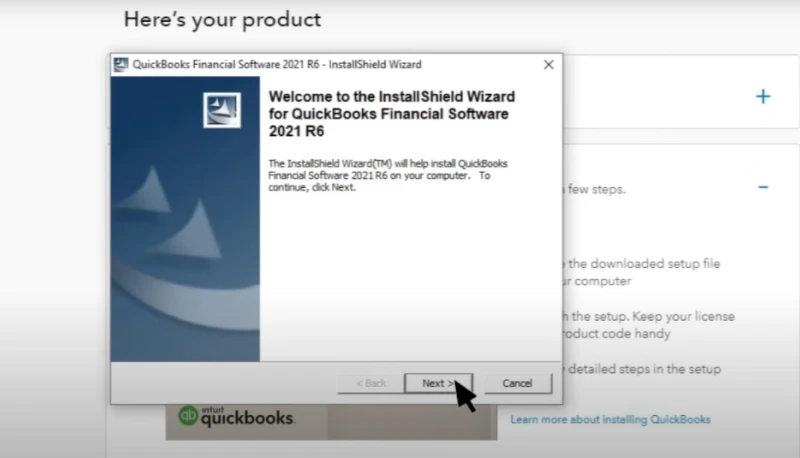
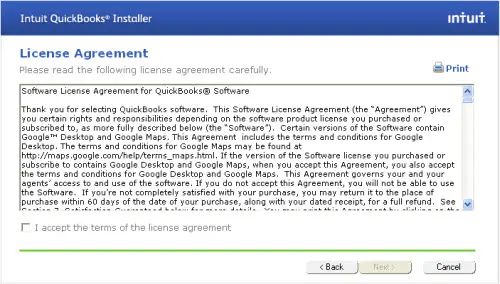
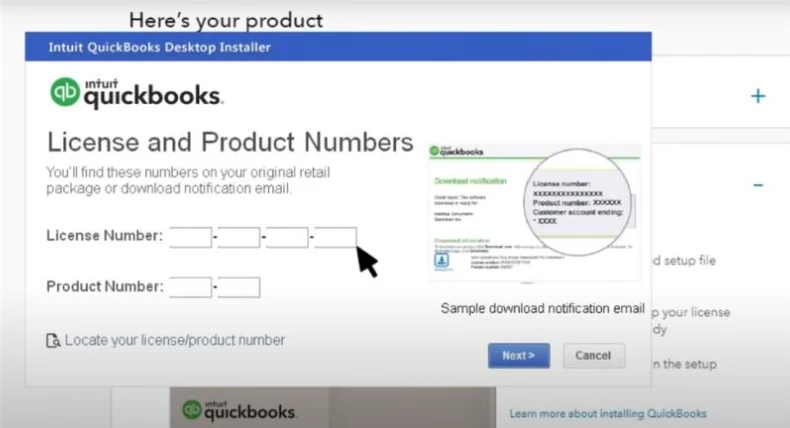
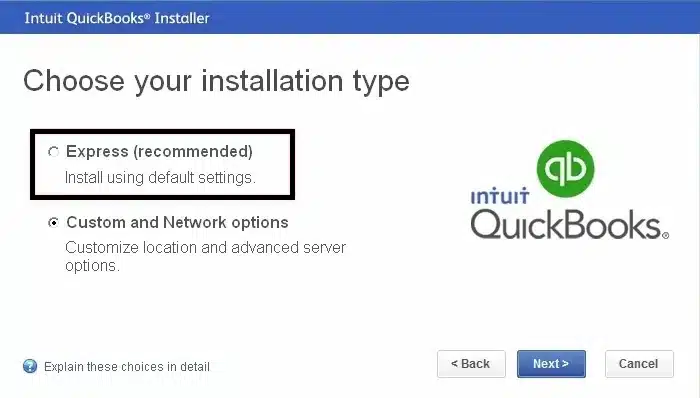
You will get two installation options:
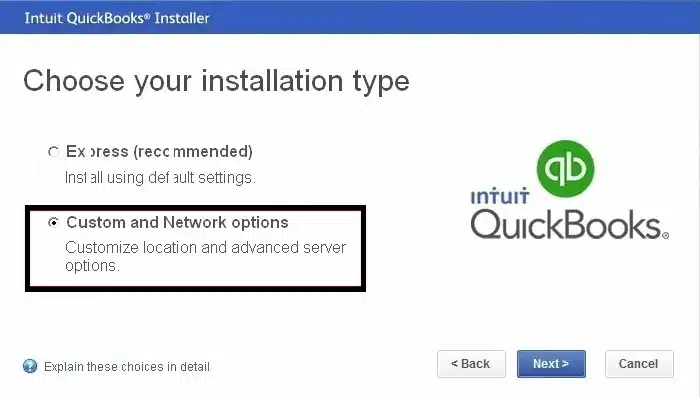
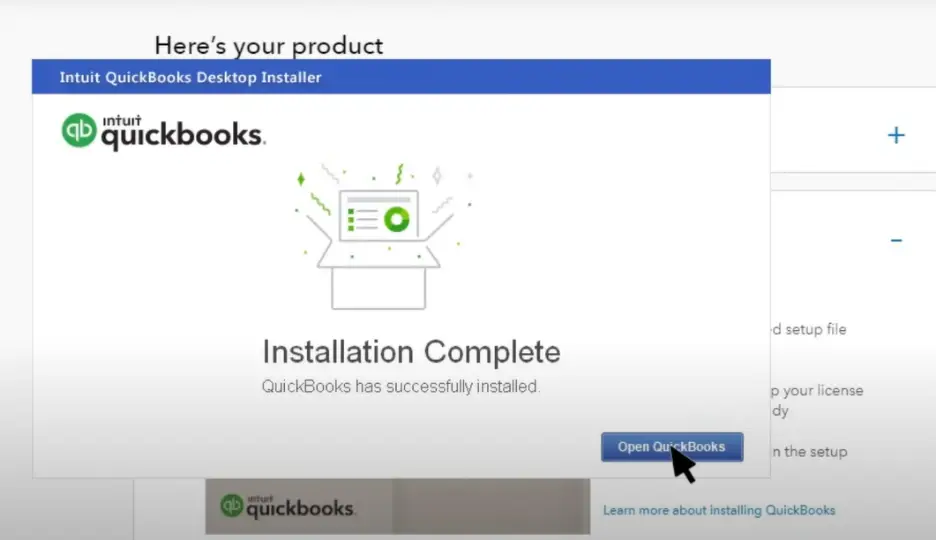
After the software launches for the first time, register, secure and configure your environment.
If you are a new user, follow the setup steps to create your company file:
Sometimes, QuickBooks Desktop may fail to install even after careful preparation. If you’re facing installation issues, read our guide on Can’t Install QuickBooks Desktop before trying the troubleshooting steps below.
Follow these steps to fix error messages and installation failures. If your installation freezes, rolls back, or throws specific error codes like Error 1603, Error 1935 or Microsoft .NET Framework errors, use the following remedies:
If installation problems continue, use the QuickBooks Clean Install Tool to remove damaged installation files before reinstalling the software.
Make QuickBooks Work Smarter for Your Business
Spend less time managing data and more time growing your business. Whether you need help setting up QuickBooks, cleaning up your books, reconciling accounts, or resolving errors, our team is here to make accounting easier. Get quick solutions that save time, improve accuracy, and keep your business finances on track.
Now that you know what you need to know to install QuickBooks Desktop, you can settle this, as it sets the foundation for smooth daily accounting operations. All you need is verification of the system requirements, closing conflicting background tasks and picking the right installation type. Keep the software updated and ensure your financial data remains secure and accessible.
Do you need any help with your QuickBooks Desktop installation or error codes? Contact the Data Service Team at +1(888)-718-7888. Our expert support team is here to help you get up and running the software smoothly.
Yes, but under certain conditions. A single standard QuickBooks Desktop license is meant for one user on one computer. Intuit allows this single user license on two computers as long as QuickBooks software is not used simultaneously on both of them. In case of necessity to use QuickBooks by several users simultaneously, you can buy a multi-user license package.
The most effortless method is using the Express Install. Download your setup file or insert your installation media. Run the file and agree to the license terms. Enter your Product and License numbers. Select Express Install. Click Install and follow the final prompts to open the application.
Before you begin, make sure you have License and Product Numbers, a System Requirements Check, Admin Rights and a proper Internet Connection.
Yes. Installing QuickBooks Desktop on a new computer has no impact on your existing Windows installation. You simply need to download the installer file onto the new machine, log in with your license info and then transfer/restore a backup copy of your company file (.qbw) via a flash drive, external hard drive or network transfer.
To reinstall after a hardware change download the installation file matching your exact QuickBooks version and year from the official Intuit downloads portal. Run the installer and enter the original License and Product numbers. Now, complete the installation and activation process via the internet. Last, restore your most recent financial data backup file that you saved prior to replacing your hard drive.
QuickBooks requires a validation code in order to prove that your software is genuine and is not being used on any computer other than what your software license permits. This request arises when you install QuickBooks for the first time, in case of a change in hardware like a motherboard or hard disk, or when software upgrades identify an issue with your registration information.
If you attempt to log in past your permitted user count, QuickBooks will block the additional login and display an error message showing that the maximum user limit has been reached. To overcome this error, either someone must log off from another workstation or you must purchase an additional user license upgrade through Intuit.
QuickBooks Pro is a standard installation geared toward small businesses. It defaults to single-user setup paths unless custom network configurations are manually selected. It supports up to 3 simultaneous users. QuickBooks Premier has a similar installation process to Pro, but includes industry-specific editions. Supports up to 5 simultaneous users. Talking about QuickBooks Enterprise, it is built for larger operations and heavier database volumes. Its installation depends totally on the QuickBooks Database Server Manager to handle advanced multi-user server-client environments smoothly. It scales up to 30 simultaneous users.
Yes, reinstalling QuickBooks Desktop generally does not delete company files stored separately. However, create a verified backup before uninstalling or reinstalling the software.
QuickBooks may request a validation code to verify your license or product registration. Check your license details and follow Intuit’s official activation instructions.
Compatibility depends on the QuickBooks edition and release. Check the official system requirements for your specific version before installing it on Windows 11.

Get Free Consultation for QuickBooks Upgrade
(2021, 2022, 2023)


