QuickBooks relies on a stable network connection to communicate with company files, database services, multi-user environments, and various Intuit online services. When security settings interfere with these communications, you might encounter connectivity issues, company file access problems, update failures, or multi-user mode errors. One of the most common reasons this happens is because Windows Firewall is blocking QuickBooks.
Windows Firewall is there to protect your system from unauthorized access. However, it can also identify QB processes as potential threats sometimes and restrict their network communication. While this helps keep your computer safe, it can prevent QBDT from functioning.
If you’re experiencing issues such as QuickBooks not connecting to the server, inability to switch to multi-user mode, update failures or database connectivity problems, you need to review and reconfigure your Windows Firewall is Blocking QuickBooks.
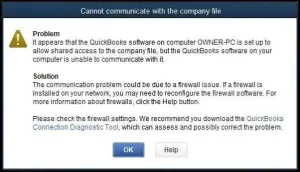
This comprehensive guide will discuss how Windows Firewall is Blocking QuickBooks and the ports QB requires. Moreover, we will also go through common errors associated with firewall restrictions and detailed steps to create firewall exceptions for QuickBooks programs. This will help you go on with your day-to-day bookkeeping operations without facing general interruptions.
When we say Windows Firewall is Blocking QuickBooks, we mean that it prevents specific QB services and executable files from utilizing ports. This doesn’t let them send or receive network data.
This also restricts the communication between the server and workstations. Take a look at some common background services QuickBooks Desktop depends on:
If these services cannot communicate through the Firewall, you can run into:
If you work in a multi-user or hosted environment, you utilize Windows Firewall all the time. Thus, you are more prone to numerous errors if you haven’t configured the Firewall in favor of QuickBooks.
However, Before following the steps below, quickly update QuickBooks Desktop and your Windows operating system to the latest version — this alone fixes many common issues.
The table below lists some common QuickBooks errors that you can face as a consequence of Windows Firewall is Blocking QuickBooks.
| QuickBooks Error | Description | Possible Firewall Involvement |
| H101 | Multi-user hosting issue | Firewall blocking server communication |
| H202 | Cannot access the company file on another computer | Database service ports are blocked |
| H303 | Multi-user mode setup problem | Firewall restricting workstation access |
| H505 | Hosting configuration issue | Network ports unavailable |
| 6000 Series Errors | Company file access errors | Firewall interrupting file communication |
| Error 6177 | Company file path issue | Network communication blocked |
| Error 6123 | Connection to the company file was lost | Firewall restrictions |
| Error 6189 | Company file access conflict | Server communication interrupted |
| Error 3371 | Licensing initialization failure | Activation service blocked |
| Payroll Update Errors | Payroll download failure | Internet access restricted |
| QuickBooks Update Errors | Desktop updates fail | Firewall blocking update servers |
| Database Server Manager Issues | Scanning or hosting failures | Required ports closed |
QB Desktop uses specific TCP ports for communication between workstations and servers. However, the exact ports that QBDT requires depend on the version.
QuickBooks Database Server Manager assigns a dynamic port to each version.
| QuickBooks Desktop 2024 | TCP 8019 Dynamic Port Assigned by Database Server Manager |
| QuickBooks Desktop 2023 | TCP 8019 Dynamic Database Port |
| QuickBooks Desktop 2022 | TCP 8019 Dynamic Database Port |
| QuickBooks Desktop 2021 | TCP 8019 Dynamic Database Port |
QuickBooks might also use the following depending on your setup:
It is recommended that you verify the active port directly in QuickBooks Database Server Manager, as port assignments can vary.
To restore QuickBooks connectivity, you need to create Firewall exceptions. Here is how you can create QuickBooks Firewall exceptions and configure inbound and outbound rules.
You can utilize QuickBooks Tool Hub to set up Windows Firewall automatically. However, for that, you will need the latest version of the Tool Hub.
Once done, follow the steps below to run QuickBooks File Doctor:


Allow the File Doctor to scan and repair your network settings. When it is done, check if you now face problems working in multi-user mode or carrying out various QB operations that involve the firewall.
However, if this doesn’t work, let us create Windows Firewall exceptions manually.
Before you go ahead and create Firewall rules, you need to identify active database ports.
Make sure to write down the port for use in later steps.
In case you have multiple QuickBooks versions installed on your computer, you should note down the assigned port for each one separately.
Let us create inbound rules to ensure incoming network traffic can reach QuickBooks services.
Do the same for all QuickBooks ports.
Now, we need to create outbound rules to allow QuickBooks to send data across the network.
From the Start menu, search for and open Windows Firewall and go to Advanced Settings.
Select Outbound Rules.
Click New Rule, then choose Port and click Next.
Select TCP. Enter the QuickBooks port numbers.
Click Next, followed by Allow the Connection.
Click Next. Now, Check Domain, Private, Public
Click Next. Enter a rule name such as QuickBooks Inbound Rule
Click Finish.
Do the same for all QuickBooks ports.
Note that you will need to create Firewall exceptions for all QB programs (the executable files listed above).
To begin with, follow the steps below to create an inbound rule for a QuickBooks executable file.
Now, for the same QB process, create an outbound rule as well in this manner:
Go ahead and create inbound and outbound rules in this manner for all the QuickBooks executable files.
Now, restart your computer for the changes to take effect. This will resolve the Windows Firewall is blocking QuickBooks issue.
If you operate in a multi-user environment, verify that Hosting Mode is enabled only on the server hosting the company file and disabled on all workstations.
Here are the various QuickBooks executable files you need to create Windows Firewall port exceptions for. QB uses these files in separate processes to perform specialized tasks.
When Windows Firewall is blocking QuickBooks processes, you need to create outbound and inbound rules to exempt them.
| Executable files | Location |
| DBManagerExe.exe | C:\Program Files\Intuit\QUICKBOOKS YEAR |
| Dbmlsync.exe | C:\Program Files\Intuit\QUICKBOOKS YEAR |
| AutoBackupExe.exe | C:\Program Files\Intuit\QUICKBOOKS YEAR |
| FileManagement.exe | C:\Program Files\Intuit\QUICKBOOKS YEAR |
| QBServerUtilityMgr.exe | C:\Program Files\Common Files\Intuit\QuickBooks |
| QBW32.exe | C:\Program Files\Intuit\QUICKBOOKS YEAR |
| FileMovementExe.exe | C:\Program Files\Intuit\QUICKBOOKS YEAR |
| QBDBMgrN.exe | C:\Program Files\Intuit\QUICKBOOKS YEAR |
| QuickBooksMessaging.exe | C:\Program Files\Intuit\QUICKBOOKS YEAR |
| QBUpdate.exe | C:\Program Files\Common Files\Intuit\QuickBooks\QBUpdate |
| IntuitSyncManager.exe | C:\Program Files\Common Files\Intuit\Sync |
| QBCFMonitorService.exe | C:\Program Files\Common Files\Intuit\QuickBooks |
| QBLaunch.exe | C:\Program Files\Common Files\Intuit\QuickBooks |
| OnlineBackup.exe | C:\Program Files\QuickBooks Online Backup |
It is not uncommon to find that the Windows Firewall is blocking QuickBooks. You can face several issues with your day-to-day operations owing to this. The above article walks you through the exact steps on how to create Windows Firewall port exceptions for QuickBooks. Once you are done creating the inbound and outbound rules, restart your computer and resume your QB operations. However, if you face a problem or have a query, connect with the Data Service Team at +1(888)-718-7888! We also provide QuickBooks Data Migration Service
To prevent Windows Firewall from blocking QuickBooks, you need to create port exceptions for QB. This involves you assigning inbound and outbound rules for QB services. You can also run QuickBooks File Doctor from the Tool Hub to repair company file and network issues. This can automatically configure the Firewall.
QuickBooks might not open because of stuck background processes, corrupt temporary files, or expired subscriptions. It can also be because the Windows user you are logged in as lacks the required Windows permissions.
To turn off the firewall, go to Settings on your computer. Navigate to PC’s Windows Security Settings, choose Firewall and network protection. Now, choose the active network profile and toggle the switch off for Microsoft Defender Firewall.