QuickBooks Error 1336 is a Windows Installer error that occurs when Windows cannot create a temporary file required to complete the installation. The error message may identify the folder where Windows encountered the problem and display an additional system error code. If you are also experiencing difficulties installing the software, check our guide on Can’t Install QuickBooks Desktop for additional troubleshooting steps. It can interrupt QuickBooks Desktop installation and prevent the setup from completing successfully.
Possible contributing factors include restricted access to the temporary folder, insufficient permissions, security software interference, or problems with the Windows environment. Identifying the affected folder and investigating the accompanying system error code can help determine the appropriate solution.
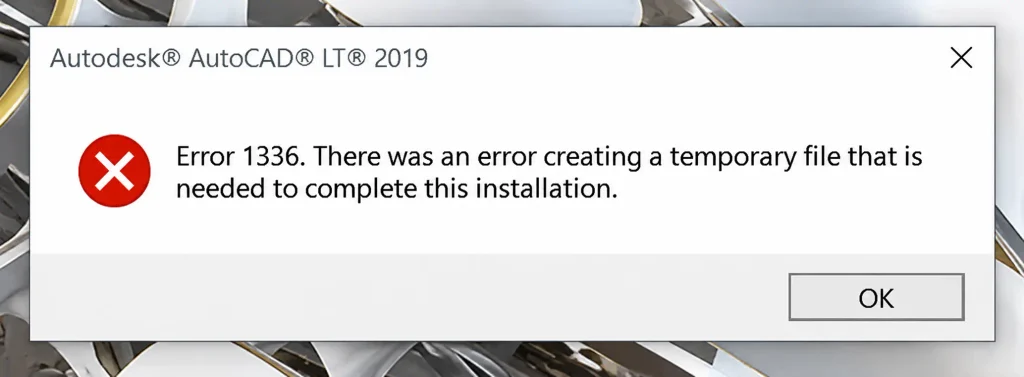
This detailed guide will explain the common causes/ symptoms/ and effective troubleshooting methods to help you resolve QuickBooks Desktop installation error 1336.
It is an installation error that occurs when Windows encounters problems accessing/ creating/ or extracting the files required to install QuickBooks Desktop. Corrupted system files can provoke the QB error code 1336. It may appear due to corrupted installation files/ insufficient folder permissions/ temporary file issues/ or problems with the Windows Installer service.
The QuickBooks installation process may stop unexpectedly, and you will be unable to complete the setup when this error occurs. Resolving the underlying installation/ permission issue can help you install QuickBooks Desktop successfully.
This error may occur when Windows encounters difficulties accessing/ processing the files required for installation. The following are possible reasons:
Note: These are potential installation-related causes, not an official Intuit-confirmed list specific to QuickBooks Error 1336.
When error 1336 occurs in QuickBooks, users may experience the following problems throughout the installation process:
Before fixing the error, make sure your computer and installation files are ready. These checks can help prevent additional installation problems.
Consider several troubleshooting methods to resolve installation issues with QuickBooks Desktop. Here are the simple methods to resolve QuickBooks error 1336:
Running the installer with administrator privileges can help prevent permission-related installation problems.
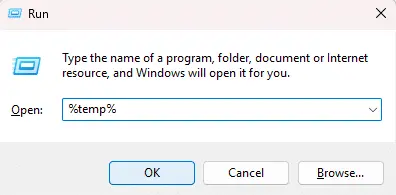
Incorrect permissions for the Windows TEMP folder can prevent the installer from creating required temporary files.
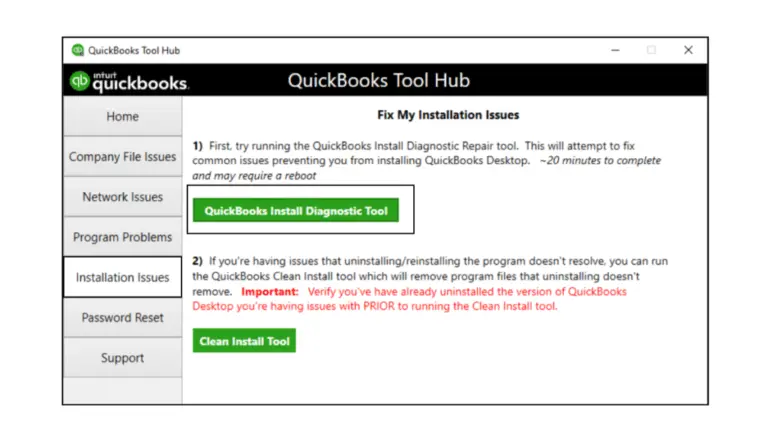
The QuickBooks Install Diagnostic Tool helps identify and repair common installation problems.
A Windows user profile with restricted permissions may prevent QuickBooks from completing installation.
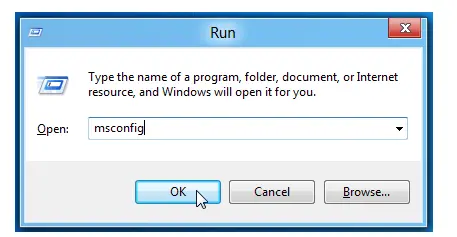
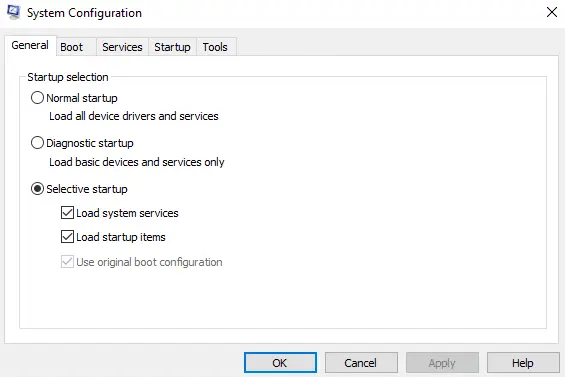
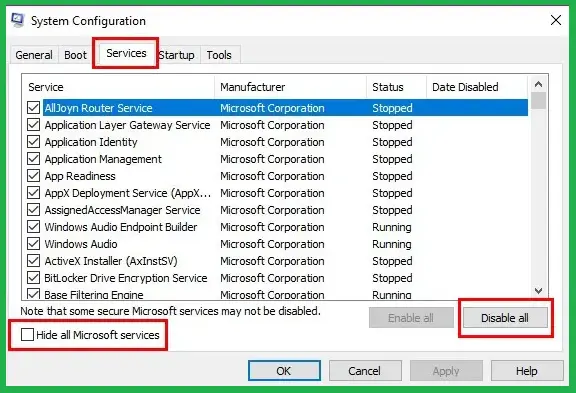
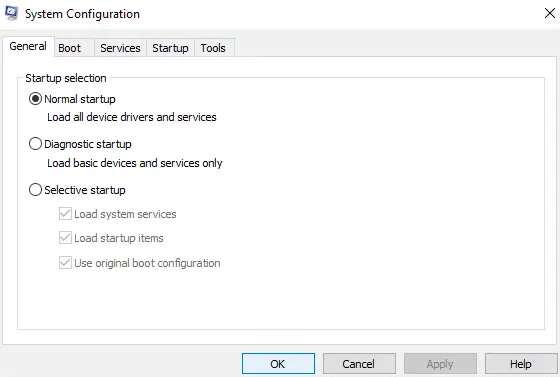
Selective Startup helps determine whether background applications/ services are interfering with QuickBooks installation. Sometimes, security software or firewall restrictions can interfere with QuickBooks installation and updates. Read our guide on Windows Firewall is Blocking QuickBooks to learn how firewall settings can affect QuickBooks connectivity.
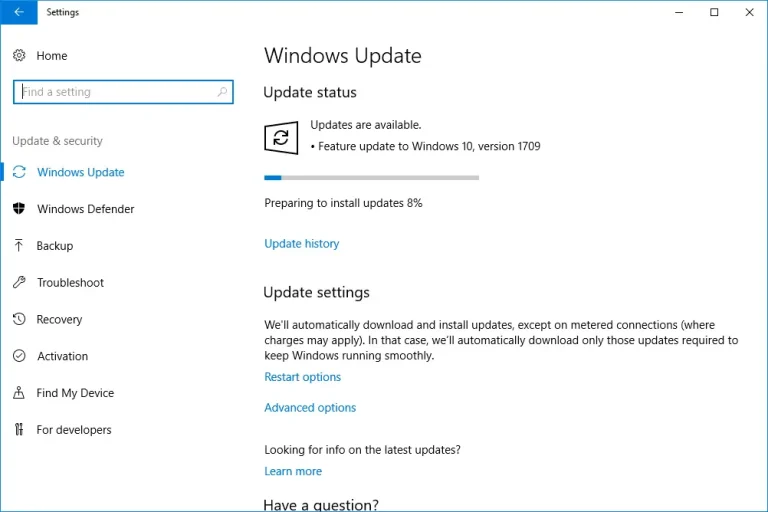
If Windows Installer components are damaged, QuickBooks installation may fail. It is better to seek assistance from Data Service Team experts when the underlying Microsoft component needs repair.
Note: Do not delete/ change Windows Installer system files manually. This can cause additional installation problems.
The SFC scan can help resolve QuickBooks Error 1336 if the error is caused by missing/ corrupted Windows system files that block the installation/ update process.
Note: Use SFC as an additional troubleshooting step if you suspect Windows system file corruption.
All these errors are associated with installation-related problems, but each indicates a different issue.
| Error Code | Meaning | Common Issue |
| Error 1336 | Windows cannot create a temporary file needed to complete installation. | Temporary folder access or file permission problems. |
| Error 1335 | The required cabinet file is corrupt or cannot be used. | Missing or damaged installation files or .NET Framework issues. |
| Error 1334 | A required file cannot be found in the installation cabinet file. | Missing, damaged, or unreadable cabinet files. |
Note: Intuit specifically documents Error 1334 as involving missing or damaged installation files or .NET Framework problems. The descriptions of Errors 1336 and 1335 above are general Windows Installer explanations, not confirmed diagnoses for every occurrence.
QB Error 1336 is an installation issue and does not indicate damage to your company file. Here are the key points:
Remember, Error 1336 does not imply company file corruption or loss, and maintaining a recent backup is wise.
Follow these simple precautions to reduce the chances of encountering QuickBooks Error 1336 temporary file during future installations/ updates:
QuickBooks Error 1336 can interrupt the installation process and prevent you from using QuickBooks Desktop. This error occurs due to corrupted installation files/ incorrect Windows permissions/ temporary folder issues/ or problems with Windows Installer. To resolve it, check your folder permissions/ clear temporary files/ and run the installer as an administrator. If the problem continues, download a fresh installation file/ perform a clean installation of QuickBooks Desktop. Create a backup of your company file to protect your financial data and avoid unexpected data loss when making major changes.
Still struggling with QuickBooks Error 1336 Windows Installer? Let our Data Service Team experts handle the technical troubles and help you get QuickBooks Desktop back on track. Call +1(888)-718-7888 to connect with an expert and get assistance with resolving your QuickBooks installation issues.
This error can occur during installation when Windows encounters problems accessing/ extracting the required installation files. Common causes include corrupted installation files/ insufficient user permissions/ or damaged Windows Installer components. These issues can prevent QuickBooks Desktop from completing the installation successfully.
Yes! Incorrect Windows permissions can cause error 1336 by preventing the installer from accessing/ modifying/ or extracting required files and folders. Insufficient administrator privileges/ restricted folder access may interrupt the installation process and trigger this error.
Restart your computer/ run the QuickBooks installer as an administrator/ and check that you have sufficient Windows folder permissions. Download a fresh QuickBooks installation file from Intuit/ temporarily check whether your security software is blocking the installation. Use QuickBooks Tool Hub to repair installation issues.
Press Windows + R/ type `%TEMP%`/ and press Enter to fix the temporary file creation problem in error 1336. Delete unnecessary temporary files and skip any files currently in use. Verify that your Windows account has permission to access the TEMP folder/ restart your computer/ and run the QuickBooks installer as an administrator.
All these are installation errors but they indicate different problems. Error 1336 relates to temporary file creation/ folder access issues. Error 1334 occurs when Windows Installer cannot access/ process a required installation file. Error 1335 indicates that a required cabinet file is missing/ damaged/ or unreadable. All three errors can interrupt the QuickBooks Desktop installation process.
This error does not cause data loss/ damage the company file because it is primarily an installation-related error. However, an interrupted installation/ improper troubleshooting may affect QuickBooks program files. Your company data is stored separately. But it is always recommended to create a backup of your company file to repair/ reinstall QuickBooks Desktop.

Get Free Consultation for QuickBooks Upgrade
(2021, 2022, 2023)