Have you ever tried opening QuickBooks Desktop and suddenly received a message saying “This action requires Windows administrator permissions”? This can be frustrating, especially when you need immediate access to your company file or want to complete important accounting tasks without interruptions.
The QuickBooks Administrator Permission Needed Error appears when Windows blocks QuickBooks from accessing the files, folders, or system settings it needs to work properly. This can happen because of limited user access, incorrect folder permissions, damaged program files, or security settings that restrict QuickBooks operations.
In this guide, we will explain the reasons behind the QuickBooks Administrator Permission Needed Issue, the common signs that indicate this problem, and step-by-step troubleshooting methods to open QuickBooks successfully.
The QuickBooks Administrator Permission Needed issue comes when QuickBooks does not have enough Windows privileges to complete a specific task. Windows protects certain files, folders, and system settings by limiting access, and QuickBooks may require elevated permissions to perform actions like opening company files, installing updates, or running certain tools.
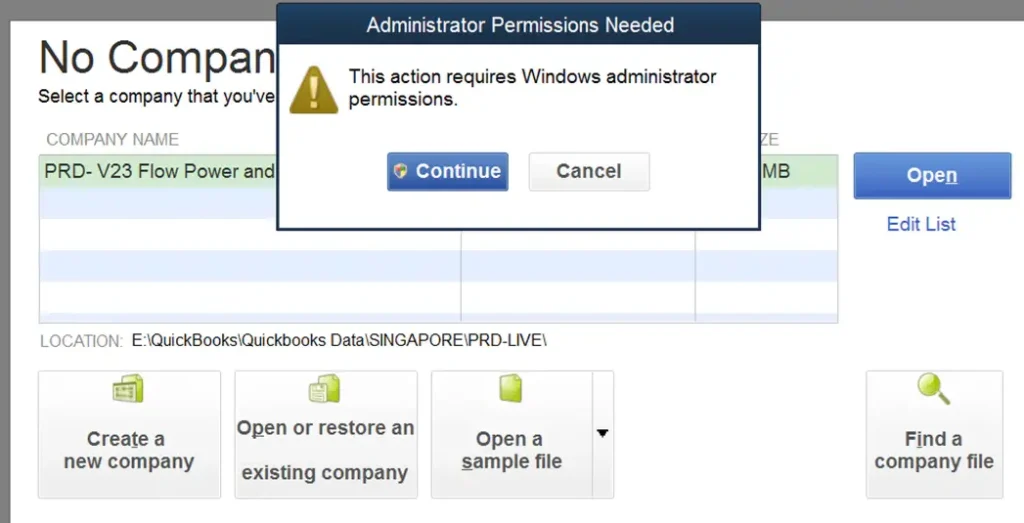
When this issue occurs, users may see a message like “This action requires Windows administrator permissions” while trying to open or use QuickBooks Desktop. Although you may have administrator access inside QuickBooks, it does not always mean that the Windows operating system has granted the program the required permissions.
The QuickBooks administrator permission needed problem usually occurs when Windows prevents QuickBooks from accessing certain files, folders, or system resources required for normal operation. Some common reasons behind this error:
Some QuickBooks features need higher level access to work correctly. When QuickBooks starts without administrator rights, Windows can block those actions and display a permission related message.
If you are logged into Windows using a standard user account instead of an administrator account, QuickBooks may not have enough permission to make necessary changes or access protected locations.
QuickBooks requires proper access to folders where company files, configuration files, and program data are stored. Incorrect folder permissions can prevent the software from opening files or completing certain operations.
If QuickBooks program files become corrupted due to an incomplete installation, interrupted update, or unexpected system shutdown, Windows may fail to recognize the application correctly.
Windows User Account Control (UAC) is created to prevent unauthorized changes to your system. However, if the UAC settings are configured too strictly, they may block QuickBooks from executing actions that require elevated privileges.
Overprotective antivirus software or Windows Defender may mistakenly identify QuickBooks processes as suspicious and block them from accessing essential files or system resources. When this happens, QuickBooks may fail to start correctly or display an QuickBooks administrator permission needed error while opening company files.
If your QuickBooks company file is stored on a network drive, shared folder, or external storage device, Windows must allow QuickBooks to access that location. Missing read/write permissions or restricted network sharing settings can prevent the software from opening the file successfully.
Getting the Unable to run QuickBooks Administrator Permission Needed issue while opening the software can be confusing, especially when you already have administrator access on your Windows system.
Before making any major changes to your system, it’s always better to start with simple troubleshooting steps:
This method is especially helpful if you recently updated Windows, installed QuickBooks again, or started seeing the error suddenly.
Here’s how to run QuickBooks as an administrator:
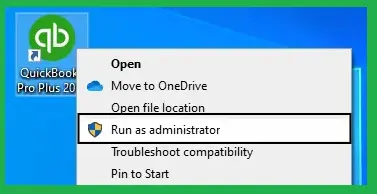
If your QuickBooks works normally after this change, you can save time by setting it to always run with administrator rights. Make QuickBooks Always Run as Administrator:
A common reason behind the Error Windows Administrator Required when Opening QuickBooks message is that the current Windows account does not have enough privileges. To check your Windows account type:
If Windows shows your account as a standard user, switch to an administrator account or contact your system administrator to update the permissions.
QuickBooks needs access to specific folders where it stores company files, program data, and configuration information. When Windows blocks access to these locations, QuickBooks may fail to open or perform certain tasks. To update folder permissions:
Once the permissions are updated, restart QuickBooks and try opening your company file again.
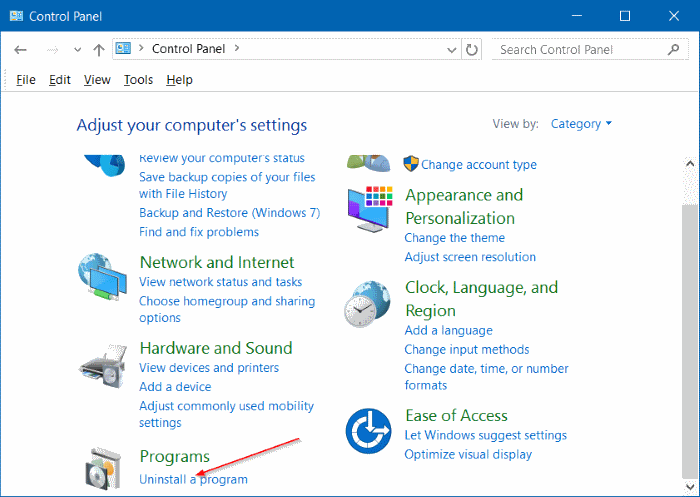
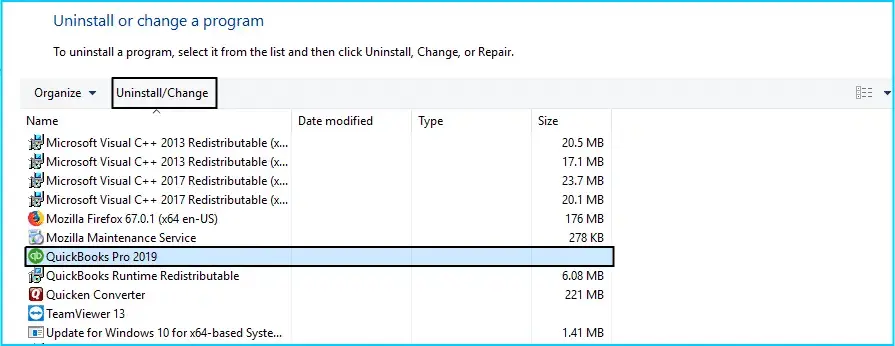
If running QuickBooks as an administrator and updating folder permissions doesn’t solve the issue, the problem may lie within the QuickBooks installation itself. Repairing the installation is a safe option because it fixes program-related issues without affecting your company data.
Follow these steps to repair QuickBooks Desktop:
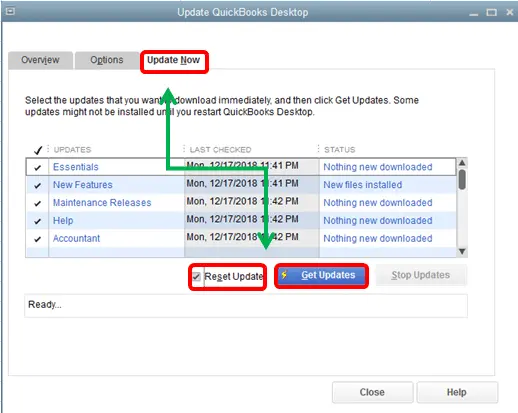
An outdated version of QuickBooks may not work properly after Windows updates or recent security changes. Installing the latest QuickBooks updates can resolve compatibility issues. To update QuickBooks:
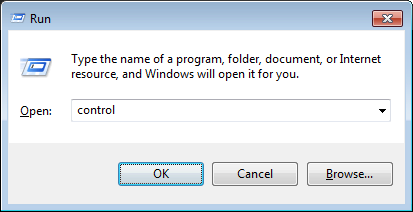
User Account Control (UAC) is a built-in Windows security feature that limits applications from making system-level changes without approval. If the UAC level is set too high, it may stop QuickBooks from performing certain operations. To temporarily modify the UAC settings, follow these steps:
Note: If lowering the UAC setting fixes the problem, you can continue using that setting or restore it later after completing the required task.
Sometimes antivirus software mistakenly blocks QuickBooks processes, especially after a Windows update or a QuickBooks upgrade. This can trigger the QuickBooks Administrator Permission Needed Error. To check whether your security software is causing the issue:
If your company file is stored on another computer, a shared folder, or an external drive, Windows must allow QuickBooks to access that location. To verify folder permissions:
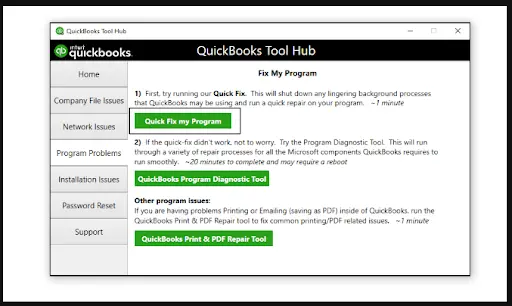
QuickBooks Tool Hub is designed to fix many common desktop issues, including problems related to damaged program files and startup errors. To use QuickBooks Tool Hub:
By following these prevention tips you can run your QuickBooks smoothly and minimize the QuickBooks Administrator Permission Needed Issue in the future.
Intuit regularly releases updates that include bug fixes, performance improvements, and compatibility enhancements. Installing the latest QuickBooks updates helps prevent errors caused by outdated program files.
Your Windows updates also contain important security patches and system improvements that help your QuickBooks software function correctly.
You can sign in using a Windows account with administrator rights, especially when you are installing the QuickBooks, updating the software, or making changes to company files.
If your files are stored on a shared network or external drive, make sure the all users have both read and write permissions.
Add the QuickBooks to your antivirus or Windows Defender exclusion list, this can help you prevent unexpected permission conflicts without compromising your system security.
By following these preventive practices, you can reduce the chance of encountering QuickBooks Windows Administrator Permission Issues and keep your QuickBooks Desktop running efficiently with fewer interruptions.
The QuickBooks Administrator Permission Needed Error normally comes when Windows restricts QuickBooks from accessing required files. Running QuickBooks as an administrator, checking user permissions, updating the software, and repairing damaged files can help resolve the issue.
Keeping QuickBooks and Windows updated, maintaining proper folder permissions, and creating regular backups can prevent similar problems in the future. By following the solutions above, you can restore QuickBooks access and continue your accounting work without interruptions.
QuickBooks can not open without Administrator permissions when Windows blocks the software from accessing certain files, folders, or system resources. Users may face this problem due to limited user account access, incorrect folder permissions, security settings, or damaged QuickBooks program files.
The quickest solution is to close QuickBooks, right-click the QuickBooks icon, and select Run as Administrator. If this fixes the issue, you can set QuickBooks to always run with administrator rights from the program properties.
The most common causes are running QuickBooks without administrator rights, using a standard Windows user account, incorrect company file folder permissions, outdated QuickBooks versions, damaged installation files, and antivirus programs blocking the QuickBooks processes.
If QuickBooks continues to show the administrator permission message, try repairing the QuickBooks installation, running QuickBooks Tool Hub, checking Windows folder permissions, or reinstalling QuickBooks using the Clean Install Tool.
Before changing Windows permissions, you should create a backup of your QuickBooks company file and make sure you understand which folders or settings you are modifying.
Start by running QuickBooks as an administrator and confirming that your Windows account has admin access. If that doesn’t work, update QuickBooks, check company file folder permissions, temporarily review antivirus settings, and repair the QuickBooks installation if needed.

Get Free Consultation for QuickBooks Upgrade
(2021, 2022, 2023)


