
Not being able to locate or open your QuickBooks company file doesn’t always mean the file is lost, but it does indicate that QuickBooks is unable to access it at its current location, which can put your data at risk if not resolved quickly.
Whether you’re working on a local system or in a multi-user network, you may encounter the QuickBooks company file not found error when trying to open your company file. This usually appears with a warning that the file cannot be located or accessed.
This error can occur due to issues like network problems, changes in file location or format, or permission restrictions. In this guide, we’ll look at what the error means, why it happens, and how to fix it step by step depending on whether you are hosting the company file or not.
In QuickBooks Desktop, the “QuickBooks Company File Not Found” error appears when the software is unable to locate or open your company file (.QBW). This typically happens when the file has been moved, renamed, deleted, or stored in a different folder than QuickBooks expects. You may see a warning message such as:
Warning: “The company file you selected could not be found. You can try one of the following: Choose the ‘Open or Restore Company…’ command from the ‘File’ menu to look for this file in a different directory.” OR
“Use the ‘Search’ tool from the Windows Start Menu to locate it on your computer.”
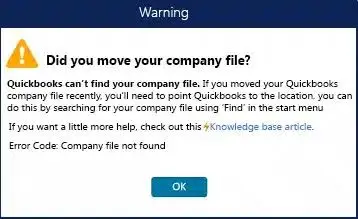
To resolve it, you may need to manually locate the file, restore it from a backup, or correct the file path so QuickBooks can properly access and open the company file.
You may find a missing company file simply because it’s not added in the search results, or if the network connection is hampered. Here’s a list of all the possible reasons why QuickBooks company file not found:
You may notice or encounter the QuickBooks company file not found error when opening a company file over the network or locally on your computer. Below, we will discuss both cases and the corresponding troubleshooting solutions.
Proceed with the methods depending on how you are opening the data file:
If you’re collaborating with your team on a multi-user network, follow the steps below to recover or repair the company file not found in QuickBooks Desktop.
With these steps, you can verify that your computer has a good network connection on the cloud. Make sure to run this check on a client workstation to verify the connection:
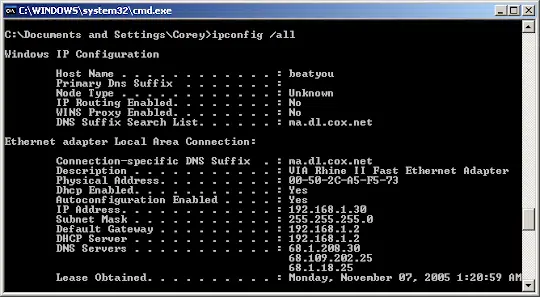

If the network connection is working properly but the problem persists, continue with Solution 2.
On your server computer, use the search bar to perform a wildcard search for all company files by entering one of the following search terms.
Note: Make sure to place an asterisk (*) before the file extension so the search includes all matching company files.
If you find the company file, note its location and continue to Solution 3. If the file doesn’t appear in the search results, consider contacting an IT professional to help locate and restore it.
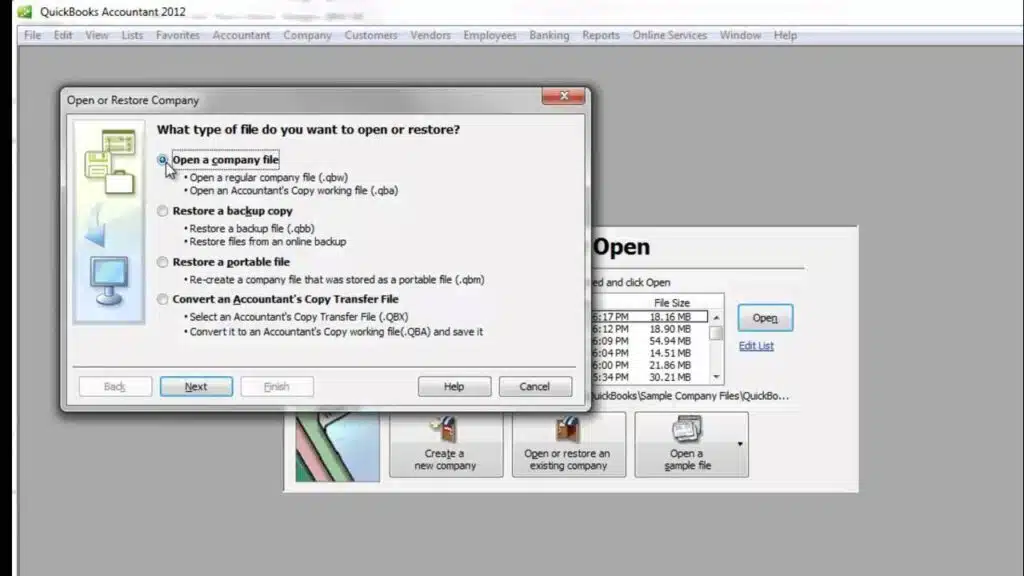
Open your company file using the appropriate option for your QuickBooks file type.
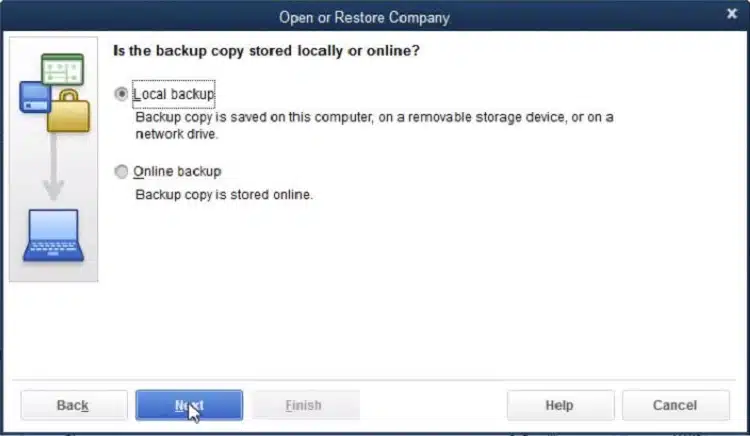
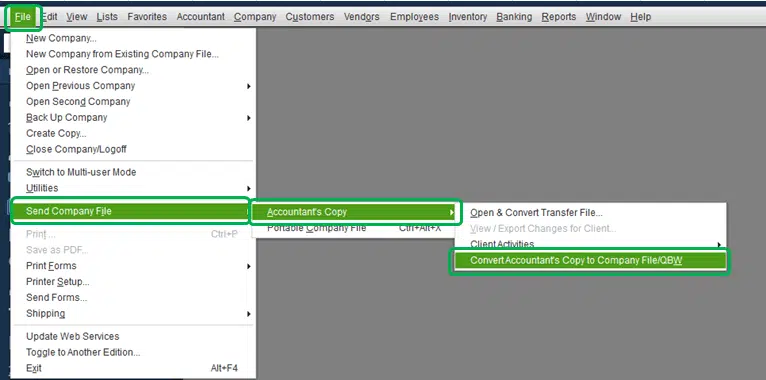
Are you getting the error message QuickBooks ‘the company file could not be found’ when accessing a company file on the local computer?
Following the methods below will help you locate and open your company file that is missing or cannot be found with each step:
Go to your server computer and use the search bar to look for all QuickBooks company files using a wildcard search. Type any of the following:
Note: Make sure to include the asterisk (*) before the extension so the search picks up all related files.
Once you find the file, note its location and move on to Solution 2.
If you can’t find it, it’s best to get help from an IT professional to locate it.
Try opening your company file manually depending on the file type:
QuickBooks company file not found is a common issue that can interrupt your access to important business data and prevent you from opening your company file. Above, we discussed the key reasons behind this error, including missing or moved files, network issues, and file path or permission-related problems.
In case the methods didn’t work, or you require professional assistance, you must consult QuickBooks Data Service Team. Dial +1(888)-718-7888 to talk to experts right away!
Yes, the QuickBooks Database Server Manager directly affects your company files by allowing multiple users to access and work in them simultaneously over a network. It acts as the background host, managing the data traffic so different workstations can open the same file without data corruption.
To resolve the error, first try locating the file manually via the Windows Start Menu or use the built-in QuickBooks File Doctor tool to repair path and connection issues.
The QuickBooks company files use the .qbw file extension. This is the primary format used by QuickBooks Desktop to store your main account information, lists, and business data.
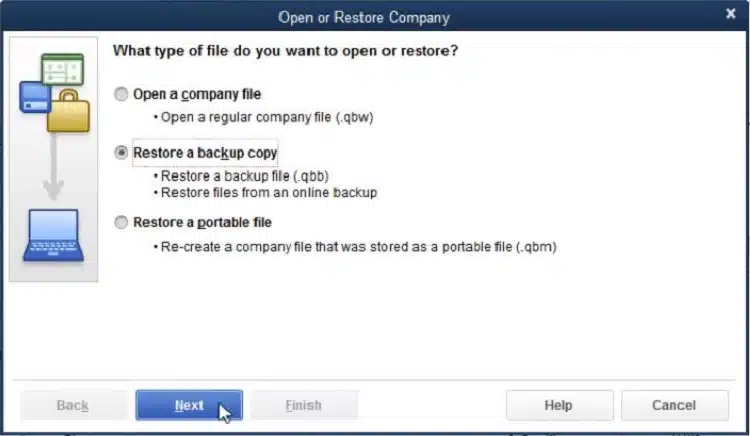
To restore a QuickBooks Desktop backup file, open the program, go to the File menu, and select Open or Restore Company. Choose Restore a backup copy, select Local Backup, and browse your computer to locate your .qbb file. Save it to your desired folder to complete the restore.
QuickBooks company files become inaccessible in multi-user mode most frequently due to incorrect hosting settings, firewall blocks, corrupted network files, or improper Windows folder permissions.
A .ND (Network Data) file in QuickBooks Desktop is a small, 1 KB configuration file that allows the software to access your company file in a multi-user or network environment.