QuickBooks-Error-6000-80

Have you encountered QuickBooks Error 6000 80 when you need to open the company file? It occurs due to damaged Network Data (.ND), Transaction Log (.TLG) files, firewall blocks, or multi-user hosting conflicts. This error does not allow QuickBooks to access the company file and may interrupt regular financial tasks. It is part of the QuickBooks Error 6000 Series and happens when QuickBooks encounters difficulties connecting to the company file. QuickBooks Error 6000 80 requires examining the cause to choose an appropriate troubleshooting method and avoid unnecessary disruptions.
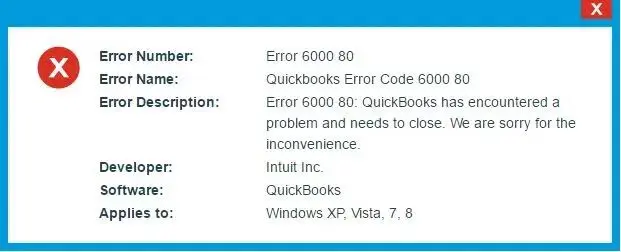
quickbooks-error-6000-80

In this guide, we will explain what QuickBooks Error 6000 80 means, its common causes and symptoms, and practical troubleshooting methods you can follow.

Factors that Can Cause QuickBooks Error 6000 80 Opening the Company File

This error usually indicates that one / more client computers are incorrectly set up to host multi-user access. Here are the six primary causes:

  • Corruption of the main (.QBW) / transaction log file (.TLG) due to power outages.
  • Your file might be in too many folders and exceed the file system path limitation.
  • Misconfiguration leads to multiple workstations trying to host the file instead of just the host server, which can cause QuickBooks Multi-User Mode Not Working issues.
  • Damaged files required for multi-user access, like Network Descriptor (.ND) and transaction log files.
  • Lack of read/write permissions for the folder containing the company file.
  • Security software blocking QuickBooks communication. such as when Windows Firewall is Blocking QuickBooks.
  • Weak connections disrupt communication between host and clients.

Signs & Symptoms For QuickBooks Error 6000 80

The error message shows that there is an issue with the network or file corruption. Error 6000 80 in QuickBooks happens due to file corruption or network communication failures. Common symptoms include:

  • Failure to open company files and preventing access to the main .QBW file.
  • Application freezing when logging in / selecting a file.
  • Issues when accessing shared files in a multi-user network.
  • Extremely slow loading times before the error appears.
  • Unexpected error dialogs when trying to launch the app / switch user modes.
  • Problems with backup or restore tasks trigger the error instead of completing the process.

Implementations Before You Fix QuickBooks Error 6000 80

The error occurs when QuickBooks fails to connect to a company file located on the network. Follow these steps for a smooth repair to address QuickBooks Error 6000 80:

  • Back Up Your Company File – Create a manual backup (.QBW or .QBB) to prevent data loss.
  • Log in as Administrator – Use a Windows account with admin rights for needed changes.
  • Install QuickBooks Tool Hub – Download the latest version from Intuit to access useful tools.
  • Check Permissions – Ensure you and the QBDataServiceUser have full access to the folder with the company files.
  • Update QuickBooks Desktop – Run updates to fix compatibility issues that might block file access.
  • Configure Multi-user Settings – Keep hosting enabled on the main server and disable it on other workstations.

Common Error Messages You May Encounter

QuickBooks does not consistently phrase this error in the same manner, and various versions present the dialog box with slight differences. You might encounter it expressed differently, and all indicate the same fundamental issue discussed in this guide:

  • Error -6000, -80
  • Error 6000 80
  • Error 6000,-80
  • QB Error 6000 80
  • QuickBooks Desktop Error 6000 80
  • An error occurred when QuickBooks attempted to access the company file.
  • QuickBooks faced an issue and must close.
  • Error opening the company file.
  • The company file needs to be closed.

What are the Solutions to Fix QuickBooks Error 6000 80?

There are different solutions available to fix QuickBooks error 6000 80 quickly. Consider the given solutions and make your QuickBooks experience smooth:

Solution 1: Run QuickBooks File Doctor Using Tool Hub Program

It is an effective official method to help resolve company file errors in the 6000 series. Here are the steps to perform:

Download and Install QuickBooks Tool Hub
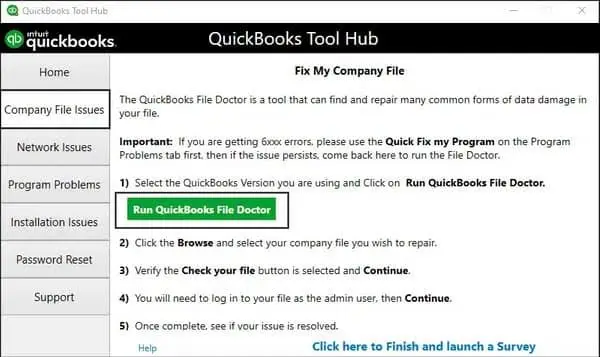
Run QuickBooks File Doctor

Company-File-Issues-run-Quickbooks-file-docotor
  • It may take a minute for the File Doctor to launch.

Note: If the QuickBooks File Doctor fails to open, look for QuickBooks Desktop File Doc and open it manually.

  • Select the company file from the dropdown list in QuickBooks File Doctor.
  • If your file is not visible, click Browse and search for it.
  • Select Check your file (the middle option) and hit Continue.
  • Enter your QuickBooks admin password and then click Next.

The scan duration differs based on the size of your file and may take up to 10–15 minutes. The scan might indicate that it was unsuccessful, even if it resolves QuickBooks Error 6000 80. Once the scan is complete, open QuickBooks and access the company file.

Solution 2: Get the Company File Restored from the Local Drive

This troubleshooting guide is intended for users who have the Company file stored on Cloud/a Network system. Such users should move the files to the local drive and attempt to access the file again. The procedure will assist users:

  • Locate the Cloud Storage/Network folder where the Company file is saved.
  • Copy the file and paste it onto the local system.
  • Open the company file from the Local drive.
  • If this method does not work/if the company file is corrupted.
  • Users should restore the Company file from a created backup.
  • Launch QuickBooks to do this and select the Open or Restore Company option from the File menu.
  • Choose the option to Restore a Backup, and click the Next button.
  • Select the backup and restore the file to the Company file folder.

Solution 3: Run the QuickBooks Install Diagnostic Tool

You can download the QuickBooks Tool Hub to access the QuickBooks Install Diagnostic Tool and fix QuickBooks Desktop Error 6000 80. Check out the steps below to do so:
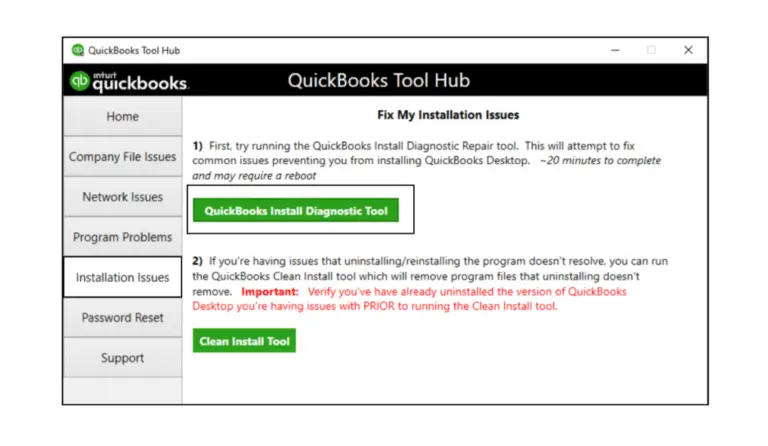
  • Launch the QuickBooks Tool Hub and click on Installation Issues.
  • Choose the QuickBooks Install Diagnostic Tool and allow it to run.
QuickBooks-Install-Diagnostic-Tool
  • This process may take as long as 20 minutes.
  • Once the tool is completed, restart your computer and open QuickBooks Desktop.
  • Access the data file.
  • Make sure to update your QuickBooks to the latest version to ensure you have the most recent fixes and security updates.

Solution 4: Turn Off Hosting on Your Workstations

Ensure that the Host Multi-User Access feature is disabled on your workstations to share the company files across a network. These are the computers linked to your network that do not host your company files. The server computer should be responsible for hosting.
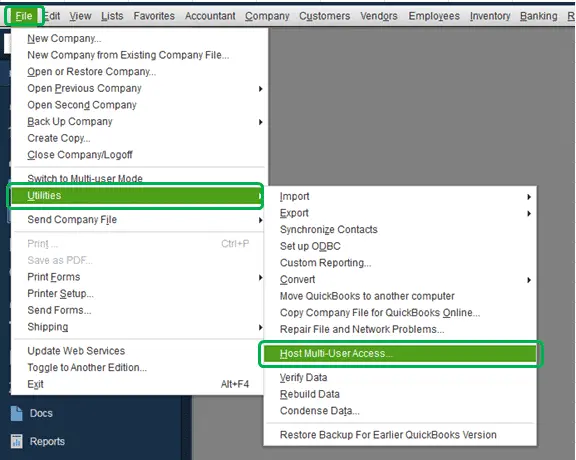
  • Launch QuickBooks on one of your workstations.
  • Do not open your company file.
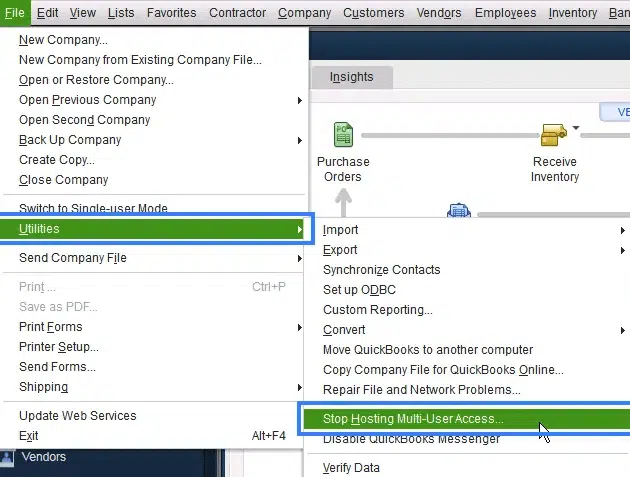
  • Instead, go to the File menu and hover over Utilities.
  • If the “Host Multi-User Access” option appears, do not select it.
Host-Multi-User-Access
  • Proceed to the next workstation, as this one is not the source of the issue.
  • If the option to Stop Hosting Multi-User Access is available, choose it.
Stop-Hosting-Multi-User-Access.png
  • Follow these steps on all of your workstations.

Solution 5: Check your Backup Filename

This method can help resolve QuickBooks Error Code 6000 80 if the issue is caused by special characters, spaces, or long names in the file path.

  • Open the Start menu in Windows.
  • Type File Explorer into the search bar and launch File Explorer.
  • Locate and access the folder containing the backup company file.
  • Right-click the file that ends with .QBB and choose Rename.
  • This file is your backup company file (commonly referred to as a QBB file).
  • Remove special characters, symbols, or spaces from the filename.
  • Right-click on the folder that contains the QBB file and select Rename.
  • Remove any special characters, symbols, or spaces.
  • Proceed with the instructions to restore your company file.

Solution 6: Rename the .ND and .TLG files

The .ND and .TLG files are integral components of the QuickBooks files. These configuration files enable QuickBooks to access a company file in a network/multi-user setting.

If these files become corrupted, you will encounter these errors when you open your QuickBooks files. Renaming these files will not result in the loss of QuickBooks data. QB will regenerate these files when you perform a scan with the QuickBooks Database Server Manager and when you access your company file.

  • Navigate to the folder containing your company file.
  • Locate the files that share the same name as your company file but have the .ND and .TLG extensions.
    • company_file.qbw.nd
    • company_file.qbw.tlg
  • Right-click on each file and choose Rename.
  • Append the word OLD to the end of each file name.

For example: company_file.qbw.nd.OLD

  • Restart QuickBooks and attempt to log in to your company file.

Solution 7: Copy the QuickBooks File to the Desktop

This method can help diagnose and resolve QuickBooks error 6000 80, but it is a troubleshooting test rather than a standalone permanent fix.

  • You check if there is an issue with the directory of the company file.
  • If the file opens from the desktop, it indicates that there could be damage to the location where the file is stored.
  • Your file might be located in an excessive number of folders, surpassing the file system path limit.
  • If the file still fails to open after relocating it, you may face file corruption.
  • Access the folder that contains the company file.
  • Look for the file that has a .QBW extension.
  • Right-click on the file and choose Copy.
  • Navigate to the Desktop, right-click anywhere on the desktop, and select Paste.
  • Hold down the Control key and then open the file.

Solution 8: Use a UNC Path Instead of a Mapped Drive

This method is helpful, as mapped drives sometimes do not permit QuickBooks to access the company file over the network.
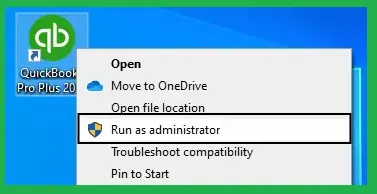
  • Right-click on the QuickBooks icon on the desktop and hold down the Ctrl key on the keyboard.
  • Choose Run as Administrator.
Run-QuickBooks-as-an-Administrator
  • Keep the Ctrl key pressed until the No Company Open window appears.

Note: Keeping the Ctrl key pressed stops QuickBooks Desktop from opening a company file.

  • Choose Open/Restore Company from the File menu.
  • Select Open a company file and click Next.
  • Click on Network in the left pane and browse to the location of the company file.

Note: If you are unable to locate the folder where the company file is stored, you may encounter a QuickBooks Company File Not Found issue.

  • Select the company file and click Open.

Solution 9: Recreate the Damaged Folder

Corrupted folder permissions and contents can prevent QuickBooks from accessing the company file. Using this resolution will help you resolve QuickBooks error 6000 80:

  • Generate a new folder on your C: drive.
  • Navigate to the folder containing the company file.
  • Find the .qbw file.
  • For example: company_file.qbw.
  • Right-click on the .qbw file and choose Copy.
  • Access the new folder and paste the file there.
  • Adjust Windows access permissions to enable sharing of company files.
  • Launch QuickBooks Desktop and open the file from its new location.

Preventive Tips To Avoid QuickBooks Desktop Error 6000 80

Seeing QuickBooks Error 6000 80 when you try to open a company file means the software is unable to access the file correctly. Follow these six key measures to prevent QuickBooks Error 6000 80:

  • Regularly update to the latest version to fix bugs and vulnerabilities.
  • Disable multi-user hosting on all workstations except the primary host server to avoid data access issues.
  • Grant Full Control access to users and processes like QBDataServiceUser to prevent insufficient rights issues.
  • Open files via Universal Naming Convention (UNC) paths (e.g., \ServerName\SharedFolder) instead of mapped drives to maintain stable connections.
  • Configure the firewall to allow required communication ports for QB.
  • Use the Verify and Rebuild Data utilities to identify and fix minor errors before they cause corruption.

Conclusion!

QuickBooks Error 6000 80 occurs when you attempt to open a company file, but QB cannot access it due to corruption. This issue affects accounting tasks, as it prevents access to the company file. Error 6000 80 may be associated with network connectivity/ the file location. You need to examine the common signs and follow the above-outlined steps to restore access. If the error remains unresolved / you are concerned about the safety of the financial data, do not make changes that could worsen the issue.

For reliable assistance, contact the Data Service Team at +1(888)-718-7888. Our experts can help troubleshoot QuickBooks Error 6000 80 and related company file issues while focusing on safety.

Frequently Asked Questions (FAQ’s)

This error occurs when the software cannot open the company file due to network connectivity issues or damaged configuration files. Other causes may be incorrect folder permissions or minor data corruption within the file itself.

The error 6000 80 appears on the computer as a pop-up message stating that QuickBooks cannot open your company file (QBW file). It happens due to damaged network configuration files, incorrect folder permissions, or communication blocks in a multi-user or network setup.

Error 6000 80, you should check whether hosting is turned on the server computer and disabled on all workstations. Verify that the folder permissions allow full read and write access to the company file. Ensure the complete file path length does not exceed 210 characters and test if the file opens when copied to your desktop.

Download and run QuickBooks Tool Hub, then use QuickBooks File Doctor to scan and repair company file issues. If the error persists, rename the .ND and .TLG configuration files so QuickBooks can recreate them. Also, ensure multi-user hosting is enabled only on the server.

Yes! A damaged company file can cause error 6000 80. This error appears when QuickBooks encounters an obstacle while trying to open the company data. It can stem from internal logical damage within the data file itself. This problem is triggered by an abrupt system shutdown while the file was actively in use. Error 6000 80 can also be triggered by related environmental issues like incorrect folder permissions or misconfigured multi-user hosting on a network because it is part of the 6000 series.

Yes! Network disruptions and incorrect hosting configurations can trigger error 6000 80 in QuickBooks. This error occurs when a workstation on a local network cannot communicate with the server where the company file is stored. Common underlying triggers include misconfigured multi-user hosting settings or blocked firewall ports. It prevents data sharing or causes an unstable network connection when attempting to open a file remotely.

Yes! Outdated QuickBooks software can trigger QuickBooks Error 6000 80 because older versions often lack critical bug fixes, security updates, and file-access protocols. It is required to communicate with or open company files across local drives and networks. Compatibility glitches do not allow QuickBooks to read the .QBW company file and result in this access failure when the software starts.

Yes! The QuickBooks Tool Hub can help resolve Error 6000 80 by using its built-in QuickBooks File Doctor utility, which automatically scans and repairs network connectivity problems and company file damage that typically trigger this 6000-series access failure.

Contact a QuickBooks professional for Error 6000 80 after standard troubleshooting methods fail to resolve the access issue. This includes running the QuickBooks Tool Hub, updating the software, renaming .ND and .TLG files, or moving the company file to a local desktop. You should also seek expert assistance if basic fixes do not work and the built-in tools report severe data corruption.


About The Author

Steven Moody

Steven Moody is a bookkeeping and payroll specialist dedicated to helping businesses maintain accurate financial records and efficient payroll operations. His expertise includes payroll management, tax compliance, bookkeeping solutions, and financial reporting. Steven regularly shares insights on accounting best practices and business finance strategies. Outside of work, he enjoys traveling, exploring new places, and keeping up with the latest developments in business technology.

Steven Moody

QuickBooks Error

QuickBooks Error 6176, 0: How to Fix Company File Access Issues

Read More
QuickBooks Error

QuickBooks Error 6189 816: Easy Ways to Fix Company File Issues

Read More
QuickBooks Error

QuickBooks Error 6000 832: How to Fix Multi-User Mode and File Access

Read More
QuickBooks Error

QuickBooks Error QBW32.exe: How to Fix Fatal Application Exit

Read More
QuickBooks Error

How to Fix QuickBooks Error 108 and Restore Bank Access

Read More