
QuickBooks Error 6000 832 can occur when QuickBooks Desktop is unable to open or access a QuickBooks company file. This error belongs to the broader QuickBooks Error 6000 Series, which commonly involves company-file access and network-related problems. QuickBooks Error 6000 832 is often related to network connection problems, incorrect hosting settings, damaged company files, or .ND and .TLG files. It may also appear when the company file is stored on a network, and QuickBooks cannot connect to it properly. When this happens, you may be unable to access important business and financial data. Fortunately, you can try several troubleshooting methods to identify and resolve the issue.
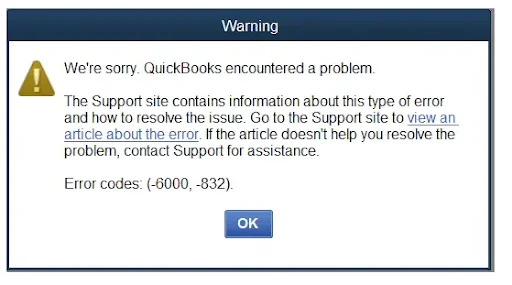
In this guide, we’ll explain the common causes of QuickBooks Error 6000 832 and provide simple step-by-step solutions, including using QuickBooks Tool Hub, checking hosting settings, renaming configuration files, and verifying folder permissions.
The QuickBooks Company File Error 6000 -832 can occur when QuickBooks Desktop has trouble accessing or opening a company file. Here are some common causes:
Identifying the possible cause can help you choose the right troubleshooting method. You can then try the solutions below one by one to find the method that resolves the issue.
Before trying the troubleshooting methods, you should check a few basic things:
Once these checks are complete, you can start with the troubleshooting methods one by one to fix the error you are facing.
You can troubleshoot the QuickBooks error 6000 832 by checking your QuickBooks installation, company file, hosting settings, and network configuration. You can start with the basic solutions below and move on to the more advanced methods if the error continues.
An outdated QuickBooks version can cause compatibility and company-file access issues. Updating QuickBooks ensures that you have the latest available fixes and payroll or network components. Follow these steps:
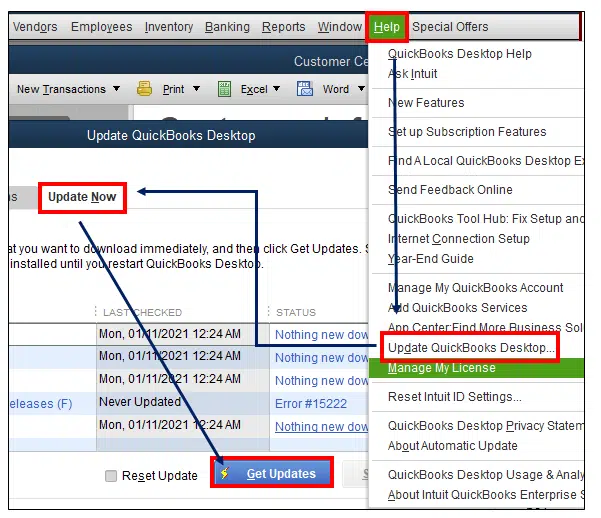
If QuickBooks Error 6000 832 still appears, continue with the next solution.
QuickBooks File Doctor can help you identify and troubleshoot problems with your company file and network connection. You can access the tool through QuickBooks Tool Hub.
Before running File Doctor, close QuickBooks Desktop on your computer. Follow these steps:
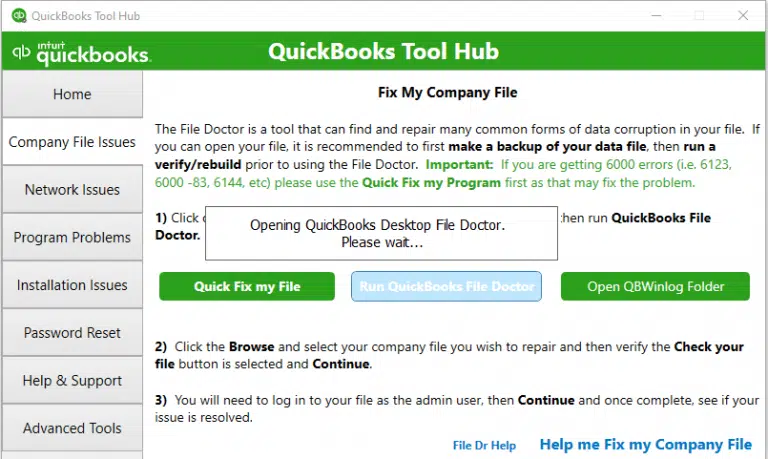
If QuickBooks Error 6000 -832 continues to appear, proceed to the next solution.
QuickBooks uses .ND files and .TLG files to help access company files, particularly in network and multi-user environments. If either File is damaged or isn’t working correctly, QuickBooks may have trouble opening the associated company file.
Renaming these files does not delete your company data. QuickBooks can recreate the required configuration files when the company file is opened or when the company files are scanned with QuickBooks Database Server Manager. Follow these steps:
If you use QuickBooks in a network or multi-user environment and the error continues, you may also need to rescan the company file folder using QuickBooks Database Server Manager. Intuit recommends using the Database Server Manager to scan the company files after renaming these configuration files.
Incorrect hosting settings can cause QuickBooks Error 6000 -832, particularly when the company file is stored on a network.
QuickBooks recommends using one computer or server to host the company files rather than having multiple workstations host the same File. To check the hosting settings:
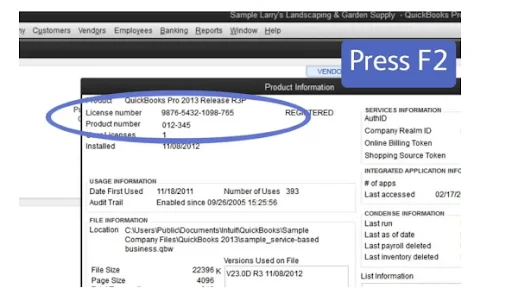
If you are checking a workstation that should not access the company file, hosting should be turned off. On a network setup, make sure the hosting configuration is consistent with the computer or
server designated to host the company files.
After making the necessary changes, close and reopen QuickBooks and try accessing the company file again.
Opening a sample company file can help determine whether the problem is related to your specific company file or to QuickBooks Desktop itself. Follow these steps:
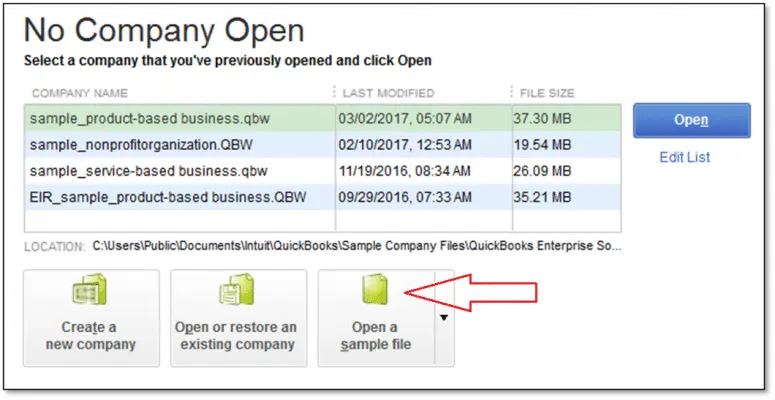
If the sample company file opens successfully, QuickBooks can open a company file, and the problem may be specific to your company file or its location.
If the sample company file also produces an error, there may be a problem with your QuickBooks installation. In that situation, you may need to repair the QuickBooks installation before trying to open your company file again.
Moving a copy of the company file to the desktop can help determine whether the original storage location or network path is causing the problem. Follow these steps:
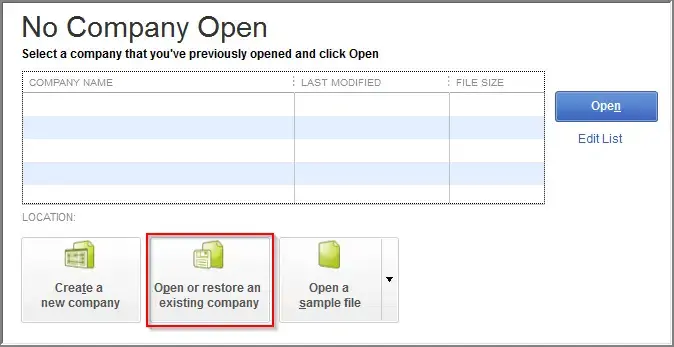
If the copied File opens successfully, the original file location or network path may be contributing to the problem. If the same error appears, continue with the next solution.
Incorrect Windows folder permissions can prevent QuickBooks from accessing a company file correctly, especially when the File is stored on a network.
First, locate the folder containing your company file and check whether the appropriate QuickBooks Database Server Manager user account has the required permissions. To check the folder permissions:
After updating the permissions, reopen QuickBooks Desktop and try accessing the company file.
Sometimes a QuickBooks process may continue running in the background even after the application appears to be closed. Ending the relevant processes can help you reset the QuickBooks session.
Before doing this, make sure other users are not working in the company file. Before doing this, make sure other users are not working in the company file or that QuickBooks Multi-User Mode is not active. Follow these steps:
Firewall or security software can sometimes prevent QuickBooks Desktop from communicating with the company file or other computers on the network.
Instead of permanently disabling your firewall or antivirus software, check whether QuickBooks and its required network components are permitted through your security settings. You can:
Intuit recommends configuring firewall ports and antivirus exceptions when security software is preventing QuickBooks from accessing company files.
If the troubleshooting steps above do not resolve the issue, you can restore a backup copy of your company file to determine whether the current .QBW file is damaged.
Before restoring a backup, make sure you understand that the restored File may not contain transactions entered after the backup was created. If you decide to restore a backup:
If QuickBooks error 6000 832 in QuickBooks desktop appears when several users access the same company file, focus on the network and hosting configuration. Make sure:
You can reduce QuickBooks Error 6000 832 problems by following a few basic practices:
QuickBooks Error 6000 832 can prevent you from opening or accessing your company file, especially when there are problems with hosting, network connectivity, .ND and .TLG files, folder permissions, or the company file itself. You can start by updating QuickBooks Desktop and running QuickBooks File Doctor, then continue with the appropriate troubleshooting methods based on your setup.
If the error continues, check the hosting configuration, rename the .ND and .TLG files, verify folder permissions, and test the company file from another location. For persistent issues or suspected company-file damage, consider restoring a recent backup or seeking professional assistance from the Data Service Team at +1(888)-718-7888 to avoid further data problems.
QuickBooks Error 6000-832 can occur due to incorrect hosting settings, damaged or incorrectly configured .ND and .TLG files, network connection problems, incorrect folder permissions, firewall restrictions, or issues with the company file.
You can try several troubleshooting methods manually. First, update QuickBooks Desktop and run QuickBooks File Doctor. If the error continues, rename the .ND and .TLG files, check hosting settings and folder permissions, and verify that your firewall isn’t blocking QuickBooks.
Start by updating QuickBooks and running QuickBooks File Doctor. You can then rename the .ND and .TLG files and try opening the company file again. If the problem continues, test the File from the desktop and check your network, hosting, and folder permissions.
Yes. Damage to the company file can prevent QuickBooks Desktop from opening or accessing it correctly. You can open a sample company file to determine whether the problem is specific to your company file. Restoring a recent backup may also help if the original File is damaged.
Yes. If the .ND or .TLG files are damaged or aren’t functioning correctly, renaming them can allow QuickBooks to recreate the required files. Renaming these files does not delete the data stored in your company file.
QuickBooks Tool Hub provides troubleshooting tools for common QuickBooks Desktop problems. Its QuickBooks File Doctor can help check the company file and network-related issues that may prevent QuickBooks from opening the company file.
Check that the correct computer or server is hosting the company file and that other workstations are not hosting it. You should also check the .ND and .TLG files, QuickBooks Database Server Manager, folder permissions, network connection, and firewall settings.
Keep QuickBooks Desktop updated and create regular backups of your company file. Also, use the correct hosting configuration, maintain appropriate folder permissions, keep your network stable, and configure firewall or security software to allow QuickBooks to communicate properly.
Consider contacting Data Service Team experts if the error continues after standard troubleshooting, your company file appears damaged, a backup cannot be restored, or the problem involves complex network, server, or Windows permission settings.




