QuickBooks Desktop helps businesses manage accounting tasks, create invoices, generate reports, and share important financial documents. One of its useful features is the ability to print, email, and save forms as PDF files. However, some users may face an issue when trying to create or print PDFs from QuickBooks. The software may display an error message “QuickBooks detected that a component required to create PDF is missing.”
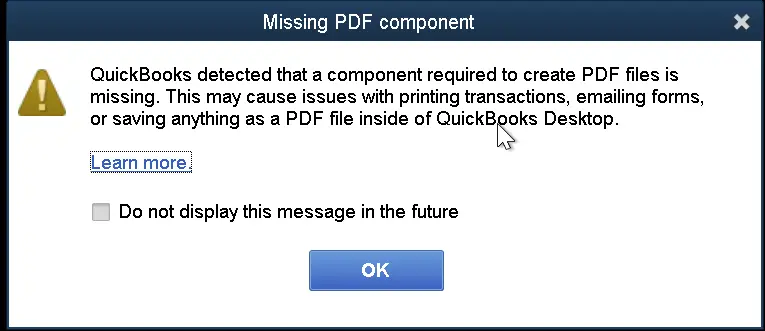
This error prevents QuickBooks from completing PDF-related tasks. In this guide, we will explain the reasons behind the QuickBooks missing PDF component error, common symptoms, and effective troubleshooting methods to restore PDF functionality in QuickBooks Desktop.
The QuickBooks Missing PDF Component error appears when QuickBooks Desktop cannot access a component required to create PDF files. It can prevent QuickBooks from saving transactions as PDFs, printing forms, or attaching PDF documents to emails.
QuickBooks relies on different services and tools, including the Microsoft XPS Document Writer and PDF-related drivers, to complete printing and saving tasks. If these components are disabled, outdated, damaged, or incorrectly configured, QuickBooks may fail to generate PDF documents. Users commonly experience this issue while:
The exact cause can vary by system, so it is useful to test the QuickBooks PDF tools first and then check the Windows components involved in PDF creation.
The most commonly identified causes include an outdated QuickBooks Desktop version, a missing or damaged Adobe Reader installation, an outdated Adobe Reader version, and Microsoft XPS Document Writer being turned off. Other Windows or QuickBooks printing configuration problems can also interfere with PDF creation.
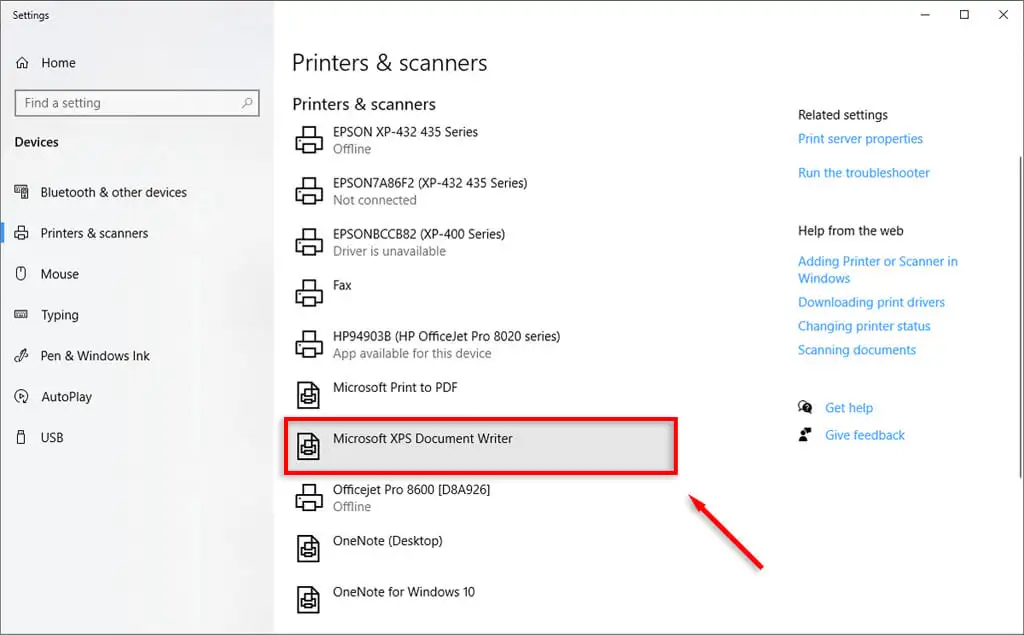
QuickBooks uses Microsoft XPS Document Writer during PDF creation. If this Windows feature is disabled or damaged, QuickBooks may not be able to create PDF files.
Running an outdated QuickBooks version may create compatibility issues with Windows updates and PDF-related features.
QuickBooks may have trouble creating or processing PDF files if Adobe Reader is missing, damaged, or outdated. Updating or repairing Adobe Reader can help when the PDF component error is related to the PDF reader installation.
QuickBooks uses temporary folders while creating PDF files. If the software does not have proper access permissions, PDF creation may fail.
Missing or damaged QuickBooks program files can affect printing and PDF functions.
The Windows Print Spooler manages printing operations. If this service stops working, QuickBooks may not be able to process PDF requests.
The QBPrint.qbp file stores printer setup information in QuickBooks. If this file becomes damaged, PDF and printing problems may occur.
Windows updates can sometimes affect QuickBooks Missing PDF Component, especially if required Windows features are disabled.
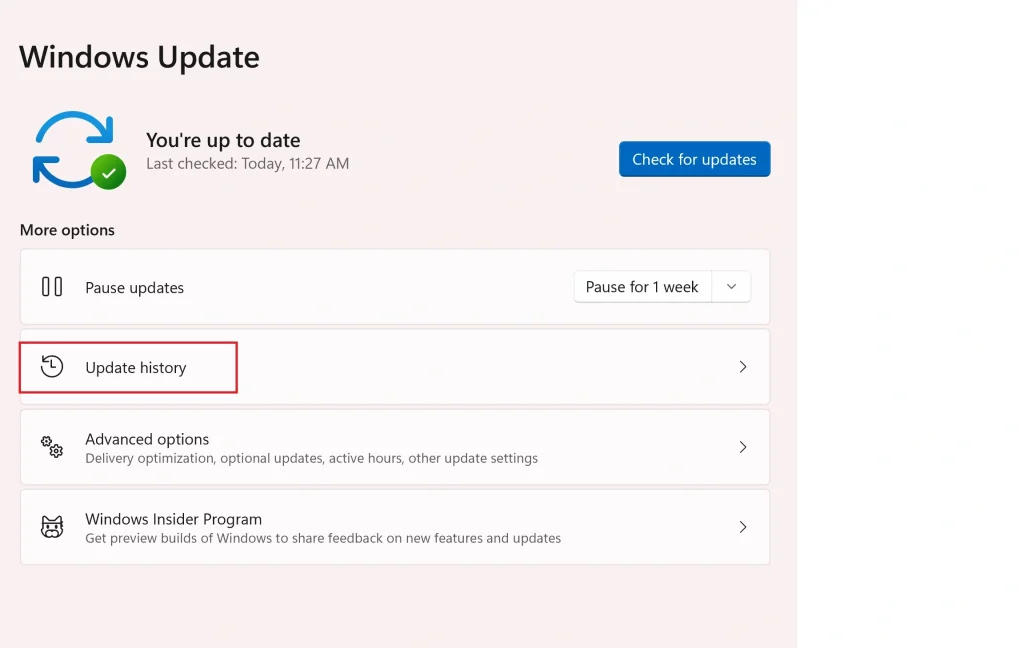
The quickest way to narrow down the problem is to check what happens when you try different PDF-related tasks:
QBPrint.qbp configuration.Before troubleshooting, it helps to recognize the symptoms of this issue. You may be experiencing the QuickBooks missing PDF component error if you notice any of the following:
Follow these simple and effective solutions to resolve the QuickBooks missing PDF component Windows 11 issue.
The QuickBooks PDF & Print Repair Tool is one of the quickest ways to fix PDF-related issues. It automatically scans your QuickBooks installation and repairs common problems. Here’s how to start troubleshooting:

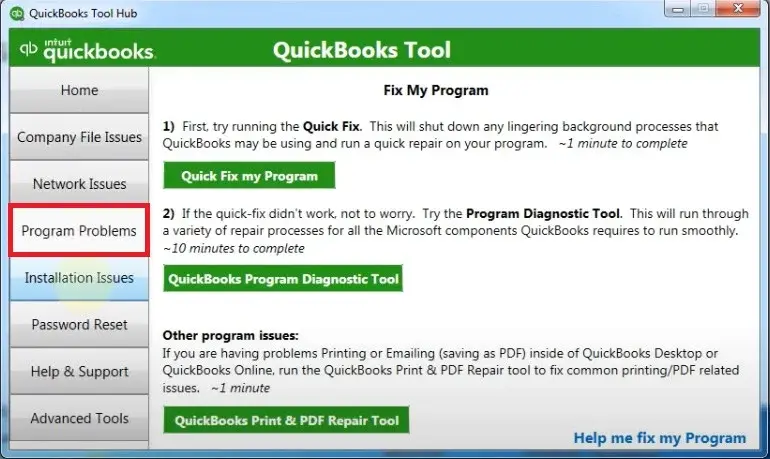
If the PDF & Print Repair Tool does not resolve the error, the next checks should focus on Windows PDF components, Adobe Reader, and QuickBooks printing configuration.
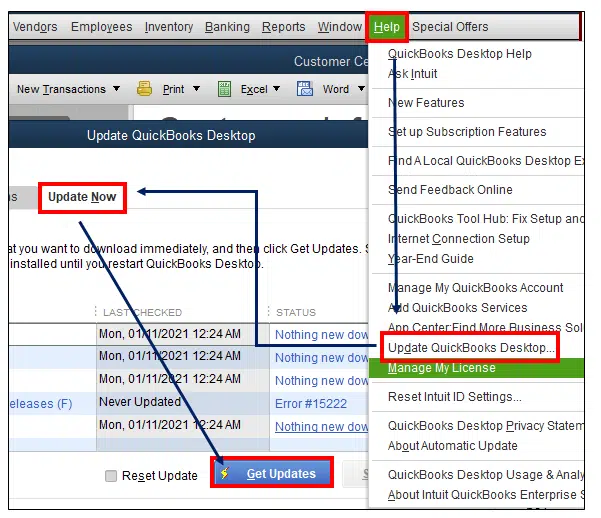
Running an outdated version of QuickBooks may cause compatibility issues with Windows or PDF components. Installing the latest updates ensures you have recent bug fixes and performance improvements. Steps to update QuickBooks:
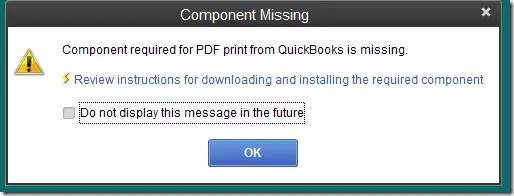
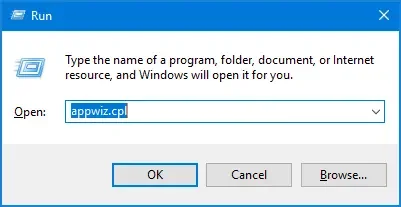
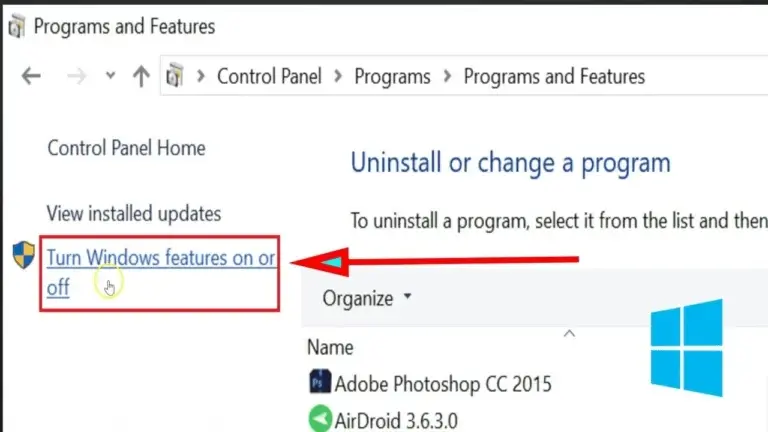
QuickBooks uses Microsoft XPS Document Writer to create PDF files. If this Windows feature is disabled, QuickBooks may display the “Component required for PDF print from QuickBooks is missing error. Follow these steps:
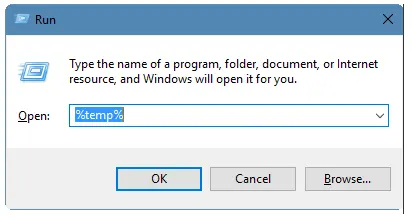
QuickBooks stores temporary files while creating PDFs. If Windows restricts access to the TEMP folder, the software may fail to generate PDF documents and trigger the QuickBooks Missing PDF Component issue. Follow these steps:
Testing the XPS Document Writer helps you choose whether the problem is with QuickBooks or Windows itself. If XPS printing fails outside QuickBooks, the issue is related to Windows. Here are simple steps to fix this:
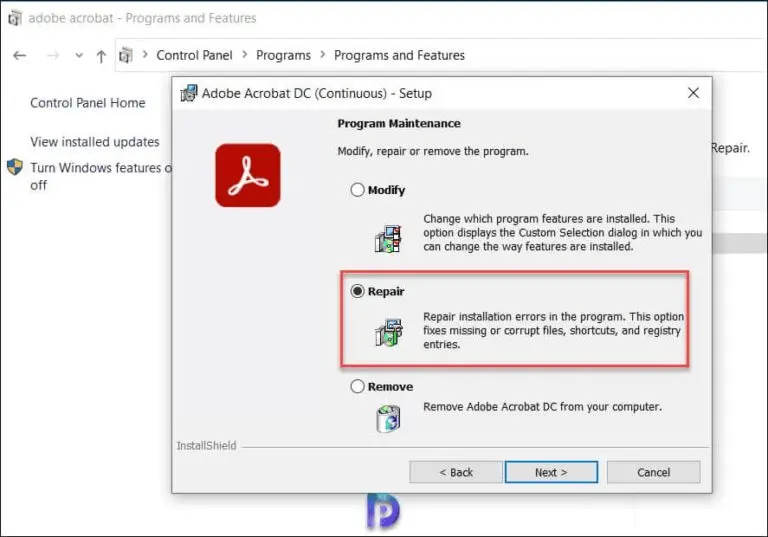
A damaged or outdated Adobe Acrobat Reader can interfere with PDF-related operations in QuickBooks. By updating or repairing the application also resolves compatibility issues. To update Adobe Reader:
To repair Adobe Reader:
The Print Spooler service manages all printing tasks in Windows. If the service is stopped or not running properly, QuickBooks may fail to print or generate PDF files. Follow these steps:
The QBPrint.qbp file stores your printer preferences in QuickBooks. If it becomes corrupted, it can cause QuickBooks Missing PDF Component errors. Renaming the File forces QuickBooks to create a fresh copy. Steps:
Note: If the issue continues after recreating the printer configuration file, run the QuickBooks Install Diagnostic Tool to repair damaged Microsoft components required by QuickBooks.
In some cases, antivirus software or Windows Firewall may block QuickBooks processes required for PDF creation. By checking the security settings, you can identify the issues that are causing the issue. To resolve this:
By applying the above mentioned solutions, you can easily fix QuickBooks Missing PDF Component error, but here are some simple and effective tips for reducing the risk of occurring this error in the future.
The QuickBooks missing PDF component error generally comes due to Windows printing components, outdated software, damaged PDF drivers, or incorrect system settings. Fortunately, you can resolve this problem by running the QuickBooks PDF & Print Repair Tool or QuickBooks File Doctor, enabling Microsoft XPS Document Writer, updating QuickBooks Desktop, or repairing Adobe Reader. If you still face the same issue, you can reach out to the live Data Service Team experts at +1(888)-718-7888 for immediate Help.
QuickBooks may fail to create PDF files due to a disabled Microsoft XPS Document Writer, outdated QuickBooks, damaged PDF components, or incorrect Windows permissions. To fix this, you can run QuickBooks PDF & Print Repair Tool.
Run the QuickBooks PDF & Print Repair Tool, update QuickBooks Desktop, enable Microsoft XPS Document Writer, and repair Adobe Reader. These steps will help you resolve most PDF component errors.
Close all open QuickBooks windows and restart the reconciliation process. If the issue continues, you can check your display settings or update QuickBooks to the latest version.
Start by running the QuickBooks PDF & Print Repair Tool first. If the error remains, you can update QuickBooks, enable Microsoft XPS Document Writer, and verify your Windows printer settings.
Yes, repairing or updating the QuickBooks does not delete your company files. However, it’s always recommended to create a backup before making any changes.
Yes, the QuickBooks Tool Hub, especially the PDF & Print Repair Tool, can fix many common PDF, printing, and emailing issues in QuickBooks Desktop.
This generally happens when the Reconcile window opens off-screen or due to display settings. Close all QuickBooks windows, reopen the reconciliation screen, and update QuickBooks if the issue persists.




