QuickBooks-Delivery-Server-Down-Error

The QuickBooks delivery server down error occurs when QuickBooks unable to send invoices, sales receipts, or other documents through email. Users may encounter this error due to incorrect email settings, attachment problems, server connectivity issues, or PDF configuration errors.
When this error occurs, users may notice that invoices fail to send, attachments are not delivered, or customers receive bounced emails. Although the error can interrupt daily accounting tasks, it can usually be fixed by checking a few important settings within QuickBooks.

In this blog post, we’ll explain what the QuickBooks Delivery Server Down Error is, why it occurs, and how to restore email delivery efficiently.

Why are You Seeing the QuickBooks Delivery Server Down Error?

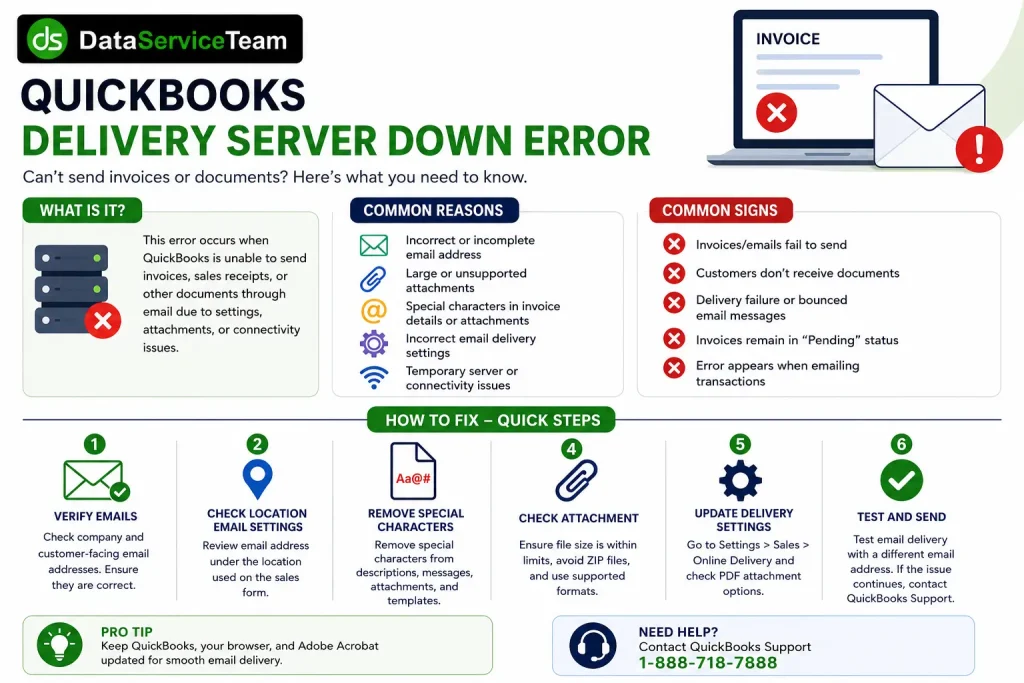
The QuickBooks Delivery Server Down Error indicates that the software is facing trouble completing an email request. The issue does not always mean that QuickBooks servers are unavailable; in many cases, incorrect settings, document-related problems, or email configuration issues can trigger this error. Some common reasons why you may encounter this error:

  • Incorrect company or customer-facing email address: If the email details saved in QuickBooks are incomplete or incorrectly formatted, the delivery process may fail.
  • Special characters in invoice details: Specific symbols are used in the invoice descriptions, messages, attachment names, or custom templates can interfere with email processing.
  • Large or unsupported attachments: Files that exceed size limits or use unsupported formats may prevent QuickBooks from sending emails successfully.
  • Incorrect email delivery settings: Misconfigured online delivery preferences can affect how QuickBooks attaches PDFs and sends sales forms.
  • PDF or browser-related issues: Problems with PDF generation, Adobe Acrobat settings, or browser permissions may stop QuickBooks from creating or sending documents properly.
  • Temporary server or connectivity problems: A temporary interruption between QuickBooks and email services can also lead to delivery failures.

Note: If emails send successfully but QuickBooks cannot create or attach PDF documents, review our QuickBooks Missing PDF Component troubleshooting guide.

Common Signs of QuickBooks Delivery Server Down Error

Identifying these signs can help you understand the QuickBooks delivery server down error bounced email problem. Have a look at the signs below:
  • QuickBooks may stop the delivery process when you try to send invoices or sales receipts to customers.
  • Customers may not receive the documents, and the sent emails may return with delivery failure notifications.
  • QuickBooks may fail to send PDF files or other attachments along with the invoice.
  • The error message may continue to appear whenever you attempt to email a transaction.
  • Invoices, estimates, or statements may stay pending instead of being delivered successfully.
  • QuickBooks may face difficulty generating or processing the PDF file required for email delivery.
QuickBooks Delivery Server Down Error

10 Ways to Fix QuickBooks Delivery Server Down Error

If you are unable to send invoices, sales receipts, or other documents because of the QuickBooks Delivery Server Down Error, you can fix the issue by checking different email, document, and system settings.

Follow the troubleshooting methods below to resolve the error and restore email delivery in QuickBooks.

Solution 1 – Verify Your Company and Customer-Facing Email Address

Incorrect email details are one of the common reasons behind delivery issues in QuickBooks. If your company email or customer facing email is incorrect, QuickBooks may fail to process the email request. Follow these steps:

  • Open QuickBooks Online and click on the settings icon.
  • Now, select Account and Settings.
  • Go to the Company tab and open Contact Info.
  • Review your company email and customer-facing email address.
  • Make sure the email format is correct.
  • Save the changes and try sending the invoice again.

Solution 2 – Check Location Email Settings

If you have enabled location tracking, check the email address assigned to a specific location. Follow these steps to check:

  • Open QuickBooks Online and navigate to Settings.
  • Select All Lists and choose Locations.
  • Find the location used on the sales form and click on the Edit option.
  • Review the email address under customer communication settings.
  • Update the details if required.
  • Save the changes and resend the document.

Solution 3 – Remove Special Characters from Invoice Details

Special characters used in invoices or attachments can sometimes prevent QuickBooks from completing the email delivery process. Check the following areas:

  • Description
  • Attachment Name
  • Message
  • Email Address
  • Custom Form Templates

After removing unsupported characters, save the invoice and try sending it again.

Solution 4 – Check the Attachment Size and File Formate

Large or unsupported attachments can interrupt the email delivery process and trigger the QuickBooks Online Delivery Server Down Error. To avoid attachment-related issues:

  • Open the invoice or sales form that you are trying to send.
  • Review the attached file and check its size.
  • Make sure the attachment is not too large.
  • Avoid attaching ZIP files with invoices.
  • Rename the file if it contains special characters.
  • Use a commonly supported file format before attaching the document.
  • Save the changes and try sending the invoice again.

Solution 5 – Update QuickBooks Online Delivery Settings

Incorrect email delivery settings can prevent QuickBooks from attaching PDFs or sending invoices properly. Updating these settings can help resolve email delivery problems. Follow these steps:

  • Open QuickBooks Online and sign in to your account.
  • Click on the Settings icon.
  • Select Account and Settings.
  • Go to the Sales tab.
  • Find and open the Online Delivery section.
  • Check the PDF attachment option and make sure it is selected according to your requirements.
  • Click Save to apply the changes.
  • Try sending the invoice again.

Solution 6 – Check Adobe Acrobat or PDF Reader Settings

QuickBooks creates PDF files while sending invoices and other sales documents. If there is an issue with PDF settings, the delivery process may fail and show the QuickBooks Delivery Server Down Error. Follow these steps:

  • Open Adobe Acrobat or Adobe Reader on your system.
  • Go to the print or document settings.
  • Make sure the page size is set to Actual Size.
  • Keep the page orientation as Automatic.
  • Enable the option Choose paper source by PDF page size if available.
  • Save the changes and close Adobe Acrobat.
  • Open QuickBooks again and try sending the document.

Solution 7 – Review Browser PDF Settings

If you are using QuickBooks Online, browser PDF settings can sometimes affect invoice creation and email delivery. Incorrect browser permissions may stop QuickBooks from processing PDF files correctly. Follow these steps:

  • Open the browser you use for accessing QuickBooks Online.
  • Go to the browser settings.
  • Open the Privacy and Security section.
  • Check the PDF settings and make sure PDF files are allowed to open or download.
  • Update your browser to the latest version.
  • If required, set Adobe Reader as the default PDF viewer.
  • Restart your browser and sign in to QuickBooks again.
  • Try sending the invoice once more.

How to Prevent the QuickBooks Delivery Server Down Error?

While the error can usually be resolved with troubleshooting, following a few prevention steps can reduce the chances of the QuickBooks Delivery Server Down Error from recurring.

  • Keep your company and customer email addresses updated.
  • Avoid using the unsupported special characters in invoice descriptions and attachment names.
  • Keep attachments small and use supported file formats like PDF.
  • Regularly update your web browser.
  • Clear your browser cache periodically.
  • Review QuickBooks Online delivery settings after major updates.
  • Maintain a stable internet connection while sending invoices.

Conclusion!

Email delivery issues in QuickBooks can interrupt your daily accounting tasks by preventing invoices and other documents from reaching customers. The QuickBooks Delivery Server Down Error is one such issue that may occur due to incorrect email settings, PDF problems, browser restrictions, attachment issues, or temporary connectivity failures.

Following the troubleshooting methods mentioned in this guide, you can identify the cause and restore email delivery in QuickBooks. Make sure your email details, delivery preferences, and PDF settings are updated to avoid similar problems in the future.

If the error continues after trying these solutions, reach out to the Data Service Team live representatives at +1(888)-718-7888 to resolve advanced account-related issues.

Frequently Asked Questions (FAQ’s)

Yes, your system antivirus programs or firewall settings can block QuickBooks from connecting with email services. If QuickBooks can not set a proper connection, it may fail to send invoices or other documents.

A weak or unstable internet connection can contribute to the QuickBooks Delivery Server Error. If QuickBooks cannot communicate properly with email servers, the delivery process may fail.

No, the Delivery Server Error usually does not damage or affect your QuickBooks company file. It mainly impacts the email delivery process, while your accounting data remains safe.

If the error continues after checking email settings, PDF configuration, browser settings, and attachments, contact Data Service Team experts for further assistance. They can help identify account-specific or technical issues.

Yes, using an outdated QuickBooks version or an unsupported browser can sometimes cause compatibility issues with email delivery features. Keeping your QuickBooks software and browser updated can help you prevent the issues.

About The Author

Steven Moody

Steven Moody is a bookkeeping and payroll specialist dedicated to helping businesses maintain accurate financial records and efficient payroll operations. His expertise includes payroll management, tax compliance, bookkeeping solutions, and financial reporting. Steven regularly shares insights on accounting best practices and business finance strategies. Outside of work, he enjoys traveling, exploring new places, and keeping up with the latest developments in business technology.

Steven Moody

QuickBooks Tool

How to Resolve Installation Issues with the QuickBooks Install Diagnostic Tool?

Read More
QuickBooks Error

QuickBooks Error 1904? Here’s How to Fix It Quickly

Read More
QuickBooks Error

QuickBooks Error 6177: Why It Happens and How to Fix It

Read More
QuickBooks Error

What is QuickBooks Error H101? Here’s How to Fix It

Read More
QuickBooks Error

ABS PDF Driver Issue in QuickBooks: Here’s How to Fix It

Read More
