
QuickBooks users may sometimes see the “Something’s Not Quite Right” error while working on their accounts. It can appear when saving an invoice, recording a payment, or making changes to a transaction. The QuickBooks Something’s Not Quite Right error can occur for different reasons, such as browser problems, expired login sessions, or account-related issues. If you are facing this error, don’t worry. There are several ways to troubleshoot it.

In this blog, we’ll explain the common causes of the error and walk you through simple steps to fix it in QuickBooks Online and QuickBooks Desktop.
The QuickBooks Something’s Not Quite Right error appears when QuickBooks can not complete an action you are trying to perform. It may interrupt your work and prevent you from moving forward until the issue is resolved. You may encounter this error while performing tasks such as:
The cause can differ from one case to another. Identifying the task that triggers the error will help you choose the right solution for QuickBooks Online or QuickBooks Desktop.
Understanding these common causes can help you identify why QuickBooks Something’s Not Quite Right occurs and choose the appropriate troubleshooting method. Here are some common causes of this error:
Note: These are possible causes, not a definitive diagnosis. The best way to identify the cause is to check when the error appears and whether it affects one task or several QuickBooks features.
You can try several troubleshooting methods to resolve the QuickBooks Something’s Not Quite Right issue. The right solution depends on whether you use QuickBooks Online or QuickBooks Desktop and when the message appears.
Let’s start with some simple fixes before moving on to more specific troubleshooting steps:
If you use QuickBooks Online, your browser’s stored data may interfere with the software. Clearing the cache and cookies can help resolve loading problems and other browser-related errors. Follow these steps:
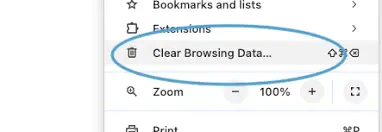
Keep in mind that clearing cookies may sign you out of websites, so make sure you have your login details available. For additional guidance, follow Intuit’s official browser troubleshooting steps.
Sometimes, browser extensions or saved browsing data interfere with QuickBooks Online. Opening the website in a private window can help you check whether your regular browser settings are causing the problem. Here’s how to do it in Google Chrome:
You can also use the keyboard shortcut Ctrl + Shift + N on Windows or Linux, or Command + Shift + N on Mac.
If QuickBooks works in the incognito window, check your regular browser’s cache, cookies, and extensions.
Sometimes, the QuickBooks Something’s Not Quite Right problem appears when your login session expires or encounters a temporary problem. If you also have trouble accessing your account, check our guide to QuickBooks Online Login problem for additional troubleshooting steps. Signing out and signing back in may help refresh your session. Here are the steps to follow:
If the error disappears, a temporary session issue may have caused the problem. If it continues, move on to the next troubleshooting method.
If you are using QuickBooks Online, an outdated browser may cause loading problems or prevent certain features from working properly. Updating your browser is a simple way to rule out compatibility issues. Follow these steps in Google Chrome:
If you are already using the latest version, try opening QuickBooks in another supported browser. If the QuickBooks Something’s Not Quite Right error continues, proceed to the next solution. For information about changes to QuickBooks Online, see our guide to QuickBooks Online New Features & Updates.
If you are still experiencing the QuickBooks Something’s Not Quite Right error after updating your browser, try restarting it. Restarting the browser and testing QuickBooks in a private or incognito window are basic steps for investigating browser-related problems. Follow these steps:
If the QuickBooks Something’s Not Quite Right problem continues after clearing the browser cache, try removing Intuit-specific cookies. These cookies may sometimes interfere with sign-in or prevent certain QuickBooks Online pages from loading correctly. Follow these steps in Google Chrome:
Removing Intuit-specific cookies may sign you out of QuickBooks, so keep your sign-in details handy. If the error persists, try another supported browser or proceed to the next troubleshooting method.
If the QuickBooks Something’s Not Quite Right error continues after clearing Intuit-specific cookies, try opening QuickBooks Online in another supported web browser. Browser compatibility or settings may sometimes interfere with QuickBooks features. Follow these steps:
If QuickBooks works correctly in the other browser, the issue may be related to your original browser’s settings or configuration.
A temporary connectivity issue may prevent QuickBooks Online from loading pages or saving transactions properly. Refreshing the page and checking your internet connection may help resolve the problem. Follow these steps:
If the problem continues, check the official QuickBooks status page to see whether a service disruption has been reported.
Browser extensions or blocked pop-ups may interfere with certain QuickBooks Online features. Intuit recommends checking browser settings when buttons or links do not work as expected. Follow these steps:
Although you cannot prevent every QuickBooks Something’s Not Quite Right Error, following a few best practices may help reduce recurring issues.
Following these practices can help you troubleshoot problems more efficiently and reduce avoidable interruptions while working in QuickBooks.
Make QuickBooks Work Smarter for Your Business
Spend less time managing data and more time growing your business. Whether you need help setting up QuickBooks, cleaning up your books, reconciling accounts, or resolving errors, our team is here to make accounting easier. Get quick solutions that save time, improve accuracy, and keep your business finances on track.
The QuickBooks Something’s Not Quite Right error can occur due to browser issues, expired login sessions, connectivity problems, or transaction related issues. By following the troubleshooting methods discussed in this blog, you can identify the possible cause and try the appropriate fix. Keep your browser and QuickBooks software updated, and review your transaction details carefully.
If the error persists, contact Data Service Team experts at +1(888)-718-7888 for professional guidance and Help resolving the issue so you can get back to your accounting tasks with minimal interruption.
This error means QuickBooks could not complete the action you requested. It may appear while saving invoices, recording payments, or signing in. The cause depends on the task you were performing.
Users may get this issue due to corrupted browser cache, expired login sessions, or connectivity issues. Incorrect account selection and transaction related problems also trigger this. In QuickBooks Desktop, software or company-file issues may be responsible.
This problem can also occur due to temporary software issues or browser compatibility issues. Try restarting QuickBooks or your browser and checking for additional updates. If the error continues, follow the relevant troubleshooting steps.
First, delete all the browser cache and cookies or opening QuickBooks in an incognito window. You can also sign out and sign in again or update your browser. If the issue persists, check the transaction details.
Yes, by clearing the cache and cookies can fix the browser-related QuickBooks Online issues. It removes stored data that may interfere with loading pages or signing in. However, it may not fix errors caused by account or transaction problems.
This error may occur due to an expired session, browser settings, or temporary service issues. Try to open the QuickBooks in a private window or signing in again. If you still cannot access your account, check the service status.
You need to visit the official QuickBooks Status page to check for service disruptions. Look for reported issues affecting QuickBooks Online or related features. If an outage is reported, wait for the service to recover before trying again.
Keep your browser and QuickBooks Desktop software updated. Maintain a stable internet connection and review transaction details before saving. Clear browser data when needed and back up your QuickBooks Desktop company file regularly.

Get Free Consultation for QuickBooks Upgrade
(2021, 2022, 2023)


