Are you facing QuickBooks Spreadsheet Sync not working issue in Excel? This problems can interrupt the financial workflow and make it difficult to manage accurate financial records. The Spreadsheet Sync helps users connect QuickBooks Online Advanced with Excel to access/ refresh/ and manage financial data. Outdated add-ins/ connection issues/ or synchronization errors can prevent it from functioning well.
This simple guide will help you explore the reasons for QuickBooks Spreadsheet Sync not working. Also, learn practical troubleshooting steps to resolve this error and keep your financial data updated.
QuickBooks Spreadsheet Sync connects QuickBooks Online Advanced with Microsoft Excel. It enables users to transfer and manage financial data easily. With this feature, users can:
This feature is available with eligible QuickBooks Online Advanced and Accountant subscriptions.
It connects your QuickBooks account to a spreadsheet application. Here’s a brief overview of the process:
QuickBooks Spreadsheet Sync not working issue happens due to several technical/ account issues. Common causes include:
QuickBooks Online Advanced Spreadsheet Sync lets you run reports, batch-edit records, and create consolidated reports. Explore the latest QuickBooks Online features and updates to understand other available improvements. Here are the notable benefits:
| Benefits | Description |
| Data Synchronization | Refresh QuickBooks data directly in Excel. |
| Custom Reports | Create customized financial reports and charts. |
| Bulk Updates | Update multiple supported records through Excel. |
| Two-Way Sync | Transfer data between QuickBooks and Excel. |
| Time Savings | Reduce repetitive manual data entry. |
| Financial Analysis | Analyze business data using Excel tools. |
| Multi-Company Reporting | Combine data from multiple QuickBooks companies for reporting. |
Note: Spreadsheet Sync is included with eligible QuickBooks Online Advanced and QuickBooks Online Accountant subscriptions. Features are based on the account and supported spreadsheet application.
Below are six solutions to help troubleshoot and resolve QuickBooks Spreadsheet Sync not working:
Connectivity issues/ incorrect data format/ or incorrect login credentials are the primary reasons this happens (QuickBooks Excel Sync not working) You can also explore solutions for QuickBooks Search not working if you experience other data-access problems.:
Using an incorrect/ modified spreadsheet template can cause QuickBooks Spreadsheet Sync not working while generating Excel spreadsheets. Steps to use the correct template:
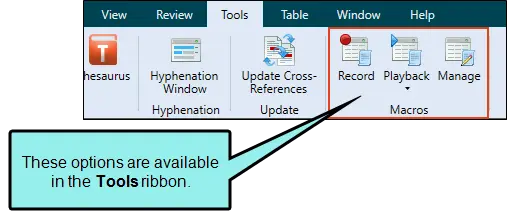
Sometimes QuickBooks Spreadsheet Sync may display an OLE action error while downloading financial reports/ large amounts of data into Excel.
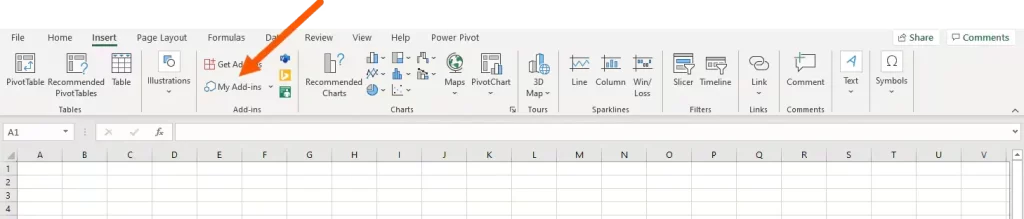
QuickBooks Spreadsheet Sync requires a supported spreadsheet environment. An incompatible Excel version/ an outdated browser component can prevent QuickBooks Spreadsheet Sync login issues.
QuickBooks Excel integration issues can occur due to incorrect data entries/ format issues/ missing information/ or Excel compatibility problems. The following table highlights common errors associated with QuickBooks Spreadsheet Sync not working and their recommended fixes:
| Common errors | Causes | Recommended fixes |
| Error generating Excel spreadsheet | Modified/ incorrect structured template. | Add rows at the bottom and columns to the right. Do not move or delete starred columns. |
| Data validation error | Entered value does not match QuickBooks requirements. | Select an accepted dropdown value/ add the required entry to QuickBooks. |
| Quantity cannot be left empty | Required quantity field is blank. | Enter the required quantity before posting. |
| Incorrect date format | Date does not match the template’s required format. | Correct the date format and retry synchronization. |
| OLE action error | Large downloads take longer than 90 seconds. | Select OK/Proceed and allow the download to finish. |
| Pivot table not updating | Pivot table has not been refreshed separately. | Right-click inside the pivot table and select Refresh. |
| Spreadsheet Sync sign-in error | Incorrect login/ insufficient permissions. | Sign in with an authorized QuickBooks account. |
| Spreadsheet Sync add-in not loading | Unsupported Excel environment/ embedded browser issue. | Use a supported Microsoft 365 Excel environment and follow Intuit’s compatibility instructions. |
| Simultaneous synchronization issue | Multiple users are updating the same company data. | Coordinate users and avoid simultaneous report updates/ transaction posting. |
QuickBooks Spreadsheet Sync lets users update financial data in Excel from QuickBooks Online Advanced/ Accountant. Refresh data/ adjust report filters, or set automatic refresh when opening a workbook. Follow the given steps to refresh QuickBooks data in Excel.
Follow these best practices to prevent QuickBooks Spreadsheet Sync not working issue:
Yes! QB Spreadsheet Sync is included at no additional cost with a QB Online Advanced subscription. It allows users to connect company data with Microsoft Excel and refresh custom financial reports. You can even add/ edit records/ and transactions in bulk ahead of syncing them to QuickBooks. However, Spreadsheet Sync is not included with QuickBooks Online Simple Start/ Essential/ or Plus subscription. Access is subject to user permission and QuickBooks specifies that an administrator must sign in to manage the feature.
QuickBooks Spreadsheet Sync not working can disrupt financial reporting/ delay data updates/ and affect your accounting workflow. However, it is necessary to examine the common causes, such as outdated add-ins/ connection problems/ login errors/ and synchronization issues. This will help you take the right steps to restore its functionality. Regular updates/ proper account permissions/ and timely troubleshooting can help keep your QuickBooks data synchronized. If you need assistance managing your financial records, explore our QuickBooks data conversion services.
Still facing QuickBooks Spreadsheet Sync login issues? Do not let technical errors slow down your business operations. Connect with the Data Service Team experts at +1(888)-718-7888 for professional assistance.
This issue occurs due to outdated Excel/ QuickBooks versions/ unstable internet connectivity/ or corrupted spreadsheet data. Sometimes, synchronization errors also occur when the QuickBooks company file is inaccessible/ the Spreadsheet Sync add-in is not properly installed/ updated. Check your internet connection/ update Excel & add-in/ and verify your QuickBooks account permissions to resolve QuickBooks Spreadsheet Sync not working issue.
This problem may arise due to sync errors/ outdated add-ins/ incorrect date filters/ or poor internet connectivity. An outdated Excel connection/ incomplete refresh may also prevent recent QuickBooks transactions from appearing in your spreadsheet.
You may be unable to access Spreadsheet Sync due to account permission issues/ an outdated Excel version/ an unsupported operating system. Another reason may be an installation problem with the Spreadsheet Sync add-in. An expired subscription/ incorrect QuickBooks login can also prevent access. Check your subscription/ update Excel/ and verify your account permissions for QuickBooks Spreadsheet Sync troubleshooting.
Check your internet connection/ verify your QuickBooks login credentials/ and ensure you have the required account permissions. Update Excel and the Spreadsheet Sync add-in/ sign out/ and sign back in to refresh the connection.
Open Excel workbook and sign in to Spreadsheet Sync using QuickBooks credentials to refresh data in Excel. Navigate to the Refresh option under Spreadsheet Sync panel. Select the appropriate refresh action to update spreadsheet with latest data. Ensure you have a stable internet connection and the correct company file selected to avoid QuickBooks Spreadsheet Sync not working errors.
Check for missing fields/ incorrect account names/ invalid dates/ and formatting issues in your Excel sheet to fix these errors. Ensure all required information is entered and your QuickBooks account has the necessary permissions. Correct the errors/ refresh Spreadsheet Sync/ and try posting the data again.
QuickBooks Spreadsheet Sync is included with eligible QuickBooks Online Advanced subscriptions at no additional subscription cost. However, access depends on the subscription eligibility/ supported Excel version/ and account permissions. Additional charges may apply for separate third-party services or integrations.
This sync allows users to connect Excel with QuickBooks to refresh financial data/ create reports/ and post supported changes back to QuickBooks. In contrast, exporting QuickBooks reports into Excel creates a separate/ static file that must be exported again to include updated data. Spreadsheet Sync offers a more connected workflow and is better for simple data analysis.
Check your internet connection/ update Excel and the Spreadsheet Sync add-in/ and verify your QuickBooks account permissions. This will help you fix the “Oops, something went wrong while generating the Excel spreadsheet” error in QuickBooks Spreadsheet Sync. Ensure the selected report contains valid data and generate the spreadsheet again. If the error persists, restart Excel/ sign out and back into Spreadsheet Sync.

Get Free Consultation for QuickBooks Upgrade
(2021, 2022, 2023)