
A valid subscription is required to continue using QuickBooks Desktop features such as payroll services, online banking, updates, and other connected services. However, sometimes QuickBooks may display the message “Your QuickBooks subscription has lapsed” even when the subscription is active or recently renewed.
This issue generally appears when QuickBooks fails to verify subscription details with Intuit servers. As a result, users may continue seeing the lapsed subscription message.
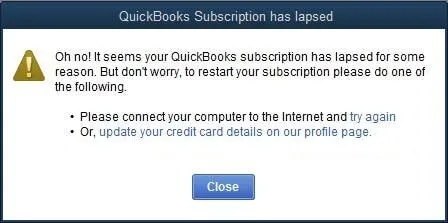
This guide explains the common causes, symptoms, and troubleshooting methods to fix the QuickBooks Subscription Has Lapsed issue and restore normal access.
The QuickBooks Subscription Has Lapsed message appears when QuickBooks can not verify an active subscription connected to your Intuit account. It usually indicates that the subscription status is inactive, expired, or not properly synced with QuickBooks servers.
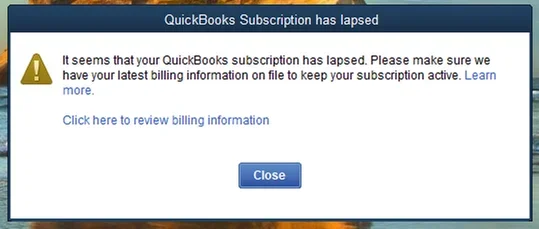
You may face this error message because of billing problems, failed renewal payments, outdated subscription details, or license verification issues. Users may see messages like “it seems that your QuickBooks subscription has lapsed” or “QuickBooks sorry it looks like your subscription has lapsed” while opening the software. Here are some points to understand:
Note: Interrupted payroll services may also result in QuickBooks Error PS038, especially when payroll transactions remain stuck during update processing.
The QuickBooks desktop subscription has lapsed error comes when the software can not verify your active subscription status with Intuit servers. Even if your subscription is renewed, QuickBooks may still show this message due to problems with billing information, license verification, software settings, or connectivity issues.
Some common reasons why users see this issue:
If you are seeing the QuickBooks enterprise subscription has lapsed, don’t worry it’s usually caused by subscription verification, billing, or connectivity issues that can be resolved with a few troubleshooting steps.
Before making any changes, confirm that your QuickBooks subscription is active. Sometimes, the software displays the QuickBooks subscription has lapsed message even though the subscription has already been renewed.
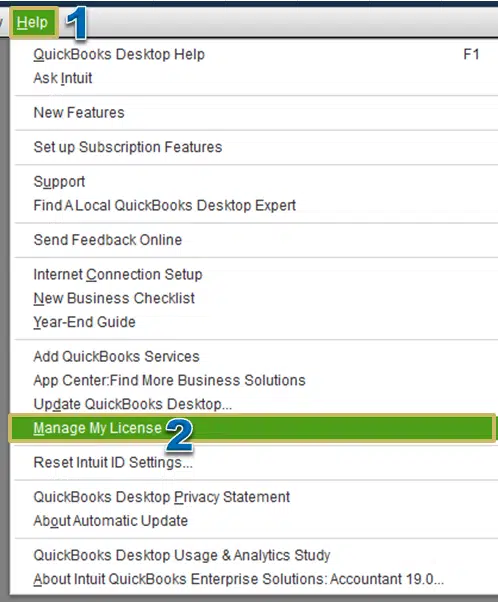
Follow these steps to verify your subscription:
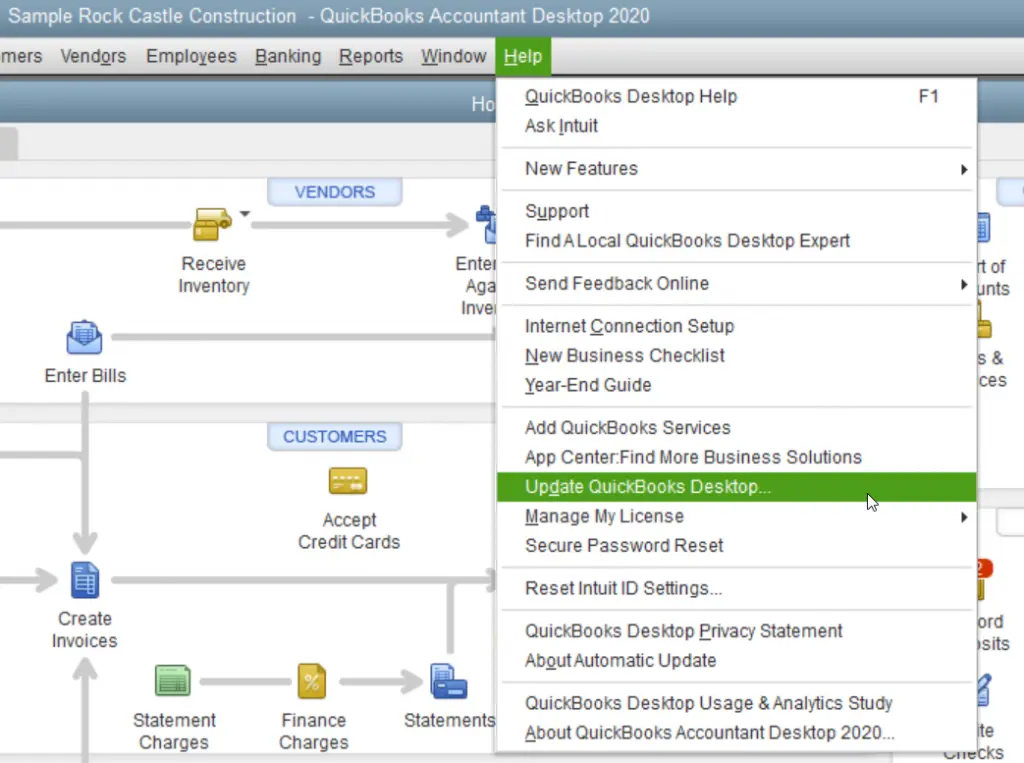
Running an outdated version of QuickBooks Desktop can prevent the software from communicating with Intuit’s subscription servers.
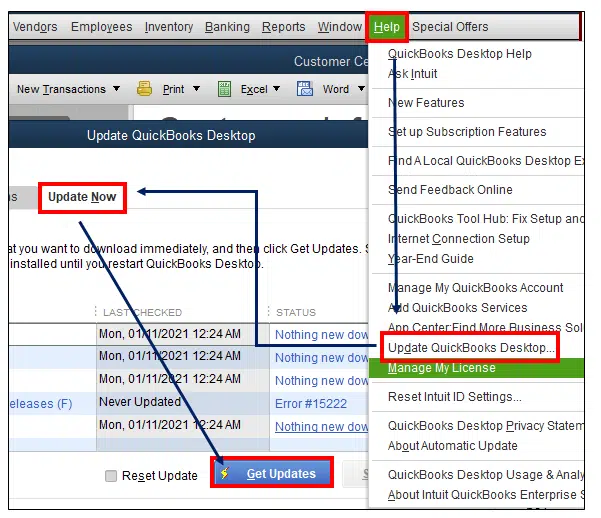
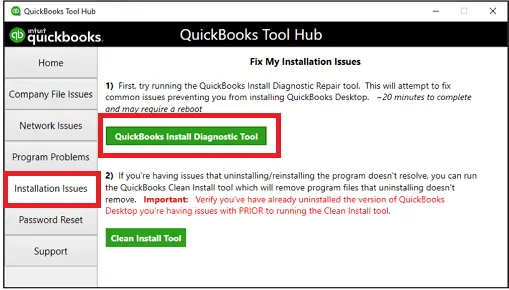
Sometimes Windows components are damaged and show the error code QuickBooks subscription has lapsed.
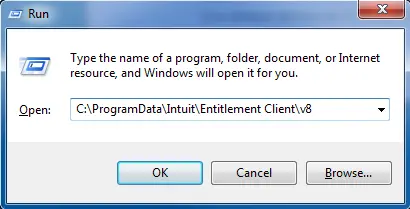
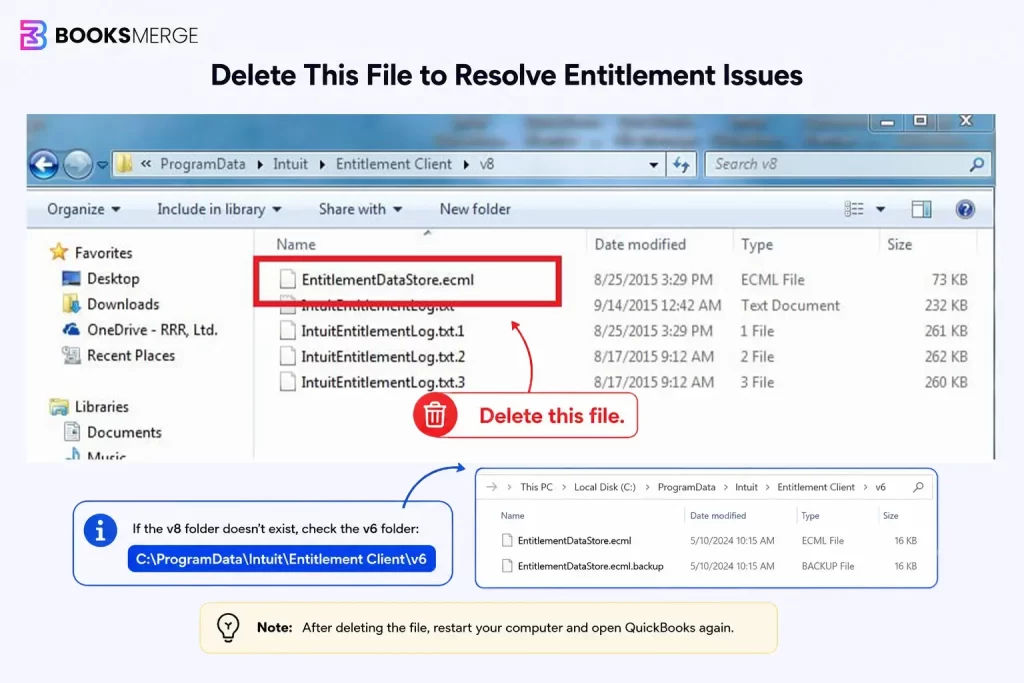
QuickBooks stores your product and subscription details inside the EntitlementDataStore.ecml file. If this file becomes damaged, QuickBooks may incorrectly report that your subscription has lapsed. Here’s how to reset it:

QuickBooks must connect with Intuit servers to validate your subscription. Network issues or incorrect internet settings may interrupt this process.
Security software may block QuickBooks from reaching Intuit’s licensing servers. Here’s how to verify them:
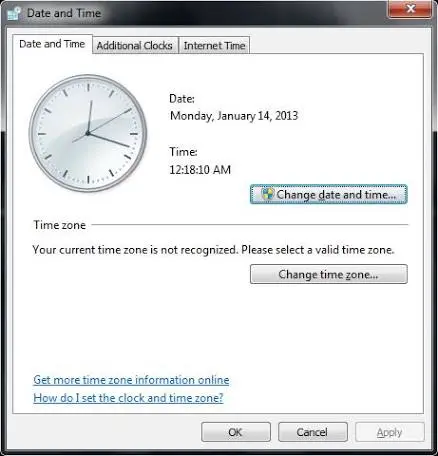
Incorrect system time can interfere with secure server communication. To correct it:
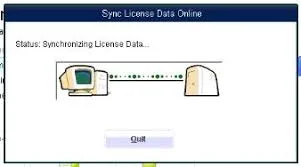
In some cases, the subscription is active, but QuickBooks has not refreshed the latest license information. To manually sync, follow the steps below:
If none of the previous methods fix QuickBooks Desktop subscription has lapsed error. Repair your QuickBooks by following these steps:
If your QuickBooks Desktop subscription has expired or become inactive, renewing it restores access to subscription-based features like payroll, online banking, product updates, and connected services.
Here are the simple methods to renew your subscription:
The quickest way to renew your subscription is through your Intuit account. Follow these steps:
If the option is available in your version of QuickBooks, you can renew the subscription directly from the software. Here’s how:
Even after renewing, some users may still encounter the QuickBooks new subscription has lapsed issue because the updated subscription details have not yet synced with Intuit’s servers. To refresh your license information:
To avoid the QuickBooks Subscription Has Lapsed error in the future, follow these preventive steps:
Important Note: If subscription verification issues continue, they can also lead to payroll update errors like QuickBooks Error PS032.
Make QuickBooks Work Smarter for Your Business
Spend less time managing data and more time growing your business. Whether you need help setting up QuickBooks, cleaning up your books, reconciling accounts, or resolving errors, our team is here to make accounting easier. Get quick solutions that save time, improve accuracy, and keep your business finances on track.
The QuickBooks Subscription Has Lapsed issue normally occurs when QuickBooks cannot verify your active subscription due to billing problems, outdated software, license sync errors, or connectivity issues. By updating your payment details, syncing license information, repairing QuickBooks components, and following the troubleshooting methods mentioned above, you can restore access to your subscription-based features.
If you still need further assistance, you can get in touch with the Data Service Team specialists at +1(888)-718-7888. With the right steps, you can quickly resolve the QuickBooks Subscription Has Lapsed error.
Yes, you can create backups of your company file even if your subscription has lapsed. Your financial data remains stored safely and is not deleted.
Yes, Windows Firewall or antivirus settings can block QuickBooks from connecting to Intuit servers. Allowing QuickBooks through firewall settings can help resolve the issue.
You can check your subscription status by signing in to your Intuit account and opening the Products & Services section. Verify that your QuickBooks subscription is active.
Update your billing details, sync your license data, and install the latest QuickBooks updates. These steps help QuickBooks verify your active subscription.
Yes, you can usually open and view your existing company files after subscription expiration. However, some features and services may become unavailable.
Ignoring the message may restrict access to features like payroll, updates, and online services. Your company data remains safe, but QuickBooks functionality may be limited.
Yes, this can happen due to differences in license files, software updates, firewall settings, or internet connectivity on each computer.
Verify your subscription status in your Intuit account, confirm billing details, sync license data online, and restart QuickBooks Desktop to refresh subscription information.
Yes, check your subscription status, update QuickBooks, sync license data, verify internet settings, and review firewall permissions before attempting installation repairs.
Different computers may have outdated license information, damaged entitlement files, or network restrictions. Sync the license and check connectivity on the affected computer.

Get Free Consultation for QuickBooks Upgrade
(2021, 2022, 2023)


