QuickBooks-Error-12157

Are you getting QuickBooks Error 12157 while trying to update the software? This is a connection-related issue that may prevent users from completing QuickBooks Desktop or payroll updates. It may be caused by issues related to the network, Windows Firewall, security settings, or system configuration problems.

In this comprehensive guide, we have discussed what QuickBooks Error Code 12157 is, its causes, symptoms, and effective troubleshooting methods to fix it.

What is QuickBooks Error 12157?

QuickBooks Error 12157 usually occurs when the software can’t connect to the internet or verify security certifications. Thus, it prevents users from updating or downloading payroll updates. This error is mainly caused by an incorrect system date and time, misconfigured internet settings, or issues with the firewall settings.

Signs & Symptoms of QuickBooks Error Code 12157

You can identify QuickBooks Error 12157 by recognizing the following signs and symptoms.

  • QuickBooks is unable to connect with Intuit’s online services.
  • Users may get an error message indicating a problem with the internet connection or secure connection.
  • The QuickBooks software fails to download or install the latest updates.
  • Even after restarting QuickBooks and trying to update again, the error message persists.
  • You may notice that QuickBooks may either become slow or temporarily unresponsive during the update process.
  • An update attempt stops unexpectedly or does not complete.

What Causes QuickBooks Desktop Error 12157?

Users may encounter this QuickBooks Desktop error when downloading or installing QuickBooks payroll updates. It may also be caused by various factors, such as:

QuickBooks Error 12157
  • Issues with internet connectivity can also trigger the QuickBooks Error 12157.
  • Incorrect date and time on the system may also prevent secure connections.
  • Windows Firewall or a third-party antivirus program might block QuickBooks from accessing the internet. If you suspect your firewall is preventing QuickBooks from connecting, see our guide on Windows Firewall is Blocking QuickBooks.
  • An outdated QuickBooks Desktop version may also trigger the 12157 error in QuickBooks. Similar connection-related update problems may also appear as QuickBooks Error 12007, QuickBooks Error 12029, QuickBooks Error 12031, or QuickBooks Error 12152.
  • Insufficient administrative rights may also prevent you from completing the updates.
  • This issue is also triggered due to an outdated or invalid SSL certificate.

What must you do Before Troubleshooting Error 12157?

Before troubleshooting this error, it is necessary to consider a few important points.

  • The first important thing is to create a backup of the QuickBooks company file.
  • You must have proper Windows admin rights to download the payroll updates.
  • Ensure that the date and time on your system are correct.
  • Verify that your QuickBooks Desktop and Windows are up to date.
  • Also, test your internet connection while installing the updates.

How to Fix QuickBooks Update Error 12157 In Easy Steps?

Now that you have learned the symptoms and causes behind the QuickBooks Error 12157, let’s have a look at the troubleshooting methods given below. Try each of the following methods in the same manner as given below, without skipping any step.

Method 1: Check the Date & Time On Your System

Incorrect date and time can also create problems while installing the latest QuickBooks or payroll updates. Therefore, it is essential to verify that the system’s date and time are correct. Here’s how to correct it.

  • Look at the taskbar, right-click the time, and select Adjust Date/Time.
  • Choose the Change Date and Time option. Then, enter the correct date and time.
current-system-date-and-time
  • Click the OK button twice.
  • Close it, and then try to open the QuickBooks Desktop application.
  • Lastly, try downloading the QuickBooks payroll update to see if the issue is resolved.

Method 2: Configure the incorrect internet settings

To change the internet settings in QuickBooks Desktop, follow these steps.

  • Open QuickBooks Desktop and select the Help menu.
  • Choose Internet Connection Setup.
  • Select the “Use my computer’s internet connection settings” option, then click Next.
  • Navigate to Advanced Connection Settings.
  • As a result, it will redirect you to the Internet Options window. You can adjust the settings as required on this screen.

Method 3: Check Your Internet Connection Settings

An unstable or poor internet connection is also one of the major causes behind the update issue in QuickBooks. However, to download and install the latest updates in QuickBooks smoothly, review your internet connection. Here are the following steps to correct the internet settings;

  • To test your internet connectivity, open a web browser and visit Chase Banking.
  • If you fail to access the Chase Banking page, you might have difficulty getting updates from QuickBooks. To get the issue resolved, connect with your Internet Service Provider

If you are able to view the Chase Banking site, start QuickBooks and perform the following steps.

  • Open the Help menu and choose Internet Connection Setup.
  • Click “Use my computer’s Internet Connection settings to establish a connection when this application accesses the internet.”
  • Tap on Next and select Advanced Connection Settings.
  • Navigate to Restore Advanced Settings and click OK.
Restore Advanced Settings
  • Choose the Done option and try updating QuickBooks Desktop again.

Method 4: Review the Internet Security & Personal Firewall Application Settings

Sometimes, the internet security or firewall settings may also interrupt the update process. To fix the issue, check the configuration of Internet Security and firewall software settings. Also, verify that ports 80 and 443 are enabled and that access is granted to the following files.

  • AutoBackupExe.exe
  • Dbmlsync.exe
  • DBManagerExe.exe
  • FileManagement.exe
  • FileMovementExe.exe
  • IntuitSyncManager.exe
  • QBCFMonitorService.exe
  • QBDBMgr.exe
  • QBDBMgrN.exe
  • QBGDSPlugin.exe
  • QBLaunch.exe
  • QBServerUtilityMgr.exe
  • QBW32.exe
  • QuickBooksMessaging.exe

Method 5: Turn Off the User Account Control Settings

Insufficient User Account Control settings can also trigger QuickBooks Payroll Update error 12157. Follow these steps to disable the UAC settings.

  • Open the Run Command window (Windows + R).
  • Type Control Panel and click OK.
  • After this, select System and Security Settings.
  • Choose the Security Maintenance option.
  • Click User Accounts and choose Change User Accounts.
  • Lastly, tap the Never Notify option. Then, select the OK option in the User Account Control settings.

Method 6: Run the TLS 1.2 Readiness Tool

QuickBooks Tool Hub checks your Windows settings and helps ensure that your system is compatible with the TLS 1.2 security protocol. Before running the Tool Hub, close QuickBooks Desktop completely.

It is suggested that you install the latest version of QuickBooks Tool Hub before moving further.

  • Open the QuickBooks Tool Hub and select Installation Issues.
  • Navigate to the QuickBooks TLS 1.2 tool from the bottom right corner of the screen.
  • Click on OK to open the TLS tool. Then, select Yes from the EULA Agreement.
  • After that, select the Run option.
  • Once done, click the Exit option.

Method 7: Reset QuickBooks Updates

If the above solutions don’t help you fix QuickBooks Error 12157, consider resetting QuickBooks updates.
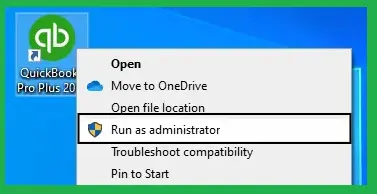
  • First, right-click the QuickBooks Desktop icon.
  • Select Run as Administrator.
run-as-administrator
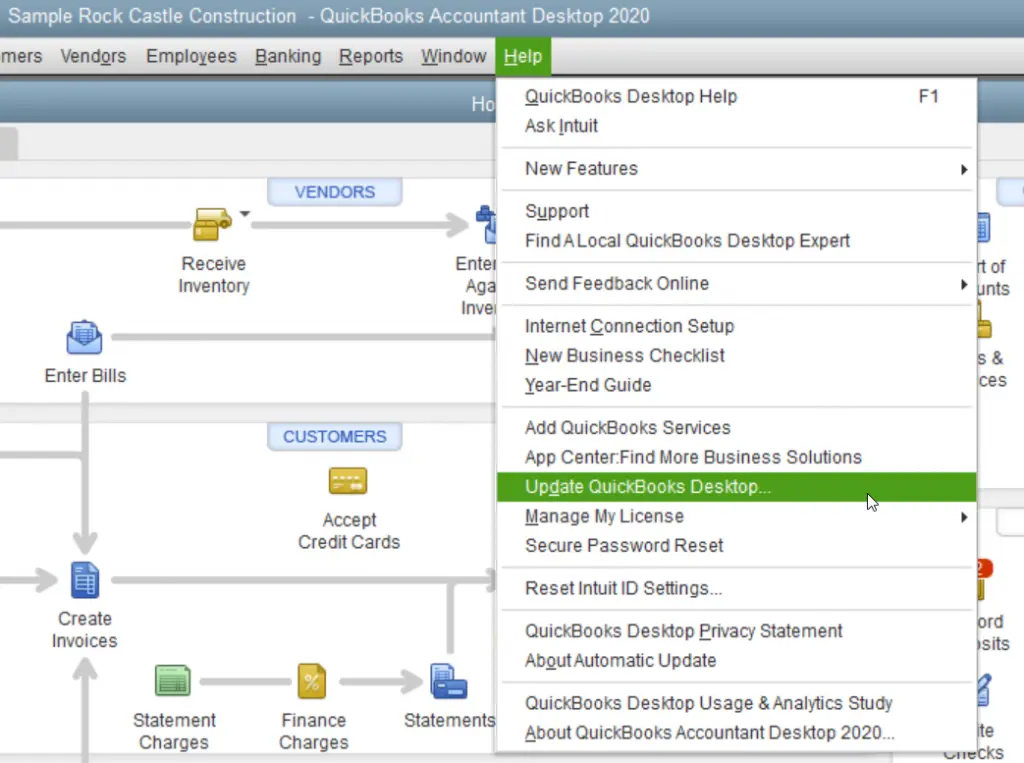
Update-QuickBooks-Desktop
  • Now, look for the necessary options for updates and click Reset updates.
  • Once done, try to download the latest QuickBooks updates.

If the above solutions don’t help you fix Error 12157, consider resetting QuickBooks updates. If your QuickBooks update remains stuck, see our guide on QuickBooks Update Stuck.

Precautions You Must Take to Avoid Error Code 12157 in QuickBooks

The following are some preventive tips to consider that will help reduce the chances of getting Error 12157 in QuickBooks.

  • Make sure that your system is well-connected with a stable internet connection.
  • Also, ensure that the time and date on your system are correct.
  • Keep your QuickBooks and Windows updated to the latest version.
  • Configure the firewall and antivirus settings to allow QuickBooks updates.
  • Keep TLS 1.2 enabled on your system.

Conclusion!

Encountering QuickBooks Error 12157 while installing QuickBooks or payroll updates might be challenging, as it prevents QuickBooks Desktop from connecting to Intuit services. However, implementing the troubleshooting steps given above can help you resolve the issue. To reduce the chances of getting this error, keep QuickBooks and Windows updated, maintain a stable internet connection, and regularly review your security settings.

If the error persists after trying the recommended solutions, connect with our Data Service Team at +1(888)-718-7888 professionals and get your issue resolved.

Frequently Asked Questions (FAQ’s)

Correct your system’s date and time, test your internet connection, check firewall settings, and review the TLS 1.2 configuration to fix this error. Then, try to open QuickBooks and install the update again.

Yes, incorrect date and time settings on the system can interrupt QuickBooks while connecting with Intuit’s services.

Yes, the interruption of the firewall or security software settings may block QuickBooks from connecting to the internet, causing Error 12157.

Yes, incorrect TLS or internet security settings may affect QuickBooks’ secure connection with Intuit services.

If this issue continues, recheck the network and security settings and use QuickBooks Tool Hub for additional troubleshooting. If the error still persists, connect with a QuickBooks expert.

Always keep your QuickBooks and Windows updated, maintain a stable internet connection, and ensure your date and time. Also, check that the firewall and TLS settings are properly configured.

About The Author

Steven Moody

Steven Moody is a bookkeeping and payroll specialist dedicated to helping businesses maintain accurate financial records and efficient payroll operations. His expertise includes payroll management, tax compliance, bookkeeping solutions, and financial reporting. Steven regularly shares insights on accounting best practices and business finance strategies. Outside of work, he enjoys traveling, exploring new places, and keeping up with the latest developments in business technology.

Steven Moody

QuickBooks Error

QuickBooks Error PS034: How to Fix Payroll Update File Issue

Read More
QuickBooks Error

How to fix QuickBooks Error 6069 When Opening Company File

Read More
QuickBooks Error

QuickBooks Error 80070057: Fix Company File Access Issues

Read More
QuickBooks

QuickBooks Online Login Problem: Here’s How to Fix It

Read More
QuickBooks Error

QuickBooks Error UEXP: Fix Payroll Update Activation Issues

Read More
