
QuickBooks Error 1618 usually appears when you try to install or update QuickBooks Desktop while another installation is already running on your computer. It may also occur due to problems with Windows Installer or Microsoft Runtime Libraries. This error can stop the installation or update process and prevent you from using the latest version of QuickBooks. The good news is that you can try a few simple solutions to fix it.
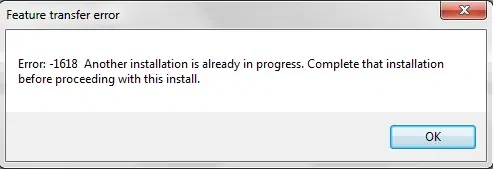
In this blog, we’ll explain the common causes of QuickBooks Error 1618 and walk you through easy steps to resolve the issue.
QuickBooks Desktop Error 1618 can occur when Windows encounters a problem during the installation or update process.20Here are some common causes of this error code:
QuickBooks Error 1618 can interrupt the installation or update process, especially when Windows is already handling the another installation. Although you may not be able to prevent every occurrence, following a few simple practices can help you reduce the chances of encountering this error again.
Following these practices can help reduce installation conflicts and make future QuickBooks updates easier.
You may notice the following signs when QuickBooks Error 1618 occurs on your computer:
Recognizing these symptoms can help you identify QuickBooks Error 1618 and take the right steps to resolve it.
QuickBooks Error 1618 usually occurs when another installation is running or Windows encounters a problem with the installation process. Try the following solutions one by one to resolve the error and install or update QuickBooks Desktop successfully.
QuickBooks error 1618 may appear when another installation is running in the background. You can check Task Manager to see whether the Windows installer process is active before trying to install QuickBooks again. Follow these steps:
After closing unnecessary background processes, try installing or updating QuickBooks again. If the update still gets stuck, read our guide on QuickBooks Update Stuck for additional troubleshooting steps.
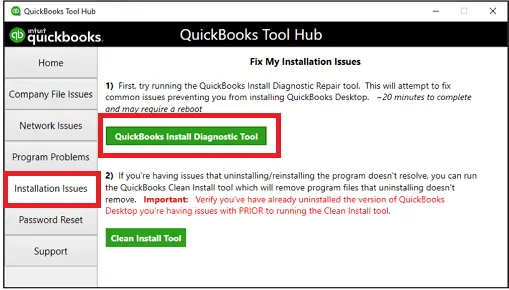
The QuickBooks Install Diagnostic Tool can help identify and fix common installation problems. Intuit provides this tool through the QuickBooks Tool Hub. Follow these steps:
Sometimes, QuickBooks Error 1618 appears because the Windows Installer service is not working properly. Restarting this service may help fix the issue and allow you to install or update QuickBooks Desktop. Here’s what you need to do:
If QuickBooks encounters another installation-related issue, our guide on QuickBooks Error 1920 explains possible causes and troubleshooting methods.
QuickBooks relies on Microsoft components to install and run properly. If the Microsoft Visual C++ Redistributable files are damaged or missing, you may face QuickBooks Error 1618 during installation. Follow these steps to check and repair the components:
Problems with required Windows components can sometimes affect software installation. Read our guide on QuickBooks Error 1935 for more information about this error and its possible solutions.
If you have outdate version of Windows, you may face compatibility issues during the QuickBooks installation. By updating the Windows to the latest version can help you fix the system related issues easily. Follow these steps:
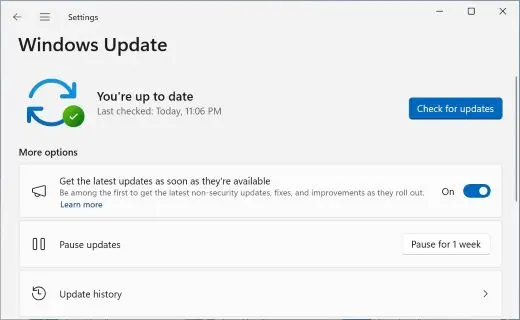
If QuickBooks Error 1618 still appears after updating Windows, move on to the next solution.
If the previous solutions haven’t worked, QuickBooks may have damaged or missing program files. Repairing QuickBooks Desktop can help fix these files without requiring you to remove the software completely. Follow these steps:
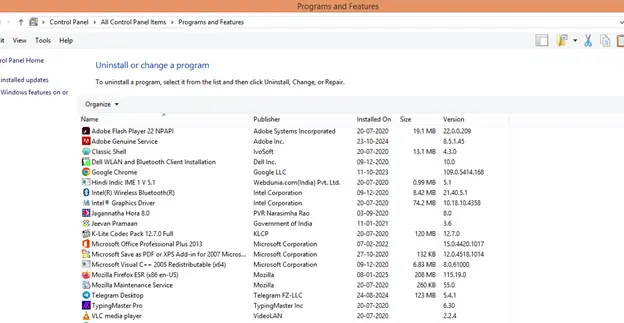
If QuickBooks Error 1618 continues to appear, proceed to the next troubleshooting method.
If you are still facing the same 1618 error, some Windows system files may be damaged. The System File Checker (SFC) tool scans these files and attempts to repair them. Follow these steps:
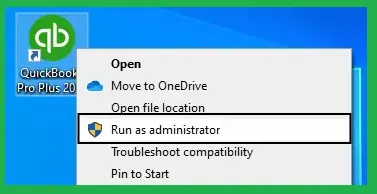
If the error remains, move on to the next solution to troubleshoot the installation issue.
If QuickBooks Error 1618 continues after trying the previous solutions, reinstalling QuickBooks Desktop may help resolve problems caused by damaged or incomplete program files. Before starting, make sure you have a backup of your company file and your QuickBooks license information. Follow these steps:
Once the installation is complete, open QuickBooks and check whether the error has been resolved.
You can reduce the likelihood of future installation conflicts by following these practices:
These practices can help reduce avoidable installation interruptions, although they cannot guarantee that the error will never occur again.
Make QuickBooks Work Smarter for Your Business
Spend less time managing data and more time growing your business. Whether you need help setting up QuickBooks, cleaning up your books, reconciling accounts, or resolving errors, our team is here to make accounting easier. Get quick solutions that save time, improve accuracy, and keep your business finances on track.
QuickBooks Error 1618 can interrupt installation or updates, usually due to another active installation or Windows Installer issues. Restart your computer and try the troubleshooting methods in this guide. If the error persists, contact Data Service Team at +1(888)-718-7888 for assistance.
QuickBooks error 1618 usually comes when another installation or update is already running on your computer. It can also appear when Windows Installer encounters a problem while installing QuickBooks Desktop or its supporting components. Checking for active installations is a good first step toward resolving the error.
To fix QuickBooks Error 1618 in Windows 10 or Windows 11, first check whether another installation is running and allow it to finish. If the error persists, restart your computer and run the QuickBooks Install Diagnostic Tool through QuickBooks Tool Hub. You can also install available Windows updates and repair the relevant Microsoft components if necessary.
This error commonly occurs when the Windows installer is already processing another installation or update. In some cases, interrupted installations or problems with Microsoft Runtime Libraries may also contribute to the issue. By identifying the cause can help you choose the best troubleshooting method.
Press Ctrl + Shift + Esc to open Task Manager and look for active installation processes. If another program is being installed or updated, let the process finish before running QuickBooks setup. If an installation appears stuck, restart your computer rather than ending Windows Installer processes manually.
Yes, Windows Installer conflicts can contribute to QuickBooks Error 1618. The error commonly indicates that another installation is already in progress, preventing QuickBooks from starting its own installation. Check for active installation processes first and then troubleshoot Windows Installer if the problem continues.
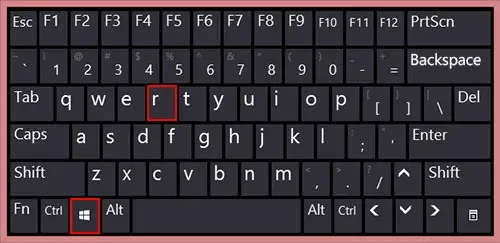
Press Windows + R, type services.msc, and press Enter. Find Windows Installer in the Services window and check its status and available controls. If the service is stopped and Windows allows you to start it, follow the available instructions. If the error persists, run the QuickBooks Install Diagnostic Tool or consult a qualified Windows technician.
Running multiple installation or update processes simultaneously can contribute to Error 1618 because Windows Installer may already be busy. Allow any active installation to finish before starting another one. If the installation appears unresponsive, restart your computer and try installing QuickBooks Desktop again.
Antivirus or firewall software can sometimes interfere with software installation, although it is not the primary cause of Error 1618. First, check for active installations and try the recommended troubleshooting steps. If you suspect your security software is blocking the installer, consult its provider before changing any security settings.
If QuickBooks Error 1618 continues to appear, verify that you are using the correct installer for your QuickBooks Desktop version. Consider repairing or reinstalling QuickBooks using official Intuit instructions, and back up your company file before making major changes. If the problem remains unresolved, contact Data Service Team for further assistance.

Get Free Consultation for QuickBooks Upgrade
(2021, 2022, 2023)


