
Can’t open your QuickBooks company file because QuickBooks Error 6190 keeps showing up? You’re not alone. This error can occur when QuickBooks cannot properly access the company file, particularly in a network or multi-user environment.
But what is causing the problem? In some cases, the company file and transaction log file may not match. In others, another user may be accessing the File in an incompatible mode, or the network and hosting setup may need attention.
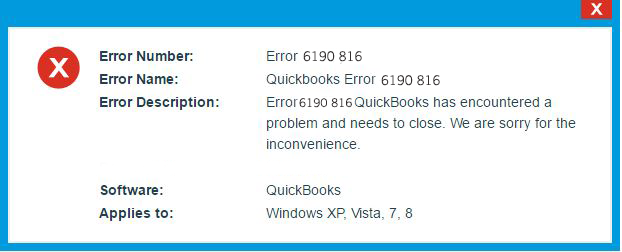
This guide covers the main reasons behind the QuickBooks Error 6190, 816 and explains the steps you can take to identify and fix the issue without making unnecessary changes to your company data.
QuickBooks Error 6190 is generally related to the way QuickBooks is accessing the company file. The problem is especially relevant when the File is being used in a multi-user network. Some situations that can contribute to the error include:
Once you know that the error is related to accessing the company file, start with the basic network and QuickBooks checks. You don’t need to make changes to your company file right away.
Try the fixes below in order to resolve QuickBooks error 6190, 816. After each one, try to open QuickBooks and check whether you can access the company file.
Quick Fix My Program is available through the QuickBooks Tool Hub and can help resolve problems with the QuickBooks program itself.
Before you start, you need to download the latest version of QuickBooks Tool Hub, if you don’t have it installed.
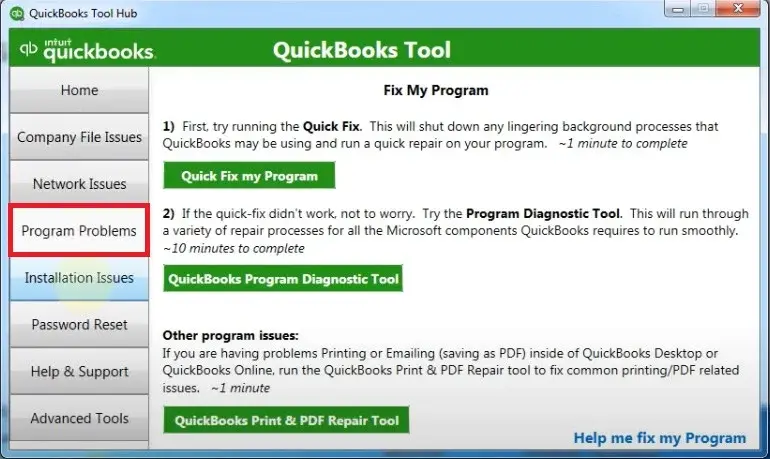
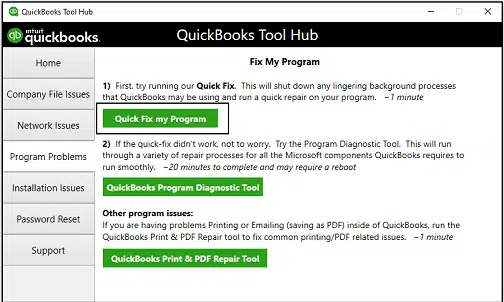
If QuickBooks can’t open your company file QuickBooks Error 6190 still appears, move on to the next step.
If you’re using QuickBooks in a multi-user environment, a restart can help clear temporary connection or hosting problems.
First, start with the computer that stores the company file:
If the error disappears, there may have been a temporary problem with the network or the QuickBooks services running on one of the computers. If you’re using a third-party hosting service instead of your own server, contact the hosting provider before restarting hosting services yourself.
QuickBooks Database Server Manager helps you manage access to company files stored on a server. If the multi-user network is not working properly, checking the server with this tool is a next step. You can access it through QuickBooks Tool Hub.
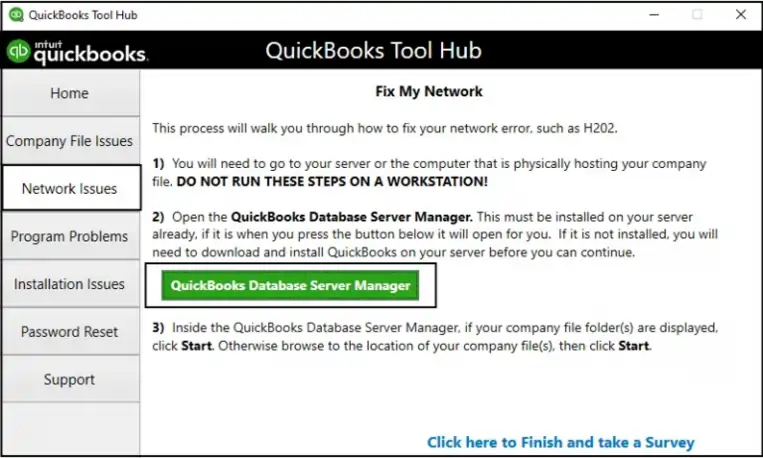
The tool can also help configure the Windows firewall permissions required for QuickBooks to communicate across the network. If you are still facing QuickBooks Company File Error 6190, continue with the next step rather than repeatedly running the same scan.
The location of the company file matters. QuickBooks may have trouble accessing a company file when it is being opened from a removable drive or an online storage location.
If your company file is stored somewhere other than the local or supported network location, test whether the issue is related to the storage location.
Before moving the File, make sure you have a current backup and that no one else is working in the company file.
If you’re unsure where the company file should be stored in your particular multi-user setup, check your QuickBooks hosting configuration or consult your system administrator.
If QuickBooks Error 6190 and 816 appear only when several computers are trying to use the company file, QuickBooks Multi-User Mode Not Working may also indicate a network or hosting configuration problem.
Check which computer is hosting the company file and make sure the QuickBooks setup is configured correctly for your environment. Also check whether:
If you recently changed your network, moved the company file, replaced the server, or changed hosting settings, those changes are worth checking first.
QuickBooks needs proper access to the folder where the company file is stored. If the folder is read only or the Windows account does not have the required permissions, QuickBooks may not be able to open the File. You can check:
If you recently moved the company file or changed the network setup, pay particular attention to the folder permissions. If QuickBooks error 6190 still appears, move to the next troubleshooting step.
An outdated QuickBooks program installation can create compatibility problems, particularly when several computers are accessing the same company file. Before updating, close the company file and make sure other users are not working in it. To check for updates, follow these steps:
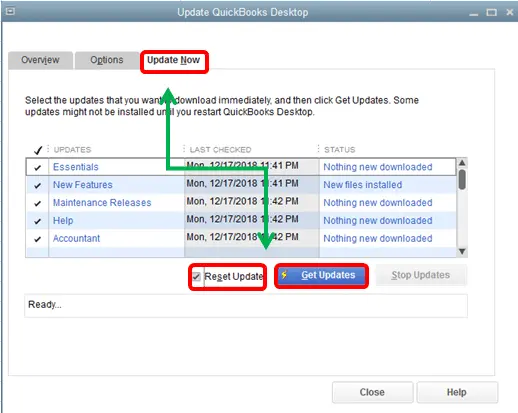
If you have gone through the troubleshooting steps and QuickBooks still won’t open the company file, don’t keep making random changes to the File or Windows settings. At this point, try to narrow down where the problem is coming from:
QuickBooks Error -6190, -816 is usually connected to how QuickBooks accesses the company file, especially when the File is shared over a network. Once you’ve resolved the error, keeping your company file and network setup consistent can help reduce the chances of it happening again. Keep these practices in mind:
Following these steps can help you maintain a stable QuickBooks environment and reduce the company File access issue.
QuickBooks Error 6190 can stop you from opening your company file, especially when there is a problem with the network, hosting, or file access. Start with the simpler fixes and check the company file after implementing each step.
If the error continues, avoid making unnecessary changes to your company data. Check your network and hosting setup carefully or contact the Data Service Team experts for additional help at +1(888)-718-7888.
QuickBooks Error -6190, 816 appears when QuickBooks cannot open or access the company file. It can happen because of a network problem, incorrect hosting settings, a file access issue, or a mismatch between the company file and its transaction log file.
Close QuickBooks on all computers and restart the server and workstations. You can then run Quick Fix My Program, check the multi-user setup, run QuickBooks Database Server Manager, and update QuickBooks Desktop.
Yes. If another user has the company file open in Single-User Mode, it can prevent other users from accessing the File properly. Check the QuickBooks mode and make sure the company file is set up correctly for multi-user access.
Open QuickBooks Desktop and select File. Look for the multi-user option. If you see Stop Hosting Multi-User Access, that computer is hosting the company file. If the computer should not be hosting the File, review its hosting settings.
Yes. A mismatch between the QuickBooks company file (.QBW) and transaction log file (.TLG) can contribute to Error -6190, 816. If you suspect a file mismatch, follow the appropriate troubleshooting steps and keep a backup before making changes.
It can help you determine whether the original file location is causing the problem. If the company file opens from the local drive but not from the network location, the issue may be related to the network, folder permissions, or hosting setup.
Keep QuickBooks updated and make sure your multi-user and network settings are configured correctly. Avoid unnecessarily moving the company file and keep regular backups of your company data.
Check whether the error happens on one computer or on every computer connected to the company file. You can also check whether another company file opens normally. If the problem continues, avoid making unnecessary changes to your company file and consider getting technical assistance.
Get professional help if you’ve tried the recommended troubleshooting steps and still cannot open the company file. It’s especially important to seek help if you suspect the company file is damaged or you’re worried about losing your accounting data.

Get Free Consultation for QuickBooks Upgrade
(2021, 2022, 2023)


