
QuickBooks-Wont-Open

Are you struggling with the QuickBooks Won’t Open issue? Just sit back and relax! This can be resolved with the consideration of certain simple steps that we will discuss in the article below. We understand that it interrupts your workflow and hinders your ability to manage finances effectively. QuickBooks is a vital tool for countless businesses and provides essential features for accounting, payroll, and invoicing.

Software issues can arise at any time while leaving users stuck and unsure of how to proceed. Furthermore, we will explore common reasons why my QuickBooks desktop won’t open and provide proven troubleshooting steps to help you get back on track. Whether you’re facing error messages or the program simply refuses to launch, we’ve got you covered with the solutions you need.
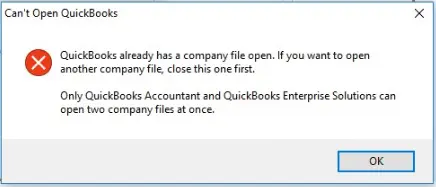
QuickBooks Won't Open

Understanding QuickBooks Won’t Open Issues

This is a startup errors where the software crashes, freezes, or fails to launch when clicked. QuickBooks Won’t Open error stem from corrupted installation files, damaged company files, or third-party antivirus blocks. Use the QuickBooks Tool Hub, suppress the startup process, or repair the software installation to resolve these errors.

Common Significant Causes for the QuickBooks Won’t Open Issue

In this section, we will acknowledge several typical and possible reasons why QuickBooks won’t open. Understanding the causes is just as crucial as finding a solution, as they provide insight into why the QuickBooks won’t open issue occurred. Let’s delve into this as the initial step in identifying the problem:

  • Corrupt program files or an incomplete software installation will prevent the application from launching. Run the Quick Fix My Program utility to resolve this issue.
  • Multiple and hidden instances of the QuickBooks executable running in the Windows background can prevent a new session from starting. It can prevent a new session from starting.
  • The corrupted files are responsible for saving your QuickBooks user preferences and startup state. It can become broken.
  • Security software can sometimes incorrectly identify QuickBooks scripts as threats and block the program from opening. Select QuickBooks as an exception in the antivirus or disable the firewall to verify if this is the cause.
  • Recent Windows updates can alter essential system files/ NET framework setting and lead to launch failure.
  • Sometimes the issue is not the Software itself but a corrupted company data file.
  • QuickBooks requires administrative privileges to access certain system folders and network ports.

Main Indicators of the QuickBooks Won’t Open Issue

When QuickBooks does not start up, it gives some warning signs beforehand. You might observe one or more of the following indicators:

  • The Endless Loading Icon – You click on the QuickBooks icon, the cursor changes to a spinning wheel for a moment, and then nothing occurs.
  • Non-responsive Screen – The application freezes completely on the initial splash screen (the blue loading window). It requires you to use Task Manager to close it.
  • Laggy System Performance – Your whole computer unexpectedly slows down or becomes unresponsive immediately after trying to open the Software.
  • Absent Processes – QuickBooks may not show up on your display, but if you check the Windows Task Manager, QBW32.exe is active in the background. It consumes a large amount of CPU or memory.
Close-QBW32.exe-process
  • Error Messages and Alerts – You might encounter specific error prompts like QuickBooks has stopped working or An error occurred when QuickBooks attempted to access the company file.

Easy Strategies to Fix When QuickBooks Desktop Won’t Open

Have you encountered QuickBooks company file won’t open issue and it stops you from completing your business tasks? Do not take stress! Just consider the given proven method with step-by-step guidance and run your tasks with QuickBooks smoothly:

Solution 1: Launch the Quick Fix My Program from QuickBooks Tool Hub

The QuickBooks Tool Hub helps fix common errors. You will need to close QuickBooks to use the tool hub. Use the Tool Hub on Windows 11, 64-bit for the best experience. Follow the given steps to do so:

Download & Install the QuickBooks Tool Hub

  • Close QuickBooks.
  • Download the recent version of QuickBooks Tool Hub.
  • Save the file where you can find it.
  • Open the downloaded file.
  • Follow the steps given on the screen to install and agree to the terms.
  • Double-click on the Windows desktop to open the Tool Hub if you have installed Tool Hub before.

Data Service Team Tip: Find out which version you have when you have installed Tool Hub before. Choose Home tab and the version will be available at the bottom.

Run Quick Fix My Program

QuickBooks will close any open background processes QuickBooks uses. It will run an instant repair on your desktop:
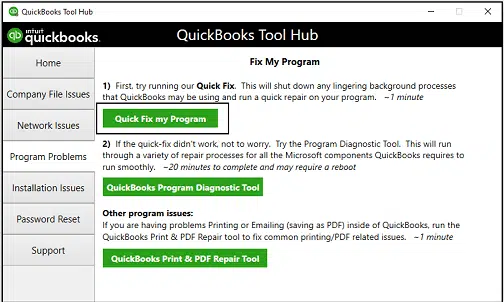
  • Click on the Program Problems in the QuickBooks Tool Hub.
  • Select Quick Fix My Program.
  • Open QuickBooks Desktop and click on the data file.
Run-Quick-Fix-My-Program

Do a search in Windows for QuickBooks Tool Hub and select the program if you are unable to find the icon.

Solution 2: Check If the Issue is With Your File or the Program

There can be damage to your company file. Users must figure out if the issue is with QuickBooks or your data file. QuickBooks will try to open your previous company.
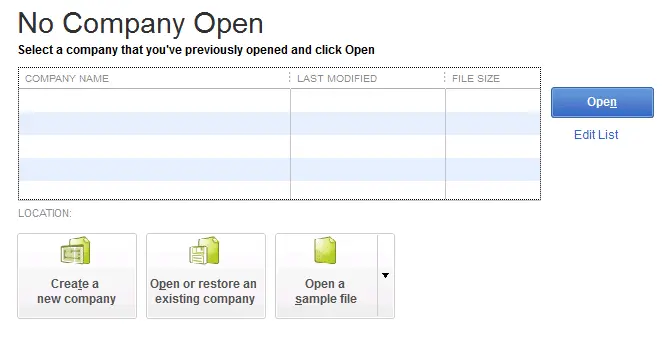
  • Open Your File With All Windows Closed
  • Open QuickBooks Desktop.
  • Select your company file in No Company Open.
QB-NoFile
  • Press and hold ALT on the keyboard and select Open.
  • Do not let go of ALT until the file opens.
  • Release ALT and enter your password if you are asked to sign in.
  • Press and hold ALT. Select OK.
  • Suppress the QuickBooks Application
  • Press & hold the Ctrl key and double-click the QuickBooks Desktop icon.
  • Select a company file and choose Open.

Data Service Team Tip: Do not release the Ctrl key until you see the No Company Open window. QB freezes or gives you an error.

Solution 3: Initiate QuickBooks Install Diagnostic Tool in the Tools Hub

A newly set up QuickBooks might be defective or incomplete, which can lead to the QuickBooks won’t open. In these situations, run the QB Install Diagnostic Tool. To proceed, follow the directions outlined below:
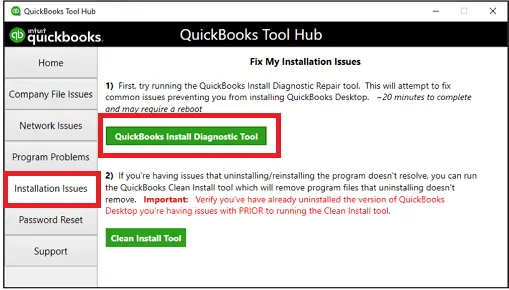
  • Terminate the QB process from Task Manager and navigate to the QuickBooks Tool Hub.
  • Choose Installation Issues on the left side.
QuickBooks install diagnostic tool
  • Select the QuickBooks Install Diagnostic Tool to execute it.
  • Allow the tool to resolve the issue and restart your system.
  • Attempt to open QuickBooks Desktop once again.

Solution 4: Repair your QuickBooks Desktop installation

There is an alternative method to fix QuickBooks won’t open after update by using the Windows application repair feature. It helps access and use by following the steps provided:
  • Ensure you create a backup of the company file before initiating the process.
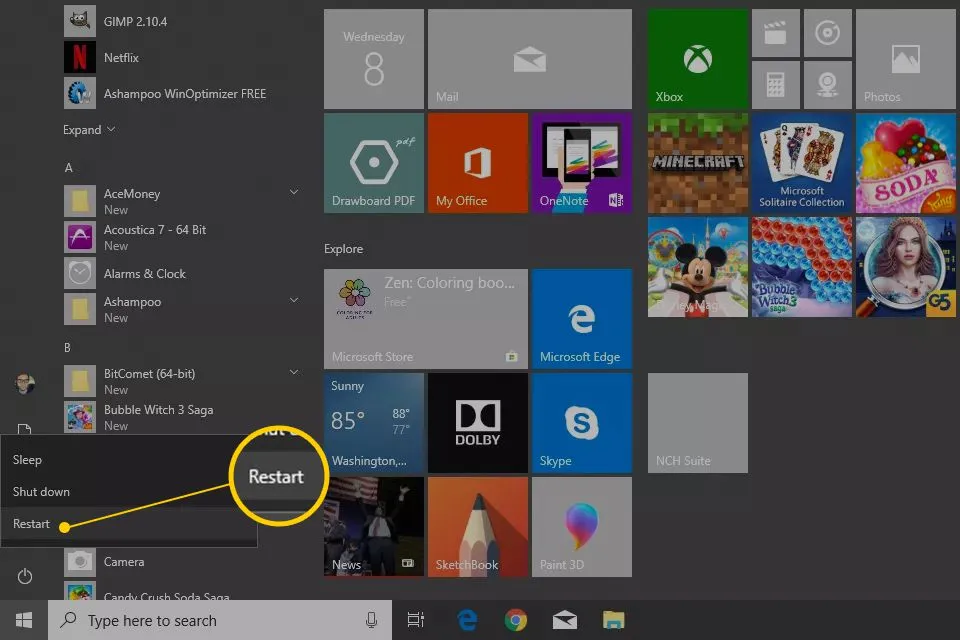
  • Restart your system and press the Windows button.
  • Select Control Panel option under the Start menu.
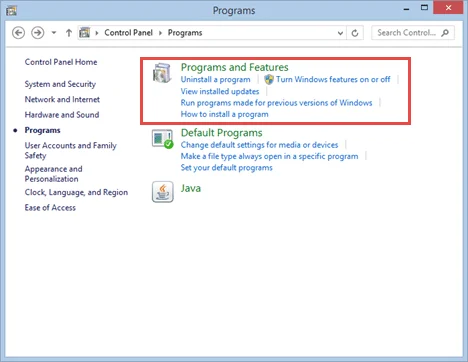
  • Choose Program or/and Programs and Features, and then select Uninstall a Program.
Programs and Features
  • Search for QuickBooks in the list of programs and click on Uninstall/ Change.
  • Click on Continue, then select Repair.
  • Choose the Finish tab and restart the system again after the repair is done.
Reboot-or-restart-the-computer

Solution 5: Reinstall QuickBooks Desktop

A Clean Install removes corrupt system files and registry keys without affecting your company files to fix a QuickBooks won’t open issue. Before starting, ensure you have a QuickBooks Backup and have your License and Product numbers on hand.
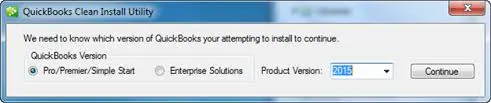
clean-install-tool-in-quickbooks

Uninstall the Program

  • Select the Windows button and locate Control Panel.
  • Click Uninstall a Program.
  • Select your version of QuickBooks Desktop from the list and click Uninstall/Change.
  • Follow the prompts to select Remove and click Next.

Rename the Installation Folders (Clean Install)

  • Renaming ensures that corrupted folders are ignored when you reinstall.
  • Open File Explorer.
  • Navigate to these locations (usually one of the following):
    • C:\ProgramData\Intuit\QuickBooks (Year)
    • C:\Users(Your User Name)\AppData\Local\Intuit\QuickBooks (Year)
    • C:\Program Files\Intuit\QuickBooks (Year)
    • C:\Program Files (x86)\Intuit\QuickBooks (Year)
  • Right-click the folder and select Rename. Add “.old” to the bottom of the folder name (e.g., QuickBooks2024.old).

Download and Reinstall

  • Go to the official Intuit Downloads & Updates page.
  • Select your country, product, and version, then click Search and download the installer.
  • Open the downloaded file (e.g., QuickBooks.exe) and follow the installation wizard.
  • Accept the license agreement, then enter your License and Product numbers.
  • Select the Express installation type and click Install.

Solution 6: Use the QuickBooks File Doctor Tool

Issues concerning the QuickBooks company file, like a corrupted data file, can lead to the QuickBooks won’t open after update problem. The QB File Doctor tool can fix issues associated with the company file.

  • Double-click the QB file while pressing the CTRL key.
  • Wait for the No Company Open window or error message to appear on the screen. Keep the CTRL key pressed.
  • Click on Open or Restore a current Company File after it opens and select the desired file to access.
  • Launch QuickBooks Tool Hub.
  • Select the Company File Issues tab.
  • Click on QuickBooks File Doctor.
  • Choose your company file.
  • You will navigate to the company file manually.
  • Click Repair the Damage to fix the company file.

Solution 7: Manage QuickBooks With a New Windows User Account

If your Windows user account has become damaged, it could be the cause of QuickBooks not launching. Users must set up a new Windows user account and then access QB Desktop by following these steps.

  • Open the Control Panel and navigate to the User Accounts area.
  • Select Manage another account.
  • You will be taken to the Manage Accounts section.
  • Choose the open of Add a new user in PC settings.
  • Establish a new admin user on your local computer.
  • Save the new user and then open QuickBooks to complete the process.

Data Service Team Tip: The issue of QuickBooks won’t open company file should be resolved, and you should be able to use it without any problems. If you continue to experience this error, use the QuickBooks Clean Install Tool and run QB tasks smoothly.

How Can You Avoid the QuickBooks Won’t Open Issue?

Maintain your system, manage the size of your company files, and steer clear of software conflicts to prevent QuickBooks from freezing or having trouble launching. Here is how you can avoid these problems:

  • Keep Software Updated – Regularly update QuickBooks Desktop to the latest version to avoid compatibility issues.
  • Handle Company Files – Regularly perform a Rebuild Data and Verify Data within the Software to identify and repair minor data corruption before it prevents access.
  • Turn Off Save Desktop – Disable the option to save the previous desktop on closing in Preferences > Desktop View to prevent the program from crashing when loading large reports at startup.
  • Maintain Windows – Ensure your Windows operating system is updated and meets the most current minimum system requirements.
  • Run in Suppressed Mode – Launch the application without opening your company file by holding the Ctrl key while double-clicking the QuickBooks Desktop icon. It helps determine if the problem is with a corrupted file or a program error.

In Conclusion!

This comprehensive guide addresses all the factors to help you understand why QuickBooks won’t open and offers practical solutions to fix the problem. Additionally, we recommend specific precautions to avoid the chance of this error. However, you can find it difficult to resolve this issue if you are not well-versed in these technical aspects.

In such situations, you might face technical challenges, and it can make these solutions rather tedious to execute. Don’t worry! Reach out to Data Service Team experts at +1(888)-718-7888 at any time. Our dedicated QuickBooks professionals will be glad to assist you.

Frequently Asked Questions (FAQ’s)

QuickBooks Desktop might stop responding or freeze upon startup as a result of a corrupted configuration file (QBWUSER.INI), faulty program files, or interference from background Windows processes. Moreover, large company files, compromised installation components, or internet connection problems affecting the Left Navigation Bar can disrupt the loading process.

Install & set up the QuickBooks Tool Hub and use the QuickBooks File Doctor found in the Company File Issues section to fix a QuickBooks file that is not opening. If the file is still corrupt, retrieve a recent backup, or launch QuickBooks, navigate to the File menu, choose Utilities, and select Rebuild Data to address any data damage.

QuickBooks can not launch overnight because of corrupted background processes, recent Windows updates that lead to compatibility issues, damaged company files, or security software obstructing the application. Furthermore, it can hinder the beginning of a new session if background services fail to start or if there are persistent stuck processes.

To force QuickBooks off-screen onto the display, close it in Task Manager by right-clicking QuickBooks and selecting End Task. Re-open the app and hold Alt+Tab to select it once it is running in the background. Hold the Windows button and press Right Arrow to snap the window back.

QuickBooks becomes unresponsive before the login screen loads because of corrupt installation files, compromised configuration data such as the QBWUSER.INI file, or conflicting processes running in the background. It can freeze if the antivirus software or network attempts to obstruct the initial online security handshake that occurs at startup. Users can use the QuickBooks Tool Hub to access the “Quick Fix my Program” feature to resolve this problem and ensure everything runs smoothly. Another choice is to prevent the automatic file opening by pressing the Ctrl key while starting the program, and it will display a clean “No Company Open” window.

QuickBooks may not open after a payroll update for several reasons. This could be due to issues with the software installation, the need to restart your system to complete the update, or problems with services that run in the background. Sometimes, it can cause serious errors or make the program freeze if the update process is interrupted or if the new payroll tax information conflicts with the data in your company file.

QuickBooks frequently operates in the background but can not launch because of damaged configuration files, halted background processes, or conflicts with Windows updates and third-party applications. This can result in the Software’s process remaining active in memory without starting the graphical user interface.

Ensure that all active programs are closed and utilize the QuickBooks Tool Hub to execute the Quick Fix my Program utility or the QuickBooks Install Diagnostic Tool prior to reinstalling. Consider performing a standard program repair through the Windows Control Panel if problems continue. It can refresh any corrupted installation files without jeopardizing your company data.

About The Author

Steven Moody

Steven Moody is a bookkeeping and payroll specialist dedicated to helping businesses maintain accurate financial records and efficient payroll operations. His expertise includes payroll management, tax compliance, bookkeeping solutions, and financial reporting. Steven regularly shares insights on accounting best practices and business finance strategies. Outside of work, he enjoys traveling, exploring new places, and keeping up with the latest developments in business technology.

Steven Moody

QuickBooks

How to Fix QuickBooks Error H202 and Restore Multi-User Access

Read More
QuickBooks Error

QBDBMgrN Not Running on This Computer? Here’s How to Fix It

Read More
QuickBooks Error

QuickBooks Error 80029c4a: Why It Happens and How to Fix It

Read More
QuickBooks Desktop

QuickBooks Subscription Has Lapsed : How to Renew & Fix It

Read More
QuickBooks

QuickBooks Multi-User Mode Not Working? Get Expert Solutions

Read More
