
Are you struggling with QuickBooks Error 103 and unsure how to resolve it? The error often occurs when users encounter issues with online banking setup within QuickBooks. It can halt progress in managing finances. Error code 103 in QBO indicates that the login credentials you provided do not match the information your financial institution has on record. If you are also experiencing difficulties accessing your QuickBooks account, see our guide on QuickBooks Online Login problem for additional troubleshooting steps. It is triggered by incorrect account details or verification requirements from the bank that can affect the workflow.
We will dive into the common causes of this error, potential impact on bookkeeping tasks, and solutions to get QuickBooks back on track. If your bank connection is affected by a different banking error, you can also review our guide to QuickBooks Error 102.
It is an online banking connection issue that occurs when QuickBooks fails to authenticate login credentials with the financial institution. QuickBooks Error 103 occurs due to issues with the bank’s login credentials. It means that the username/password being sent by the software does not match what the bank expects on file. This can happen if you updated the password on the bank’s site but have not updated it in QuickBooks / if the web browser has submitted stale autofill data behind the scenes.
QuickBooks Error 103 is caused by issues with the username/password for bank account in QuickBooks. The main causes include:
QuickBooks users may also experience other bank-connection problems, such as QuickBooks Error 105, which can prevent QuickBooks Online from communicating properly with a financial institution.
This error means that the login credentials entered in QuickBooks do not match those registered with the bank and block transaction syncs. Main symptoms include:
If you encounter a different bank-account connection problem, review our guide to QuickBooks Error 324 for additional troubleshooting information.
Error 103 occurs when login credentials do not match what bank expects. To troubleshoot QuickBooks Error 103, ensure the following:
By following these steps, you can troubleshoot the connection issues effectively.
Have you found an QuickBooks error 103? There are different ways available to resolve this error. Here is the step-by-step guidance to do so:
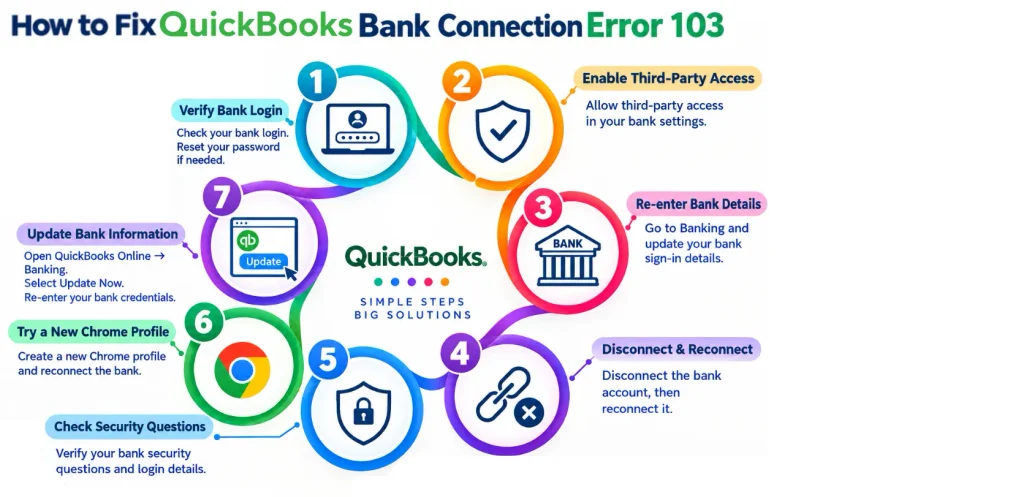
For security purposes, certain banks may require you to grant permission for connecting bank account to another service like QuickBooks Online.
Inputting the login information by hand helps avoid mistakes from old, filled-in data. Follow these instructions to refresh the sign-in information.
QuickBooks Banking Error 103 occurs when QuickBooks cannot authenticate the login credentials with the bank. You can disconnect the account to resolve this problem, as it provides you with clear pending transactions first.
Once the above steps are performed, do not forget to re-establish the bank’s connection so QuickBooks can resume the download of transactions.
The bank may present a misleading security question if the sign-in details you provided are incorrect to enhance security when linked bank to QuickBooks. This can lead to confusion if you think you have entered the correct username and password. To resolve QuickBooks error message 103, follow these steps:
This method can help resolve QuickBooks Error 103 if the problem is caused by corrupted browser data, bad cache, or extension interference. Here are the simple steps:
You can also update the bank information when the QuickBooks Bank Connection Error 103 is caused by a recent password change on the bank’s website.
Keeping QuickBooks Online current can also help ensure you are using the latest available banking features and connection updates. See QuickBooks Online New Features & Updates for more information.
QuickBooks Error 103 is a common banking error. The impact of this issue on bookkeeping tasks includes:
Error 103 means the username or password QuickBooks is sending doesn’t match what bank expects when the same login works on the bank’s own site. Implement the practices outlined below to prevent this error:
QuickBooks Error 103 means the credentials in QBO do not match the credentials the bank has on file. You must understand the root causes to resolve the issue. Ensure the login credentials are correct, update saved passwords, select the right bank, and check for required access permissions. QuickBooks Error 103 is caused by incorrect bank login details. Fix it now to reconnect the account and avoid manual uploads.
At Data Service Team, we’re here to help you navigate QuickBooks-related technical challenges and Accounting And Bookkeeping Services when you need additional assistance. Contact us today at +1(888)-718-7888 for expert assistance with your QuickBooks issues.
It is an online banking error that happens when the login credentials QuickBooks is sending to the financial institution do not match what the bank expects. This authentication mismatch occurs because you recently changed the bank password but have not updated it in QuickBooks. But the browser is filling in an outdated password behind the scenes.
It is a banking connection issue that happens when the login credentials stored in QuickBooks do not match what the financial institution expects. You must first open a private browser window and log into the bank’s official website to ensure the credentials are accurate. Check if the bank requires you to turn on a third-party access setting. Once verified, move to the bank transactions menu inside QuickBooks Online and select the affected account.
QuickBooks Online fails to connect to a bank because of temporary server maintenance and outdated login credentials. Other common causes include the bank updating its security protocols and selecting the wrong bank URL.
QuickBooks displays an incorrect login message due to browser auto-fill issues submitting outdated cached data and expired secure bank connections.
This error appears despite a correct password because a communication issue blocks the connection between QuickBooks and the bank’s server. The error 103 in QuickBooks happens when the bank requires explicit third-party app permission or when browser autofill inputs outdated saved credentials in the login prompt.
Move to the Transactions Menu and choose Banking to update the bank login credentials. Click on the tile card for the specific bank account and choose Edit sign-in info. Clear any pre-filled information and type in the new bank credentials for login. Complete multi-factor verification steps required by the financial institution and click Save to refresh the connection.
Sign in to the bank’s website in a separate browser window to verify the login credentials and reconnect the bank account after getting error 103. Move to the QuickBooks Bank Transactions menu and select Edit sign-in info for the affected account. Clear the auto-filled fields and type in the correct credentials to re-establish a successful connection.
QuickBooks may fail to connect to the bank account due to incorrect login credentials and multi-factor authentication blocks. Another reason may be changes in the financial institution’s security and third-party rules.
This error occurs when the sign-in credential details sent by QuickBooks Online do not match the records expected by the financial institution. This mismatch happens due to an incorrect user ID / password, browser auto-fill submitting outdated information, choosing the wrong bank URL, unenabled third-party access settings required by the bank.

QuickBooks Error 105: Fix Bank Server Connection and Transaction Sync Issues
Read More


