If you’re trying to update your payroll account or activate Direct Deposit and suddenly see QuickBooks Error 40001, the process may stop before the Update is completed. This error can be frustrating, especially when you need to finish payroll-related tasks on time.
QuickBooks Error 40001 can occur for different reasons, including outdated QuickBooks, administrator access issues, company file problems, or an issue with the payroll account information. In some cases, the error is related to a Realm ID mismatch between QuickBooks and the payroll system.
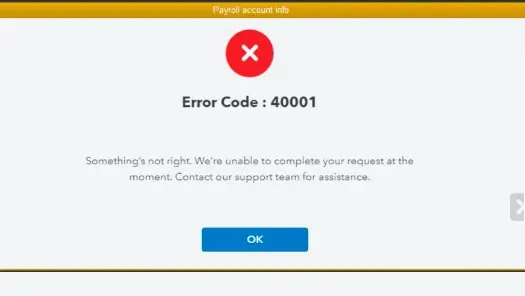
The good news is that you can start with a few simple checks before moving to advanced troubleshooting. In this guide, we’ll explain why QuickBooks Error 40001 occurs, what you should check first, and how to troubleshoot the problem step by step.
QuickBooks Error 40001 is a payroll-related error that may appear when you try to update account information or activating Direct Deposit. It can occur because of different issues, such as:
There is not always one single reason behind the QuickBooks error 40001. The issue may be related to your QuickBooks installation, company file, payroll information, or the connection between QuickBooks and the payroll service.
Here are some possible causes that can trigger this QuickBooks Payroll Account Update Error 40001:
Because the causes can be different, you should start with the simplest checks before moving to company-file repair.
Before moving to advanced troubleshooting, take a few minutes to check these basic things:
These checks can help you determine whether the problem is local to your QuickBooks installation or related to your payroll account.
Try the following methods one by one to fix QuickBooks Error 40001. After each method, return to the payroll task that produced the error and check whether it works. Follow the methods below to fix error 40001 efficiently:
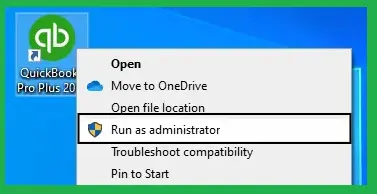
If you are activating direct deposit or performing another payroll task that requires administrator access, start QuickBooks with administrator privileges. Here’s how:
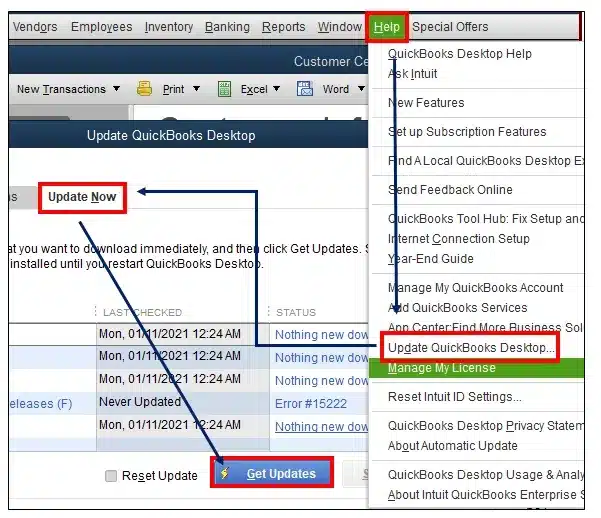
If you’re using an older version of QuickBooks, updating the software is a good place to start. An outdated release can sometimes create problems when QuickBooks tries to communicate with payroll services. Here’s how you can check for the latest Update:
If the error continues, don’t immediately reinstall QuickBooks. Move to the next method and check
whether the issue is related to your payroll account or company file.
Updating QuickBooks Desktop alone may not be enough if your payroll tax table is also out of date. QuickBooks uses the latest payroll information to process payroll tasks, so it’s good to check for a new payroll update before trying more advanced troubleshooting. To check for a payroll update:
If you’re still seeing QuickBooks Error 40001, the problem may not be caused by an outdated payroll tax table. However, if QuickBooks is unable to download or install payroll updates, see our guide on QuickBooks Payroll Update Not Working for additional troubleshooting steps. If the update is working correctly, continue to check your payroll account information.
Before continuing, make sure you’re working with the correct company file and that your payroll account information is accurate. You can check the following:
If you’ve already updated your QuickBooks and checked your payroll information but QuickBooks Error 40001 keeps appearing during a payroll account update, then you need to check the Realm ID.
The Realm ID is linked to your Intuit account and payroll services. If the Realm ID in QuickBooks doesn’t match the one in the payroll system, you may see QuickBooks Error 40001.
Check your QuickBooks account information to make sure the details are correct and match your payroll account. Avoid changing the Realm ID manually, as this may cause further issues.
If the information is correct but QuickBooks Error 40001 still appears, the problem may be related to the payroll account rather than your QuickBooks installation. In this case, repairing or reinstalling QuickBooks may not resolve the issue.
QuickBooks needs a working internet connection for several payroll-related tasks. If the connection keeps dropping or is unusually slow, the communication between QuickBooks and Intuit’s services may not complete properly. Before trying another repair, check your connection:
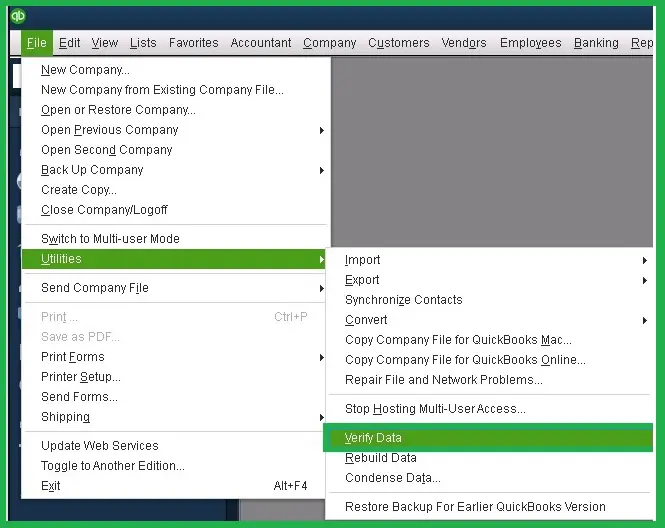
If you are still getting the QuickBooks Desktop Error 40001, there could be an issue with your company file. Before running the tool, it’s a good idea to make sure you have a recent backup of your company file. To run Verify Data:
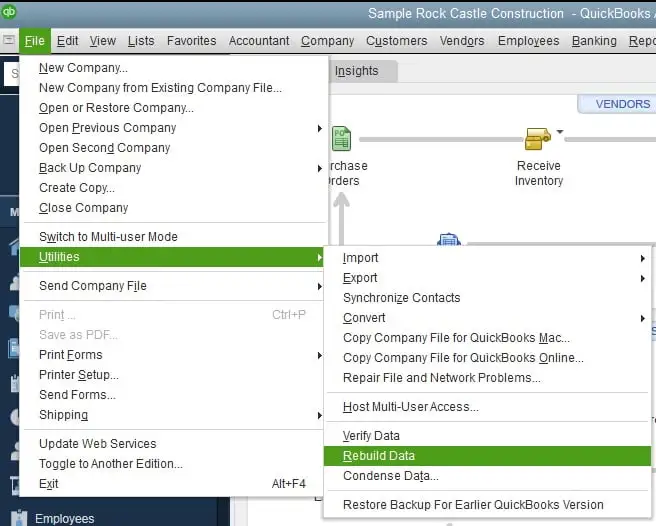
If QuickBooks reports that it found problems with your company file, you can use the Rebuild Data tool to repair them:
If Verify Data doesn’t find any problems with your company file, move on to the next solution and check the QuickBooks installation itself.
If QuickBooks is showing Error 40001 along with other program-related problems, QuickBooks Tool Hub can help diagnose and repair some common issues.
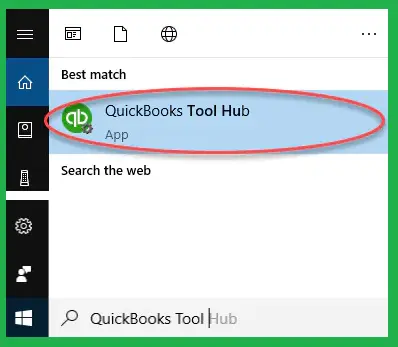
If you don’t already have QuickBooks Tool Hub installed, start by installing it:
Once Tool Hub is open, start with Quick Fix my Program:
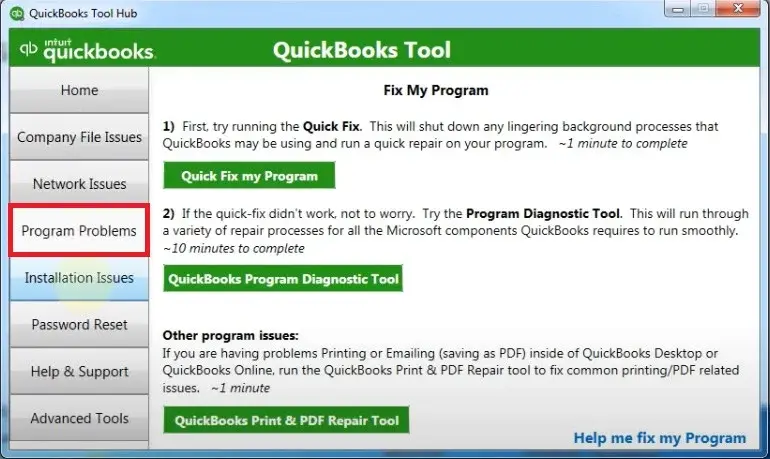
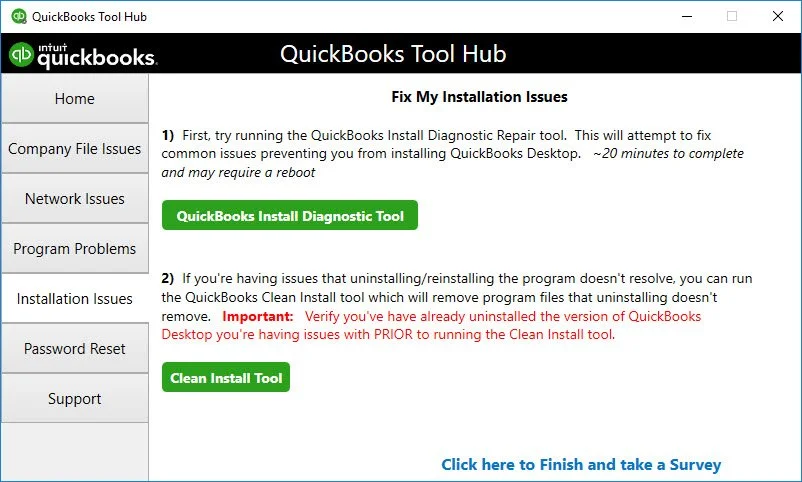
If the error continues, you can try the installation diagnostic tool:
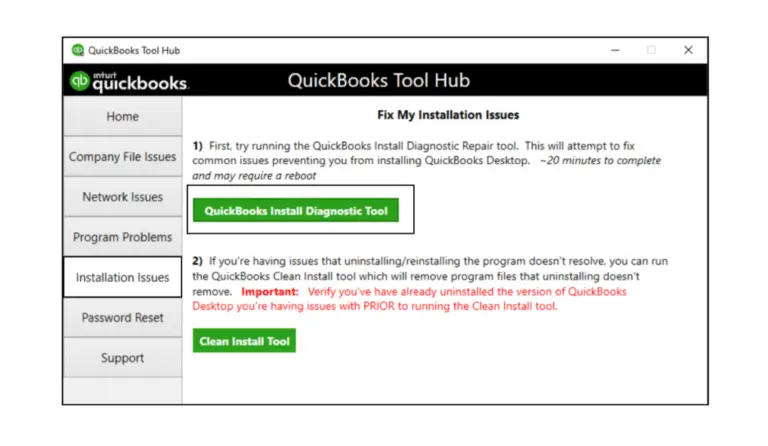
A clean installation can help you fix the problem. Before starting, make sure your company files and important QuickBooks information are backed up. You can then perform these steps:
Once you’ve resolved the error, a few simple steps can help you reduce the chances of encountering QuickBooks Error 40001 again.
Hopefully, these solutions help you resolve QuickBooks Error 40001 and complete your payroll account update. Start by updating QuickBooks and payroll, checking your account information, and verifying your internet connection. For related payroll issues, you can also check our guides on QuickBooks Error PS038 and QuickBooks Error PS032. If you still need help, contact Data Service Team at +1(888)-718-7888 .
Yes, QuickBooks Error 40001 can appear while updating payroll account information or performing certain payroll-related tasks. The error may be related to outdated QuickBooks software, account information, internet connectivity, or a problem with the payroll account connection.
You can run QuickBooks as an administrator and update both QuickBooks Desktop and the payroll tax table. Then check your payroll account information and internet connection. If the error continues, run Verify Data, use QuickBooks Tool Hub, or repair the QuickBooks installation.
If the error continues after trying the relevant troubleshooting methods, avoid repeatedly reinstalling QuickBooks. Check whether the error appears only during the payroll account update while other QuickBooks features work normally. If so, the problem may be related to payroll account information rather than the QuickBooks installation.
Consider getting additional help if QuickBooks Error 40001 continues after applying all the solutions. It’s also a good idea to get help if you’re unsure about making changes to payroll or company file settings.
Yes, error 40001 can occur specifically when QuickBooks is trying to update or verify payroll account information. If the error appears only during this process, check your company file and payroll account details before trying more advanced repairs.
The Realm ID is an identifier linked with your Intuit account and connected services. An incorrect or mismatched Realm ID can directly cause Error 40001, usually when activating or updating direct deposit and payroll services.
To fix QuickBooks Error 40001, which typically occurs during payroll updates or direct deposit. Close the software, right-click the program icon and select Run as Administrator, download the latest updates, and run the Verify and Rebuild Data utility.




