QuickBooks-Error-1328

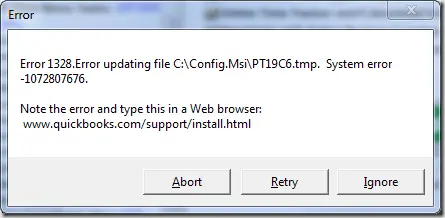
As the name suggests, QuickBooks Error 1328 occurs when users try to install, update, or repair QuickBooks Desktop. Before troubleshooting the issue, make sure your software is up to date. Follow our guide on how to update QuickBooks Desktop to install the latest available updates and improve software compatibility. This error may appear with a message, “Error 1328. Error updating file C:\Config.Msi\PTXXX.tmp.” One of the common causes of this issue is a corrupted or damaged file in the Config.Msi folder.
QuickBooks-Error-1328

Are you experiencing other installation problems? Read our guide on Can’t Install QuickBooks Desktop to explore additional troubleshooting steps for common installation issues.

Fortunately, users can try several troubleshooting methods to resolve the error, such as renaming the affected folder or manually updating QuickBooks Desktop. In this guide, we’ll explain the possible causes of QuickBooks Error 1328 and walk you through effective solutions to fix it. Keep reading to learn more.

What Causes QuickBooks Installation Error 1328?

Before troubleshooting QuickBooks error 1328, it’s important to understand the potential causes behind the issue. Identifying these causes can help you choose the right solution and resolve the error more effectively. Let’s take a look at the common factors that may trigger this error:

  • A damaged or corrupted QuickBooks company file can bring update-related issues and impact the software’s performance.
  • Invalid Windows registry entries that are associated with QuickBooks may cause problems when uninstalling, reinstalling, or updating the application.
  • Unexpected system shutdowns caused by frequent power outages may trigger glitched when you try to install, repair, or update the QuickBooks software.
  • Missing, corrupted, or damaged QuickBooks installation files may bring the QuickBooks error 1328 invalid file path message.
  • Unstable internet when you try to download, instal, or update QuickBooks Desktop may hamper the process and bring error 1328.

Common Signs of QuickBooks Install Error 1328

Recognizing the symptoms of QuickBooks error 1328 can help you identify the problem and take appropriate troubleshooting steps. Here are some common signs to watch for:

  • A pop-up message related to QuickBooks error 1328 during installation on the screen is a significant sign.
  • The QuickBooks desktop installation or update process stops unexpectedly before completion.
  • QuickBooks starts freezing or crashing when you attempt to install or update the software.
  • The system runs slower than usual or responds sluggishly when performing QuickBooks-related tasks.
  • QuickBooks fails to complete an update or repair because of issues with installation files.
  • Repeated attempts to install or update QuickBooks Desktop result in the same error message.

5 Easy Methods To Troubleshoot QuickBooks Error 1328

Now that you understand the possible causes and symptoms of QuickBooks error 1328, let’s continue learning how to troubleshoot the same. Before you begin fixing the error, consider the following points:

  • Things to Check Before Fixing QuickBooks Desktop Update Error 1328
  • Create a backup of your company files to save your important data from potential threat or loss.
  • Sign in to Windows with an administrator account to perform the required changes.
  • Verify that your QuickBooks Desktop version is compatible with your Windows operating system.
  • Temporarily disable security software if it interferes with the update process.
  • Close all running QuickBooks processes through Task Manager before you start troubleshooting the error.
  • Confirm that your internet connection is strong and reliable throughout the update.
  • Install any pending Windows updates to maintain system compatibility and avoid problems like QuickBooks error 1328 during installation.
  • Make sure sufficient disk space is available to download and install QuickBooks updates.

Now, continue following these five easy methods carefully:

Method 1 – Repair QuickBooks Desktop For Windows

When facing an error during QuickBooks installation, update, or download, simply run the Quick Fix My Program tool and repair the software. Here’s what to do:
Step 1 – QuickBooks Tool Hub Download

  • Visit the official page and download the latest version of QuickBooks Tool Hub 1.6.0.8.
  • Save the downloaded file QuickBooksToolHub.exe installer file on your computer.
  • Now, close all the tabs, and double-click the installer file to open.
  • Within the file, you will see some prompts for installation. Follow the steps and agree to the terms and conditions of the license agreement.
  • Once done, click the Next button, and begin the installation. Click Finish once the installation is over.

Step 2 – Run the Quick Fix My Program

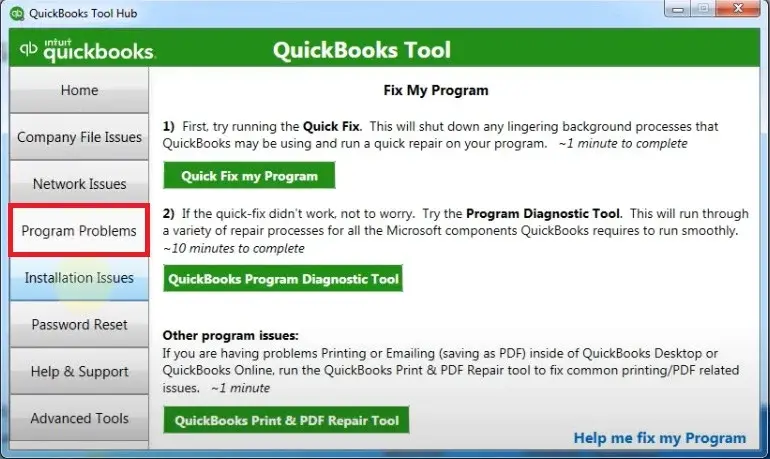
  • Open the QuickBooks Tool Hub, and move to the Program Problems tab.
quickbooks-program-problems
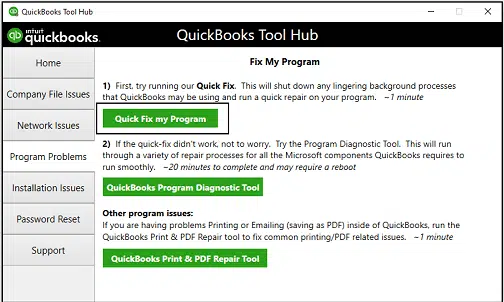
  • Here, choose the Quick Fix My Program tool.
Quick-Fix-My-Program
  • Let the tool run and repair the respective issues triggering the QuickBooks error 1328 invalid file path.
  • After this, restart your computer, and try updating the program again.

Step 3 – Run QuickBooks Install Diagnostic Tool

If the above steps failed to fix the error, try running the QuickBooks Install Diagnostic Tool:
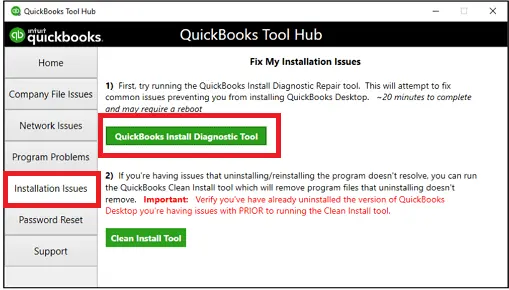
  • Open the QuickBooks Tool Hub, and select the Installation Issues tab.
  • Here, select the QuickBooks Install Diagnostic Tool, and choose to run it.
QuickBooks install diagnostic tool
  • The tool will typically take 20 minutes to scan and fix the problem.
  • Once the tool finishes the repairing process, restart your computer, and retry installing QuickBooks.

Method 2 – Rename the Config.msi File

One of the major causes for encountering an installation error 1328 in QuickBooks is the corrupted Config.msi file folder. Renaming this can prevent QuickBooks from corrupt installation data:
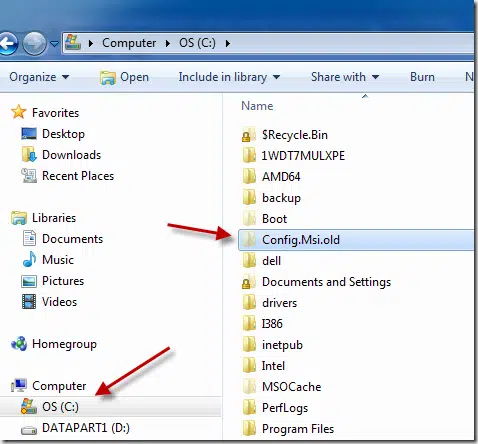
Modifying-the-Name-of-the-Config.msi-File
  • First of all, right-click the Start button and select File Explorer.
  • Next, you need to open the C: drive on your computer.
  • Here, enable the display of hidden files and folders:
  • Click View in File Explorer.
  • Select Show and then Hidden items.

Note – The exact options may vary depending on your Windows version.

  • Locate the Config.msi folder in the C: drive. Right-click the folder and select Rename.
  • Add .old to the folder name, changing it to Config.msi.old, and press Enter.

If Windows displays a permission prompt, confirm that you have the necessary administrator privileges before you proceed to the next step.

Method 3 – Fix Registry and System Issues

Resolving registry-related errors and repairing system issues may help fix QuickBooks installation problems, including situations where the update process gets stuck while writing system registry values. Try the following troubleshooting steps to address potential system-related issues:

  • Firstly, run the registry repair utility to identify and resolve registry-related problems.
  • Next, run a reputable security program to detect and remove malware that could interfere with QuickBooks or Windows operations.
  • Ensure you clear temporary files and other unwanted system data to free up disk space and improve system performance.
  • Check for outdated or incompatible drivers and update them using Windows Update.
  • If the problem started after a recent system change, use System Restore to return Windows to an earlier restore point.
  • Open Command Prompt as an administrator and run sfc /scannow to scan for and repair corrupted Windows system files.
  • Check Windows Update and install any applicable updates to improve system stability and compatibility.

Note – Before making registry changes or reinstalling software, back up important data and create a system restore point where appropriate. Avoid manually deleting registry entries unless you know they are safe to remove.

Method 4 – Perform a Clean QuickBooks Installation

To remove corrupted installation files and resolve software-related issues, use the QuickBooks Clean Install Tool to perform a clean installation of QuickBooks Desktop:
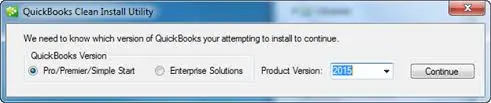
clean-install-tool-in-quickbooks
  • First of all, you need to uninstall the QuickBooks software.
  • Once uninstalled, start performing a clean installation of QuickBooks Desktop.
  • Next, you will be asked to choose one installation method
    • Insert CD and follow the instructions
    • From downloaded installer file
  • After this, continue installing QuickBooks with the help of a live assistance. Call Data Service Team experts for more help.

Method 5 – Fix Issues with QuickBooks Installation Folders

If the QuickBooks installation folders are corrupted, renaming can help the software create new ones. This resolves corruption issues. Follow the below steps:

  • Show hidden files and folders in Windows.
  • You need to open File Explorer and locate the QuickBooks installation directories listed below:
    • C:\ProgramData\Intuit\QuickBooks
    • C:\Program Files\Intuit\QuickBooks
    • C:\Users[Username]\AppData\Local\Intuit\QuickBooks
    • C:\Program Files (x86)\Intuit\QuickBooks (if applicable)
  • Here, rename each existing folder by adding .OLD to the end of its name.
  • Now, repeat this process for each of the listed directories that exists on your computer.
  • Finally, open QuickBooks again and verify whether the issue has been resolved.

Make QuickBooks Work Smarter for Your Business

Spend less time managing data and more time growing your business. Whether you need help setting up QuickBooks, cleaning up your books, reconciling accounts, or resolving errors, our team is here to make accounting easier. Get quick solutions that save time, improve accuracy, and keep your business finances on track.

OR Call Us

Conclusion!

Hopefully, this blog has helped you fix QuickBooks Error 1328. By following the troubleshooting methods discussed above, you can resolve the issue effectively. Always make sure to back up your company files and keep your system updated before attempting any repairs. If the error continues to appear despite trying these solutions, contact the Data Service Team at +1(888)-718-7888 to get professional assistance from experienced QuickBooks experts. Our team is ready to help you troubleshoot the issue and restore smooth QuickBooks installation and updates.

Frequently Asked Questions (FAQ’s)

The QuickBooks error 1328 usually occurs when the software encounters problems during installation, update, or repairing of program files. It is commonly caused due to corrupted installation files, incomplete downloads, insufficient permissions, or Windows installer issues.

The QuickBooks error 1328 message often indicates a problem with temporary installer files or permissions during the update process. To fix it, you need to run QuickBooks as an administrator, restart Windows, and try the update again. If the error message still appears during installation, use the QuickBooks Tool Hub or repair the installation.

Yes, you may be able to resolve the error without reinstalling QuickBooks Desktop. To do so, try first updating Windows, checking folder permissions, repairing the installation, or running the QuickBooks Tool Hub. If these methods fail, then you need to perform a clean installation.

No, these errors are different, although all can occur during installation or updates. The QuickBooks error 1328 invalid file path generally occurs due to a problem applying an update or modifying installation files. But, the error 1321 is the result of insufficient permissions and error 1334 happens due to file-related installation problems.

Yes, the QuickBooks Tool Hub may help resolve error 1328 by allowing users to use tools to diagnose and repair installation issues. You can use its Program Problems or Installation Issues tools, depending on your software problem.

The cost depends on the cause of the error and the troubleshooting method required. You can try basic solutions, such as restarting Windows or using the QuickBooks Tool Hub, yourself at no additional service cost. But, you need to confirm the charges with your service provider before proceeding.

Contact Data Service Team live QuickBooks experts if the error persists after trying the recommended troubleshooting steps. Professional assistance is good if you encounter repeated installation failures, damaged program files, or complicated permission issues. Ensure you keep a note of the complete error message and any recent system changes.

About The Author

Steven Moody

Steven Moody is a bookkeeping and payroll specialist dedicated to helping businesses maintain accurate financial records and efficient payroll operations. His expertise includes payroll management, tax compliance, bookkeeping solutions, and financial reporting. Steven regularly shares insights on accounting best practices and business finance strategies. Outside of work, he enjoys traveling, exploring new places, and keeping up with the latest developments in business technology.

Steven Moody

QuickBooks

QuickBooks Estimate to Invoice: Everything You Need to Know

Read More
QuickBooks Error How to

QuickBooks Error 392: Causes and How to Fix It

Read More
QuickBooks How to

QuickBooks Spreadsheet Sync Not Working? Here’s How to Fix

Read More
QuickBooks

QuickBooks Black Friday Sale 2026: Best Deals and Discounts

Read More
QuickBooks Payroll

Manage Payroll Tax Compliance in QuickBooks Without Mistakes

Read More