Need to turn a customer estimate into an invoice without entering all the details again? The QuickBooks Estimate to Invoice feature makes this process simple and saves your time. With QuickBooks Online, you can use the QuickBooks Estimate to Invoice feature to convert an accepted estimate into an invoice while keeping important customer and transaction details connected. Whether you want to bill the full project amount or collect payments in stages, knowing how this feature works can make your daily billing easier.
Let’s continue reading this guide to learn how to convert estimates into invoices, create partial invoices, and fix common conversion issues in QuickBooks Online.
QuickBooks Estimate to Invoice is a useful feature in QuickBooks Online that allows businesses to convert accepted estimates into invoices without entering all the customer and transaction details again. An estimate helps you share the expected cost of products or services with your customer, while an invoice is used to request payment. If you’re new to the software, learn more about What is QuickBooks and how it helps businesses manage their accounting activities.
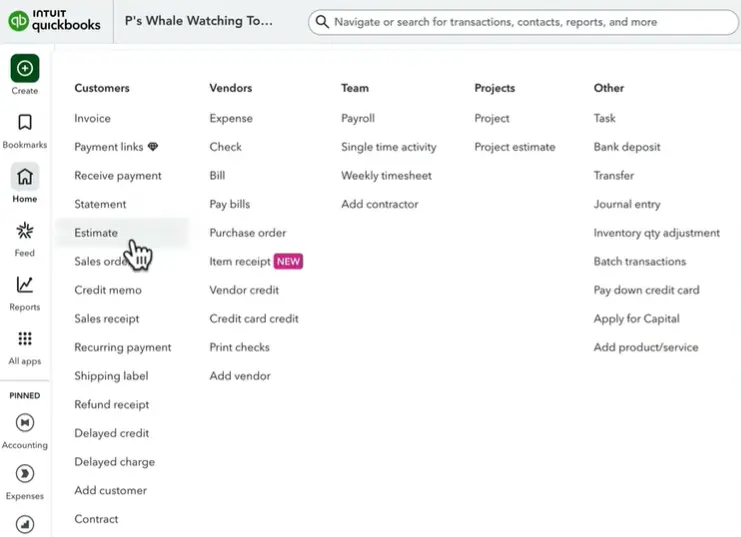
QuickBooks shares important details, like customer information, quantities, and prices, from the estimate to the invoice. This makes billing process easier, saves time, and helps you keep your business records managed.
Using QuickBooks Estimate to Invoice makes your billing process easier by allowing you to transfer existing estimate details directly into a new customer invoice. Instead of creating a new invoice and entering all the information again, you can use the details from your existing estimate. Here are some benefits of using this feature:
This feature is especially helpful for businesses that regularly prepare estimates and send invoices to customers.
If your customer has accepted an estimate and you are ready to request payment, you can use QuickBooks Estimate to Invoice to create an invoice directly in QuickBooks Online. You don’t need to create a new invoice or enter all the details again. Just follow these simple steps:
First, open QuickBooks Online and sign in to your Account. If you experience difficulties accessing your account, read our guide on resolving QuickBooks Online login problems before continuing.
Look for the estimate you want to convert. Check the customer name and amount to make sure you have selected the correct one. Also, make sure its status is Accepted.
Go to the Action column and select Convert to Invoice. QuickBooks will create a new invoice using the details from your estimate.
Check the customer information, products, services, quantities, prices, taxes, and payment terms. Make any necessary changes before saving.
Once everything looks correct, select Save. Your estimate is now converted into an invoice, and you can send it to your customer to request payment.
Note: QuickBooks requires an estimate to have an Accepted status before you can convert it into an invoice. If the estimate was rejected, change its status to Pending and send it again for customer approval.
With QuickBooks Estimate to Invoice, you can also create partial invoices using the QuickBooks Online progress invoicing feature when you need to bill customers in different project stages. This is especially useful when you complete work in different stages and want to collect payments along the way.
Before using this feature, make sure progress invoicing is enabled in your QuickBooks account.
Go to All apps, select Sales & Get Paid, and open Sales transactions. Find the estimate you want to use for partial billing.
Find your estimate and select Convert to Invoice from the action column.
Choose the percentage or amount you want to invoice. You can also select specific line items, depending on your billing requirements.
For example, if your estimate is $10,000, you can create three invoices:
Check the invoice details and make sure the amount is correct. Once everything looks good, select Save.
You can repeat this process for the remaining project amount as different stages are completed. This helps you manage customer payments without requesting the entire project cost at once.
Note: Progress invoicing is useful for businesses that work on long-term projects, such as construction, renovation, and other services that involve multiple payment stages.
If you are unsure when to use QuickBooks Estimate to Invoice, the right time mainly depends on your project requirements and the payment agreement with your customer. You don’t always need to convert the full estimate into an invoice immediately after approval.
For example, if you run a construction business, you may receive payment in different stages as the work progresses. In this case, you can use Progress Invoicing to bill your customer for each completed stage.
Here are some situations when you should convert an estimate into an invoice:
Once you create estimates for your customers, it’s important to keep track of their status. QuickBooks Online helps you manage estimates in one place, so you can easily check which customers have accepted, rejected, or are still reviewing your estimates. Here’s how you can manage your estimates:
You can review the status of your estimates to see whether customers have accepted or rejected them. This helps you know which estimates are ready to be converted into invoices.
QuickBooks allows you to view customer transactions and check their related estimates and invoices. You can use this information to understand which estimates have already been converted.
If you need to change pricing, quantities, or product details, you can review and update an estimate before sending it to your customer again.
If a customer hasn’t responded to your estimate, you can follow up with them to ask whether they want to proceed with the proposed work.
QuickBooks keeps converted estimates connected to their related invoices. This makes it easier to review previous transactions and understand how much of the estimated amount has been billed.
Tip: Review your estimates regularly to avoid missing customer approvals and delaying the invoicing process.
QuickBooks Online offers several features that make it easier to create, customize, and manage estimates and invoices. You can also explore the latest QuickBooks Online features and updates to learn about other improvements that can simplify your daily accounting tasks. You can use these options to get customer approvals faster, track payments, and manage your billing activities in one place. Here are some useful features you should know about:
You can customize your estimates and invoices to match your business needs. QuickBooks allows you to adjust the design and information displayed on these documents so they look more professional when shared with customers.
You don’t always need to contact customers separately to ask for approval. QuickBooks allows customers to review and approve estimates directly from the email they receive. To manage email communication more effectively, you can also learn how to configure QuickBooks email setup for sending estimates, invoices, and other business documents. You can also get notifications when they respond.
QuickBooks provides an Invoices section where you can check invoice statuses, send payment reminders, and record customer payments. If you experience problems sending invoices to customers, check our guide on how to fix unable to send invoices in QuickBooks. This helps you keep track of which invoices are paid and which are still outstanding.
To access your invoices, go to All apps, click Sales & Get Paid, and then select Invoices.
You can also review your estimates through Customer Hub.
Follow these steps:
From here, you can check estimate statuses, respond to customers, update estimates, and convert approved estimates into invoices.
If you’re away from your computer, you can use the QuickBooks Online mobile app to manage your estimates and invoices. You can create or update documents, import contacts from your phonebook, and send estimates or invoices through text messages.
These features make QuickBooks estimate management easier and help you handle customer billing without unnecessary manual work.
Once you convert an estimate into an invoice in QuickBooks Online, the software creates a new invoice using the details from your original estimate. You don’t have to enter everything again. Here are a few things you should know after conversion.
Creating a QuickBooks invoice from an existing estimate is simple. You just need to find the saved estimate, check its approval status, and select Convert to invoice. QuickBooks will transfer the available details into a new invoice, which you can review and save.
Log in to QuickBooks Online, select All apps, go to Sales & Get Paid, and open Sales transactions.
Look for the estimate you want to use. Check the customer name, date, and amount to make sure you select the correct one.
Before converting, make sure the estimate has an Accepted status. QuickBooks requires customer acceptance before conversion.
Go to the Action column and select Convert to Invoice. QuickBooks will create an invoice using the information from your existing estimate.
Check the customer details, products, quantities, prices, and total amount. Make any necessary changes and select Save.
Your QuickBooks invoice from an existing estimate is now ready to send to your customer.
Sometimes, you may encounter a QuickBooks Estimate to Invoice issue when trying to convert an accepted estimate into an invoice. This can happen for several reasons, which are explained below. Here are some common reasons and how you can fix them.
QuickBooks requires an estimate to have an Accepted status before conversion. Pending or rejected estimates cannot be converted.
You may not see this option if the estimate hasn’t been accepted or has already been converted.
If you cannot create partial invoices, Progress Invoicing may not be enabled in your QuickBooks account.
If your estimate includes a deposit requirement, the customer must pay it and accept the estimate before conversion.
If the full estimate amount has already been invoiced, QuickBooks may not allow you to create another invoice for the same amount.
Managing your estimates properly can make billing easier and help you avoid mistakes. Here are some simple tips to follow when using QuickBooks Online:
The QuickBooks Estimate to Invoice feature makes it easier to manage your customer billing without entering the same details again. You can convert accepted estimates into invoices, create partial invoices, and track customer payments directly in QuickBooks Online. By following the steps in this guide, you can save time, avoid common mistakes, and keep your business records organized. If you still need further assistance, you can reach out to the Data Service Team professional at +1(888)-718-7888.
Go to All apps, select Sales & Get Paid, and open Sales transactions. Find your accepted estimate, select Convert to invoice, review the details, and click Save.
You may not be able to convert an estimate if it is still pending, rejected, or has an unpaid required deposit. Check the estimate status before trying again.
Yes, your estimate must have an Accepted status before you can convert it into an invoice in QuickBooks Online.
Yes, you can use progress invoicing to create multiple partial invoices from one estimate and collect payments in different stages.
Enable Progress Invoicing in your account settings. Then open your accepted estimate, select Convert to invoice, and enter the amount or percentage you want to charge.
QuickBooks marks the estimate as Converted and creates a new invoice using the original estimate details. You can also view the linked transactions later.
Yes, you can update details such as product descriptions, quantities, and prices before saving or sending the invoice.
Convert your estimate when the customer has accepted it, and you’re ready to request payment. For projects with multiple stages, you can create partial invoices.
The option may be missing because your estimate hasn’t been accepted or has already been converted. Check its status under Sales transactions.
Yes, you can review the original estimate and its linked invoices to check how much has already been invoiced and how much remains.

Get Free Consultation for QuickBooks Upgrade
(2021, 2022, 2023)