
QuickBooks error 1904 is an installation error that occurs when Windows fails to register one or more files required for QuickBooks Desktop to install. The error is often accompanied by a message mentioning a specific file, such as QBversionTool.dll or another .dll component, that couldn’t be registered.
In most cases, the issue is linked to damaged Windows components, insufficient administrator permissions, or security software blocking the installation process.
In this guide, we’ll walk you through each solution step by step to help you complete the installation successfully.
To better understand why this installation error occurs, let’s first take a look at what QuickBooks install error 1904 is and what typically triggers it:
| Error Code | QuickBooks Error 1904 |
| Description | An installation error that occurs when Windows fails to register one or more QuickBooks files during installation. |
| Common Error Message | Error 1904: Module [file name] failed to register. |
| Possible Causes | Corrupted Microsoft .NET Framework or MSXML, antivirus interference, or restricted folder permissions. |
| Affected Versions | QuickBooks Desktop (Pro, Premier, Enterprise, and Accountant) |
| Primary Solution | Run the QuickBooks Install Diagnostic Tool, repair Windows components, and install QuickBooks using an Administrator account. |
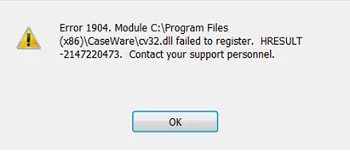
QuickBooks error 1904 usually appears when Windows is unable to register one or more files during the installation. Here are some of the most common reasons why the error occurs:
The fix for QuickBooks error 1904 Module Failed to Register depends on what’s preventing the installation. Follow the solutions below according to your specific scenario:
Let’s resolve different QuickBooks program issues using utilities available in QuickBooks Tool Hub:
Important Note: Make sure to download and install QuickBooks Tool Hub (1.6.0.8), the most recent release, to access the utilities easily.
The Quick Fix my Program closes the QuickBooks process running in the background and then runs a quick repair on the program.
If something went wrong when trying to install QuickBooks Desktop, it can cause problems when trying to use it. Let’s resolve the common software installation issues using the QuickBooks Install Diagnsotic Tool:
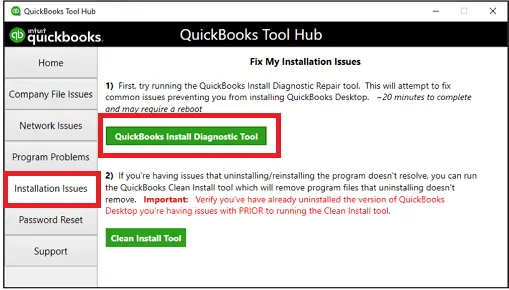
If running QBInstall and installing the latest update didn’t resolve the issue, you may need to repair certain Windows components manually.
These advanced troubleshooting steps are recommended only for IT professionals, experienced Windows users, or individuals receiving guidance from Microsoft Support.
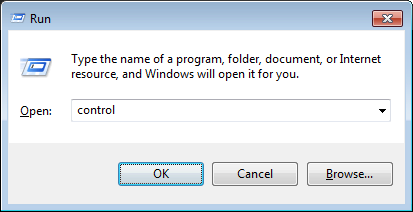
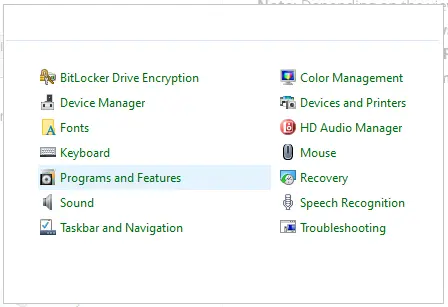
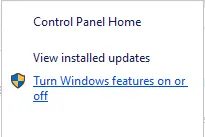
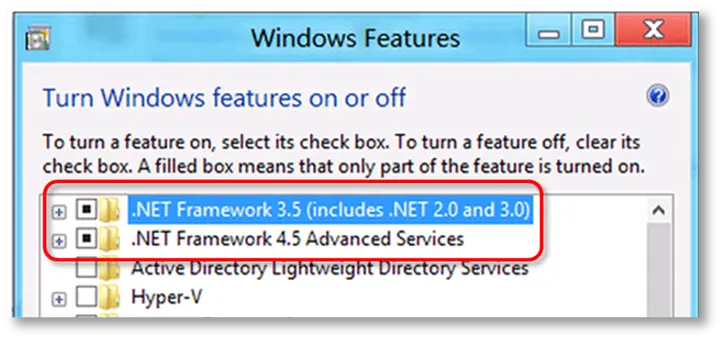
Note: The troubleshooting process is the same for .NET Framework 4.5, 4.6, 4.7, and 4.8.
If .NET Framework 4.5 (or a later version) is not enabled:
If .NET Framework 4.5 (or a later version) is already enabled:
If .NET Framework 3.5 SP1 is disabled:
If .NET Framework 3.5 SP1 is already enabled:
Note: If you receive an error while enabling or disabling .NET Framework, contact your IT administrator or Microsoft Support. The problem is likely related to Windows rather than QuickBooks.
For a 64-bit Windows operating system
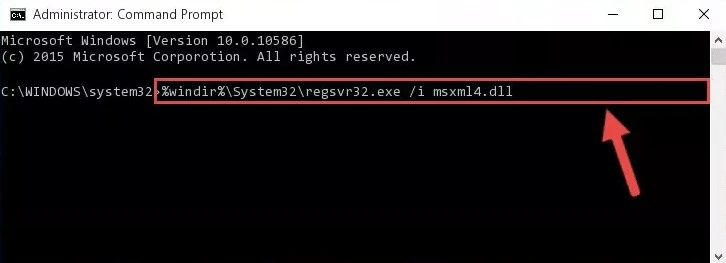
For a 32-bit Windows operating system
If QuickBooks installs successfully and opens without any issues, the problem has been resolved.
Sign in using the Windows administrator account so you can modify the required system settings to resolve QuickBooks installation error 1904 failed to register:
If you need step-by-step guidance, follow the instructions to install QuickBooks Desktop. The installation process will not affect your existing company files or data. After the installation is complete:
If QuickBooks error 1904 continues to appear after completing these steps, consider contacting an IT professional. The issue may be related to your Windows system rather than QuickBooks itself.
In some cases, the 1904 error code in QuickBooks Desktop may continue to appear even after you’ve tried the standard troubleshooting steps. If that happens, use the solutions below based on your specific situation:
Add QuickBooks Desktop to your Bitdefender exclusions list, as simply turning off Bitdefender will not resolve the issue.
If you’re not sure whether your computer is running a 32-bit or 64-bit version of Windows, refer to Microsoft’s guide to identify your operating system.
If you are getting QuickBooks error 1904 when installing Adobe Flash Player, the primary issue is usually related to Windows permissions or missing system components.
Let’s try resolving it by following the steps below:
Start by completing the first two sections of this article to run the QuickBooks Install Diagnostic Tool and update your administrator settings.
After that, continue with the troubleshooting steps in the remaining sections until the issue is resolved.
If error 1904 continues to appear, perform the following test to check whether another system issue is causing the problem:
If you are unable to save the file in the selected folder, sign in with the built-in Administrator account and install QuickBooks Desktop with administrator privileges.
If QuickBooks error 1904 still appears after completing these steps, contact an IT professional for further assistance. The issue may be related to your computer’s Windows configuration rather than QuickBooks.
Make QuickBooks Work Smarter for Your Business
Spend less time managing data and more time growing your business. Whether you need help setting up QuickBooks, cleaning up your books, reconciling accounts, or resolving errors, our team is here to make accounting easier. Get quick solutions that save time, improve accuracy, and keep your business finances on track.
Finally, we’ve reached the end of this guide covering QuickBooks error 1904, its common causes, and the troubleshooting methods to help you install QuickBooks successfully. With the methods discussed above, you can resolve issues related to Windows permissions and Microsoft components, and ensure the software installation.
If the error still persists, you must connect with technical professionals to resolve the error on time and install QuickBooks Desktop easily. Dial +1(888)-718-7888 to talk to an expert now!
To resolve the error 1904 referencing QBversionTool.dll, first download and run the QuickBooks Install Diagnostic Tool via the QuickBooks Tool Hub to automatically repair installation files.
Error 1904 (module failed to register) occurs when security software blocks the installation of essential .dll files. To fix this with Bitdefender, you must add the software’s folder to the Exclusions List. Simply disabling Bitdefender will not resolve the issue.
QuickBooks error 1904 indicates a file or component registration failure. To resolve it, download the QuickBooks Tool Hub and run the QuickBooks Install Diagnostic Tool. If it persists, sign into Windows as the hidden Administrator to install the program, or completely reinstall Adobe Flash Player ActiveX.
Yes, QuickBooks error 1904 can occur during a repair installation. It is a file registration error that happens whenever specific files (often .dll or .ocx files) fail to register in Windows, regardless of whether it’s a fresh install or a repair.
QuickBooks error 1904 is a module registration failure that usually occurs when installing or updating any software. The installation is usually hampered by Windows components such as .dll or .exe files.
QuickBooks error 1904 is fundamentally a Windows-related problem. It occurs when Windows fails to register, update, or read critical program files (such as .dll or .ocx files) required to run the software.
QuickBooks error 1904 can occur during fresh installations, updates, or repair attempts when Windows cannot register required files or access necessary system components.
Check Bitdefender’s quarantine and exclusion settings for blocked QuickBooks files. Add only verified QuickBooks installation paths to exclusions and retry installation securely.
Check the specific file named in the error, run the QuickBooks Install Diagnostic Tool, and review Windows permissions to identify the likely source.

Get Free Consultation for QuickBooks Upgrade
(2021, 2022, 2023)


