QuickBooks Has Stopped Working

Users often experience different issues while opening or running the QuickBooks application. QuickBooks has stopped working is one such issue that may occur while opening a company file or performing different accounting tasks. The following alert message appears when this error occurs;
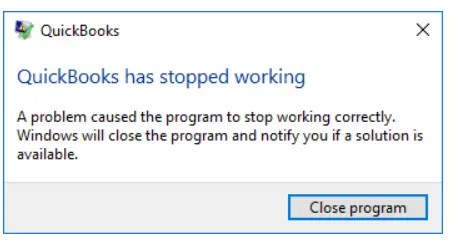
QuickBooks-has-stopped-working

“QuickBooks has stopped working. A problem has caused QuickBooks to stop working correctly. Windows will close the program & notify you if a solution is available.”

Unfortunately, when this issue appears, QuickBooks starts freezing, crashing, or closing unexpectedly. As a result, users fail to access the company file, affecting the ongoing business tasks.

What Does QuickBooks Has Stopped Working Error mean?

QuickBooks has stopped working error states that Windows has detected a problem with the QuickBooks application and has forced it to close. This issue may occur due to a damaged Windows or QBWUSER.INI file, insufficient permissions, or problems with Microsoft services required by QuickBooks.
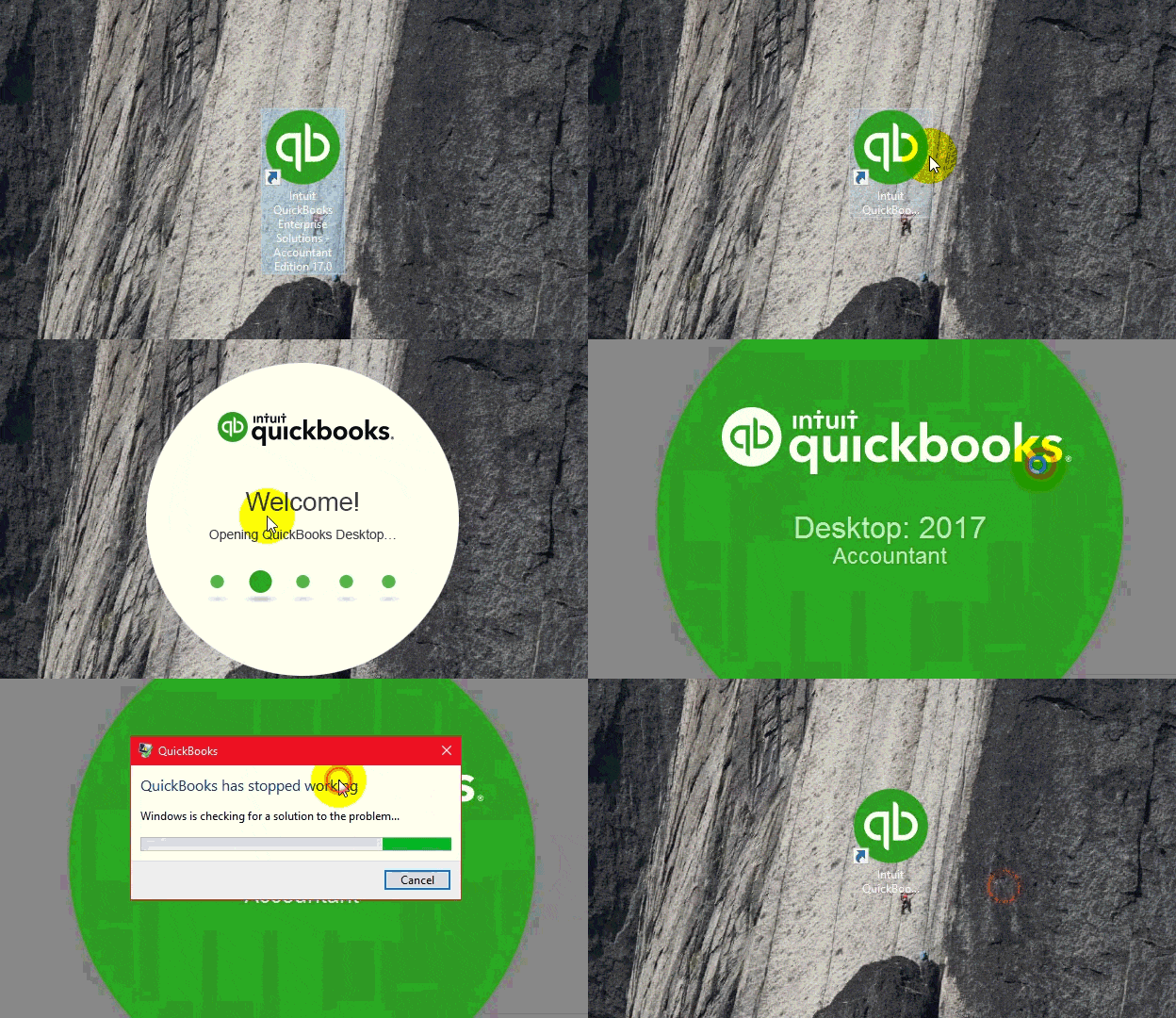
QuickBooks Has Stopped Working

Why Does QuickBooks Desktop Stopped Working: Major Root Causes

The following reasons can restrict you from opening or accessing QuickBooks Desktop and can cause the QuickBooks has stopped working issue.
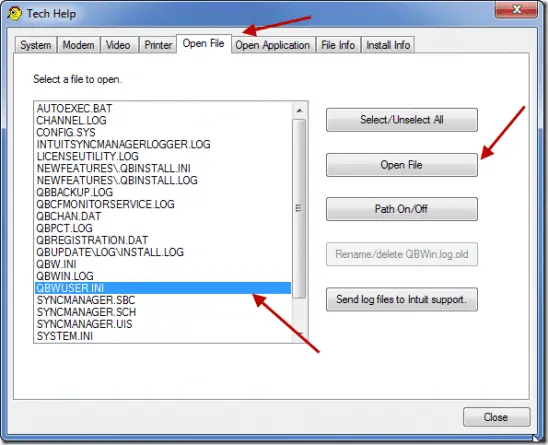
  • If the QBWUSER.INI file is either damaged or missing.
Renaming-the-QBWUSE.INI-file
  • Running the outdated or damaged Windows operating system.
  • The hard drive you use to run QuickBooks is corrupt.
  • Damaged program files or QuickBooks Desktop installation.
  • The name of your company file has more characters than are actually required.
  • Incorrect user permissions prevent the application from running smoothly.
  • Issues with the Microsoft .NET Framework.
  • Conflicts due to the interruption of QuickBooks program components after a hardware upgrade.

Some users also report that after adding RAM to their computer, QuickBooks has stopped working. This issue may appear when the Windows drivers, system files, or QuickBooks components become unstable after a hardware change.

Here’s how to fix QuickBooks has stopped working Windows 10​

Are you getting an error message QuickBooks has stopped working while opening or running the application? If yes, follow the following troubleshooting methods to fix the issue and continue working with the QuickBooks application.

Method 1: Run Quick Fix My Program from QB Tool Hub

Most of the time, background running processes that QuickBooks uses may block you from opening the application.
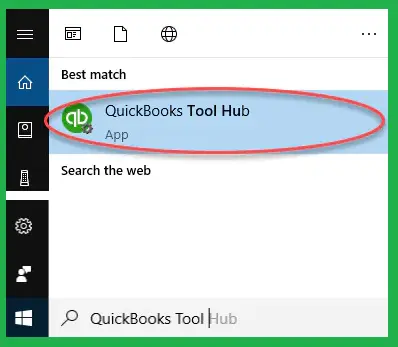
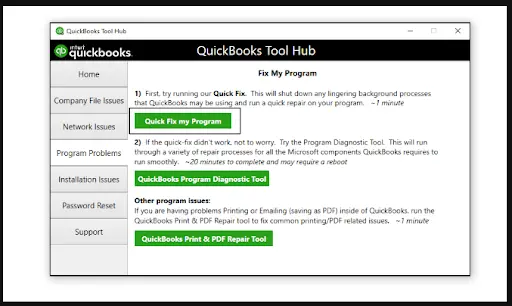
QuickBooks-Tool-Hub-Download
  • Choose Quick Fix My Program.
  • At last, start QuickBooks Desktop and then access your company file.

Method 2: Run the QuickBooks Install Diagnostic Tool

A damaged or corrupt QuickBooks installation may also lead to the Windows 10 QuickBooks has stopped working issue. So, to repair those damages, you can run the QuickBooks Install Diagnostic tool that diagnoses and fixes issues with Microsoft components that the QuickBooks program uses.
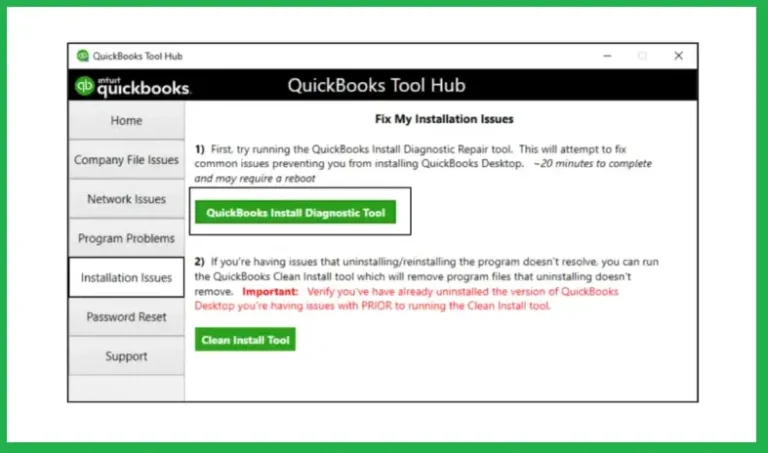
  • First, open the QuickBooks Tool Hub from the desktop.
  • From there, choose Program Problems.
  • Click the QuickBooks Program Diagnostics Tool.
QuickBooks-Install-Diagnostic-Tool
  • Wait for some time and allow the tool to run and repair the issue.
  • Finally, after running the tool, restart your computer and re-open QuickBooks.

Method 3: Rename the QBWUSER.INI file

Assigning a new name to the QBWUSER.INI file forces QuickBooks to create a fresh configuration file.

Important Tip:
Once you rename the QBWUSER.INI file, it will remove the list of previously opened company files. So, you need to re-open the company file once manually.

Follow these steps to rename the file:
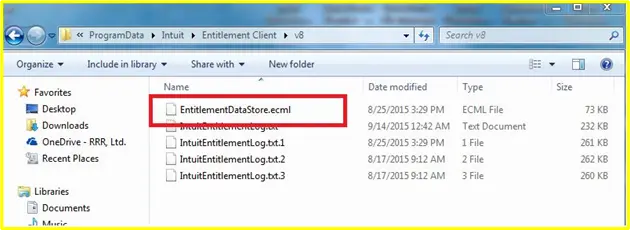
  • At first, open the folder storing the QBWUSER.INI file.
  • C:\Users[Your User Name]\AppData\Local\Intuit\QuickBooks[Year]
  • If you can’t locate the folder, enable the option to view hidden files and folders in Windows.
  • Locate the QBWUSER.INI file, right-click on it, and select Rename.
  • Rename the file by adding .OLD at the end of the file name and press the Enter key.
  • Similarly, look for the EntitlementDataStore.ecml file and rename it by adding .OLD at the end of the file name.
EntitlementDataStore
  • Close the File Explorer and reopen QuickBooks Desktop.

Check the Results
After opening QuickBooks, try to open a sample company file.

Case 1: If the sample company file opens successfully, but your company file does not:

  • Copy your company file to a different location on your computer.
  • Open the file from the new location.
  • It is suggested to use a local folder instead of a network drive.

This usually indicates that the original folder is damaged or has incorrect permissions.

Case 2: If you still cannot open your company file

  • The company file may be damaged
  • Restore the most recent backup of the company file and see if the issue is resolved.

Case 3: If QuickBooks cannot open the sample company file or the application fails to start

  • The QuickBooks installation itself may be damaged.
  • In this case, repair or reinstall QuickBooks Desktop using the QuickBooks Tool Hub.

Note: If QuickBooks continues to crash, freeze, or display installation errors, performing a QuickBooks Clean Install can remove corrupted program files and reinstall the software for a fresh, stable setup.

Method 4: Install the Latest QuickBooks Updates

If you are running the older version of QuickBooks Desktop, you won’t be able to use the upgraded and latest security features, which increases the risk of bugs and compatibility issues. So, to avoid all such issues, install the updated version of QuickBooks Desktop.

Follow these steps to install the updated QuickBooks version.

  • Open your QuickBooks software and move to the Help menu.
  • Choose Update QuickBooks Desktop.
  • Browse to the Update Now tab, look for the updates you want, and click Get Updates.
  • Exit the software, reopen QuickBooks, and hit the Install Now option when prompted.

Method 5: Run QuickBooks as an Administrator

Proper administrative rights are required to run the QuickBooks application smoothly. Use the following steps to run QB as an administrator.
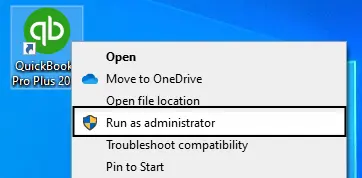
  • Exit from the QuickBooks application.
  • Locate and right-click on the QuickBooks icon on the desktop.
  • Choose Run as Administrator.
QuickBooks-Run-as-Administrator

Now, check if you are able to run the QuickBooks application.

Method 6: Copy Your Company File to a New Location

A problem has caused QuickBooks to stop working due to issues with the company file location or folder permissions. However, moving the company file to a new folder can help detect whether the problem is related to the file path or the folder itself.

Perform these steps to copy your file to another location.
  • Navigate to your QuickBooks company file folder.
  • Locate and right-click the company file. Then, choose Copy.
  • Create a new folder on the desktop and name it QBTEST.
  • Open the newly created folder and paste the copied company file into it.
  • Keep holding the Ctrl key, double-tap on the QuickBooks icon to launch the application.
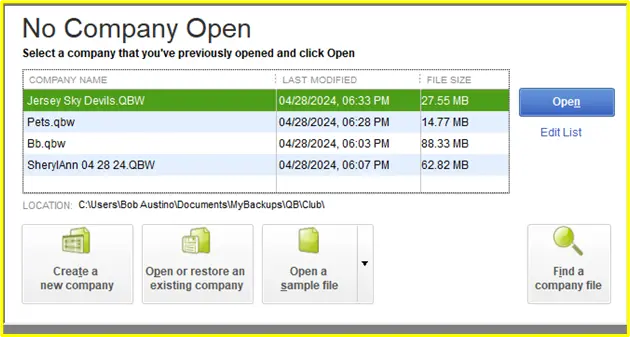
  • Continue holding the Ctrl key until you see the No Company Open window.
No Company Open
  • Select Open or Restore an Existing Company.
  • Go to the QBTEST folder and pick the company file.
  • At last, hit Open and see if you are able to open QuickBooks automatically.

Note: If your company file becomes damaged or QuickBooks starts showing file-related errors, you can use the QuickBooks File Doctor to diagnose and repair common issues, helping restore smooth performance and improve file stability.

Method 7: Create and Use a New Windows Operating System User

Sometimes, the ” QuickBooks has stopped working error may occur due to incorrect folder permissions that may interrupt QuickBooks operations on the system.

First Step: Creating a New Windows User with Admin Rights

  • Open the Start menu and select the Settings icon from the Control Panel.
  • Go to the Accounts option and click Family & Other Users.
Windows-User-with-Admin-Rights
  • Browse to Add Accounts beside the Add Other Users.
  • Now, choose the option saying “I don’t have this person’s sign-in information”.
  • Navigate to Add a user without a Microsoft account.

Finally, provide a new username and password. Also, provide a password hint. Herein, you can also choose a security question and click Next.

Second Step: Give Admin Rights to QuickBooks Software

  • Open the Start menu and launch the Control Panel.
  • Click User Accounts and select Manage Another Account (if available).
  • Locate the QBDataServiceUserXX account associated with your QuickBooks Desktop version.
  • Note: The number at the end of the account name varies depending on the QuickBooks version installed. For example, QuickBooks Desktop 2020 uses QBDataServiceUser30.
  • Select the QBDataServiceUserXX account and click Change the Account Type.
  • Choose Administrator from the available options.
  • Click Apply or Change Account Type to save the changes.

Once the permissions have been updated, restart your computer and launch QuickBooks to check whether the issue has been resolved.

Method 8: Run Verify & Rebuild Data Utility

Verify and rebuild the data utility, which is used to diagnose and repair damage to the QuickBooks company file data.

Perform these steps to run the Verify and rebuild data tool.
Verify the Company Data

  • Go to Windows and select Close All.
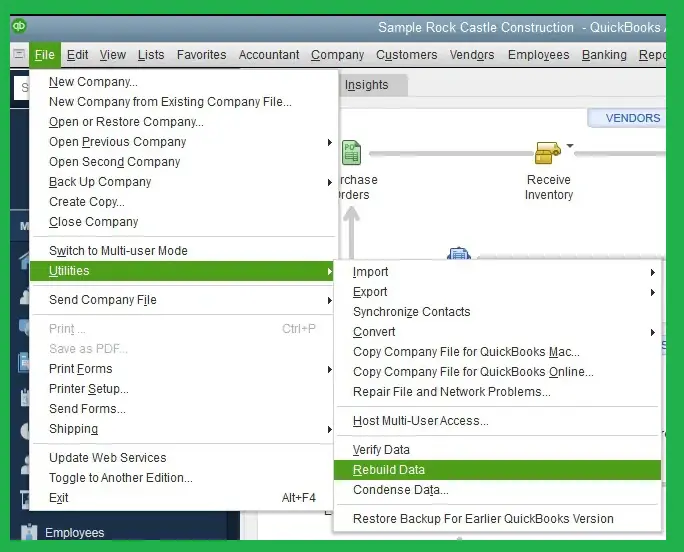
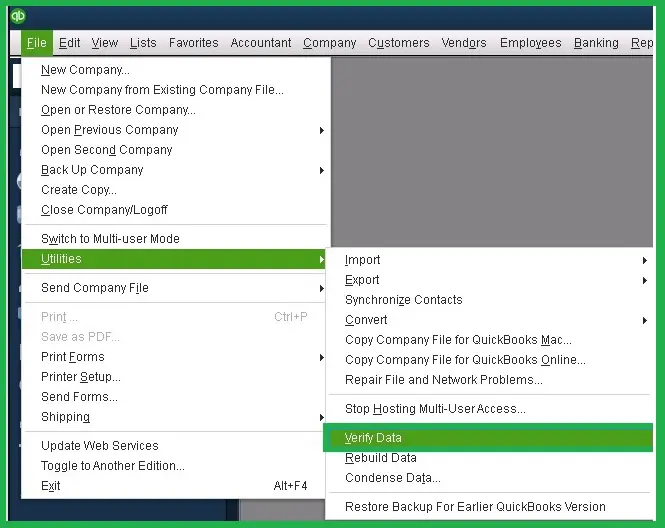
  • Browse to the File > Utilities.
Utilities-and-select-Verify-Data
  • Now, click Verify Data and allow the Verify Data tool to diagnose the company file for any damaged data. Then, you will get any one of the following options;
    • QuickBooks detected no problems with your data- This states that the data is corrupt or damaged, and you don’t have to do anything.
    • The data has lost integrity, indicating that the damage is found in the company file. You need to run the rebuild tool to repair the damaged company file.

Rebuild the Company Data

  • Go to the QuickBooks File menu, click Utilities, and then Rebuild Data.
Rebuild-Data-in-QuickBooks-Desktop
  • Herein, QuickBooks will prompt you to create a backup of the data before using the rebuild tool.
  • Hit OK to confirm the backup.
  • Again, click OK after selecting the location to save the backup. Make sure not to replace the existing company file backup with the new one. Therefore, while creating a backup company file, provide a new name in the File name and click Save.
  • Start the rebuild tool once again and hit OK after finishing the process.
  • Again, move to File > Utilities and run the verify data tool to check the data file for additional damage.
  • If the tool detects any damage, you can fix it manually. You can search for errors on our website and look for ways to fix them.

Method 9: Reinstall QuickBooks Desktop

If you fail to fix the QuickBooks has stopped working or running issue, then try to reinstall QuickBooks Desktop. Follow these steps for reinstalling QuickBooks.
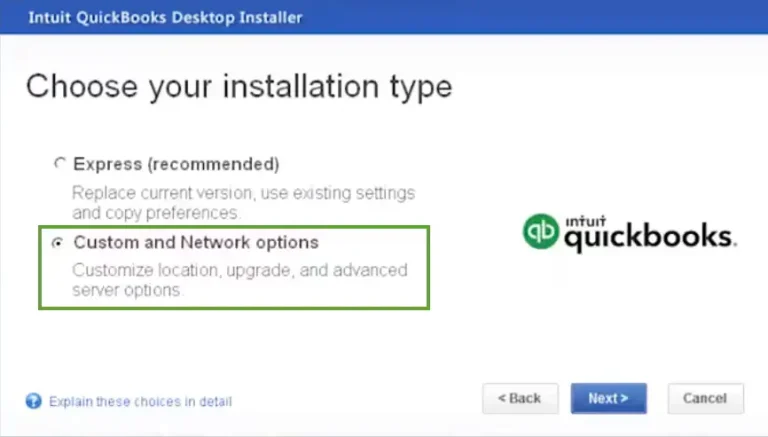
Step 1: Uninstall QuickBooks

  • First, press the Windows logo key to launch the Start menu.
  • Now, type Control Panel in the search box and open Control Panel.
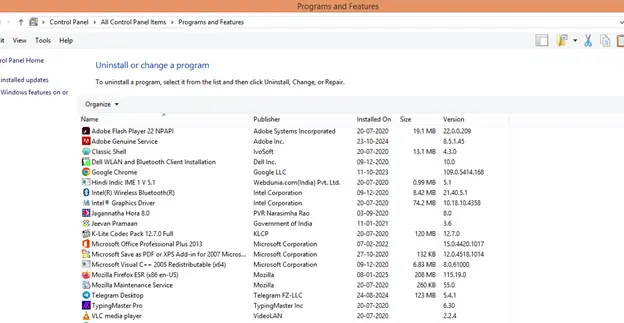
  • Choose Programs and Features or Uninstall a Program.
Programs-and-Features
  • After this, pick the QuickBooks Desktop version you want to remove from the search results.
  • At last, click Uninstall/Change, Remove, and then Next.
QuickBooks.exe_-768x437
  • If you can’t get this option, sign out and sign in again to Windows as an admin.

Step 2: Install QuickBooks Desktop again

Once you are done, download and install QuickBooks Desktop. When you install once again, QuickBooks will automatically install new folders and rename the older ones.

Conclusion

QuickBooks has stopped working issue can interrupt important accounting tasks and prevent access to company files. This issue is caused by damaged program files, Windows component failures, company file corruption, or configuration issues. By performing the troubleshooting methods given above, you can restore QuickBooks functionality and reduce file corruption. If the issue continues even after following the solutions above, don’t worry. The experts at Data Service Team +1(888)-718-7888 are here to help you resolve your QuickBooks problems quickly and efficiently.

Frequently Asked Questions (FAQ’s)

To prevent QuickBooks Has stopping working, keep your QuickBooks and Windows updated, regularly back up your company file, and use QB Tool Hub to fix minor issues. 

Yes, you can experience this error in both Windows 10 and Windows 11 due to compatibility or system-related issues. 


QuickBooks Has Stopped Working after a Windows update due to the interruption of the background process, corrupted installation files, or discontinuation of Microsoft’s support for older operating systems. 

To prevent QuickBooks from crashing, keep your QB and Windows OS updated, maintain your company file, and avoid sudden system shutdowns. 

To repair QuickBooks Desktop, run QuickBooks Tool Hub, repair the QuickBooks installation, and verify your company file for errors.

Yes, you can use the QuickBooks Tool Hub to fix common program and company file issues causing this error. 

QuickBooks stops working when opening a company file due to various reasons, such as a damaged company file, network issues, corrupted company data, or outdated QuickBooks software. 

This issue usually happens due to damaged program files, corrupted company data, or outdated QuickBooks software. 

You must restart your computer, install the latest QuickBooks updates, run QuickBooks Tool Hub, and repair the program if required. 

About The Author

Steven Moody

Steven Moody is a bookkeeping and payroll specialist dedicated to helping businesses maintain accurate financial records and efficient payroll operations. His expertise includes payroll management, tax compliance, bookkeeping solutions, and financial reporting. Steven regularly shares insights on accounting best practices and business finance strategies. Outside of work, he enjoys traveling, exploring new places, and keeping up with the latest developments in business technology.

Steven Moody

QuickBooks Tool

QuickBooks Database Server Manager: How To Install, Update and setup

Read More
QuickBooks Tool

What Is QuickBooks Refresher Tool & How to Use It

Read More
QuickBooks Tool

What Is QuickBooks Migration Tool & How to Use It

Read More
QuickBooks Tool

What Is the QuickBooks Clean Install Tool & How to Use It

Read More
QuickBooks Tool

QuickBooks File Doctor: How to Download and Repair QB Files

Read More