Printing invoices is an important part of managing your business records and keeping your billing process running smoothly. However, Cannot Print Invoices in QuickBooks is a common problem that can interrupt your regular accounting work. You may find that QuickBooks Desktop does not print invoices correctly, or fails to save invoices as PDF files. These problems can be caused by incorrect printer settings, damaged QuickBooks components, outdated printer drivers, company file issues, or Windows-related problems.
In this guide, we’ll explain the common reasons behind the issue and walk you through practical ways to fix QuickBooks printing problems with invoices.
There are several reasons why an invoice may not print from QuickBooks Desktop. Sometimes, the problem is as simple as selecting the wrong printer, while in other cases, QuickBooks files or the company data may be damaged. Look at some common causes of this problem:
Once you know what is causing the problem, you can move on to the appropriate fix instead of trying random troubleshooting steps. If you Cannot Print Invoices in QuickBooks, identifying the cause first can help you resolve the printing problem more efficiently.
Before trying the fixes, take a moment to check a few basic things. These quick checks can help you determine whether the problem is with QuickBooks or the printer itself.
If everything looks fine but you still Cannot Print Invoices In QuickBooks, continue with the troubleshooting steps below.
If you cannot print invoices in QuickBooks, don’t worry. Start with the simple checks first and then move to the QuickBooks repair tools if needed. These steps can help resolve common QuickBooks printing problems with invoices and get your invoice printing working again.
The first thing to check is whether QuickBooks is sending the Invoice to the correct printer. A wrong or unavailable printer can cause the Cannot Print Invoices in QuickBooks problem and stop an invoice from printing.
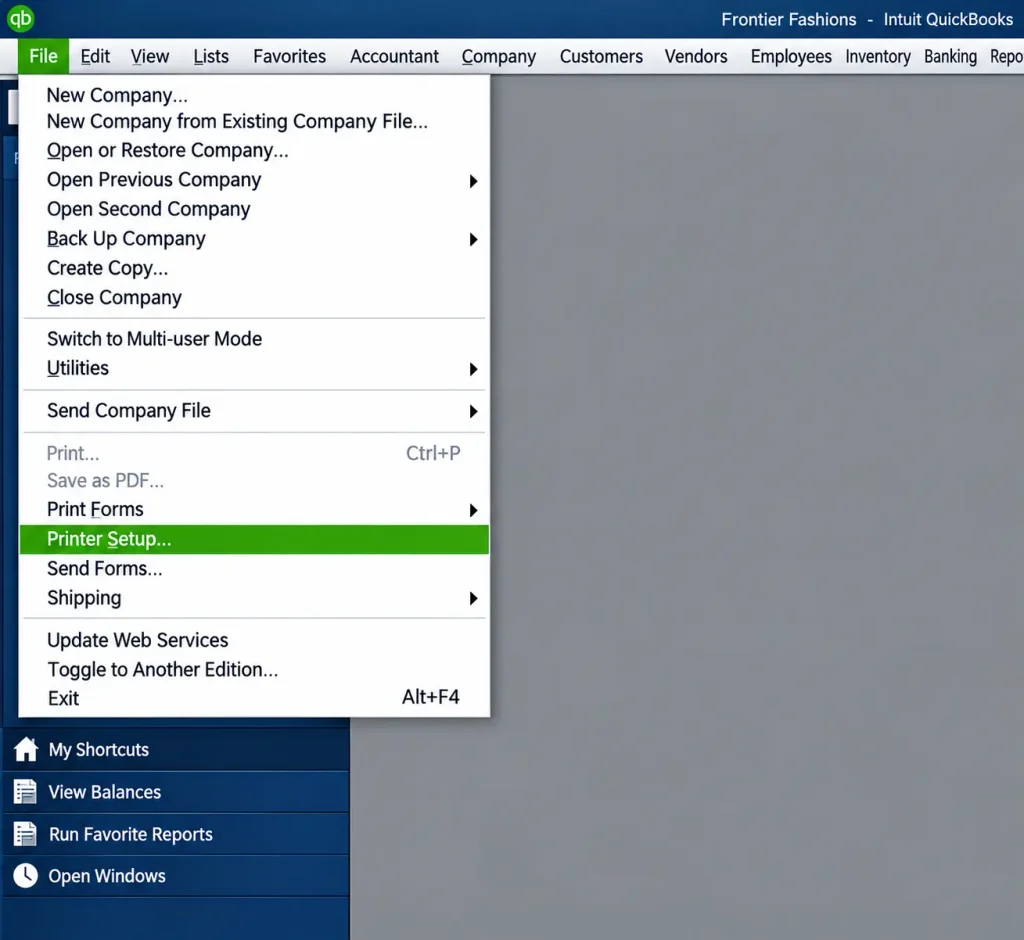
If the Invoice still doesn’t print, test the printer from another Windows application. This will help you determine whether the problem is with QuickBooks or the printer itself.
Before making any changes to QuickBooks, check whether your printer can print normally from Windows. This will help you find whether the issue is with QuickBooks or with the printer setup.
If the document prints without any problem, your printer is working correctly, and the issue is likely related to QuickBooks. You can then move on to the next troubleshooting step.
If the printer works from other Windows applications but QuickBooks still won’t print the Invoice, check the printer’s status and clear any stuck print jobs. A pending document in the queue can also prevent new jobs from being processed. Follow these simple steps:
If your test page prints successfully, open your QuickBooks and try printing the Invoice again.
If your printer is working properly and you Cannot Print Invoices in QuickBooks, check whether the problem is limited to a particular invoice or form. This is a simple way to find out whether the issue is with the transaction itself or with QuickBooks printing function. Try the following:
If another invoice or form prints successfully, the problem may be related to the specific Invoice or customized template you’re using.
On the other hand, if none of the invoices or forms will print, the issue is more likely related to QuickBooks’ printing settings or components. Continue to the next solution to narrow down the problem.
If you Cannot print invoices in QuickBooks, the next step is to check whether the problem is limited to your company file. A sample company file gives you a clean environment to test QuickBooks’ printing function. Then continue with:
If printing works in the sample company but not in your company file, you can move on to checking the company file for possible data damage. If printing fails in both files, the QuickBooks PDF & Print Repair Tool is the next step worth trying.
If your printer works normally outside QuickBooks and the problem also occurs in a QuickBooks sample company file, the issue may be related to QuickBooks printing or PDF components. This solution can be especially useful when you Cannot Print Invoices in QuickBooks even though the printer works correctly from other Windows applications.
This tool can resolve several common problems related to printing and creating PDFs in QuickBooks Desktop.
If the QuickBooks PDF & Print Repair Tool doesn’t fix the problem, the QBPrint.QBP file may be damaged. QuickBooks uses this File to store printer settings and other printing preferences.
Instead of deleting the File, rename it. This allows QuickBooks to create a new QBPrint.QBP file while keeping the original File as a backup. Follow these steps:
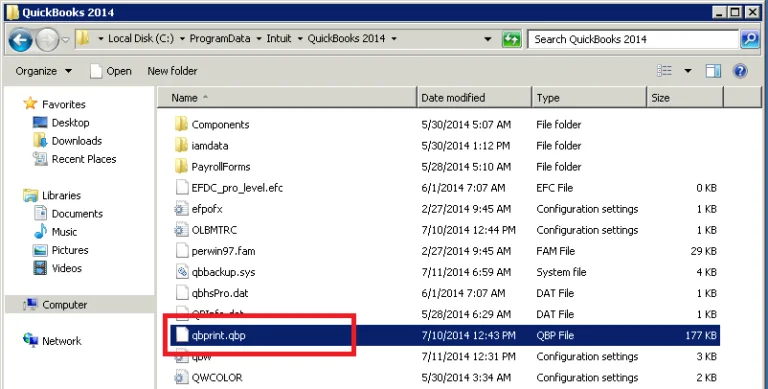
Replace 20XX with your QuickBooks Desktop version.
QuickBooks should create a new QBPrint.QBP file with fresh printing settings.
If invoices print from a sample company file but not from your actual company file, the problem may be related to your company data. If QuickBooks also displays a company-file access or data-related error, see our guide to QuickBooks Error 80070057. QuickBooks includes built-in tools called Verify and Rebuild Data in QuickBooks Desktop that can help identify and repair certain data issues. Before you begin, create a backup of your company file.
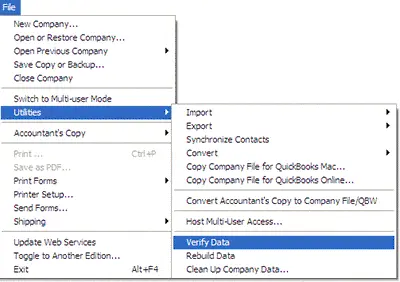
If QuickBooks reports that it has detected a problem with your data, continue with the Rebuild Data process.
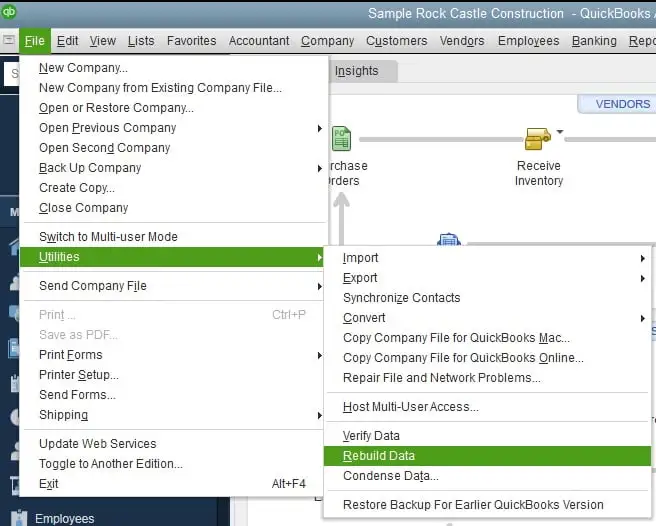
If the company file continues to show data-related problems after Verify and Rebuild Data, QuickBooks Data Repair Services may be worth considering.
If you Cannot Print Invoices In QuickBooks even after checking the printer and company file, QuickBooks itself may have a program-related issue. Quick Fix my Program can close background QuickBooks processes and repair some common program problems. Follow these steps:
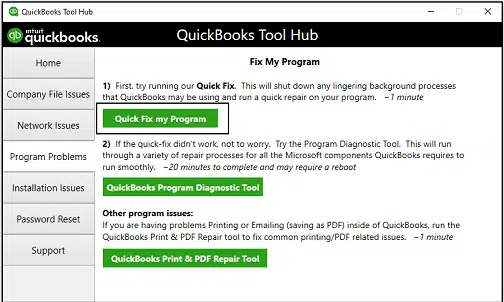
Before moving on to more advanced repairs, make sure both QuickBooks Desktop and your printer driver are up to date. If needed, follow our guide to Update QuickBooks Desktop. An outdated QuickBooks release or printer driver can sometimes cause compatibility and printing problems.
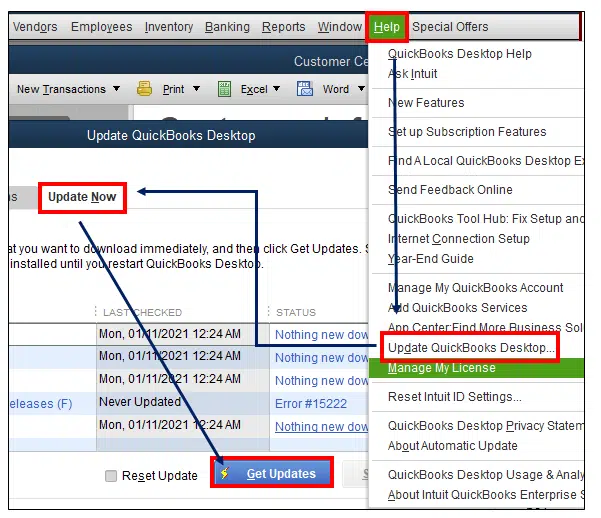
After updating QuickBooks, try printing the Invoice again.
If QuickBooks is updated but the Invoice still won’t print, check your printer manufacturer’s website for the latest driver for your printer model and Windows version.
Install the appropriate driver according to the manufacturer’s instructions, then restart your computer and test the Invoice again.
If the printer works normally in Windows and QuickBooks is already updated, but invoices still won’t print, continue to the next solution and use Quick Fix my Program in QuickBooks Tool Hub.
Sometimes QuickBooks sends the Invoice to the printer, but the printed page is blank, or some invoice information is missing. This is slightly different from QuickBooks not printing an invoice at all. Try these checks:
If other invoices print normally but one particular Invoice remains blank, the problem may be related to that transaction or the customized template rather than your printer.
If you Cannot print invoices in QuickBooks or save them as PDFs, the problem may be related to QuickBooks’ PDF components. Try these steps:
If you can print the Invoice normally but still can’t create a PDF, the issue is likely related to QuickBooks’ PDF setup rather than your physical printer.
You can reduce the chances of running into printing problems by following a few simple habits:
If you Cannot Print Invoices In QuickBooks, start by checking the printer and QuickBooks settings before moving to advanced troubleshooting. In most cases, clearing the print queue or using the QuickBooks PDF & Print Repair Tool can help you fix the problem you are facing.
Still unable to print your invoices? Reach out to the Data Service Team experts at +1(888)-718-7888 for personalized help and get your printing issue resolved quickly.
QuickBooks may not print invoices because of incorrect printer settings, an offline printer, stuck print jobs, or an issue with QuickBooks printing components. Check your printer first, then verify the printer selected in QuickBooks.
First, test your printer outside of QuickBooks. Then check the printer setup, clear the print queue, and try printing another invoice. If the problem continues, run the QuickBooks PDF & Print Repair Tool.
A blank or incomplete invoice may be caused by an issue with the invoice template or printing settings. You can try to print different Invoice or switching to a standard template. You can also run the PDF & Print Repair Tool if needed.
Open your printer’s queue in Windows and cancel any pending or stuck documents. Then print a test page to make sure the printer is working before trying the Invoice again in QuickBooks.
Run the QuickBooks PDF & Print Repair Tool from QuickBooks Tool Hub. If the error appears while creating a PDF, also check the Windows PDF components, including Microsoft XPS Document Writer.
QuickBooks Tool Hub contains tools for troubleshooting common program, PDF, and printing problems. For invoice printing issues, the QuickBooks PDF & Print Repair Tool is usually the simplest and most relevant option.
First, update QuickBooks and run the QuickBooks PDF & Print Repair Tool. If you still can’t create a PDF, check the Windows PDF components and try saving the Invoice again.




