QuickBooks-Error-88888

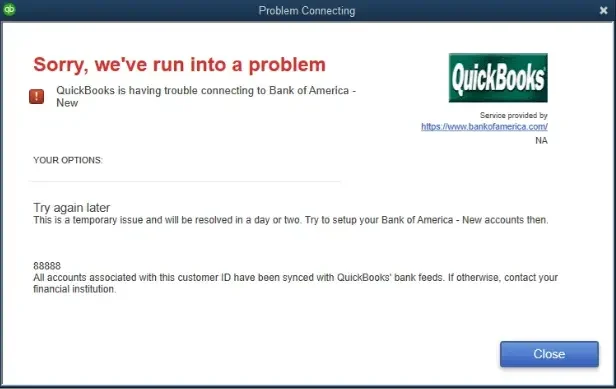
If you are trying to connect a bank account to QuickBooks Desktop and suddenly see QuickBooks Error 88888, the first thing you may notice is that your bank transactions are no longer downloading. This message can occur when QuickBooks cannot properly connect to your Bank.

Whatever message appears on your screen, the result is the same: you may not be able to access your latest bank transactions through Bank Feeds. The good news is that you can usually identify the cause and get the connection working again by checking a few settings in QuickBooks and with your Bank.
quickbooks-error-88888

Continue reading the complete blog till the end to understand what causes QuickBooks Error 88888 and learn the practical steps to fix it.

What Happens When QuickBooks Error 88888 Appears?

When Error 88888 in QuickBooks Desktop appears, QuickBooks may have trouble connecting to your Bank through bank feeds. Because of this, you may notice the following issues:

  • Your QuickBooks program may stop downloading the latest bank transactions.
  • You may be unable to reconnect an existing bank account.
  • QuickBooks may show that you are no longer connected to the Bank.
  • You may also see a message saying that the accounts linked to your customer ID have already been synced.
  • This error may appear while setting up a new bank account or refreshing an existing connection.

This issue is related to the bank connection or bank feeds settings. So, before making any major changes to your company file, it is good to check your bank account and QuickBooks settings first.

Note: After downloading your bank transactions, regularly review and reconcile them to keep your QuickBooks records accurate. Learn more about QuickBooks Bank Reconciliation.

Common Reasons Behind QuickBooks Error 88888

QuickBooks Error 88888 is mainly related to problems with the connection between QuickBooks Desktop and your financial institution. However, the exact reason can differ from one user to another. You may run into this error because of an issue with the bank connection, an outdated QuickBooks setup, or incorrect Bank Feeds settings.

Here are some common reasons that may trigger the error:

  • Bank connection issues: The connection between QuickBooks and your financial institution may have been interrupted or expired.
  • Changes made by the Bank: Your Bank may have changed its connection method or require you to reconnect your account.
  • Pending bank notifications: Your Bank may have a security alert, updated terms, or another message that needs your attention.
  • Outdated QuickBooks Desktop: An older version of QuickBooks may have trouble working with the latest banking connection requirements.
  • Incorrect Bank Feeds setup: The affected account may not be configured correctly for online banking.
  • Multiple accounts from the same Bank: Another account may already be connected through the same banking profile, which can sometimes cause connection issues.
  • Company file problems: If the error occurs only in one company file, there may be an issue with the file or the specific bank account setup.

Knowing what may be causing the error makes it easier to choose the right troubleshooting method instead of changing several QuickBooks settings at once.

Things to Check Before Fixing QuickBooks Error 88888

Before you start changing the bank feeds settings or disconnecting your bank account, take a few minutes to check the basics. This can help you avoid unnecessary changes and also give you a better idea of where the problem is coming from.

  • Check your Bank’s website: Sign in to your online banking account and look for any new alerts, security messages, or requests from the Bank.
  • Make sure your bank account is working: Try accessing your account directly through the Bank’s website to confirm that there isn’t a problem on the Bank’s side.
  • Check for pending Bank Feed transactions: Review any downloaded transactions that are still waiting to be matched or added.
  • Confirm the connected account: Make sure you are working with the correct bank account in QuickBooks Desktop, especially if you have multiple accounts with the same Bank.
  • Create a backup: Before disconnecting Bank Feeds or making changes to your company file, create a recent backup of your QuickBooks data.

Once you have checked these things, you can move on to the troubleshooting methods for QuickBooks Desktop Error 88888.

How to Fix QuickBooks Error 88888 in QB Desktop?

Now that you know what can cause QuickBooks error 88888 and what to check beforehand, you can start troubleshooting the issue. Try the methods below one at a time and check whether you can download your bank transactions after each method.

Solution 1 – Check your Bank Account or Reconnect It

Before making any changes in QuickBooks, check whether your bank account is working properly. Once everything looks fine on the Bank’s side, try reconnecting the account in QuickBooks Desktop. To do so:

  • Open QuickBooks Desktop and your company file.
  • Go to Banking and select the affected bank account.
  • Check whether QuickBooks shows an option to update or reconnect the account.
  • Follow the on-screen instructions to sign in to your Bank.
  • Select the correct bank account when QuickBooks asks where to download the transactions.
  • Once the connection is restored, try downloading the latest bank transactions again.

If the bank account is still showing as disconnected or QuickBooks continues to display QuickBooks Error 88888, move on to the next method.

Solution 2 – Disconnect and Reconnect Bank Feeds

If the bank account is working normally on the Bank’s website but QuickBooks still can not connect to it, the existing bank feeds connection may need to be refreshed. Disconnecting and setting up the connection again can help when the old connection is no longer working properly. Once you’re ready, follow these steps:

  • Open QuickBooks Desktop and go to Lists.
  • Select chart of accounts.
  • Right-click the bank account showing the error and choose Edit Account.
  • Open the Bank Settings tab.
  • Now, select Deactivate all online services.
  • Click Ok, and then select Save & Close.

After disconnecting the account, set up bank feeds again.

  • Go to Banking and select Bank Feeds.
  • Choose Set Up Bank Feed for an Account.
  • Select the financial institution you use.
  • Enter your online banking credentials when prompted.
  • Choose the correct QuickBooks account.
  • Follow the remaining instructions to complete the setup.

Once the account is connected again, download the latest transactions and check whether QuickBooks Error 88888 has been resolved.

Note: If QuickBooks does not allow you to deactivate the account, don’t force the process. First, check whether there are pending downloaded transactions or a company file issue preventing the Bank Feeds connection from being turned off.

Solution 3 – Check Other Accounts Connected to the Same Bank

If you have more than one bank or credit card account from the same financial institution in QuickBooks, check whether another account is still connected to bank feeds. An old or inactive connection can sometimes make it difficult to set up the account again.

Here’s what you can check:

  • Open QuickBooks Desktop and go to Lists to select Chart of Accounts.
  • Look for other accounts that belong to the same financial institution.
  • If needed, select Include Inactive to see accounts that are no longer active.
  • Check whether an old account still has online banking services enabled.
  • If you no longer use that connection, review the account and deactivate its online services.
  • Try setting up Bank Feeds for the account that was showing QuickBooks Error 88888 again.

Be careful not to delete an old account just because you no longer use it. Your previous transactions may still be associated with that account, so disconnecting its online services is safer than deleting accounting data.

Solution 4 – Update Your QuickBooks Desktop

If your QuickBooks Desktop version is outdated, it may not work properly with the latest requirements of your financial institution. Updating QuickBooks can also install available bug fixes and improvements that may help with Bank Feeds issues. To check for the latest Update:
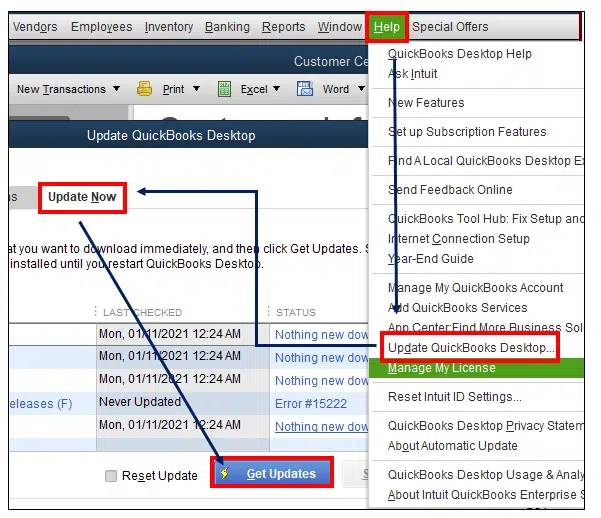
  • Open QuickBooks Desktop.
  • Go to the Help menu.
  • Select Update QuickBooks Desktop.
  • Open the Update Now tab.
  • Select Get Updates.
Update-Quickbooks-Desktop

After restarting QuickBooks, open your company file and try to update the affected bank account again.

If QuickBooks Error 88888 still appears, check whether your Bank has changed the way it connects with QuickBooks. A change on the Bank’s side may require you to reconnect the account or use a different available connection method.

Solution 5 – Update the Financial Institutions Directory

QuickBooks Desktop uses the Financial Institutions Directory to maintain information about the banks and financial institutions available for Bank Feeds. If this information is outdated, QuickBooks may have difficulty connecting to your Bank.

Before updating the directory, make sure you have a recent backup of your company file. Follow these steps:

  • Open QuickBooks Desktop and your company file.
  • Go to the Bank Feeds section.
  • Look for the option to update or refresh the financial institutions directory.
  • Now, you need to follow the on-screen instructions to complete the update process.
  • Once the Update is finished, close and reopen the QuickBooks program.
  • Open the affected bank account and try downloading the latest transactions again.

If you still see QuickBooks Error 88888, move on to the next method.

Solution 6 – Switch to Classic Mode in Bank Feeds

If you are using Express mode, switching to Classic mode can help you fix this error and determine whether the issue is related to the bank feeds mode. You can switch to classic mode by following these steps:

  • First, you need to open the QuickBooks program and your company file.
  • Go to the Edit menu and select Preferences.
  • Choose Checking from the left side of the Window.
  • Select the Company Preferences tab and find the Bank Feeds section.
  • Now, select Classic mode and click Ok to save the new changes.
  • Lastly, return to bank feeds and try downloading your transactions again.

If the transactions download successfully after switching to classic mode, you can continue using this mode for the affected account.

Solution 7 – Run the Verify and Rebuild Data Tool

If the bank connection works properly in a new company file but fails in your existing company file, you should check the company file for possible data issues. Before running these tools, you should create a full backup of your company file. Once the backup is complete, follow these steps:
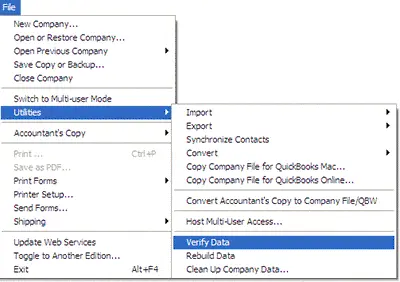
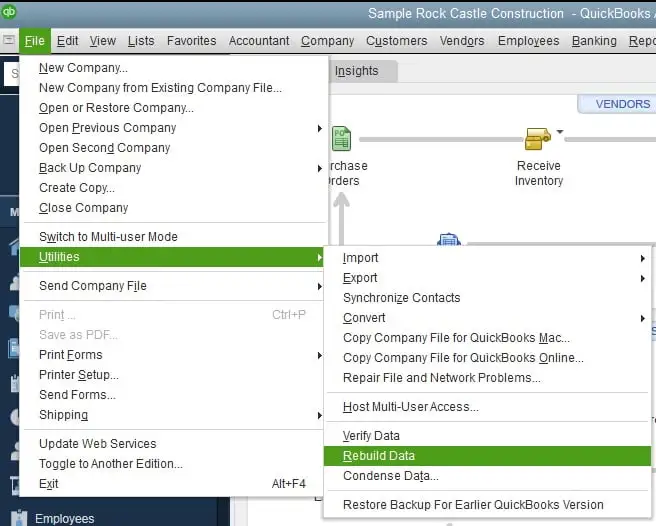
  • First, launch your QuickBooks program and open your company file.
  • Next, navigate to the File menu and select Utilities.
  • Click Verify Data and allow QuickBooks to check the company file.
Verify-and-Rebuild-data
  • If your QuickBooks reports a data problem, go back to the File menu and again select Utilities.
  • Next, choose Rebuild Data and perform the on-screen instructions shown on your screen.
Verify-and-Rebuild-Data
  • Create a backup when QuickBooks asks you to do so.
  • Allow the rebuild process to finish.
  • Reopen QuickBooks Desktop and try to update the bank account.

Solution 8 – Check Your Intuit Account and User Permissions

In some cases, the problem may be related to the Intuit account or the user who is signed in to QuickBooks Desktop. You can check the account information by following these steps:

  • Open QuickBooks Desktop and your company file.
  • Press Ctrl + 1 or F2 to open the Product Information window.
  • Look for the Primary Admin information associated with the Intuit account.
  • Close the Product Information window.
  • Go to the Company menu.
  • Select My Company.
  • Check the user account currently signed in to QuickBooks.
  • If necessary, sign out and sign back in using the appropriate Intuit credentials.
  • Once signed in, try setting up or updating Bank Feeds again.

If you are not the primary administrator of the company file, contact the administrator before making changes to user permissions.

Solution 9 – Test the Bank Connection in a New Company File

If you have already tried reconnecting Bank Feeds, updating QuickBooks, and checking your Intuit account, but QuickBooks Error 88888 still appears, you can test the same bank connection in a new company file. To perform the test, follow these steps:

  • Open QuickBooks Desktop on your computer.
  • Go to the File menu.
  • Select New Company and choose the option to create a new company file.
  • Follow the on-screen instructions to create the test company.
  • Once the new company file opens, go to Banking and select the option to set up Bank Feeds.
  • Search for the same financial institution that is showing QuickBooks Error 88888 in your original company file.
  • Sign in to your bank account when prompted.
  • Select the appropriate bank account and try downloading the transactions.

Now, check what happens during the test.

If the bank connection works normally in the new company file, the problem may be related to your original company file or the Bank Feeds setup of the affected account.

How to Identify What is Causing QuickBooks Error 88888?

If you have tried the troubleshooting methods above and QuickBooks Error 88888 is still appearing, the results of your tests can help you fix the cause. Here are a few situations that can help you identify the source of the problem:

  • The Bank Website Works, But QuickBooks Does Not: The issue may be related to the Bank feeds connection or its setup in the QuickBooks program.
  • The Bank Connection Works in a New Company File: The problem may be limited to your original company file or the affected account.
  • Error 88888 Appears in Both Company Files: The financial institution or its connection with QuickBooks may be causing the issue.
  • Your Bank Shows a Security Notification: Complete the required action on the Bank’s website before trying to reconnect it in QuickBooks.
  • Another Account from the Same Bank Works Normally: The issue may be limited to the specific account that is showing the error.
  • You Cannot Deactivate the Affected Account: Check for pending downloaded transactions before making further changes to the Bank Feeds setup.

Useful Tips to Prevent QuickBooks Error 88888

Once you have fixed QuickBooks Error 88888, a few simple habits can help you reduce the chances of running into the same Bank Feeds problem again. These simple tips are especially useful if you download transactions from one or more financial institutions.

  • Keep QuickBooks Desktop Updated: Check for available QuickBooks updates regularly so that your software has the latest fixes and improvements.
  • Check Your Bank Notifications: Sign in to your Bank’s website from time to time and review security alerts, verification requests, and service announcements.
  • Keep your bank information up to date: If your Bank changes its online banking login, security settings, or connection requirements, reconnect Bank Feeds when necessary.
  • Review inactive bank accounts: If you no longer use a bank account, check whether its online banking services are still enabled in QuickBooks.
  • Create regular company file backups: Keep recent backups of your QuickBooks company file before making significant changes to Bank Feeds or company-file settings.
  • Keep Windows updated: Install available Windows updates to maintain compatibility between your operating system and QuickBooks Desktop.
  • Check your bank connection when problems start: If Bank Feeds suddenly stops working, first check the Bank’s website before changing multiple QuickBooks settings.

Conclusion!

The QuickBooks Error 88888 can prevent your QuickBooks Desktop from connecting to your Bank and downloading transactions. Start by checking your bank account, notifications, and Bank Feeds settings before making major changes.

If the error continues, try the solutions above, especially reconnecting Bank Feeds, updating QuickBooks, and testing the connection in a new company file. Keeping QuickBooks updated and maintaining regular backups can also help prevent future issues.

If the error still persists, you can reach out to the Data Service Team experts for further assistance +1(888)-718-7888.

Frequently Asked Questions (FAQ’s)

QuickBooks Error 88888 usually appears when QuickBooks Desktop cannot connect properly with your Bank. It may be caused by connection problems, outdated software, or incorrect Bank Feeds settings. To fix this, you can check the bank account and QuickBooks settings.

No, QuickBooks Error 88888 is mainly related to Bank Feeds and bank connections. It generally prevents QuickBooks from downloading or updating bank transactions. Your payroll processing and employee information are usually not affected.

QuickBooks Error 88888 is a Bank Feeds connection error in QuickBooks Desktop. It can occur due to bank connection issues, account settings, or outdated QuickBooks. In some cases, problems with the company file may also contribute to the error.

Yes, the error can prevent QuickBooks Desktop from connecting to your financial institution. As a result, the latest bank transactions may not download through Bank Feeds. Reconnecting the account can often help restore the connection.

First, check your Bank’s website for alerts, security messages, or service issues. Also, review pending Bank Feed transactions and confirm that the correct account is connected. Creating a backup before changing Bank Feeds settings is also recommended.

You can try reconnecting the Bank Feeds, updating QuickBooks, or checking other accounts from the same Bank. You can also switch to Classic Mode, verify company data, or test the connection in a new file. If the error continues, contact your Bank or a QuickBooks professional for further help.


About The Author

Steven Moody

Steven Moody is a bookkeeping and payroll specialist dedicated to helping businesses maintain accurate financial records and efficient payroll operations. His expertise includes payroll management, tax compliance, bookkeeping solutions, and financial reporting. Steven regularly shares insights on accounting best practices and business finance strategies. Outside of work, he enjoys traveling, exploring new places, and keeping up with the latest developments in business technology.

Steven Moody

QuickBooks Error

Intuit Download Manager Error: Why It Happens and How to Fix It

Read More
QuickBooks

QuickBooks Bank Reconciliation: How to Reconcile and Fix Errors

Read More
QuickBooks Error

QuickBooks Error 3371 Status Code 11118: How to Resolve It?

Read More
QuickBooks Error

QuickBooks Error 1935: Why It Happens and How to Fix It

Read More
QuickBooks Error

QuickBooks Error 1402: Why It Happens and How to Fix It

Read More