🔥 BLACK FRIDAY & CYBER MONDAY MEGA SALE ✦ Get 70% OFF QuickBooks Products & Subscriptions ✦ 20% OFF Checks, Forms & Supplies ✦ LIMITED TIME OFFER! 🎉 ✦
QuickBooks-Invoice-Payment-Error
Summarize this blog post with :

Have you ever sent a QuickBooks invoice only to discover that your customer cannot complete the payment? A QuickBooks Invoice Payment Error can occur when customers encounter declined credit cards, rejected ACH transfers, incorrect billing details, broken payment links, or issues with QuickBooks Payments. These problems can delay transactions, create an unable to send invoices in QuickBooks issue, and leave invoices showing an outstanding balance.
quickbooks-invoice-payment-error

In this guide, we explain the common causes of QuickBooks invoice payment errors, how to troubleshoot failed credit card and ACH transactions, how to resolve online payment issues, and ways to prevent payment problems in the future.

What Is a QuickBooks Invoice Payment Error?

It occurs when a customer or business owner faces problems while processing/ receiving/ or completing an invoice payment through QuickBooks. It can prevent customers from paying invoices online using credit cards/ ACH bank transfers. These errors may occur due to incorrect payment information/ declined credit cards/ rejected bank transfers/ disabled online payment settings/ or problems with invoice payment links. Customers may also encounter errors due to invalid payment amounts/ browser issues. QuickBooks requires an active Payments account and enabled online invoice settings to accept online payments.

Why Am I Getting a QuickBooks Invoice Payment Error?

A QuickBooks invoice payment error can occur for several reasons, including:

  • Wrong credit card numbers/ expiration dates can cause payment failures.
  • The customer’s bank may decline a transaction due to insufficient funds/ security restrictions.
  • Incorrect bank details/ rejected bank transfers can prevent successful payments.
  • An inactive/ unapproved Payments account may prevent online transactions.
  • Customers may not see the Pay Now option if online invoice payments are not enabled.
  • An incorrect amount/ unsupported transaction value can trigger an error.
  • Outdated browsers/ temporary technical problems may interrupt payment processing.
  • Incorrect/ inaccessible invoice links can prevent customers from completing payments.

Possible Indicators of QuickBooks Invoice Payment Error

You may notice the following signs when a QuickBooks customer payment error occurs:

  • The invoice continues to show an outstanding balance after the customer attempts payment.
  • The customer receives a message and confirm that the transaction was declined.
  • QuickBooks sends an email containing an R## rejection code for failed bank transfers.
  • The transaction remains under review/ has not completed processing.
  • The invoice shows a payment record, but the funds have not been deposited.
  • The customer does not receive confirmation of a processed payment.
  • A previously accepted payment is later returned/ reversed by the bank.

Note: A pending payment/ funds-on-hold status does not mean the payment has failed. Check the transaction details before taking further action.

Prerequisites to Resolve QuickBooks Invoice Payment Error or Not Working Issue

Before troubleshooting QuickBooks invoice payment errors, make sure you have the following:

  • Keep your login credentials and required account permissions ready, especially if you encounter a QuickBooks Online login problem.
  • Have the affected invoice number/ payment date/ and transaction reference available.
  • Ensure you can access the Payments section to review account settings.
  • Use an updated and QuickBooks-compatible web browser.
  • Ensure uninterrupted internet access during troubleshooting.
  • Keep the customer’s payment confirmation/ error notification available.
  • Create a backup to make significant changes to the QuickBooks Desktop company file.

Common QuickBooks Invoice Payment Errors and Their Meanings

ACH payment errors can occur when a customer’s bank account has insufficient funds, the account is closed, or the account information is incorrect. Check the rejection code to understand why the transaction failed. You can also review Intuit’s guidance on understanding ACH payment rejection codes.

Payment errorMeaning
Unknown Merchant AccountThe customer’s card/ bank account information may be inactive/ invalid.
Invalid AmountThe payment amount contains an error/ is not accepted by the payment processor.
Credit Card DeclinedThe card issuer has refused the payment transaction.
ACH Payment Rejected (R01)The bank transfer was rejected due to insufficient funds.
ACH Payment Rejected (R02)The bank account used for the transaction is closed.
ACH Payment Rejected (R03/R04)The bank account could not be located/ the account information is invalid.
Pay Now Link ErrorThe customer encounters an issue opening/ accessing the invoice payment link.
Paid – Not DepositedQuickBooks displays a payment record that has not yet been deposited or settled. You can also review QuickBooks Bank Reconciliation to understand how recorded deposits are matched with bank transactions.
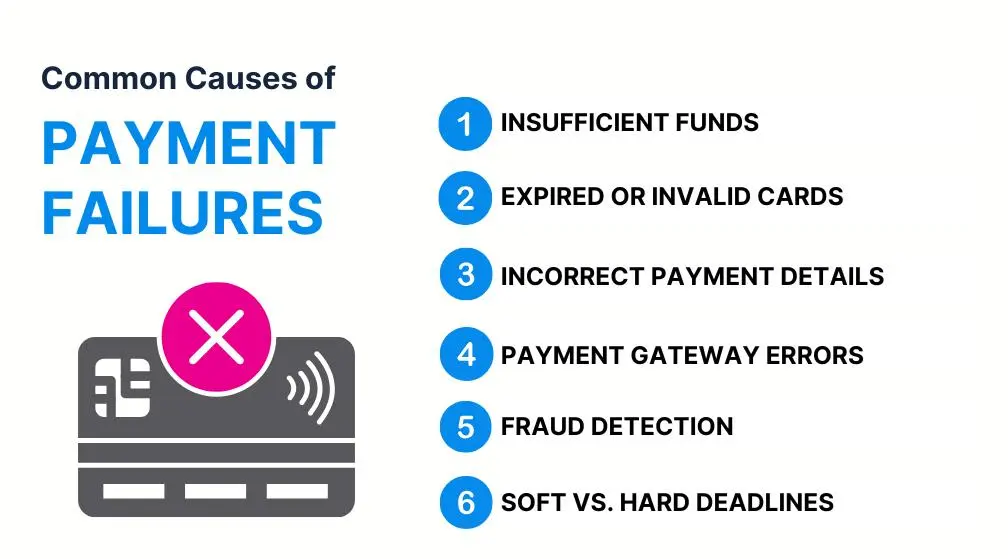
Common payment errors infographic

How to Fix QuickBooks Invoice Payment Errors?

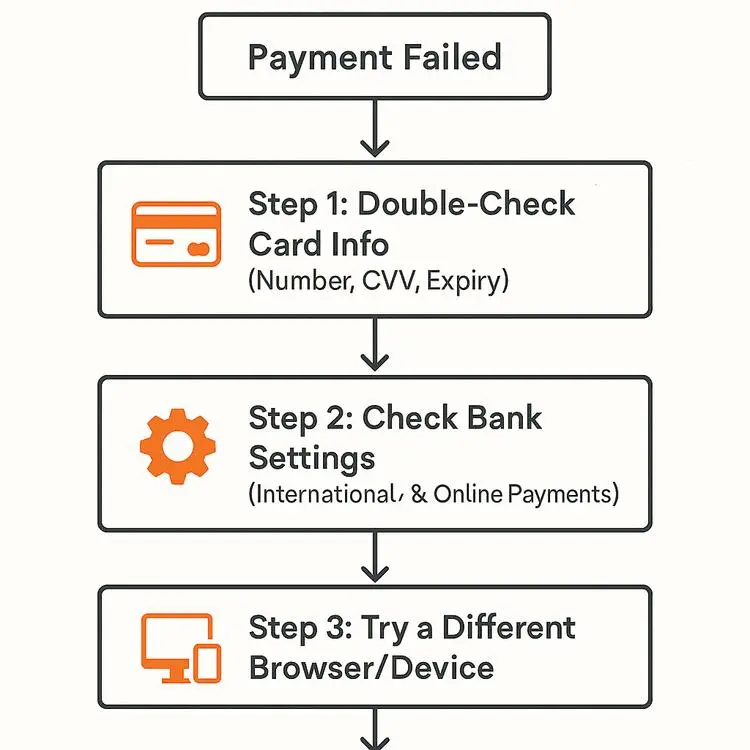
Follow these simple troubleshooting steps to examine the cause of QuickBooks customer payment error and resolve them so your customers can complete payments smoothly.
quickbooks-invoice-payment-troubleshooting

Method 1: Check and Enable Online Invoice Payment Settings

One common reason customers cannot pay invoices online is that online invoice payments are not enabled in QuickBooks Online.

Check Online Invoice Payment Settings

If your customers are unable to view the payment option, verify that your QuickBooks settings are accurate:

  • Navigate to Settings, then choose Account and settings.
  • Click on Sales.
  • Select Online delivery.
  • In the Additional email options for invoices dropdown, pick Online invoice.
  • Hit Save.

Note: Make sure you have an active QuickBooks Payments account and that online invoice payments are enabled.

Method 2: Check and Correct Invoice Payment Links

Sometimes customers receive an invoice but encounter an error after clicking the Review and Pay/ Pay Now link. It is suggested to check the original invoice email and open the payment URL directly.

  • Open the original invoice email.
  • Right-click the Review and Pay link.
  • Select Copy Link Address.
  • Open a new browser tab.
  • Paste the copied URL into address bar.
  • Press Enter to access the payment page.
  • If the error continues, try opening the invoice using a different browser.
  • Customers should also follow any specific instructions displayed in the payment error message.

Method 3: Check Credit Card and Bank Account Information

Follow these instructions to link a check/ savings/ or credit card account. Connect as many accounts as necessary.

  • Navigate to All apps/ then select Accounting/ followed by Bank transactions.
  • Click on Connect account. If you have connected an account, choose Link account on the Bank transactions tab.
  • Search for your bank using the search bar.
  • If your bank is not listed but you can log in to its website, select Request a provider to submit a request for them to be added.
  • Click Continue.
  • Log in to the bank using your online banking details.
  • Proceed with the provided instructions to finish the connection.
  • Your bank may ask for additional security verifications.
  • Choose the specific accounts you wish to connect.
  • Select the start date for downloading transactions in the date range dropdown menu.
  • The duration for downloads can differ by bank and ranges from 90 days to 24 months.
  • Click Connect and then press Done.

QuickBooks will automatically retrieve your recent transactions. You can now access the Bank transactions tab to review/ categorize/ and incorporate them into your records.

Method 4: Correct Payments Applied to the Wrong Invoice

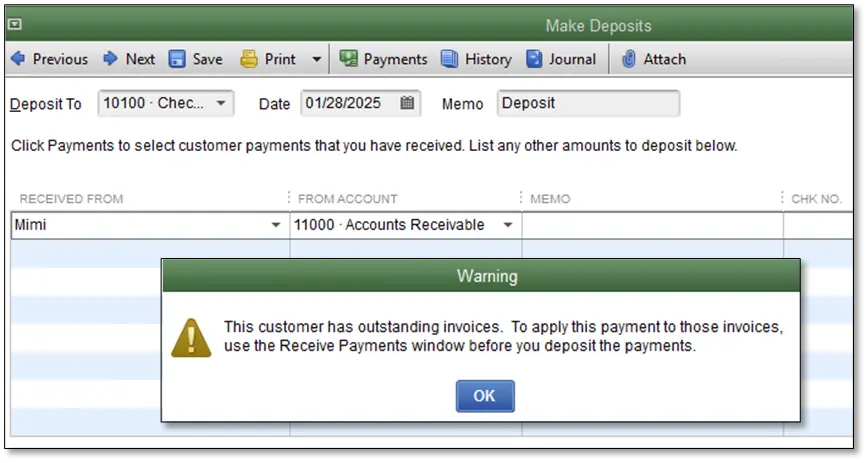
Sometimes QuickBooks records a customer payment against the wrong invoice. This can create incorrect outstanding balances and make it appear that the intended invoice remains unpaid.

Step 1: Create a Journal Entry

Follow these instructions to create a journal entry:

Input the following details on the first line:

  • Account – Accounts Receivable
  • Debits – Enter the amount of the payment you wish to transfer.
  • Name – Specify the name of the customer from whom you are transferring the payment.

Provide these details on the second line:

  • Account – Accounts Receivable
  • Credits – Enter the same amount of payment being transferred.
  • Name – Specify the name of the customer to whom you are transferring the payment.

b Once you have entered all the information, select Save and Close to finalize the journal entry.

Step 2 – Apply the Payment to the Correct Invoice

Follow these steps to apply the payment to appropriate invoice:

  • Select the + Create option.
  • Choose Receive Payment.
  • From the list, select the name of the customer associated with the payment.
  • In the Credits section, ensure that both the journal entry number/ the open balance amount are displayed and checked.
  • Select Save and Close to complete the payment application process.

By following these steps, you can create a journal entry and apply payments to the correct invoices.

Method 5: Use Multiple Payment Methods Towards an Invoice

Users can use multiple payment methods toward invoices to resolve a QuickBooks credit card payment failed issue. It is bypassing a card/ bank limit/ working around a blocked payment method. Here are the steps to follow:

Step 1: Create a Cash Payment Item

  • Choose Item list from the Lists menu.
  • Click on the Item dropdown and select New Item (Ctrl+N).
  • Choose Payment in the Item type field.
  • Enter Cash Payment in the Item Name/Number field.
  • If you would like the payment to be included with other undeposited funds, select the radio button for Group with other undeposited funds.
  • If not, choose the Deposit to radio button and select the bank account where you want the payment to be deposited from the dropdown.
  • Click OK.

Step 2: Create the Invoice

  • Choose Create Invoices from the Customers menu. If you need help converting estimates into invoices, see our guide on QuickBooks Estimate to Invoice.
  • In the Customer: Job dropdown, pick a customer/ job.
  • If the customer or job is not available in the list, you can select Add New.
  • Complete the necessary details at the top of the form such as the Date, Invoice #, Bill to/Sold to, and Terms.
  • In the line item section, choose the item(s).

Note: You must enter items that will be paid through cash and credit card on two separate lines.

  • Select the Cash Payment item you created earlier.
  • In the amount column, enter the total of the item(s) that will be paid in cash.
  • Keep in mind that the cash payment item will display a negative value.
  • This makes the Total and Balance due equal to the amount to be paid via credit card.
  • Choose Save & Close.

Step 3: Record the Payment

  • Click on Receive Payments from the Customers menu.
  • Pick the customer/ customer job in the Received from dropdown.
  • Input the amount.
  • Ensure the date is accurate.
  • (Optional) Provide the Reference or Check #.
  • Select the correct credit card for the payment method.
  • Choose the invoice you intend to settle with a credit card.
  • Click Save & Close.

How to Enable Online Payments for QuickBooks Invoices?

Consider the steps provided below to enable online payments on QuickBooks invoices:

  • Sign up for QuickBooks Payments or connect your existing account.
  • Go to Settings > Account and settings.
  • Open the Sales tab and find the Invoice payments section.
  • Select Edit and enable the payment methods you want to offer, such as credit cards/ ACH bank transfers.
  • Under Sales/ open Online delivery/ and select Online invoice from the additional email options.
  • Select Save and then Done.
  • Open an invoice/ select Manage > Payment options/ and turn on the preferred payment methods.
  • Select Review and send so customers can access the online payment link.

Note: QuickBooks Payments requires eligibility and approval. Available payment methods may differ by account and location.

How to Fix Declined Credit Card and Rejected ACH Payments?

QuickBooks provides different troubleshooting steps for declined credit card payments and rejected ACH bank transfers. Follow the relevant steps below to recognize and resolve QuickBooks unable to process payment issue.

Fix Declined Credit Card Payments

  • Check the card number/ expiration date/ and CVV.
  • Make sure the card is active and not expired.
  • Correct outdated/ incorrect saved card details with customer authorization.
  • Ask the customer to use another supported payment method if the card continues to decline.
  • Ask the customer to check with their bank for transaction restrictions.

Fix Rejected ACH Payments

  • Review the notification for the ACH rejection reason.
  • Find the specific ACH rejection code and its meaning.
  • Correct any invalid/ outdated account information.
  • Resolve any bank authorization issues before retrying the transaction.
  • Get assistance if the rejection continues.

Note: Always follow the instructions for the specific ACH rejection code before submitting another payment.

Why Can’t Customers Pay QuickBooks Invoices Online?

Customers may be unable to pay QuickBooks invoices online due to:

  • Payment Account Issues – QuickBooks Payments is not activated/ approved.
  • Disabled Payment Options – Online invoice payments are not enabled.
  • Missing Payment Methods – Credit card or ACH options are unavailable.
  • Broken Payment Links – The invoice’s Pay Now link is inaccessible.
  • Browser Problems – An outdated browser interrupts payment processing.
  • Transaction Restrictions – The payment exceeds applicable processing limits.

How to Prevent QuickBooks Invoice Payment Errors in the Future?

Consider these simple practices to reduce the risk of facing QuickBooks credit card payment failure issues:

  • Install available updates to maintain compatibility and improve performance.
  • Timely check your invoice payment preferences.
  • Keep your browser updated for a hassle-free payment process.
  • Double-check invoice amounts and customer information before sending.
  • Review payment status periodically and check rejected ACH notifications.
  • Check invoice payment links before sending them to customers.
  • Keep transaction confirmations and payment receipts for reference.

Make QuickBooks Work Smarter for Your Business

Spend less time managing data and more time growing your business. Whether you need help setting up QuickBooks, cleaning up your books, reconciling accounts, or resolving errors, our team is here to make accounting easier. Get quick solutions that save time, improve accuracy, and keep your business finances on track.

OR Call Us

In Conclusion!

QuickBooks invoice payment error can interrupt your payment process and delay business transactions. These issues may occur due to incorrect billing information/ declined credit cards/ rejected ACH payments/ disabled online payment settings/ or problems with payment links. Understand the common causes and recognize error signs to choose the right troubleshooting steps for this issue. Always review your payment settings/ verify transaction details/ and keep your QuickBooks software updated to avoid future problems.

Still facing QuickBooks customer payment error? Don’t let payment issues affect your business operations. Contact our Data Service Team at +1(888)-718-7888 for expert guidance and reliable assistance with accounting and bookkeeping services and QuickBooks payment problems.

Frequently Asked Questions (FAQ’s)

You may encounter a QuickBooks invoice payment error due to incorrect payment details/ expired credit/ debit cards/ insufficient funds/ internet connectivity issues/ or temporary problems with QuickBooks Payments. Incorrect customer information/ payment processing restrictions can also prevent transactions from completing successfully.

Customers may be unable to pay QuickBooks invoices online due to disabled online payment options/ incorrect payment settings/ expired cards/ declined transactions/ or temporary QuickBooks Payments issues. An unstable internet connection/ unsupported payment methods/ or account restrictions may also prevent successful invoice payments.

Check your payment details/ verify that the customer’s card/ bank information is correct/ and ensure sufficient funds are available to fix a QuickBooks invoice payment failed error. Check your internet connection/ update your browser/ and confirm that online payment options are enabled. If the issue continues, contact QuickBooks Payments support for further assistance.

QuickBooks may decline customer credit card payments due to insufficient funds/ incorrect card details/ expired cards/ bank security restrictions/ or payment processing limits. Temporary issues with QuickBooks Payments/ the customer’s bank may also cause transactions to be declined.

If your QuickBooks Pay Now link is not working, check your internet connection, verify that online payment options are enabled, and make sure the invoice link is correct and not expired. Try opening the link in an updated browser or a different device. If the problem continues, resend the invoice/ contact QuickBooks Payments support for assistance.

QuickBooks shows this when a customer has paid an invoice, but the payment has not yet been recorded as deposited into your bank account. The payment may still be in the Undeposited Funds account and wait to be grouped with other payments and deposited. Review the payment and record the correct bank deposit in QuickBooks to resolve it.

Sign in to QuickBooks Online/ open Settings \> Account and settings \> Sales/ and review your invoice payment options to enable online payments for QuickBooks invoices. Make sure your QuickBooks Payments account is active and enable the available payment methods, such as credit cards and bank transfers. Select the preferred payment options and send them to your customer with the Pay Now link when creating an invoice.

Yes! Incorrect billing information can cause QuickBooks customer payment error. Incorrect card numbers/ billing addresses/ ZIP codes/ expiration dates/ or CVV details may result in declined transactions. Ask customers to verify and update their billing information before attempting the payment again.

A declined credit card payment occurs when a customer’s card issuer refuses a transaction due to insufficient funds/ incorrect card details/ or security restrictions. A rejected ACH payment occurs when a bank transfer fails due to incorrect bank account information/ insufficient funds/ a closed account/ or authorisation issues.

About The Author

Steven Moody

Steven Moody is a bookkeeping and payroll specialist dedicated to helping businesses maintain accurate financial records and efficient payroll operations. His expertise includes payroll management, tax compliance, bookkeeping solutions, and financial reporting. Steven regularly shares insights on accounting best practices and business finance strategies. Outside of work, he enjoys traveling, exploring new places, and keeping up with the latest developments in business technology.

Steven Moody

QuickBooks

QuickBooks Enterprise File Corrupted After Update: Fix It

Read More
QuickBooks Error How to

QuickBooks Event ID 4 Error: Causes and How to Fix It

Read More
QuickBooks Error How to

QuickBooks Error 3007 During Verification? Here’s How to Fix

Read More
QuickBooks Error How to

QBPOSShell Has Stopped Working: Here’s How to Fix It Fast

Read More
QuickBooks Error How to

QuickBooks Error 15242: Fix File Copy Service (FCS) Issues

Read More