🔥 BLACK FRIDAY & CYBER MONDAY MEGA SALE ✦ Get 70% OFF QuickBooks Products & Subscriptions ✦ 20% OFF Checks, Forms & Supplies ✦ LIMITED TIME OFFER! 🎉 ✦
QuickBooks-Event-ID-4-Error
Summarize this blog post with :

Unexpected errors can make even simple accounting tasks difficult. If your QuickBooks Desktop suddenly crashes, freezes, or displays an unusual message in Windows Event Viewer, the QuickBooks Event ID 4 error could be the reason. This issue may be related to damaged program files, Microsoft .NET Framework, or other Windows components. Its actual cause can vary depending on the error details.

Here, we’ll explain the common causes of QuickBooks Event ID 4 Error and share simple, step-by-step solutions to help you resolve it.

What Is QuickBooks Event ID 4 Error?

QuickBooks Event ID 4 Error is an unexpected application issue recorded in Windows Event Viewer when QuickBooks Desktop encounters a problem. Users may experience QuickBooks Event ID 4 when opening QuickBooks, accessing a company file, or using certain features of the software.

You may see messages such as “Returning NULL QBWinInstance Handle” or other unexpected error descriptions. The exact message depends on the issue affecting the application.

There is not one confirmed cause for every Event ID 4 error. Damaged QuickBooks program files, Windows component issues, or installation problems may contribute to similar application errors.
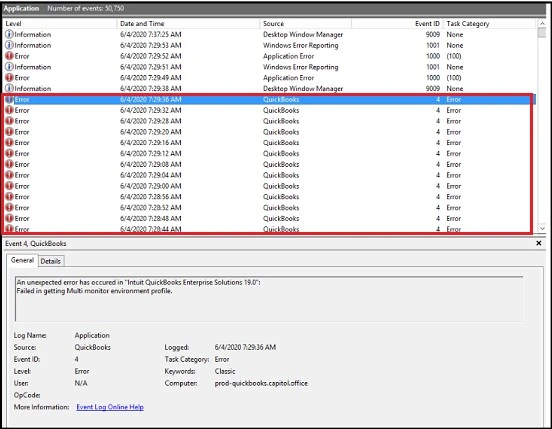
QuickBooks-Event-ID-4

To understand the problem better, you need to check the error details in Windows Event Viewer, including the source, event ID, and description. These details can help you identify which component needs attention.

What Causes QuickBooks Event ID 4 Error?

QuickBooks Desktop depends on Windows components and program files to run properly. If any of these components encounter a problem, the software may crash, freeze, or display an unexpected error.

Here are some possible reasons behind this error:

  • Missing or damaged installation files can prevent QuickBooks Desktop from opening or working correctly.
  • QuickBooks uses Microsoft .NET Framework for certain features. If this component is damaged or not working properly, it may affect the application.
  • An interrupted installation or update can leave important program components incomplete.
  • Damaged Windows components or system files may interfere with QuickBooks operations.
  • If this configuration file is damaged or missing, QuickBooks may experience problems when starting.
  • Other applications running in the background may interfere with QuickBooks processes.
  • If the problem occurs only when opening a particular company file or accessing it over a network, investigate possible file or connection issues.

Common Symptoms of QuickBooks Event ID 4

Before fixing the problem, it is important to understand its common signs. The QuickBooks Event ID 4 error may affect the software in different ways, depending on its underlying cause.

Here are some symptoms you may notice:

  • The software may close suddenly while opening or performing accounting tasks.
  • You may notice that QuickBooks freezes or takes longer than usual to respond.
  • Unexpected messages such as “Returning NULL QBWinInstance Handle” may appear.
  • QuickBooks may have trouble accessing a particular company file.
  • QuickBooks Integration Manager may fail to connect to the application.
  • Windows Event Viewer may record application errors whenever QuickBooks encounters a problem.

What to Check Before Troubleshooting Event ID 4

Before trying any troubleshooting method, take a few minutes to check the following things:

  • Keep a recent backup of your QuickBooks company file to protect your accounting data.
  • Make sure your computer meets the system requirements for your installed QuickBooks version.
  • See whether any maintenance updates are available.
  • Make sure you have the required Windows permissions to repair or update QuickBooks.
  • Write down the complete error description shown in Windows Event Viewer.
  • Find out whether the problem occurs while opening QuickBooks, accessing a company file, or using Integration Manager.

How to Fix QuickBooks Event ID 4 Error in Windows 10 and 11

Before trying the following methods, completely close QuickBooks and take a full backup of your company data if you can access it.

Here are some troubleshooting methods you can try to resolve the issue:

Method 1 – Run Quick Fix My Program

Quick Fix My Program feature closes background QuickBooks processes and repairs common program issues. You can try this method if your QuickBooks freezes, crashes, or fails to open. Here are the steps to follow:
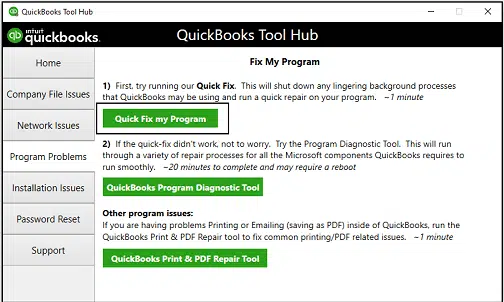
  • Start by closing your QuickBooks Desktop.
  • Open QuickBooks Tool Hub on your computer.
  • Select the Program Problems tab.
  • Click Quick Fix My Program.
Quick-Fix-My-Program
  • Wait for the tool to finish repairing the program.
  • Open QuickBooks Desktop again and check whether the error appears.
  • If the QuickBooks Event ID 4 Error continues, try the next method.

Method 2 – Run QuickBooks Install Diagnostic Tool

Damaged installation components can prevent QuickBooks Desktop from working correctly. Intuit provides the Install Diagnostic Tool through QuickBooks Tool Hub to identify and repair common installation-related problems. Here’s how to use it:
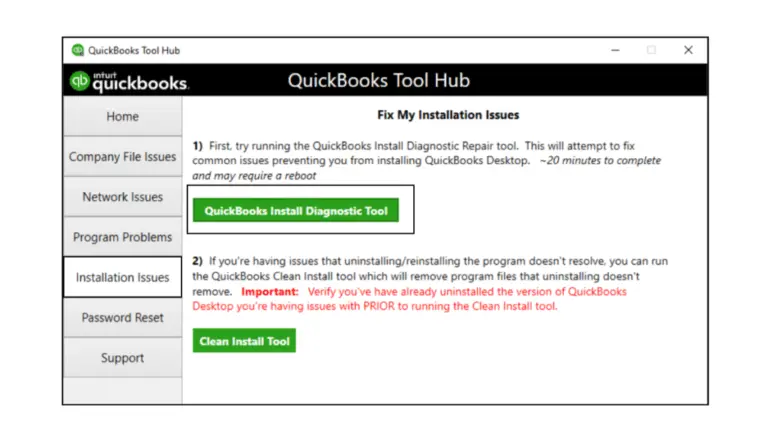
QuickBooks-Install-Diagnostic-Tool
  • Allow the tool to run. It may take up to 20 minutes.
  • Once the process finishes, restart your computer.
  • Open QuickBooks Desktop and check whether it works properly.

Method 3: Update QuickBooks Desktop

Using an outdated QuickBooks version may leave you without important maintenance updates and product improvements. Updating QuickBooks Desktop can help resolve problems related to older program files. Follow these steps:
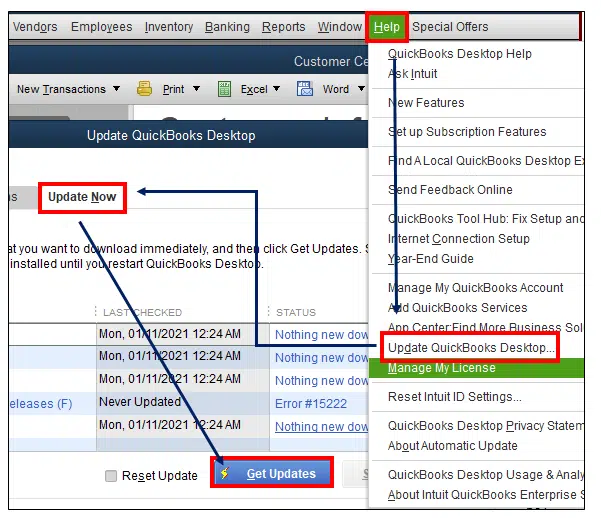
get-update-Quickbooks-Desktop
  • Wait for the download to finish.
  • Close and reopen QuickBooks.
  • Select Yes if prompted to install the updates.
  • After installing the available updates, restart QuickBooks and check whether the issue is resolved.

Method 4 – Repair Microsoft .NET Framework

Problems with QuickBooks Event ID 4 .NET Framework components may cause unexpected errors when using QuickBooks Desktop. To check and repair .NET Framework, follow these steps:
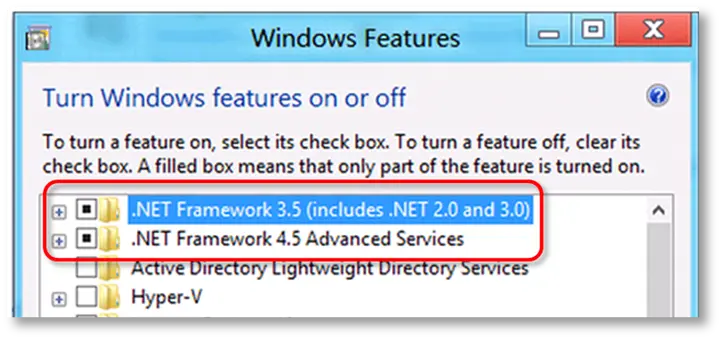
  • Press Windows + R on your keyboard.
  • Type optionalfeatures.exe and press Enter.
  • The Windows Features window will open.
  • Find Microsoft .NET Framework 3.5 and .NET Framework 4.x in the list.
NET-framework-4.5-and-.NET-framework-3.5-SP1.
  • Check whether the required features are enabled.
  • If Windows shows that a required feature is disabled, enable it and click OK.
  • Restart your computer if prompted.
  • Open QuickBooks Desktop again and check whether the error is fixed.

If the problem continues, you can also repair Windows system files.
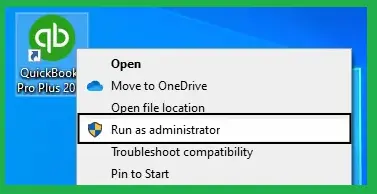
  • Open the Start menu and search for Command Prompt.
  • Right-click it and select Run as administrator.
run-as-administrator
  • Type the following command and press Enter: DISM.exe /Online /Cleanup-image /Restorehealth
  • Wait for the process to finish.
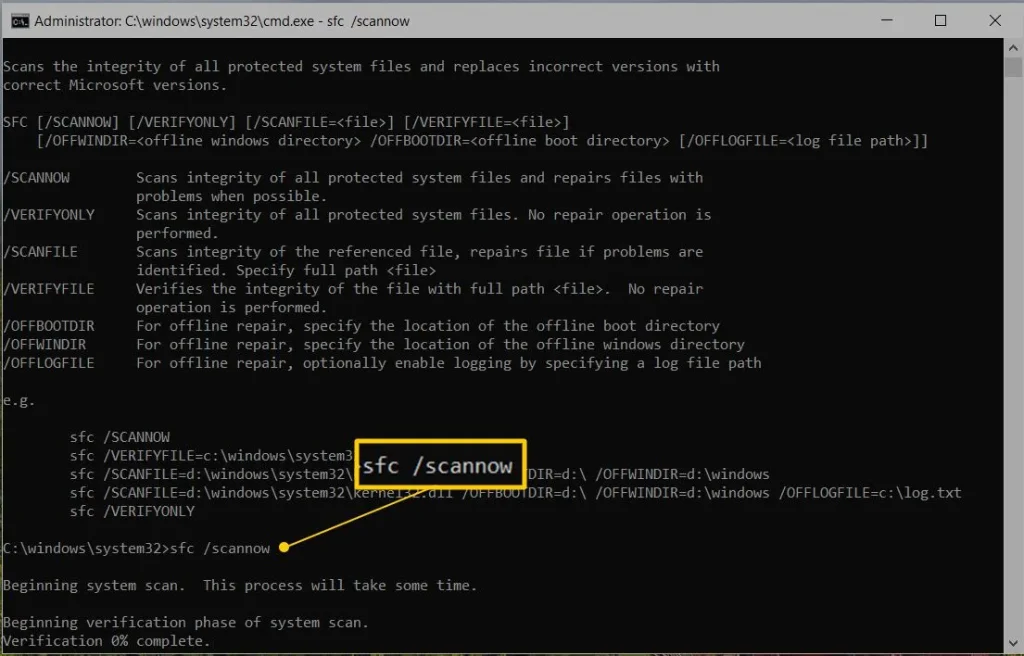
  • Now, type sfc /scannow and press Enter.
sfc-scannow
  • Let Windows complete the scan.
  • Restart your computer and open QuickBooks again.

Note: Don’t uninstall or disable .NET Framework without confirming that it is causing the problem. These components are also used by other Windows applications.

Method 5 – Rename the QBWUSER.INI File

Sometimes, a damaged QuickBooks configuration file can create problems when starting the software. Renaming the QBWUSER.INI file allows QuickBooks to create a fresh one. Here’s what you need to do:

  • Close QuickBooks Desktop.
  • Press Windows + E to open File Explorer.
  • Go to the following location: C:\Users[Your User Name]\AppData\Local\Intuit\QuickBooks [Year]
  • Find the QBWUSER.INI file.
  • Right-click it and select Rename.
  • Change its name to QBWUSER.INI.old.
  • Press Enter to save the changes.
  • Open QuickBooks Desktop again.
  • Now, check whether QuickBooks opens without showing the error.

Method 6 – Run QuickBooks File Doctor

If you experience the QuickBooks Event ID 4 error whileUpdate QuickBooks opening a particular company file, the file may be damaged, or there may be a network connection problem.

In this situation, you can use QuickBooks File Doctor to check and repair certain company file and network issues. Follow these steps:
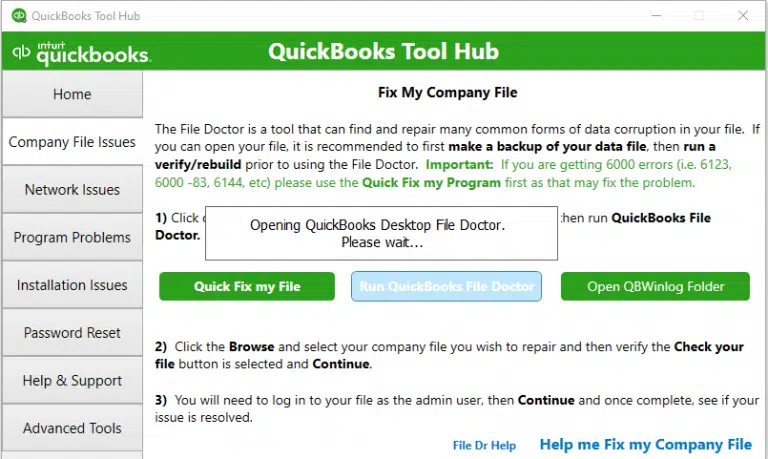
  • Close QuickBooks Desktop.
  • Open QuickBooks Tool Hub.
  • Select the Company File Issues tab.
  • Click Run QuickBooks File Doctor.
Run-QuickBooks-File-Doctor
  • Select your company file from the available list.
  • Enter your QuickBooks administrator password if prompted.
  • Choose the appropriate file or network repair option.
  • Let the tool complete the process.
  • Open QuickBooks Desktop again and check whether the problem is resolved.

Method 7 – Repair QuickBooks Desktop

If the above methods don’t work, some QuickBooks installation files may be damaged. Repairing the application can help fix these files without completely reinstalling the software. Here’s how:
  • Close QuickBooks Desktop.
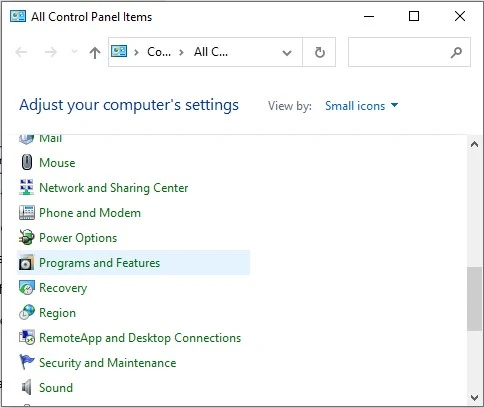
  • Open the Windows Control Panel.
  • Click Programs and Features.
click Programs and Features
  • Find QuickBooks Desktop in the installed programs list.
  • Select QuickBooks and click Uninstall/Change.
  • If the repair option appears, select Repair.
  • Follow the instructions displayed on your screen.
  • Wait for the repair process to finish.
  • Restart your computer.
  • Open QuickBooks Desktop and check whether the error still appears.

If the repair option is unavailable or doesn’t solve the problem, you can consider reinstalling QuickBooks using the Clean Install Tool. Before doing so, create a backup of your company file and keep your product and license information ready.

Method 8 – Check Windows Event Viewer

Still facing the QuickBooks Event ID 4 error? Don’t worry. Windows Event Viewer can help you find more information about the problem.

It records application errors and shows which program or component may be responsible. Follow these steps:

  • Press Windows + R.
  • Type eventvwr.msc and press Enter.
  • Open Windows Logs.
  • Click Application.
  • Look for an error recorded around the time QuickBooks stopped working.
  • Double-click the event to open its details.
  • Check the event source, ID, and description.
  • Note down the information so you can identify the possible cause.

These details can help you understand why QuickBooks is crashing or displaying an unexpected error.

How to Prevent QuickBooks Event ID 4 in the Future

Fixing the QuickBooks Event ID 4 error is important, but taking a few precautions can help you avoid facing the same problem again.

Here are some simple tips to keep QuickBooks Desktop running smoothly:

  • Update QuickBooks Regularly: Always install the latest available QuickBooks updates to fix known bugs and improve software performance.
  • Keep Windows Updated: Install Windows updates regularly to keep important system components working properly.
  • Create Regular Backups: Take regular backups of your company files to protect your accounting data.
  • Avoid Interrupting Updates: Let QuickBooks and Windows complete their updates before shutting down your computer.
  • Use Reliable Antivirus Software: Keep your antivirus updated and make sure it does not unnecessarily block QuickBooks processes.
  • Check Your Company Files: If QuickBooks shows repeated errors while opening a particular company file, investigate the file for possible damage.
  • Monitor Windows Event Viewer: Check error logs whenever QuickBooks crashes or stops responding. This can help you identify problems early.

Following these simple tips can help reduce the chances of encountering QuickBooks Event ID 4 errors again.

Conclusion

The QuickBooks Event ID 4 Error may occur due to several issues, such as damaged program files, outdated software, or problems with Windows components. The good news is that you can troubleshoot it by following the methods discussed in this guide. Try each solution carefully and check whether QuickBooks starts working properly.

Also, keep your software updated and take regular backups of your company files to avoid future problems. If nothing works, don’t hesitate to seek professional Help from Data Service Team experts at +1(888)-718-7888.

Frequently Asked Questions (FAQ’s)

This is an unexpected application error recorded in Windows Event Viewer when QuickBooks Desktop encounters a problem.

It may occur due to damaged program files, incomplete installation, outdated software, or Windows component issues.

Yes, damaged or improperly configured .NET Framework components may cause QuickBooks to display unexpected errors.

Run Quick Fix My Program, update QuickBooks, repair installation components, and check Windows Event Viewer for error details.

Open QuickBooks Tool Hub, select Program Problems, and click Quick Fix My Program. You can also use the Install Diagnostic Tool under Installation Issues.

Open Windows Features using optionalfeatures.exe and check the required .NET Framework components. You can also run DISM and SFC to repair Windows system files.

Press Windows + R, type eventvwr.msc, and open Windows Logs > Application. Check the error description and source.

It may be related to damaged installation files, company file problems, or network issues. The exact cause depends on the error details.

You can try the troubleshooting methods yourself. If the error continues, contact the Data Service Team for professional Help.

Yes, QuickBooks Event ID 4 Windows 10/11 users may experience this issue due to damaged program files, Windows components, or installation problems. The troubleshooting steps in this guide can help identify the cause.

About The Author

Steven Moody

Steven Moody is a bookkeeping and payroll specialist dedicated to helping businesses maintain accurate financial records and efficient payroll operations. His expertise includes payroll management, tax compliance, bookkeeping solutions, and financial reporting. Steven regularly shares insights on accounting best practices and business finance strategies. Outside of work, he enjoys traveling, exploring new places, and keeping up with the latest developments in business technology.

Steven Moody

QuickBooks

QuickBooks Enterprise File Corrupted After Update: Fix It

Read More
QuickBooks Error How to

QuickBooks Error 3007 During Verification? Here’s How to Fix

Read More
QuickBooks Error How to

QBPOSShell Has Stopped Working: Here’s How to Fix It Fast

Read More
QuickBooks Error How to

QuickBooks Error 15242: Fix File Copy Service (FCS) Issues

Read More
QuickBooks

QuickBooks Subscription Payment Failed? 6 Easy Ways to Fix

Read More