QuickBooks-Error-324

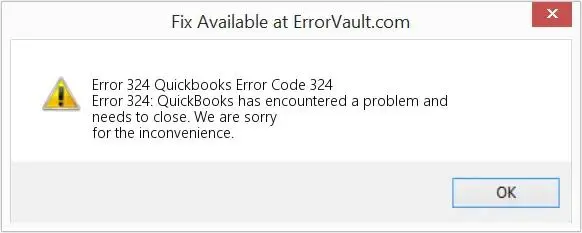
Are you seeing QuickBooks Error 324 when trying to connect or update your bank account in QuickBooks Online? This error usually appears when QuickBooks can no longer find a bank account that was previously connected, which can stop new transactions from downloading.
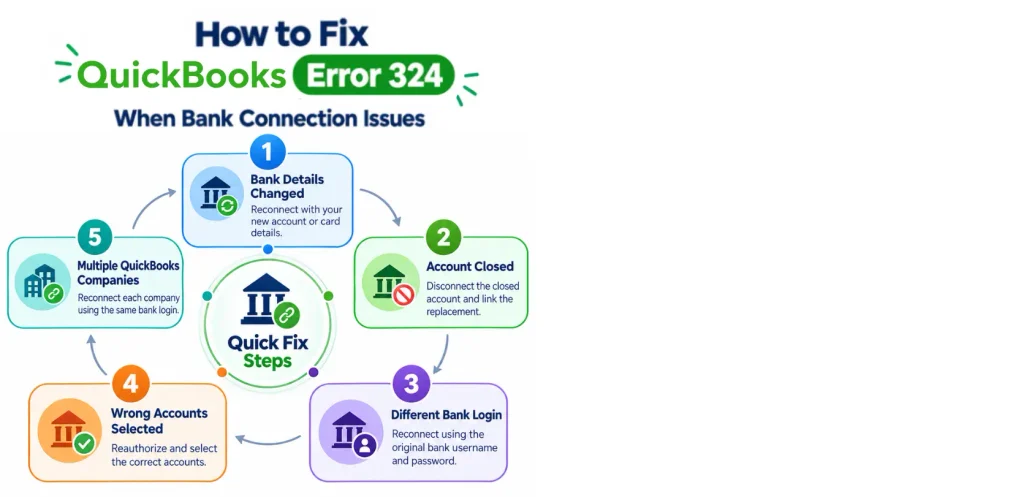
The problem may occur after your bank changes account details, you replace a card, use different login credentials, close or suspend an account, or select different accounts when reauthorizing the bank connection.
QuickBooks Error 324

In this guide, you’ll learn what QuickBooks Error 324 means, why it occurs, and how to fix it step by step.

What Does QuickBooks Error 324 Mean?

The QuickBooks Online Banking Error 324 occurs when QuickBooks Online can no longer find or match a bank or credit card account that was previously connected. The bank account may still be active, but changes to the bank connection can prevent QuickBooks from accessing it. QuickBooks Error 324 generally means:

  • QuickBooks can’t find a previously connected bank or credit card account.
  • The bank may have changed the account number, card, or other account details.
  • The account may have been closed or suspended by the bank.
  • The bank connection may have been reauthorized with different login credentials.
  • Different accounts may have been selected during the reauthorization process.
  • Multiple QuickBooks companies may be using the same bank login.
  • New transactions may stop downloading until the connection is restored.

Why is QuickBooks Unable to Connect to My Bank?

QuickBooks may be unable to connect to your bank when something changes with your bank account or its connection to QuickBooks. Here are the common reasons behind this QuickBooks Error 324:

  • Bank account details changed: Your bank may have changed the account number, account type, or other account information.
  • New or replacement card: A new card or updated account may no longer match the details QuickBooks has on file.
  • Bank account was closed or suspended: QuickBooks can no longer download transactions if the bank stops sharing data for the account.
  • Different login credentials were used: Reconnecting with different bank credentials can prevent QuickBooks from matching the original account.
  • Different accounts were selected: Choosing only certain accounts during bank reauthorization can remove access to accounts previously connected to QuickBooks.
  • Multiple QuickBooks companies use the same bank login: Reauthorizing one company with a limited account selection can cause connection problems in another company using the same credentials.

Identifying what changed with your bank connection can help you choose the right way to fix QuickBooks Error 324 without creating duplicate accounts or losing your existing transaction history.

How Do You Know You’re Experiencing QuickBooks Error 324?

You may be experiencing QuickBooks Error 324 if QuickBooks Online can no longer find your previously connected bank or credit card account. Some common signs include:

  • QuickBooks displays an Error 324 message while accessing or updating your bank transactions.
  • A previously connected bank or credit card account may no longer appear as expected.
  • New transactions from the affected account are no longer imported into QuickBooks.
  • You may see an option such as Fix now or a prompt to reconnect your bank account.
  • QuickBooks may ask you to sign in to your bank again or authorize access to your accounts.
  • The issue may appear after your bank changes an account number, replaces a card, or makes other account-related changes.
  • If you have multiple accounts connected through the same bank, Error 324 may affect only the accounts that QuickBooks can no longer find.
  • Error 324 may reappear if the wrong bank credentials or account selections are used during reauthorization.

Easy Methods to Fix QuickBooks Error 324

Try the solutions below based on what changed with your bank connection. Start with the method that best matches your situation.
Method 1: Use Fix Now to Reconnect Your Account

If your bank recently changed your account number or updated your account details, QuickBooks may no longer recognize the account. In this situation, you can reconnect it using the Fix Now option. Steps to use Fix Now:

  • Sign in to QuickBooks Online and open the company where you’re seeing QuickBooks Error 324.
  • Go to All apps and select Accounting.
  • Choose Bank transactions.
  • Find the account showing QuickBooks Error 324 and select Fix now.
  • Sign in to your bank using your current banking credentials.
  • When your bank asks which accounts you want to share, select All Accounts or Consent All, if available.
  • Select the updated bank account from the list.
  • When QuickBooks asks where to connect the account, choose the existing QuickBooks account that matches it.
  • Complete the connection and return to Bank transactions.
  • Select Update to check whether new transactions are downloading.

Before disconnecting an existing bank connection: Review the account and confirm that you are reconnecting it to the correct existing QuickBooks account. If you have concerns about your accounting data, consider creating or checking a backup first. If you ever need to recover previously saved company data, see our guide on how to restore a QuickBooks backup file.

Method 2: Reconnect your Bank Account in QuickBooks

If Fix now doesn’t work or your updated bank account isn’t showing, you may need to disconnect the affected connection and reconnect it.

  • Sign in to QuickBooks Online and open the affected company.
  • Go to All apps, select Accounting, then click Bank transactions.
  • Find the account showing QuickBooks Error 324 and select Fix now.
  • If prompted, open Manage connections and select the affected account.
  • Select Disconnect and confirm your choice.
  • Return to Bank transactions and select Link account.
  • Search for your bank and sign in with your current bank credentials.
  • When prompted, select All Accounts or Consent All, if available.
  • Select the updated bank account and connect it to the existing QuickBooks account.
  • Once the connection is complete, select Update to check for new transactions.

Method 3: Check your Bank Account Status

If your bank account has been closed or suspended, QuickBooks may no longer be able to download transactions from it. You can check the account status with your bank before trying to reconnect it.

  • First, sign in to your bank’s website or contact your bank to confirm that the account is still active.
  • If the account is closed, you should review and complete any pending transactions in QuickBooks.
  • In QuickBooks Online, go to All apps, select Accounting, then click Bank transactions.
  • Find the account showing QuickBooks error 324 and select Fix now.
  • Choose Disconnect and confirm the disconnection.
  • If you have a replacement account, select Link account and connect the new account using your current bank credentials.

Method 4: Reconnect Using the Correct Bank Credentials

Using different bank login credentials when reconnecting can prevent QuickBooks from finding the accounts that were connected previously. This can happen when another person uses a different login or when the bank has more than one type of login.

  • Sign in to QuickBooks Online and open the affected company.
  • Go to All apps and select Accounting, then Bank transactions.
  • Now choose Manage connections and check the affected bank connection.
  • If the connection is using the wrong credentials, disconnect it.
  • Choose Link account and search for your bank.
  • Now, you need to sign in using the same bank credentials associated with the original connection.
  • Select the appropriate accounts and complete the connection.
  • Return to Bank Transactions and choose Update to check whether the transactions are downloading.

Method 5: Select All Accounts During Reauthorization

QuickBooks may show banking error 324 in QuickBooks if you select different accounts when reauthorizing your bank connection. Your bank may stop sharing the accounts that were previously connected.

When your bank asks which accounts you want to share, select All Accounts or Consent All, if available. You can still choose which accounts you want to use in QuickBooks afterward.
Steps to reauthorize your bank connection:

  • Sign in to QuickBooks Online and open the affected company.
  • Navigate to All apps, choose Accounting, and then select Bank transactions.
  • Select Link account and search for your bank.
  • Sign in using your bank credentials.
  • When your bank asks which accounts to share, select All Accounts or Consent All.
  • Complete the authorization process.
  • Back in QuickBooks, select only the accounts you want to use for your company.
  • Check the Bank transactions page to confirm that the connection is working.

Method 6: Check Multiple QuickBooks Companies

If you use the same bank login for more than one QuickBooks company, changing the accounts selected during reauthorization can affect the other companies. This may cause QuickBooks Error 324 to appear even though your bank connection is still active.

  • Sign in to the QuickBooks company showing Error 324.
  • Open All apps, select Accounting, and then choose Bank transactions.
  • Select Link account and search for your bank.
  • Sign in using the same bank credentials used for the other QuickBooks companies.
  • When prompted, select All Accounts or Consent All.
  • Choose the accounts you want to use for the current QuickBooks company.
  • Complete the connection and return to Bank transactions.
  • Check your other QuickBooks companies using the same bank login and refresh their bank feeds.
  • If QuickBooks Error 324 still appears in another company, reconnect that company using the same process.

Method 7: Refresh Your Bank Transactions

After reconnecting your bank account, refresh the bank feed to check whether QuickBooks can download new transactions. This is also useful if the connection appears to be restored, but recent transactions are still missing.

  • Sign in to QuickBooks Online and open the affected company.
  • Open All apps, select Accounting, and then choose Bank transactions.
  • Select the bank account you recently reconnected.
  • Select Update to refresh the bank connection.
  • Wait for the Update to finish and check the date of the latest downloaded transactions.
  • Review the account for any new transactions that are ready to be categorized.

Once your transactions are downloading correctly, you can continue with bank reconciliation to make sure your QuickBooks records match your bank statement.

What to Do If QuickBooks Error 324 Still Appears?

If QuickBooks Online Banking Error 324 continues after trying the solutions above, check that the bank account is still active and that you’re using the correct bank credentials. If the account is active but QuickBooks still can’t find it, contact QuickBooks Support for further assistance. Before contacting support, keep the following information ready:

  • Name of your bank and affected account type
  • Recent changes made to the bank account, such as a new card or account number
  • Whether multiple QuickBooks companies use the same bank login
  • Whether someone else manages the bank connection
  • Any error message or prompt that appears when you try to reconnect

This information can help support identify what is preventing QuickBooks from finding the account and determine the appropriate next step.

Note: QuickBooks Error 324 is generally related to a bank connection and does not necessarily indicate a problem with your company file. However, if you are also experiencing issues with your QuickBooks data or company records, you may need separate QuickBooks data repair services to diagnose and resolve those issues.

Ways to Prevent QuickBooks Banking Error 324

A few simple practices can reduce the chances of QuickBooks Error Message 324 recurring with your bank account:

  • Keep your bank information updated: Make sure changes such as a new account number or replacement card are reflected when reconnecting your bank.
  • Use the same bank credentials: When reconnecting an account, use the login credentials associated with the original bank connection.
  • Select All Accounts during authorization: If your bank gives you an All Accounts or Consent All option, select it during authorization. You can choose which accounts to use in QuickBooks afterward.
  • Have one person manage bank connections: If several people use the same QuickBooks company, having one person handle bank connection setup and maintenance can help avoid authorization issues.
  • Review bank changes promptly: If your bank changes your account details, login information, or card, check your QuickBooks bank connection and update it when needed.
  • Monitor your bank feeds: Regularly check whether new transactions are downloading so you can address connection problems before they become persistent.

Conclusion!

The QuickBooks error 324 occurs when QuickBooks Online can no longer find or match a previously connected bank or credit card account. Changes to account details, bank credentials, account status, or authorization settings can all affect the connection.

Before creating a new account or disconnecting an existing one, identify what changed with your bank connection first. In many cases, using Fix Now, reconnecting with the correct credentials, and selecting the right accounts can restore the bank feed with keeping your existing QuickBooks records organized.

If the error continues even after following the troubleshooting steps, check your bank account status and contact Data Service team representatives at +1(888)-718-7888 for further assistance.

Frequently Asked Questions (FAQ’s)

You can usually fix Error 324 by checking whether your bank account is active, selecting Fix now in QuickBooks Online, and reconnecting the account with the correct bank credentials. If your bank account details have changed, map the updated account to the existing QuickBooks account when prompted.

If your bank account details have changed, open your Bank transactions in QuickBooks Online and look for the affected account. If Fix now is available, select it and sign in with your current bank credentials. Follow the prompts to reconnect the updated account.

Open All apps, select Accounting, then choose Bank transactions and select Link account. Search for your bank, sign in with your bank credentials, and select the account you want to connect. Follow the on-screen instructions to complete the setup.

If you need to connect a bank account that already exists in your Chart of Accounts, open the account and review its banking connection options. You can then connect the appropriate bank feed and make sure the downloaded transactions are assigned to the correct QuickBooks account.

First, confirm that the account is active on your bank’s website. Then check the bank connection in QuickBooks and try reconnecting with the correct credentials. If the account still doesn’t appear, make sure the appropriate accounts are selected during bank authorization.

Go to All apps, choose Accounting, then select Bank transactions, select the affected bank account, and choose Update. Wait for the refresh to finish, then check whether the latest transactions have downloaded.

Yes, error 324 can prevent QuickBooks from finding the affected bank or credit card account, which may stop new transactions from downloading until the connection is restored.

Use the correct bank credentials when reconnecting, select All Accounts or Consent All when your bank asks which accounts to share, and have one person manage bank connections when possible. Also, review your QuickBooks bank feeds regularly for connection issues.

QuickBooks may be unable to find your bank account if the bank changed your account details, the account was closed or suspended, different login credentials were used, or different accounts were selected during reauthorization.


About The Author

Steven Moody

Steven Moody is a bookkeeping and payroll specialist dedicated to helping businesses maintain accurate financial records and efficient payroll operations. His expertise includes payroll management, tax compliance, bookkeeping solutions, and financial reporting. Steven regularly shares insights on accounting best practices and business finance strategies. Outside of work, he enjoys traveling, exploring new places, and keeping up with the latest developments in business technology.

Steven Moody

QuickBooks

QuickBooks Online New Features & Updates in 2026: What to Know

Read More
QuickBooks Error

QuickBooks Error 40001: How to Fix Payroll Update Issues

Read More
QuickBooks Error

QuickBooks Error 6000 Series: How to Fix Company File Issues

Read More
QuickBooks Error

QuickBooks QBmapi64 Out of Memory Error: How to Fix It

Read More
QuickBooks Error

QuickBooks Error 88888: Why It Occurs and How to Resolve It

Read More