
The QBPOSShell Has Stopped Working error can interrupt QuickBooks Point of Sale operations. Similar to other QuickBooks application crashes, this issue can prevent users from accessing the application and completing essential tasks. This issue may occur due to damaged program files/ Microsoft .NET Framework problems/ or incorrect system permissions. In some cases, compatibility issues/ incomplete software installations may also contribute to the error. It is crucial to recognize the main cause to resolve the problem.
Here, we will explain the common reasons behind QBPOSShell errors and easy solutions to fix QBPOS SHELL Has Stopped Working issue. This will help restore QuickBooks POS functionality and reduce the chances of getting the same issue again.
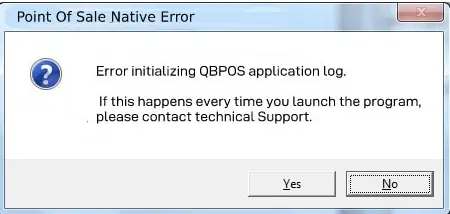
Important Notice: Intuit discontinued QuickBooks Desktop Point of Sale 19.0 and its connected services on October 3, 2023. Existing users may continue using the software, but discontinued products no longer receive critical security patches or feature updates. Before troubleshooting or reinstalling the application, review Intuit’s QuickBooks POS discontinuation policy to understand the current product support limitations.
This error is a Windows application crash message and indicates that the QBPOSShell.exe component of QuickBooks Point of Sale has stopped responding/ terminated unexpectedly. QuickBooks POS has stopped working error can prevent QuickBooks POS from opening/ interrupt its normal operations.
The issue may be related to damaged application files/ Windows compatibility problems/ missing system components/ or software configuration issues. Users may experience unexpected application closures/ freezing/ or difficulty accessing QuickBooks POS features.
Common symptoms of QBPOSShell errors (QBPOSShell.exe) in QuickBooks Point of Sale include application crashes/ system freezes/ and Windows error pop-ups. These issues happen during software launch/ sales processing/ and inventory records. These are:
This error occurs when QuickBooks Point of Sale (QBPOS) cannot properly load its background shell process/ access required system resources. Here are the causes of the QBPOSShell.exe has stopped working in detail:
Before you start troubleshooting the QBPOSShell error in QuickBooks, you must take critical preparatory steps to protect your data and ensure the fix goes well:
If QBPOSShell keeps crashing/ prevents QuickBooks POS from opening, try the following troubleshooting methods to examine and resolve the primary issue.
Follow these simple steps to restart QuickBooks POS and check whether the error is resolved:
If the error persists, proceed with the next troubleshooting method to identify the underlying cause.
Running QuickBooks POS with administrator privileges can help resolve permission-related problems that prevent the application from accessing required files or system resources. You can also learn more about the QuickBooks Administrator Permission Needed Error and its possible solutions. Follow these steps:
This method can help resolve the “QBPOSShell Has Stopped Working” error in QuickBooks Point of Sale. The shell application relies on intact Windows .NET components and MSXML files.
Note: Verify the configurations for both .NET Framework 4.5 (or newer) and .NET Framework 3.5 SP1.
This method may help you resolve the QBPOSShell Has Stopped Working if it is caused by outdated system components/ compatibility issue/ etc. Follow the steps:
You need to check and repair/ reinstall QuickBooks Point of Sale installation files can help resolve the QBPOSShell Has Stopped Working error.
Checking these settings can help resolve the QBPOSShell Has Stopped Working error. Security software can block legitimate QuickBooks Point of Sale (POS) application files.
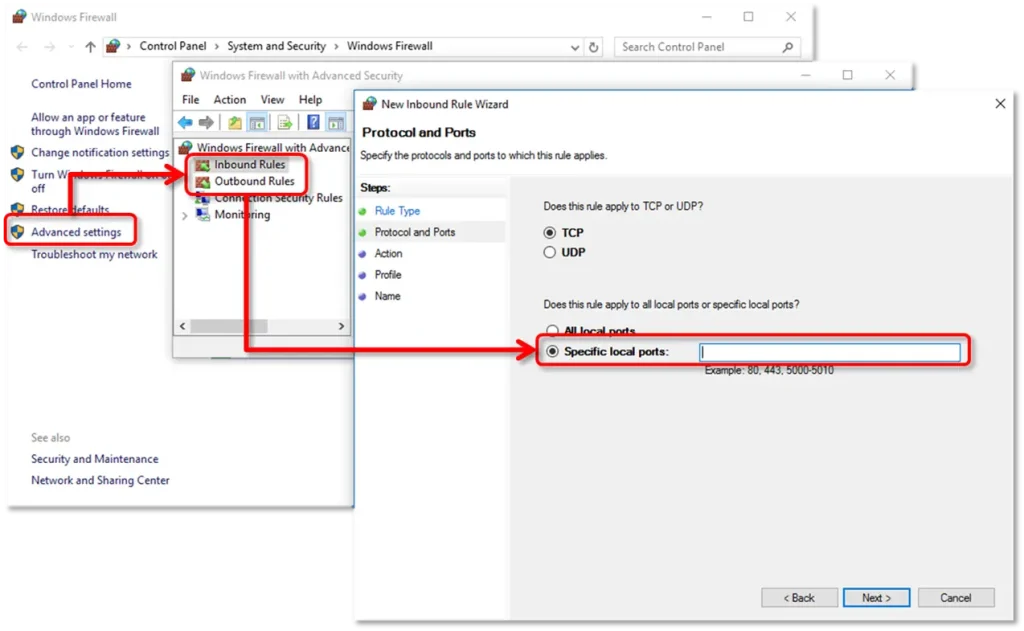
Repeat the previous steps to create outbound rules. Follow the exact same procedure, but select Outbound Rules in step 4.
Follow these instructions to create exceptions for each executable listed in the table:
Follow the earlier instructions again and set up outbound rules. Adhere to all the same procedures, but choose Outbound Rules in step 4.
| Executable files | Location |
| AutoBackupExe.exe | C:\Program Files\Intuit\QUICKBOOKS YEAR |
| Dbmlsync.exe | C:\Program Files\Intuit\QUICKBOOKS YEAR |
| DBManagerExe.exe | C:\Program Files\Intuit\QUICKBOOKS YEAR |
| FileManagement.exe | C:\Program Files\Intuit\QUICKBOOKS YEAR |
| FileMovementExe.exe | C:\Program Files\Intuit\QUICKBOOKS YEAR |
| QuickBooksMessaging.exe | C:\Program Files\Intuit\QUICKBOOKS YEAR |
| QBW32.exe | C:\Program Files\Intuit\QUICKBOOKS YEAR |
| QBDBMgrN.exe | C:\Program Files\Intuit\QUICKBOOKS YEAR |
| QBServerUtilityMgr.exe | C:\Program Files\Common Files\Intuit\QuickBooks |
| QBCFMonitorService.exe | C:\Program Files\Common Files\Intuit\QuickBooks |
| QBLaunch.exe | C:\Program Files\Common Files\Intuit\QuickBooks |
| QBUpdate.exe | C:\Program Files\Common Files\Intuit\QuickBooks\QBUpdate |
| IntuitSyncManager.exe | C:\Program Files\Common Files\Intuit\Sync |
| OnlineBackup.exe | C:\Program Files\QuickBooks Online Backup |
The reinstallation of QuickBooks Point of Sale (QBPOS) can resolve the QBPOSShell Has Stopped Working error if the issue stems from damaged/ missing program files.
Once you finish, proceed to install QuickBooks Desktop. Upon reinstallation, QuickBooks will automatically create new folders and rename the existing ones.
Consider preventive practices to minimize the chances of getting a QBPOSShell error in QuickBooks:
Hopefully, the above information has cleared all your doubts regarding QBPOSShell Has Stopped Working. Users might receive QuickBooks POS Shell errors due to damaged/ corrupt Microsoft components. You must be able to recognize the root cause, such as damaged program files/ .NET Framework issues/ or Windows compatibility problems. This will allow you to make an informed decision to troubleshoot this issue. Following the steps discussed in this guide can help resolve QBPOSShell.exe has stopped working error and restore application functionality.
Need expert assistance? Contact the Data Service Team at +1(888)-718-7888 for professional guidance. They can help investigate persistent QBPOSShell errors, troubleshoot QuickBooks POS issues, and provide guidance on QuickBooks data repair services when company data problems require additional attention.
It is an executable program file associated with QuickBooks Point of Sale (POS). QBPOSShell.exe helps run essential Point of Sale functions and supports communication between the software’s components. If this process encounters problems, users may receive the “QBPOSShell Has Stopped Working” error. It can interrupt normal POS operations. The issue may be related to damaged program files/ compatibility problems/ or Windows-related errors.
QBPOSShell may repeatedly show the “Has Stopped Working” error. It occurs due to damaged QuickBooks Point of Sale program files/ outdated software/ or Windows compatibility issues. Problems with Microsoft components/ corrupted installation files may also cause the application to crash unexpectedly.
Restart your computer/ update QuickBooks Point of Sale/ and repair damaged program files to fix the “QBPOSShell Has Stopped Working” error. Check Windows compatibility and antivirus settings. If the issue persists, use the QuickBooks POS repair option/ reinstall the software after backing up your company data.
Press Ctrl + Shift + Esc to open Task Manager and locate QBPOSShell.exe under the Processes tab to restart the QBPOSShell.exe process. Then, select End Task. Reopen QuickBooks Point of Sale to restart the process automatically. If the error persists, restart your computer and launch QuickBooks POS again.
Yes! A corrupted User.config file can cause QBPOSShell to stop working because it stores application-specific user settings. If this configuration file becomes damaged/ contains invalid settings, QuickBooks Point of Sale may crash/ display errors. Renaming the affected User .config file can help QuickBooks create a fresh configuration file when the application restarts.
If QuickBooks POS crashes when opening, restart your computer/ run the application as an administrator/ and check for available software updates. Repair the QuickBooks POS installation and rename the corrupted User.config file if configuration issues are suspected. Back up your company data to prevent accidental data loss before making changes.
Yes! These issues can cause QBPOSShell errors if required components are missing/ outdated/ or corrupted. Since QuickBooks Point of Sale relies on certain Windows components to function properly, .NET Framework problems may lead to issues. This can include application crashes/ startup failures/ or unexpected errors.
It does not cost anything because users can use built-in Windows repair options/ QuickBooks installation tools to fix common software issues. The reinstallation of the software may also be free if you already have a valid license and installation files. However, additional costs may apply if you need professional technical support/ a new license/ or paid assistance to resolve complex installation problems.
Both of these are two different executable files associated with QuickBooks Point of Sale (POS). QBPOSShell.exe handles the application’s shell interface and certain background functions. QBPOS.exe is the main executable file that launches and runs the QuickBooks POS application. Both processes support the software’s operation, but errors affecting either file can cause startup problems/ unexpected crashes/ or functionality issues.

Get Free Consultation for QuickBooks Upgrade
(2021, 2022, 2023)