QuickBooks Error 6130 can appear when QuickBooks Desktop has trouble opening or accessing a company file. You may encounter this error when working with a company file stored locally or when accessing it through a network in multi-user mode.
The issue can be related to company file damage, network connectivity, incorrect hosting settings, Windows permissions, firewall restrictions, or problems with QuickBooks components. However, the exact cause can vary depending on how your QuickBooks environment is configured.
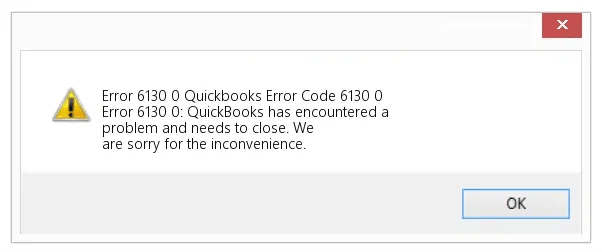
In this guide, you’ll learn how to identify the cause of QuickBooks Error 6130 and troubleshoot it step by step.
The QuickBooks error 6130 is a company file access error that can occur when QuickBooks Desktop cannot properly open or communicate with a company file. You may encounter it while opening a company file stored on your computer or when accessing a file hosted on a network. You may encounter QuickBooks Error 6130 when:
If you are seeing the QuickBooks Company File Error Code 6130, it does not necessarily mean that your company file is permanently damaged. The problem can also be caused by network connectivity, incorrect hosting settings, Windows permissions, firewall restrictions, or QuickBooks components.
The easiest way to narrow down the problem is to check whether the error affects one company file, one computer, or multiple workstations.
Identifying where the problem occurs can help you choose the appropriate troubleshooting method and avoid making unnecessary changes to your company data.
QuickBooks error 6130 can occur when the QuickBooks program cannot properly access or communicate with the company file. The underlying cause may differ depending on whether the File is stored locally or accessed through a network. Common causes include:
QuickBooks Error 6130 can affect how the QuickBooks program opens or accesses a company file. The symptoms may vary depending on whether the issue is related to the company file, QuickBooks installation, or network environment. You may notice the following signs:
Before applying any troubleshooting method, identify whether QuickBooks error 6130 affects one company file, one computer, or multiple workstations. This can help you narrow down the source of the problem.
Once you identify where the problem occurs, you can move to the appropriate troubleshooting method instead of changing several QuickBooks settings unnecessarily.
Before trying any advanced solution, start with the basic checks. In some cases, an outdated QuickBooks version is enough to cause problems while opening a company file.
If you have not updated the QuickBooks program for a while, install the latest available Update and then try to open the company file again. Here’s how you can check for an update:
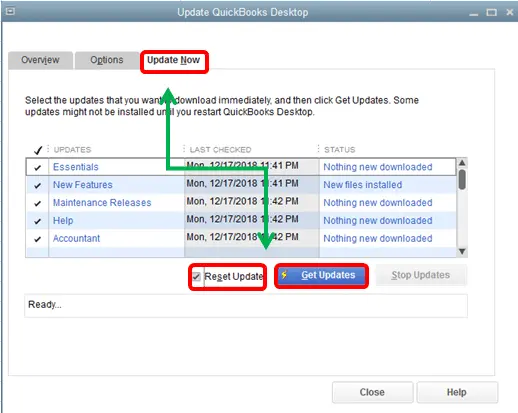
If the company file opens without showing Error 6130, the issue was likely related to the QuickBooks installation or an outdated release. If you are still seeing the QuickBooks error 6130, move to the next method.
If updating QuickBooks did not solve the problem, the next thing to check is where the company file is stored. This is especially important if you use QuickBooks in multi-user mode.
Try opening the company file directly on the computer where it is saved. If the File opens there but gives Error 6130 when you try to access it from another computer, the company file itself may not be the main problem. The issue could be with the network, hosting settings, firewall, or the workstation trying to connect to the File.
On the other hand, if QuickBooks shows the same error even when you open the File on the computer where it is stored, you should investigate the company file and QuickBooks installation.
This simple test can save you time because it tells you which part of the QuickBooks setup needs attention.
If QuickBooks Error 6130 continues to appear when you open the company file, try QuickBooks File Doctor. You can access File Doctor through QuickBooks Tool Hub. Before running the tool, close the QuickBooks program, then perform the steps below:
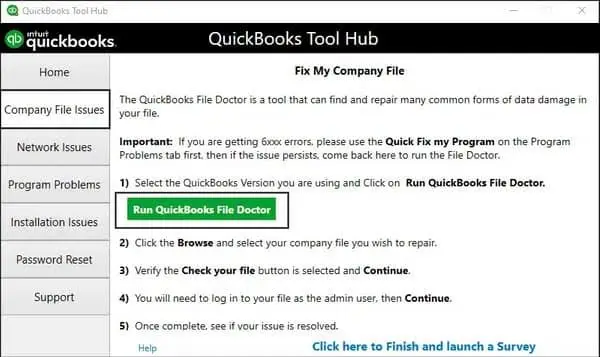
The scan may take some time, particularly if the company file is large. Let the tool finish before closing it. If QuickBooks File Doctor does not resolve the issue and you suspect a problem with the company file, you can also use Verify and Rebuild Data in QuickBooks Desktop to check for data issues.
If the company file is stored on a server or another computer, a problem with its Network Data (.ND) file can sometimes interfere with QuickBooks ability to connect to the File. Here’s what to do:
Renaming the File instead of deleting it gives you a way to restore the original File if needed.
If Error 6130 appears when you open a company file from another computer, check the QuickBooks hosting settings. A company file used in multi-user mode needs to be hosted correctly so that other computers can connect to it. If the hosting configuration is incorrect, you may also encounter issues related to QuickBooks Hosting Mode being off. Start by checking the computers that access the company file as workstations.
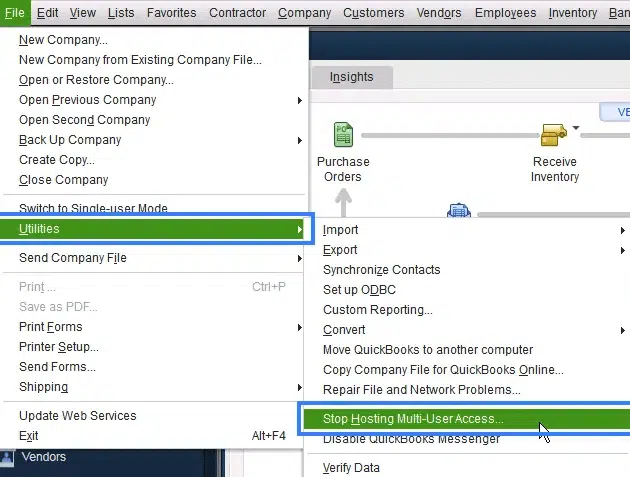
The computer that actually stores and hosts the company file should be configured as the host. The workstations should not be set up to host the same company file.
If other workstations still cannot access the company file, you may also be experiencing an issue where QuickBooks Multi-User Mode is not working correctly.
If QuickBooks Error 6130 appears when accessing a company file from a workstation, the QuickBooks Database Server Manager is worth checking. It runs on the computer that hosts the company file and helps other computers access the File over the network.
First, make sure the Database Server Manager is installed on the host computer. Then check whether the related QuickBooks database service is running.
Note: If you are experiencing similar problems when multiple users try to access a company file over a network, see our guide to QuickBooks Error H202 for additional troubleshooting information.
QuickBooks needs access to the folder where your company file is saved. If Windows permissions prevent access, review Intuit’s guidance on QuickBooks folder permission issues. If Windows permissions prevent QuickBooks or the database service from accessing that folder, you may face QuickBooks Error 6130. To check the folder:
If QuickBooks error 6130 still continues after the troubleshooting steps above, don’t keep changing the random settings. First, identify where the company file access problem occurs. This can help you determine whether the issue is with the company file, your computer, or the network setup.
Once you identify which situation matches yours, focus on that part of the setup instead of repeatedly changing unrelated QuickBooks or Windows settings.
You can easily reduce the chances of encountering the QuickBooks Company File Error Code 6130 by keeping your QuickBooks environment maintained. The following prevention tips can help you prevent company file access problems:
Make QuickBooks Work Smarter for Your Business
Spend less time managing data and more time growing your business. Whether you need help setting up QuickBooks, cleaning up your books, reconciling accounts, or resolving errors, our team is here to make accounting easier. Get quick solutions that save time, improve accuracy, and keep your business finances on track.
The QuickBooks error 6130 can prevent the QuickBooks program from opening or accessing a company file, but the error does not necessarily mean that your accounting data is permanently damaged. The right solution depends on where the access problem occurs.
You can check whether the company file opens on the computer where it is stored. If it does, focus on the network, hosting, database service, permissions, and workstation configuration. If the File does not open locally, investigate the company file and QuickBooks Desktop installation.
If Error 6130 continues after the relevant troubleshooting steps or you cannot safely access your data, contact a Data Service team live representative at +1(888)-718-7888 for further assistance.
To fix QuickBooks error 6130, start by updating QuickBooks and checking whether the company file opens directly on the computer where it is stored. If the problem continues, run QuickBooks File Doctor from QuickBooks Tool Hub.
Yes, damage within a company file can prevent QuickBooks from opening or accessing the File correctly. QuickBooks File Doctor can check certain company-file problems and is one of the first tools to try when you suspect file damage.
They can sometimes affect QuickBooks, but they are not a common cause of Error 6130. First, check the company file and QuickBooks network settings.
Yes, a weak or incorrectly configured network can prevent QuickBooks from accessing a company file stored on another computer.
Yes. It helps QuickBooks Desktop access company files stored on a network. Make sure the Database Server Manager and related QuickBooks services are running on the host computer.
QuickBooks File Doctor can check for certain company-file and network-related problems. If the error is caused by an issue the tool can detect, running File Doctor through QuickBooks Tool Hub may help resolve it.
In many cases, you can troubleshoot the error without losing your company data. However, it is best to create a backup before making major changes. Avoid deleting or modifying the original company file unless necessary.
Keep QuickBooks Desktop updated and create regular backups of your company file. If you use QuickBooks in multi-user mode, also maintain a stable network and make sure hosting, folder permissions, and database services are configured correctly.
First, check whether the error affects one company file, one computer, or multiple workstations. This can help you determine whether the problem is with the company file, QuickBooks Desktop, or the network. If the error continues after the relevant troubleshooting steps, contact the Data Service Team, qualified professionals, for quick help.
Yes, both can involve company-file access problems, but their causes and troubleshooting steps may differ. Identify the exact error code before applying solutions intended for another QuickBooks error.
Restore a backup only after confirming the company file cannot be recovered through appropriate troubleshooting. Preserve the original file, verify the backup date, and avoid overwriting recent financial data.

Get Free Consultation for QuickBooks Upgrade
(2021, 2022, 2023)


