QuickBooks-Error-108

Are you struggling with QuickBooks error 108 while trying to sync your business accounts? This is one of the most common issues users face in QuickBooks Online when trying to download transactions. This error is typically triggered when your bank or credit card company has an unread notice, a new terms of service agreement, a security alert, or a maintenance announcement waiting on their dashboard.

In this guide, you will learn why this connection drop happens, how to sign in to your bank’s official website to clear the alerts, and how to refresh your feeds to get everything working smoothly again.

What is QuickBooks Error 108?

The QuickBooks Error 108 online banking is a connection interruption that occurs when an unread alert or message on your financial institution’s website blocks QuickBooks from downloading your transaction data. Here are the key points defining this error code:

  • Your bank or credit card provider intentionally pauses third-party data sharing until you acknowledge a specific notification about their problem.
  • The error is not caused by a software glitch, a bug, or broken code within QuickBooks itself.
  • It is usually triggered by required actions like accepting updated terms of service, viewing a security notice, or acknowledging a new tax document.
  • Because the restriction is strictly on the bank’s side, the connection remains frozen until the bank’s internal notification system is satisfied.

What Causes the QuickBooks Error 108 Bank Connection?

QuickBooks Error 108 is caused by a communication breakdown between QuickBooks and your financial institution. Similar bank-feed connection problems can also result in QuickBooks Error 102. Here are the specific causes behind the QuickBooks Error 108 bank connection:

  • Unread Bank Notifications: Your bank or credit card company requires you to acknowledge an update before they allow third-party syncing. This includes new terms of service, mandatory site changes, maintenance announcements, or promotional offers.
  • Bank Server Downtime: If your financial institution’s servers are temporarily down or undergoing maintenance, QuickBooks cannot establish a smooth connection to fetch your data. This type of bank-server connection issue can also occur with QuickBooks Error 105.
  • Credential & Identity Verification Issues: Using an invalid or recently changed username and password prevents the bank from verifying your identity, causing the server to reject the connection request. Similar login credential issues can also trigger QuickBooks Error 103.
  • Active Pop-up Blockers: Built-in browser ad-blockers or strict antivirus privacy settings can completely hide the bank’s mandatory notification prompts, causing the background connection to remain frozen.
  • Security & Firewall Blockages: Over-restrictive Windows Firewall or internet security configurations can actively block QuickBooks from accessing your company files or connecting to external bank servers.
  • Outdated Software Builds: Running an older version of QuickBooks can cause compatibility issues with modern, updated banking security protocols, resulting in a connection failure.
  • Multiple Software Installations: Having more than one version of the QuickBooks application installed on the same computer can create local system conflicts that disrupt data syncing.
  • System File Corruption: Damaged or corrupted Windows operating system components can interfere with the way QuickBooks processes online banking data.

How to Fix QuickBooks Error 108?

To fix QuickBooks Error 108 when connecting bank, you must clear the external communication blockages on your bank’s website and adjust your local system settings so QuickBooks can securely resume downloading transactions. Here are the step-by-step methods to resolve the error:

Solution 1: Review Messages on Your Bank or Credit Card Website

The first thing to do when encountering QuickBooks Error 108 is to check your bank or credit card company’s website for any notifications or messages.
  • Sign in to your bank account using the same credentials you use to connect to QuickBooks. If you are having trouble accessing your account, see our guide on QuickBooks Online Login problem.
  • If you’re using different credentials, it’s important to disconnect the account from QuickBooks and reconnect it using the correct login details.
  • Check for messages or updates. These messages could include:
  • New terms and conditions.
  • Notifications about scheduled maintenance or site changes.
  • Promotional offers or other important information from your bank.
  • Follow any instructions given in the message. If the message requires any action, make sure you follow it precisely to clear the notification.
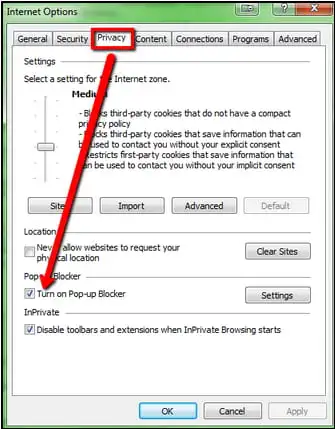
Turn-on-Pop-up-Blocker
  • Check for pop-up blockers. If you can’t see any messages or notifications, make sure your browser’s pop-up blocker isn’t hiding them.

Solution 2: Update Your Bank Connection in QuickBooks

After reviewing and addressing any messages on your bank’s website, you will need to update the connection between QuickBooks and your bank to ensure everything is working properly.

For QuickBooks Online:

  • Sign in to your QuickBooks Online account.
  • Go to the Transactions tab and select Bank transactions.
  • Click Update to refresh your bank connection.

For QuickBooks Self-Employed:

  • Sign in to QuickBooks Self-Employed.
  • Select the Profile icon in the upper-right corner and then choose Bank accounts.
  • Click Refresh all to update your bank connection.

Solution 3: Disable the Pop-up Blockers

If you’re unable to read certain notifications or messages while logged into your bank account, a pop-up blocker might be the cause. Ensure that no pop-up blockers are active in your browser by following these steps:

Disable Pop-up Blocker in Internet Explorer:

  • Open Internet Explorer.
  • Click on the Tools button, then select Internet Options.
  • In the Privacy section, uncheck the box next to Turn on Pop-up Blocker under the Pop-up Blocker settings.
  • Click OK to save your changes.

Disable Pop-up Blocker in Chrome:

  • Open Chrome on your computer.
  • Click the More icon in the top-right corner of the browser.
  • Select Settings, then go to the Privacy and Security section.
  • Scroll down and click Site Settings, then select Pop-ups and redirects.
  • Choose your preferred settings for pop-ups, setting it to your desired default option.

Solution 4: Review the Windows Firewall Settings

QuickBooks Error 108 can sometimes persist when strict local security settings intercept data transmission between QuickBooks and external banking servers. If firewall restrictions are preventing QuickBooks from establishing a connection, see our guide on Windows Firewall is Blocking QuickBooks.

  • Log in to the computer as an Administrator.
  • Ensure that you are using the latest version of QuickBooks by following our guide to Update QuickBooks Desktop.
  • Verify the firewall settings to ensure they are not blocking access to your QuickBooks company file.
  • Review your Internet security settings to confirm they are not causing any interference.

If you are still facing the QuickBooks Error 108 bank connection, you can move to the next troubleshooting solution.

Solution 5: Run the System File Checker

Follow these steps to run the System File Checker tool to repair any damaged Windows OS configurations that might break the online sync:

  • Press Windows + X and type cmd into the search box.
  • Right-click Command Prompt in the search results and select Run as Administrator.
  • Before using the System File Checker, it’s recommended to run the DISM command to prepare your system and ensure necessary files are available for repair.
  • In the Command Prompt window, type the following and press Enter: DISM /Online /Cleanup-Image /RestoreHealth
  • Once the DISM command completes, type the following command and press Enter:sfc /scannow
  • The System File Checker will scan your system for issues, detect corrupted files, and replace them if necessary. Wait for the scan to finish.
  • After the scan is complete, restart your system.

Solution 6: Install the Latest Windows Updates

Keeping your operating system updated eliminates backend compatibility issues with your web browsers and bank platforms.

  • Open the Start menu and click on Settings.
  • Scroll down and select Update & Security.
  • Click on the Windows Update tab.
  • Select Check for Updates. If updates are available, install them as soon as possible.

Solution 7: Contact Your Financial Institution

If you have tried all the steps and the error is still there, your bank might have a hidden security lock or a server problem. You will need to call your bank or credit card support team to help you fix it.

  • Ask them if your account has a block that stops apps like QuickBooks from connecting.
  • Ask if there is a security question or verification step stuck in their system that you cannot see.

What If There is No Message on Your Bank’s Website?

If you log into your bank and see no alerts, messages, or pop-ups, the QuickBooks error 108 is likely caused by a hidden block or a brief technical glitch. Here is what to check when your bank dashboard looks completely clear:

  • Check your Bank Inbox: Click on your account settings, messages, or notices tab to look for hidden tax documents or privacy updates.
  • Use an Incognito Window: Log into your bank using a private browsing window to see if an extension or ad-blocker was hiding a pop-up prompt.
  • Force a page reload: Press Ctrl + F5 or Cmd + Shift + R on Mac while on the bank’s site to clear old cache and show the newest version of the page.
  • Wait for server updates: The bank might be doing backend maintenance that keeps their website running but temporarily shuts off the link to QuickBooks. Try updating again in a few hours.

What If Your Bank Recently Changed or Merged?

If your bank recently changed its name, updated its website, or merged with another financial institution, QuickBooks Error 108 happens because the Software is trying to connect to an old, inactive web address. Similar bank connection issues may also result in QuickBooks Error 324. Here is what you need to do to fix the connection:

  • Find the new link: Search for your bank’s new name or updated website address directly in a search engine to confirm their active online banking portal.
  • Disconnect the old account: Go to the banking menu in QuickBooks, select your current bank account, and turn off or disconnect the old connection.
  • Link the new bank portal: Click “Add Account” or “Link Account” in QuickBooks, search using the updated bank name or URL, and sign in with your credentials to establish a fresh connection.

How to Refresh the Bank Connection in QuickBooks Self-Employed?

To refresh your bank connection and clear the error in QuickBooks Self-Employed, follow these simple steps:

  • Open your settings: Click the Profile icon located in the upper-right corner of your dashboard.
  • Go to accounts: Select Bank accounts from the drop-down menu.
  • Trigger the sync: Click the Refresh all button to update your bank connection and download your latest transactions.

What to Do If QuickBooks Error 108 Keeps Coming Back?

If QuickBooks Error 108 keeps returning after you clear your bank notifications, it means a local system conflict, an active browser filter, or a repeating bank prompt is continually breaking the connection. Here is what you should do to stop the error from returning:

  • Permanently whitelist the bank in your pop-up blocker: Go to your browser settings and add your bank’s exact web address to the “Always Allow” pop-ups list, ensuring future security prompts are never hidden.
  • Disconnect and clean-reconnect the account: Go to your QuickBooks Banking menu, disconnect the problematic bank account completely, and then link it from scratch to reset the communication bridge.
  • Clear your browser’s history and cookies: Cached data can trick QuickBooks into seeing old bank alerts that you already cleared. Clear your cache or switch your default browser to refresh the data stream.
  • Check for duplicate QuickBooks installations: Look at your computer’s program list and uninstall any older versions of QuickBooks that might be running background services and clashing with your current Software.
  • Use Web Connect as a temporary fix: If your bank is going through an extended upgrade cycle, download a .QBO file directly from your bank’s website and manually upload it into QuickBooks to keep your books updated without using the live feed.

Conclusion!

Hopefully, this guide has helped you understand and resolve QuickBooks Error 108 so you can get your automated bank feeds running smoothly again. Dealing with connection interruptions can be frustrating, but remember that this error is just a temporary safety pause from your bank rather than a permanent software glitch.

By keeping your bank notifications clear, checking your browser settings, and updating your connection, you can easily prevent this block from disrupting your bookkeeping workflow in the future. If you still need further assistance, you can contact the Data Service Team Live experts at +1(888)-718-7888.

Frequently Asked Questions (FAQ’s)

It means QuickBooks can not download your latest bank transactions because a roadblock is stopping the connection. Think of it as your bank pausing the data share until you look at a specific message or update on their website.

It happens because your bank or credit card company requires you to manually look at something like a new terms of service agreement, a security alert, or a statement notice before letting external Software like QuickBooks pull your financial data.

Open a regular web browser, go directly to your bank or credit card’s official website, and log into your account. Look around your main dashboard, account alerts, or message center for any unread notifications, pop-ups, or policy updates, and click through or close them.

Yes, absolutely. In fact, unread bank notifications are the number one cause of this error. Until that alert is marked as read or cleared on the bank’s end, QuickBooks cannot pull your data.

Yes. If your bank is currently updating its website, security features, or servers, the connection will temporarily fail. Once the bank finishes its maintenance, the error usually goes away on its own.

Once you have cleared the notice on your bank’s website, log back into QuickBooks. Go to the Transactions or Banking menu and click the green Update button to manually force QuickBooks to fetch your latest transactions.

If the error stays, you might have missed a message hidden inside your bank’s internal inbox or settings tab. It can also happen if your browser is loading an old, cached version of the page, or if a security pop-up is being blocked by your ad-blocker.

Yes, browser issues are a common cause of this error. If your browser accumulates too much history, or if its pop-up blocker is turned on, it can hide the very notification you need to see and dismiss to open the connection.

Yes, but only after you have cleared the alert on your bank’s website first. Refreshing the connection tells QuickBooks to check the bank channel again, which will succeed once the bank removes its security block.

If the error returns, you should permanently allow pop-ups for your bank’s website in your browser settings. If that fails, try disconnecting the account completely from QuickBooks and linking it again from scratch to reset the data link.


About The Author

Steven Moody

Steven Moody is a bookkeeping and payroll specialist dedicated to helping businesses maintain accurate financial records and efficient payroll operations. His expertise includes payroll management, tax compliance, bookkeeping solutions, and financial reporting. Steven regularly shares insights on accounting best practices and business finance strategies. Outside of work, he enjoys traveling, exploring new places, and keeping up with the latest developments in business technology.

Steven Moody

QuickBooks Error

QuickBooks Error 6176, 0: How to Fix Company File Access Issues

Read More
QuickBooks Error

QuickBooks Error 6189 816: Easy Ways to Fix Company File Issues

Read More
QuickBooks Error

QuickBooks Error 6000 832: How to Fix Multi-User Mode and File Access

Read More
QuickBooks Error

QuickBooks Error QBW32.exe: How to Fix Fatal Application Exit

Read More
QuickBooks Error

QuickBooks Error 6000 -80: How to Fix Company File Access Issues

Read More