
Sales Tax Issues in QuickBooks Desktop can create problems when managing invoices, recording payments, or preparing tax reports. Sometimes, QuickBooks calculates the wrong tax amount, fails to show sales tax on invoices, or displays an incorrect balance in the Sales Tax Payable account. These problems can happen because of incorrect tax settings, outdated rates, or mistakes while recording transactions, which can also affect your overall QuickBooks tax filing problems. If you are facing similar issues, there is no need to worry.
In this blog, we will explain the common causes of sales tax problems and share simple solutions to help you fix them and manage your sales tax records properly.
Sales tax issues in QuickBooks Desktop occur when the software fails to calculate, display, or record the correct tax amount. These problems can affect invoices, sales receipts, payments, and tax reports. Understanding the common signs of Sales Tax Issues in QuickBooks can help you identify the problem and choose the right troubleshooting method.
Before troubleshooting Sales Tax Issues in QuickBooks Desktop, you should first identify what is going wrong with your sales tax settings. Here are some common signs to look for:
Identifying the reasons behind Sales Tax Issues in QuickBooks is important because incorrect tax preferences, outdated rates, and transaction errors can affect your financial records. Here are five common causes you should know about:
If sales tax preferences, tax items, or tax agencies are not set up properly, QuickBooks may apply the wrong tax rate or fail to calculate tax.
Using an old or incorrect tax rate can lead to wrong calculations on invoices and sales receipts.
If a customer or product is marked with the wrong tax status, QuickBooks may not apply sales tax correctly to the transaction.
Recording sales tax payments through the Write Checks window instead of the Pay Sales Tax window can create incorrect payable balances.
A damaged or incorrectly customized invoice template may prevent sales tax details from appearing or printing properly.
These basic checks can help you identify potential Sales Tax Issues in QuickBooks before making changes to your company file.
Before fixing sales tax issues in QuickBooks Desktop, take a moment to review these basic settings:
If you suspect company file data damage, you can also verify and rebuild data in QuickBooks Desktop before proceeding with further troubleshooting.
Once you’ve checked these details, move on to the troubleshooting solutions below.
If you are experiencing Sales Tax Issues in QuickBooks Desktop, you can resolve many common problems by following a few simple troubleshooting methods. Try the solutions below one by one and check whether your sales tax calculations, payments, and reports are working correctly.
Incorrect sales tax settings can prevent QuickBooks from applying the correct tax to invoices and sales receipts. If you are facing QuickBooks sales tax setup problems, start by checking your company preferences.
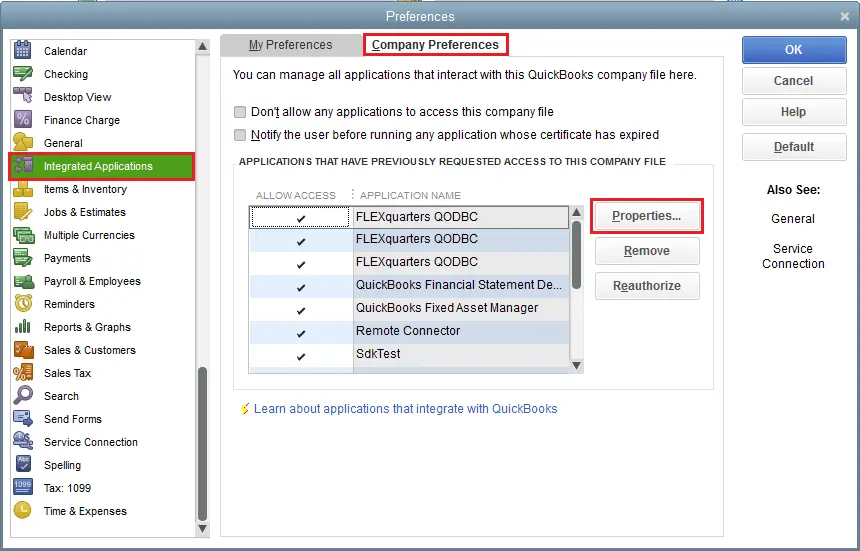
Once you’ve checked these settings, create a test invoice and see whether sales tax is being applied correctly.
If QuickBooks Desktop sales tax is not calculating correctly, an outdated or incorrect tax rate could be the reason. Check your sales tax items and make sure the rates match the current rates applicable to your business. Follow these steps:
If QuickBooks Desktop sales tax is not showing up on an invoice, the customer’s tax status or the item’s tax code may be incorrect.
To resolve this problem, review the sales tax settings for both the customer and the item used on the invoice.
After checking both settings, create a new invoice for the customer and verify whether sales tax appears correctly.
Quick Tip: A taxable product does not automatically mean every customer must be charged tax. Always consider the customer’s exemption status and the applicable tax rules.
If your Sales Tax Payable account shows an incorrect balance, you may have recorded the tax payments incorrectly. Using the Write Checks window instead of the Pay Sales Tax option can create QuickBooks sales tax payable account issues. Incorrectly recorded transactions can also create other accounting discrepancies, so review related entries if you encounter QuickBooks Error 248.
Here’s how to record payments correctly:
If you previously recorded the sales tax payments through the Write Checks window, simply entering another payment can create duplicate transactions.
First, take a backup of your company file, then review the incorrect entries in the bank register. Intuit provides a separate correction procedure for re-entering the sales tax payments and removing the original entries.
You may see different sales tax amounts in the Sales Tax Liability Report and the Pay Sales Tax window. If you notice such a difference, follow these steps:
Sometimes, a damaged invoice template can prevent sales tax details from appearing or printing correctly. If sales tax is missing from your invoices, creating a new template may help resolve the issue.
Using an outdated QuickBooks version can sometimes cause sales tax calculation and reporting problems. Updating the software can help fix bugs and improve its performance. Follow these steps to update QuickBooks Desktop:
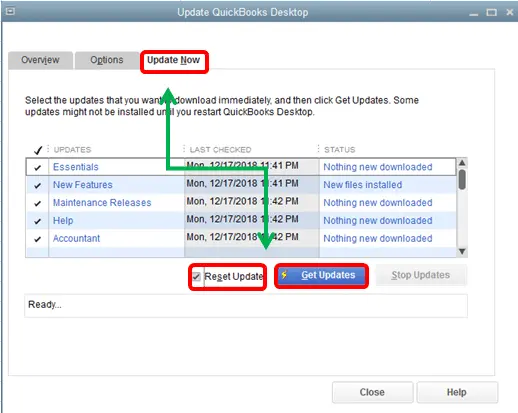
Once the update is complete, open your company file and check whether your sales tax problem has been resolved.
Making a sales tax item inactive does not automatically remove it from an existing Sales Tax Group.
As a result, an inactive tax item may continue to remain in the group and affect how the active tax items are applied. To resolve this issue, remove the inactive item from the Sales Tax Group. Follow these steps:
Important: By removing an inactive sales tax item from a group does not change how previously created invoices were calculated. Review existing transactions separately if they require correction.
Are you unable to see the sales tax line item when printing invoices? One possible reason is that the sales tax item does not have a description in its item list details.
Adding a description may help QuickBooks display the sales tax as an individual line item on printed invoices. Here are the steps to follow:
If the sales tax line still does not appear, review the invoice template and other sales tax settings.
Quick Tip: Use a clear description that helps customers understand the tax charge shown on their invoices.
A negative Sales Tax Payable balance may appear when your sales tax is recorded on an accrual basis, but your Balance Sheet uses the cash basis. This difference can also contribute to a QuickBooks Balance Sheet out of balance issue if financial reports do not use consistent accounting methods.
Before changing any transactions, check your sales tax accounting basis. Follow these steps:
Fixing sales tax issues in QuickBooks Desktop is important, but taking a few preventive steps can help you avoid similar issues in the future. Following these preventive practices can reduce the chances of recurring Sales Tax Issues in QuickBooks and help maintain accurate financial records. Here are some useful tips:
Sales tax problems can make bookkeeping difficult, especially when they affect invoices, payments, and reports. However, most Sales Tax Issues in QuickBooks Desktop can be fixed by checking your tax settings, updating incorrect rates, and recording payments properly.
We hope the 10 solutions covered in this guide help you resolve your sales tax problems and keep your records accurate. If the issue continues, consider getting professional accounting and bookkeeping services from Data Service Team at +1(888)-718-7888 before making any major changes to your company file.
Common issues include incorrect tax calculations, missing sales tax on invoices, outdated tax rates, and incorrect Sales Tax Payable balances.
This usually happens because of incorrect tax settings, outdated tax rates, or wrong customer and item tax codes. To fix the calculation, you need to check these settings.
Check whether sales tax is enabled in company preferences. Also, make sure the customer and item are marked as taxable and have the correct tax codes.
To update a sales tax rate, open Lists > Item List and find the sales tax item you want to change. Double-click it, enter the correct rate, and click OK to save the changes.
This can happen because of incorrect transactions, duplicate payments, wrong tax rates, or mismatched reporting dates. Review your invoices, payments, and tax entries to find the difference.
Check the report date range and review your sales tax payments, credit memos, and adjustments. Also, make sure payments are recorded through the Pay Sales Tax window.
Check the tax rate, customer tax status, and item tax code on the affected transaction. Correct any incorrect settings and review the Invoice before saving changes.
Yes, most sales tax problems can be fixed without losing company data. However, always create a backup before changing transactions or account settings.
The cost depends on the type of problem and the help you need. Simple setup issues may not require professional assistance, while complicated payment or account problems may involve additional service charges.

Get Free Consultation for QuickBooks Upgrade
(2021, 2022, 2023)