
Have you ever opened your financial report and noticed that the numbers don’t match? A QuickBooks Balance Sheet Out of Balance issue can be confusing, especially when you’re trying to keep your business accounts accurate. This problem can happen in QuickBooks Desktop or QuickBooks Online for several reasons, such as incorrect transactions, changes to existing entries, or problems with your company file. Sometimes, the difference may appear only for a specific date, making it harder to find the actual cause.
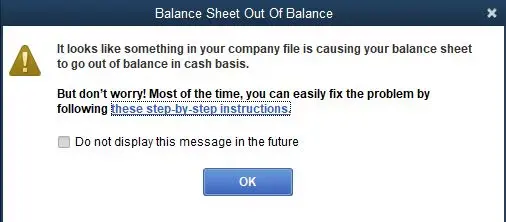
The good news is that you can take a few steps to identify the discrepancy and work toward fixing it. In this guide, we’ll explain the common causes and simple solutions to help you get your balance sheet back on track.
A balance sheet shows your business’s financial position, including what it owns, what it owes, and its equity. A QuickBooks Balance Sheet Out of Balance issue occurs when the total assets do not equal the total liabilities plus equity. Here are some signs you may notice:
This problem can happen in QuickBooks Desktop or QuickBooks Online for different reasons. Finding when the discrepancy started can help you identify the cause and choose the right solution.
If your QuickBooks Balance Sheet Out of Balance, there may be a problem with a transaction, an account, or your report settings. Before trying to fix it, it’s important to understand what might have caused the difference. Here are some common reasons to check:
Identifying the possible cause will help you decide which troubleshooting method to try next. Before changing or deleting any transactions, make a backup of your company file and review the affected entries carefully.
Before making changes to your accounts, take a few minutes to check your QuickBooks records. This can help you avoid unnecessary changes and protect your financial data.
Once you’ve completed these checks, you can start finding the cause of the QuickBooks balance sheet discrepancy and work toward correcting it.
If your QuickBooks Balance Sheet Out of Balance, don’t worry. You can start by checking the report settings and then look for transactions that may be causing the difference. Here are some methods you can try to fix this problem:
Checking the accrual basis report is a useful first step when troubleshooting a balance sheet discrepancy in QuickBooks Desktop. Follow these steps:
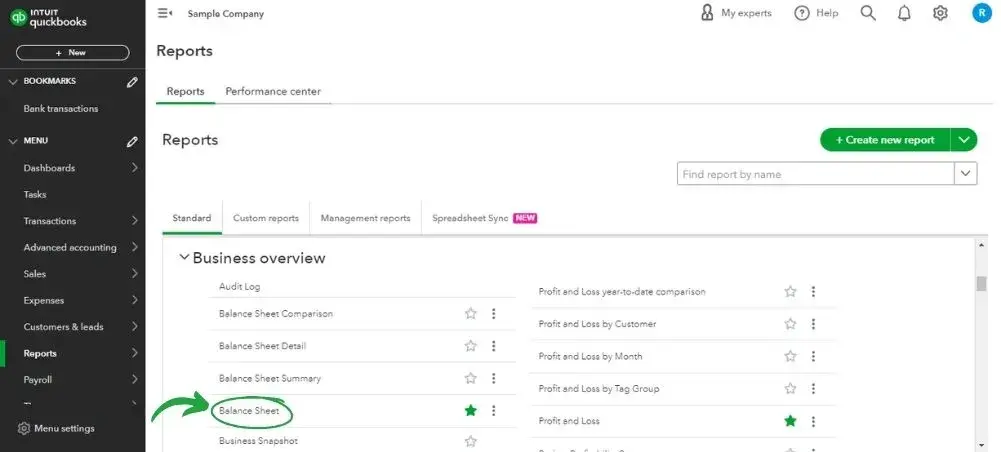
If the balance sheet is balanced on an accrual basis but not on a cash basis, the difference may be related to how transactions are reported. If the totals still don’t match, try the next method.
Once you’ve checked the report settings, the next step is to find when the problem started. This can help you narrow down the transactions that need attention. Follow these steps:
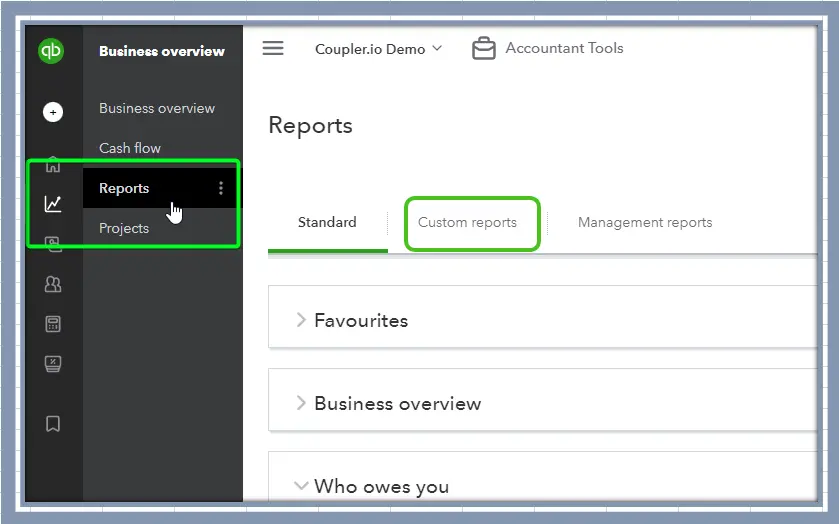
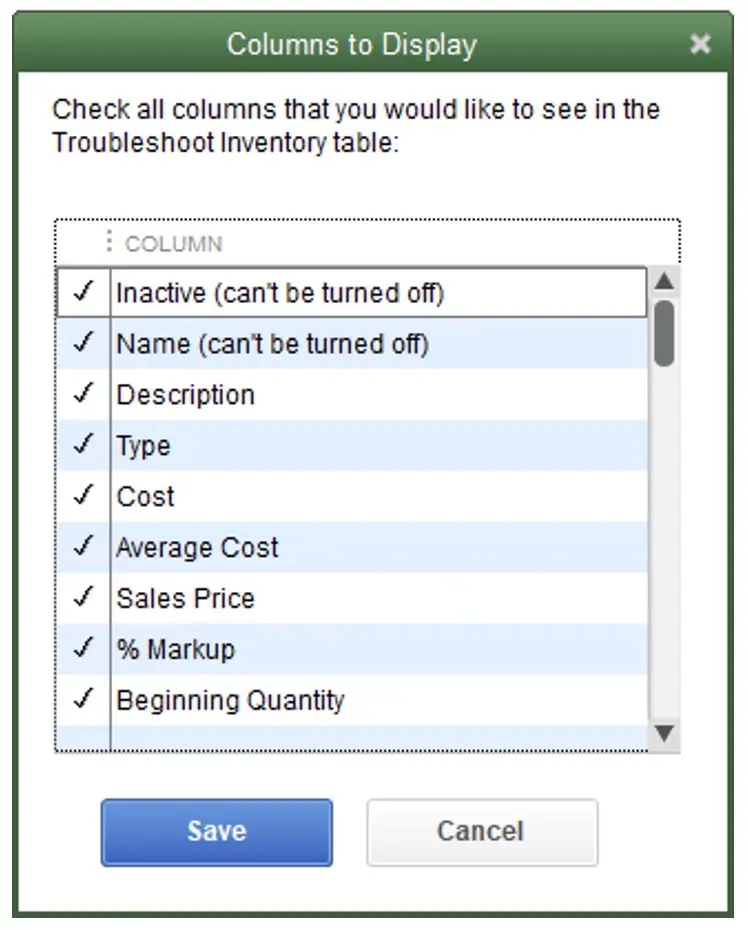
Once you find the date, review the transactions recorded around that time. Look for entries that were added, edited, or linked incorrectly.
Important: These steps apply to QuickBooks Desktop. If you’re using QuickBooks Online, the available report settings and troubleshooting steps may be different.
Once you know when your QuickBooks Balance Sheet Out of Balance, it’s time to check the transactions recorded on that date. An incorrect entry or a transaction linked to the wrong account may be causing the difference. Follow these steps to review the records in QuickBooks Desktop:
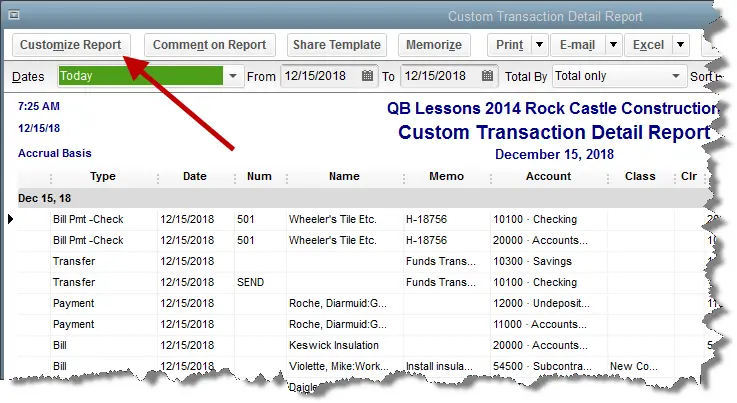
If you find a transaction that appears incorrect, review it carefully before making changes. Correct the entry only after confirming the mistake.
Customer and vendor transactions are worth checking when the difference appears to be related to invoices, payments, credit memos, or bills. In QuickBooks Desktop, you can use a transaction detail report to narrow down the entries involved.
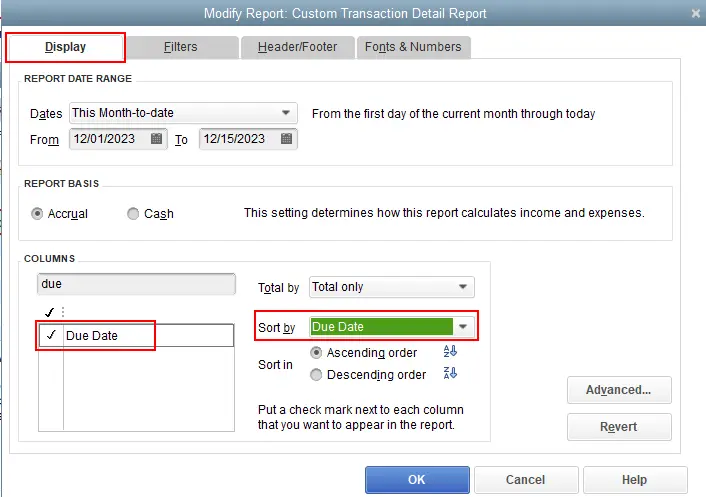
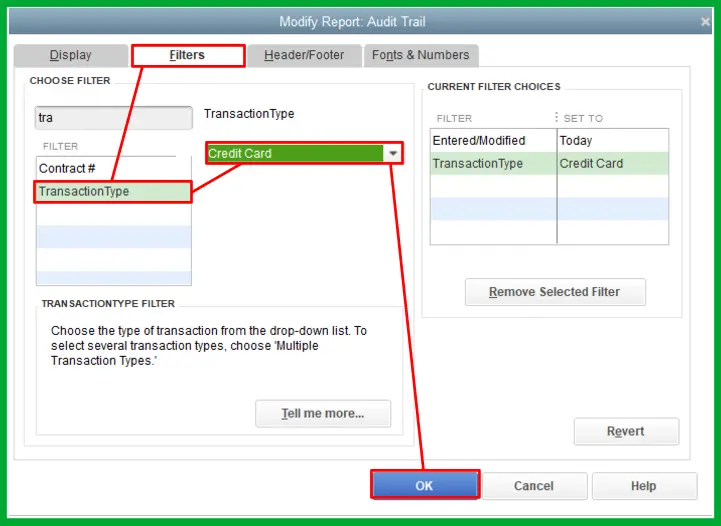
You need to pay particular attention to:
For example, if a credit memo and a journal entry have been linked incorrectly, the related account balances may need to be reviewed.
Don’t delete or recreate these transactions just because they look unusual. First confirm what happened and determine the correct accounting treatment.
If you still can’t find the cause, review the journal entries and transactions recorded around the date of the discrepancy.
An entry with incorrect amounts or missing account information may affect your financial reports. Here’s what to check:
If you find an entry that appears incorrect, confirm the amounts and accounts before making any changes. For journal entries linked to credit memos, review the related accounts and transaction links carefully.
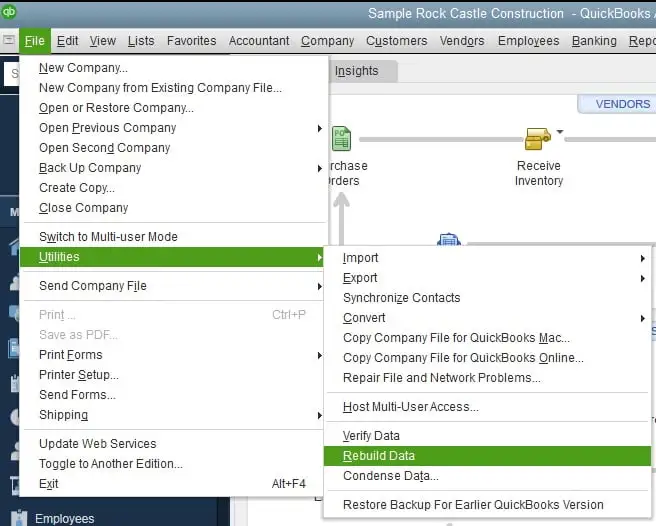
If you have reviewed the transactions and the problem still is not resolved, you may need to check your QuickBooks Desktop company file for data damage. QuickBooks Desktop includes two utilities that can help: Verify Data and Rebuild Data. Before using these tools, create a backup of your company file. To run Verify Data:
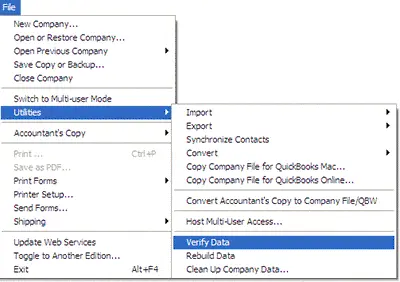
If QuickBooks identifies data damage, then follow the recommended repair instructions. If a rebuild is recommended, select File, select Utilities, then click Rebuild Data and follow the prompts. After the process finishes, run Verify Data again to check for remaining problems.
If you are dealing with a QuickBooks Online balance sheet out of balance issue, start by checking the report and reviewing the accounts and transactions behind the figures. The steps are slightly different from QuickBooks Desktop:
Make sure you are viewing the correct date before moving forward.
If something looks wrong, you can check the accounts contributing to the balance sheet totals.
Remember that the balance sheet shows account balances as of a particular date. A transaction report covering a different period may not show the same figures.
If the discrepancy appears only for an earlier date, compare balance sheet reports for different periods.
This approach can help you find the source of the QuickBooks balance sheet discrepancy without checking every transaction in your company.
If you’ve reviewed the report settings and underlying transactions but still can’t explain the difference, contact QuickBooks support or your accountant.
Once you have resolved QuickBooks Balance Sheet Out of Balance issue, a few regular bookkeeping habits can help you reduce the chances of it happening again.
Make QuickBooks Work Smarter for Your Business
Spend less time managing data and more time growing your business. Whether you need help setting up QuickBooks, cleaning up your books, reconciling accounts, or resolving errors, our team is here to make accounting easier. Get quick solutions that save time, improve accuracy, and keep your business finances on track.
A QuickBooks Balance Sheet Out Of Balance issue can be frustrating, especially when you need accurate financial records for your business. The good news is that you can find the cause of this problem by checking the report settings, reviewing transactions, and identifying when the difference first appeared. If you are using QuickBooks Desktop, you can also use the Verify Data tool to check for company file issues. QuickBooks Online users should review their report dates, account balances, and transaction details. Always back up your data before making any changes. If the problem continues, contact the Data Service Team live experts at +1(888)-718-7888 for further assistance.
Your QuickBooks balance sheet may be out of balance because of incorrect transactions, journal entry errors, account assignment problems, or company file damage. Check your report dates and accounting method first, then review the transactions to find the cause.
To fix the issue, run the Balance Sheet Summary report and check the reporting date and accounting basis. If you’re using QuickBooks Desktop, identify when the difference started and review the related transactions. If necessary, use the Verify Data tool to check for company file issues.
A QuickBooks balance sheet out of balance by date issue may occur when an older transaction is edited, deleted, or recorded incorrectly. Compare reports for different dates to find when the discrepancy first appeared, then review the transactions recorded around that time.
Open the Balance Sheet Summary report and check it on an accrual basis. Next, narrow down the date when the difference started and review the related transactions. If you suspect data damage, create a backup and run Verify Data before attempting further repairs.
Your QuickBooks Online balance sheet may show unexpected figures because of incorrect account assignments, transaction errors, or report date settings. To fix this refresh the report, confirm reporting date, and review the account balances and related transactions to identify the root cause.
Yes, your company file data damage can sometimes affect financial reports in QuickBooks Desktop. You can run the Verify Data utility to check for certain data issues. If QuickBooks recommends rebuilding the file, create a backup first and follow the recommended instructions.
Find the date when the balance sheet first became unbalanced. Narrow the period down by year, month, week, or day, where available. Then run a transaction detail report and check for incorrect amounts, missing account details, or unusual entries.
Cash-basis and accrual-basis reports can show different figures because they identify specific income and expenses differently. If your balance sheet appears incorrect under only one method, you can compare the same reporting period and review the underlying transactions before making any changes.
In many situation, you can research and correct the issue without losing financial data. You can review the report settings and transactions. If you need to repair a QuickBooks Desktop company file, create a backup first and avoid deleting or changing entries until you’ve confirmed the cause.

Get Free Consultation for QuickBooks Upgrade
(2021, 2022, 2023)


