QuickBooks-Tax-Filing-Problems

Are you facing QuickBooks Tax Filling Problems? You might notice that sales tax is not calculating correctly, a tax form is missing, or a payment is not showing up in your records. These issues can be frustrating, especially when a filing deadline is near. The good news is that most problems become easier to handle once you know what caused them. If your accounting records contain errors or outdated information, completing a QuickBooks Tax Season Cleanup can help you organize your books and prepare for tax filing.

In this guide, we’ll explain common QuickBooks tax filing Problems and walk you through practical solutions to help you resolve them.

What are the Common QuickBooks Tax Filing Problems?

Are you having trouble calculating taxes or submitting tax forms in QuickBooks? These issues can happen for several reasons, depending on the product you’re using and your tax settings. Some common QuickBooks tax filing problems include:

  • Tax filing errors: Your tax form may be rejected because of incorrect account details or missing Information.
  • Incorrect tax calculations: QuickBooks may display an unexpected sales tax amount or show a tax calculator error.
  • Sales Tax Payable discrepancies: If you have incorrect recording sales tax payments in QuickBooks Desktop, they can easily lead to inaccurate tax balances.
  • Payroll tax filing issues: Incorrect tax account details or filing schedules may cause electronic submissions to be rejected.
  • Missing tax forms: You may have trouble finding or submitting the tax forms you need.
  • Sales tax settings problems: In QuickBooks Desktop, inactive sales tax items left in a tax group may affect how sales tax is handled.
  • Unexpected tax balances: Differences between cash and accrual accounting methods can make your Sales Tax Payable balance look incorrect.

Before trying to fix the problem, check the error message and identify what went wrong. This will help you choose the right solution without making unnecessary changes to your tax records.

What Causes QuickBooks Tax Filing Problems?

QuickBooks tax filing problems can happen because of incorrect tax settings, missing Information, or problems with payroll tax payments. These issues may prevent you from filing tax forms, calculating taxes correctly, or submitting tax payments on time. Here are some common reasons why you may face QuickBooks tax filing errors:

  • Incorrect Tax Information: If your EIN or state tax account number is incorrect, QuickBooks may have trouble processing your tax forms.
  • Duplicate Submissions: Submitting the same tax form or payment more than once can create duplicate records and payment issues.
  • Incorrect Filing Schedules: If your QuickBooks tax filing problems does not match the schedule assigned by the IRS or state tax agency, you may experience filing delays or errors.
  • Submitting Forms Too Early: Trying to submit a tax form before the filing period opens may cause submission problems.
  • Incorrect Login Details: Expired passwords or incorrect e-filing PINs may prevent you from submitting tax forms or making electronic tax payments.
  • Payroll Tax Setting Issues: Incorrect payroll tax settings may affect the tax calculations, payment schedules, or automatic tax filings.
  • Sales Tax Setup Errors: Incorrect tax rates, inactive tax items, or disabled sales tax settings may cause QuickBooks to calculate sales tax incorrectly.
  • Outdated Software or Damaged Company Files: An outdated QuickBooks version or damaged company file may cause tax calculation and QuickBooks tax filing problems. Follow our guide to Update QuickBooks Desktop to learn how to install available updates. If you suspect company file damage, see our QuickBooks Data Repair Services for further assistance.

How to Fix QuickBooks Tax Filing Problems?

To fix QuickBooks tax filing problems, follow these troubleshooting steps to resolve common QuickBooks tax filing problems. The solutions below focus on sales tax issues in QuickBooks Desktop, based on the Intuit guidance you shared. If your tax filing problems are related to outdated payroll tax tables, check our guide to QuickBooks Payroll Tax Table Update. Installing the applicable updates may help resolve payroll tax calculation issues.
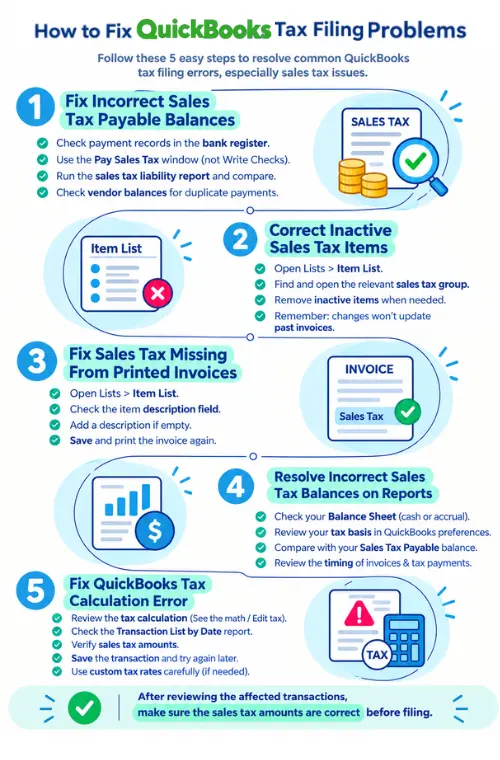
How to Fix QuickBooks Tax Filing Problems?

1. Fix Incorrect Sales Tax Payable Balances

  • If your sales tax payable balance doesn’t look right, check how the payments were recorded.
  • Open the bank register and look for incorrectly recorded sales tax payments.
  • Take a backup of your company file before making any changes.
  • Use the Pay Sales Tax window to record sales tax payments instead of the Write Checks window.
  • Review your existing transactions carefully before correcting or deleting the entries.
  • Run the sales tax liability report and compare it with your sales tax payable account balance.
  • Check vendor balances and confirm that no duplicate payments remain.
  • If your bank records do not match the sales tax payments recorded in QuickBooks, review your QuickBooks Bank Reconciliation process to identify possible discrepancies.

For QuickBooks Online users, Intuit provides additional guidance on troubleshooting sales tax payment issues.

2. Correct Inactive Sales Tax Items

Inactive sales tax items may still be included in a Sales Tax Group in QuickBooks Desktop.

  • First, open your lists and select Item List.
  • Find and open the relevant sales tax group.
  • Check whether any inactive sales tax items are still included.
  • Remove the inactive items when appropriate and save your changes.
  • Remember that changing a sales tax group won’t automatically update invoices created earlier.

3. Fix Sales Tax Missing From Printed Invoices

If sales tax doesn’t appear as a separate line on a printed invoice, you can check the description field of the sales tax item.

  • Open Lists and select Item List.
  • Find the sales tax item used on the invoice.
  • Open the item and review its description field.
  • Add a suitable description if the field is empty.
  • Save the changes and print the invoice again to check whether the tax line appears.

4. Resolve Incorrect Sales Tax Balances on Reports

A negative sales tax payable balance on a cash-basis balance sheet may be related to differences between cash and accrual accounting.

  • Check whether your Balance Sheet uses the cash or accrual accounting method.
  • Review the sales tax basis selected in your QuickBooks Desktop preferences.
  • Compare the reported amount with your Sales Tax Payable account balance.
  • Review the timing of invoices and tax payments to understand the difference.

5. Fix QuickBooks Tax Calculation Error

If you see the message “There’s a problem with our tax calculator,” the issue may be related to Automated Sales Tax address verification downtime or communication problems. You can review the affected transactions to check whether the sales tax amounts are correct.

  • Review the tax calculation: Open the affected transaction and select See the math or Edit tax, depending on your QuickBooks interface.
  • Check recent transactions: Go to Reports and open the Transaction List by Date report. Filter it by Last Modified Date to find transactions that may need review.
  • Verify sales tax amounts: Open each relevant transaction and check how the sales tax was calculated.
  • Save the transaction: Follow Intuit’s instructions to close the tax calculation window and save the transaction to recalculate the sales tax.
  • Try again later: If the tax calculator is unavailable, consider creating the transaction later.
  • Use custom tax rates carefully: If you already have manual sales tax rates configured, you may use them temporarily after confirming that the rate is appropriate.

After reviewing the affected transactions, make sure the sales tax amounts are correct before proceeding with your filing.

How to Fix QuickBooks Tax Forms and E-Filing Issues?

If you’re having trouble submitting QuickBooks tax forms, check the error message first to understand why the filing isn’t going through. If you cannot complete a payroll tax filing because of update problems, read our guide on QuickBooks Payroll Update Not Working. QuickBooks Online users can also refer to QuickBooks Online Payroll Not Working for product-specific troubleshooting. The steps to resolve the issue depend on your QuickBooks product and the type of tax form.

  • Check the form details: Make sure the required company and tax information is complete and accurate.
  • Review rejected filings: If a tax agency rejects your submission, read the rejection message and follow the instructions to correct the issue.
  • Check filing status: First, check the available filing history to see whether the form is pending, submitted, accepted, or rejected.
  • Avoid duplicate submissions: Before submitting a form again, confirm what happened to the original submission.

Always follow the instructions for your specific QuickBooks product, and confirm the status of an existing filing before trying again.

What to Do When QuickBooks Tax Filing is Rejected?

When QuickBooks tax filing problems or an electronic tax payment is rejected, you should first check the error message to understand why it failed. If your payroll tax form or electronic payment is rejected, consult Intuit’s guide to handling payroll e-file and e-pay rejections to understand the possible causes and next steps. Follow these steps to identify and fix the problem:

1. Check the Rejection Reason

  • Open the Payroll Center or Filing History in QuickBooks, depending on your version.
  • Find the rejected tax form or payment.
  • Click the rejection message or available error details to understand why the submission failed.
  • Follow the instructions provided by the tax agency or QuickBooks.

2. Fix Common Rejection Errors

  • Incorrect Name or EIN: Check that your legal business name and Employer Identification Number (EIN) match the Information registered with the tax agency.
  • Incorrect PIN or Login Details: Verify your electronic filing PIN or payment credentials and update them if necessary.
  • Duplicate Filings: If you suspect that a form or payment was submitted twice, check its status and contact the relevant tax agency or QuickBooks support for guidance.
  • Filing Schedule Issues: Confirm that your tax filing or payment schedule is correct. If the form was submitted too early, follow the agency’s instructions.
  • Outdated Software: Update QuickBooks Desktop and install the applicable payroll tax table updates before trying again.

3. Fix and Resubmit Rejected Tax Payments

If an electronic tax payment is rejected, review the payment history to determine the reason.

  • Open the payment history in QuickBooks Desktop and locate the rejected e-payment.
  • Follow the on-screen instructions to correct the payment issue.
  • Verify your bank information and payment credentials.
  • Use the appropriate QuickBooks workflow to resubmit the payment, if permitted.

The exact steps may vary by QuickBooks version and payment status. Before resubmitting, confirm whether the payment was rejected and whether any money was withdrawn from your bank account.

4. Correct and Resubmit Rejected Tax Forms

If a tax form, W-2, or 1099 filing is rejected, check the Information entered in QuickBooks and correct any identified errors.

  • Review the affected company, employee, or contractor information.
  • Verify names, identification numbers, and other required details.
  • Correct the Information responsible for the rejection.
  • Generate or update the form as needed.
  • Resubmit it through the appropriate QuickBooks filing process after confirming that resubmission is required.

If the form is rejected again, review the new error message and follow the instructions provided. If you need help preparing employee tax documents, see our guide on Print W-2 Forms in QuickBooks for additional instructions.

Note: Always check the filing or payment status before trying again. This helps prevent duplicate submissions, duplicate payments, and further QuickBooks tax filing problems.

How to Check Sales Tax Calculations Before Filing in
QuickBooks?

Before filing your tax return, review your sales tax calculations in QuickBooks Online to identify errors and avoid incorrect tax reporting.

1. Use the Pre-file Check Tool

  • Go to the Taxes or Sales Tax menu and select your upcoming tax return.
  • Open Pre-file Check, if available.
  • Review flagged transactions and correct any discrepancies.

2. Review Sales Tax Reports

  • Open the Sales Tax Liability report under Reports.
  • Select the correct tax filing period.
  • Verify gross sales, taxable sales, and non-taxable sales totals.
  • Check customer addresses and product tax categories.

3. Check Individual Transactions

  • Open the affected invoice or sales receipt.
  • Click See the math, if available, to review the tax calculation.
  • Confirm that tax rates and taxable items are correct.

After reviewing these details, correct any errors and verify your sales tax totals before submitting your return.

How to Prevent QuickBooks Tax Filing Problems in the Future?

You can reduce QuickBooks tax filing Problems by keeping your tax settings accurate and reviewing your records before filing. Follow these tips to avoid common tax calculation and e-filing problems.

  • Verify Tax Settings: Regularly check your tax rates, agency details, and filing schedules.
  • Update QuickBooks: Install the latest software updates and applicable payroll tax table updates.
  • Review Tax Reports: Check sales tax liability and payroll tax reports before filing.
  • Keep Information Accurate: Ensure business, customer, and employee details are correct.
  • Avoid Duplicate Submissions: Check your filing and payment status before submitting again.
  • Back Up Company Files: Create regular backups before making significant changes to QuickBooks Desktop records.
  • Track Tax Deadlines: Keep a record of filing and payment deadlines to avoid delays.

Following these steps can help you maintain accurate tax records, prevent common QuickBooks tax filing problems, and complete your tax filings more smoothly.

Conclusion

QuickBooks tax filing problems can occur due to incorrect tax settings, calculation errors, missing tax forms, or rejected tax submissions. You can avoid these issues by checking your tax details, reviewing sales tax reports, and correcting errors before filing. Keeping your QuickBooks updated and verifying your tax information can also help you prevent future problems.

Maintaining accurate financial records is essential for smooth tax preparation and filing. Our Accounting And Bookkeeping Services can help you keep your books organized, while our Data Service Team FAQ provides answers to common questions. If you continue to experience QuickBooks tax filing problems, contact our Data Service Team at +1 (888) 718-7888 for assistance in identifying the issue and finding the right solution.

Frequently Asked Questions (FAQ’s)

QuickBooks tax filing problems may occur due to incorrect tax settings, missing Information, or filing errors. Check the error message and review your tax details to identify the cause before trying again.

QuickBooks may calculate taxes incorrectly because of wrong tax rates, customer addresses, or product tax settings. Review the affected transaction and verify that the correct tax information is entered.

You may be unable to e-file because of missing Information, incorrect login details, or an unsupported tax form. Check the error message, correct the issue, and confirm that your form is ready for submission.

This problem may occur because of incorrect tax settings, outdated software, or a temporary service issue. Check your QuickBooks settings, install available updates, and try again after resolving the issue.

To fix QuickBooks tax filing errors, review the error message and check your tax information for mistakes. Correct any missing or incorrect details and verify the filing status before submitting the form again.

Incorrect employee information, payroll tax settings, or outdated payroll tax tables may cause calculation errors. Review employee records and payroll settings, and ensure that the applicable software updates are installed.

QuickBooks may not submit your tax forms because of missing details, incorrect Information, or an electronic filing error. Review the form carefully, check the tax period, and follow the instructions provided with the error message.

Your tax payment or filing may still be processing, or the system may not have received an updated status. Check your payment history and filing records before trying again to avoid duplicate payments or submissions.

First, confirm that you selected the correct tax period and QuickBooks version. Check whether the form is available and verify the Information entered. Correct any errors and review the form again before submitting it.

Check the error message and filing status to understand what went wrong. Verify your tax information and check for any service issues. If the problem continues, contact the Data Service Team for further assistance.

About The Author

Steven Moody

Steven Moody is a bookkeeping and payroll specialist dedicated to helping businesses maintain accurate financial records and efficient payroll operations. His expertise includes payroll management, tax compliance, bookkeeping solutions, and financial reporting. Steven regularly shares insights on accounting best practices and business finance strategies. Outside of work, he enjoys traveling, exploring new places, and keeping up with the latest developments in business technology.

Steven Moody

QuickBooks

Set Up Direct Deposit in QuickBooks: Easy Step-by-Step Guide

Read More
QuickBooks

How to Upgrade QuickBooks Desktop to 2024 (Old Versions)

Read More
QuickBooks Error

QuickBooks Error 6154: How to Fix Invalid File Path and Access

Read More
QuickBooks Error

QuickBooks Error 6144 82: How to Fix Company File Access Issues

Read More
Payroll

How to Add Employee to QuickBooks Payroll: Step-by-Step Guide

Read More
