Are you facing QuickBooks Error 3008 while using QuickBooks Desktop? This error may appear when QuickBooks has trouble verifying a digital certificate or connecting to online services. It can interrupt payroll updates, data syncing, and other important tasks. Incorrect proxy settings, antivirus interference, or malware on your computer may also cause this problem. Finding the cause can help you choose the right solution.
In this guide, we’ll explain the common causes of QuickBooks Error 3008 and share simple, step-by-step methods to fix it and get QuickBooks working properly again.
You may face QuickBooks Error 3008 due to certificate validation issues, outdated software, or connection problems. Here are some common causes to check before you fix the problem.
QuickBooks may fail to connect with an integrated application if Windows can not verify its digital certificate. A revoked certificate may be responsible when the error message specifically identifies this issue.
An outdated version of QuickBooks Desktop or a third-party application may cause compatibility issues and interrupt the data syncing process.
Incorrect proxy settings or an unstable internet connection may prevent QuickBooks from communicating properly with online services.
Security software may block QuickBooks or its connected applications, especially after a security
update or configuration change.
Malware can interfere with system settings and application behavior. However, Error 3008 alone doesn’t confirm an infection. If you notice suspicious activity, run a scan using trusted security software.
The symptoms always depend on what is causing the problem. You may notice one or more of the following:
These early symptoms can help you narrow down the cause, but they do not confirm that every issue is directly related to error 3008.
Before you start troubleshooting your error, you should check a few basic things to avoid unnecessary changes to the system.
Once these checks are complete, you can try the solutions below based on the issue you are experiencing.
There are several ways to troubleshoot QuickBooks Error 3008. Start with the simpler solutions below and see whether the problem goes away.
An outdated version of QuickBooks may cause compatibility problems when connecting to online services or third-party applications. Follow our guide to Update QuickBooks Desktop to install the latest available updates.
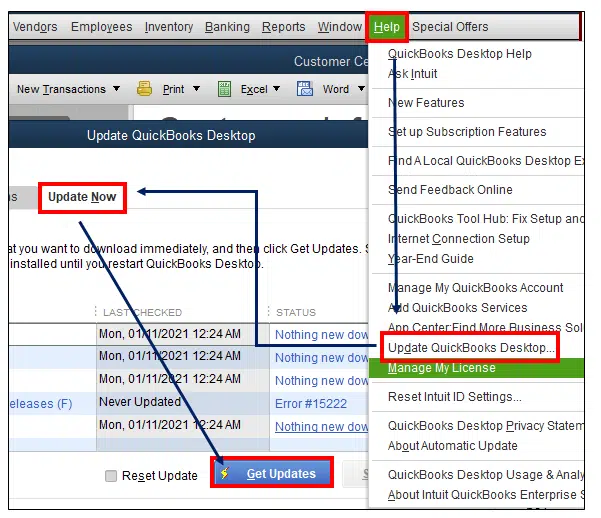
Once the Update is completed, try the task that was showing the error. If the update process freezes or fails to finish, see our guide on QuickBooks Update Stuck for further troubleshooting steps.
If the error appears while syncing data between QuickBooks and another application, the connected software may be outdated or incompatible with your current setup. If the affected integration uses QuickBooks Web Connector, check its configuration and compatibility with the connected application before attempting to sync data again. Updating it may help you restore the connection easily. Here’s what you need to do:
If the error persists, check whether the message mentions a digital certificate before trying the next solution to fix the issue.
QuickBooks may have trouble connecting to an integrated application if a digital certificate has been revoked or can not be verified. If the error message specifically mentions a revoked certificate, follow the Intuit instructions for that issue:
If the certificate issue remains unresolved, contact QuickBooks support or the third-party application’s developer for further assistance.
Incorrect proxy settings or firewall restrictions may prevent QuickBooks from connecting to online services. If firewall restrictions are preventing QuickBooks from connecting to online services, see our guide on Windows Firewall is Blocking QuickBooks for additional troubleshooting steps. If your internet connection works but QuickBooks still has trouble connecting, review these settings. Follow these steps:
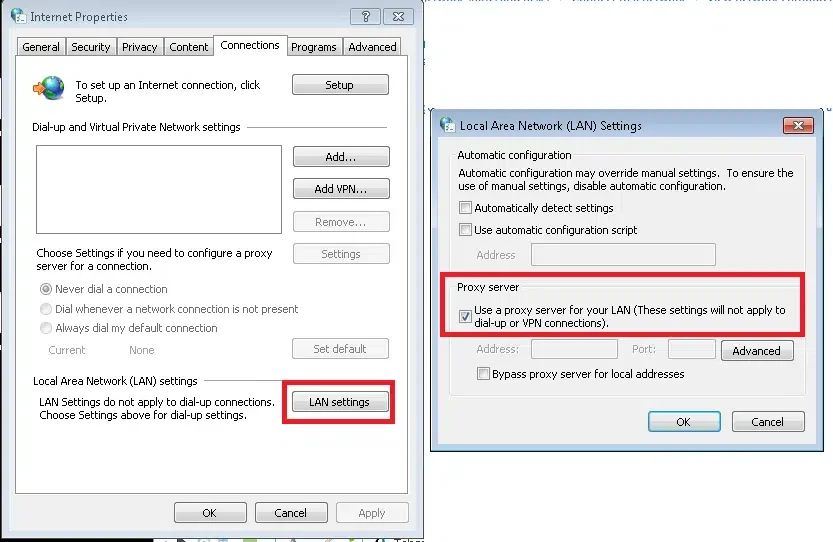
Note: Don’t disable your proxy or firewall without understanding why it’s enabled. If you’re using a work computer, ask your IT administrator before changing network settings.
If you have noticed unfamiliar applications, unusual system behavior, or unexpected security warnings, malware may be worth investigating. However, QuickBooks error 3008 alone doesn’t confirm that your computer is infected. To check your system, perform these steps:
If the problem continues without any signs of malware, move on to the next method.
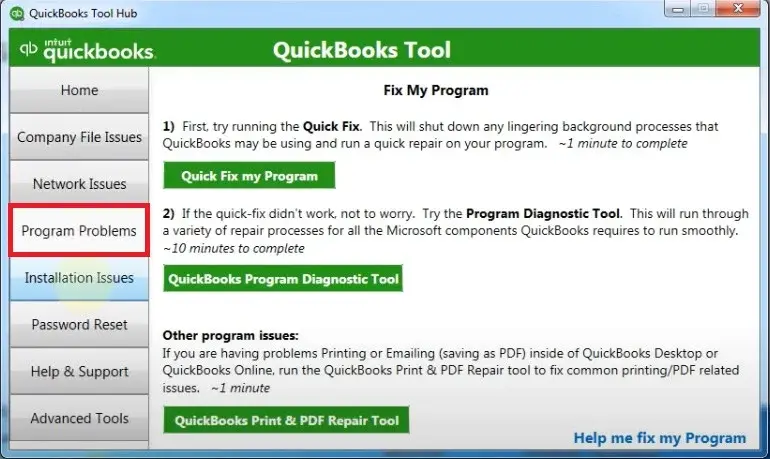
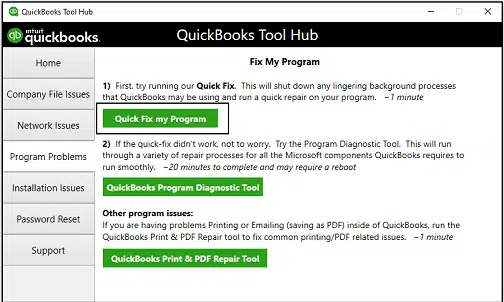
If QuickBooks is also freezing, crashing, or showing other program-related errors, QuickBooks Tool Hub may help troubleshoot those issues. Here’s how to use it:
Once you’ve fixed QuickBooks Error 3008, you probably don’t want to deal with the same issue again. While not every error can be prevented, a few simple habits can help you keep QuickBooks running smoothly.
Following these precautions can help reduce common software and connection problems and make it easier to troubleshoot them if they occur again.
While troubleshooting QuickBooks Error 3008, it’s easy to make changes that create more problems than they solve. Keep these common mistakes in mind before trying another fix.
Avoiding these mistakes can make troubleshooting safer and help you focus on the solution that best matches the cause of QuickBooks Desktop Error 3008.
Make QuickBooks Work Smarter for Your Business
Spend less time managing data and more time growing your business. Whether you need help setting up QuickBooks, cleaning up your books, reconciling accounts, or resolving errors, our team is here to make accounting easier. Get quick solutions that save time, improve accuracy, and keep your business finances on track.
QuickBooks Error 3008 can be frustrating, especially when it interrupts your work or prevents data from syncing properly. The good news is that you can start troubleshooting by updating QuickBooks Desktop, checking your connection settings, and reviewing any digital certificate warnings. If the error continues, try the relevant troubleshooting methods or contact QuickBooks support for help.
To avoid further issues, keep your software updated, use trusted applications, and back up your company file regularly. With the right approach, you can identify the cause of QuickBooks Error 3008 and fix the problem. If you still need further assistance, you can reach out to Data Service Team live representatives at +1(888)-718-7888.
QuickBooks Desktop error 3008 may appear due to digital certificate issues, outdated software, or problems connecting to an online service or third-party application. Must check when the error occurs and read the complete error message to help identify the possible cause.
Yes, QuickBooks error 3008 may be related to a revoked digital certificate if the error message specifically mentions it. In this situation, you need to follow the official Intuit troubleshooting instructions to check the certificate issue and restore the affected connection.
Start by checking QuickBooks Desktop and the connected application that need updates. If the error continues, you can review the certificate and connection settings. You can also contact the third-party application support team if the syncing problem remains unresolved.
Yes, QuickBooks Error 3008 may interrupt the data syncing or prevent a connected application from accessing information through QuickBooks. However, this doesn’t automatically mean your company file is damaged. Keep a recent backup of your company file while troubleshooting the issue.
Repairing or reinstalling QuickBooks should not be your first step. Start by updating the software and checking for certificate or connection problems. If QuickBooks also freezes, crashes, or shows other errors, you can try QuickBooks Tool Hub before repairing or reinstalling.

Get Free Consultation for QuickBooks Upgrade
(2021, 2022, 2023)


