
Getting QuickBooks Error 6073 when trying to open your company File? This error usually appears when QuickBooks is unable to access the company file or detects an issue with the way the File is being accessed.
The error also come when the company file is saved on a network and someone tries to open it from another computer. It may be because another user already has the file open in Single-User Mode, the shared folder doesn’t have the right permissions, or a remote access session is still running.
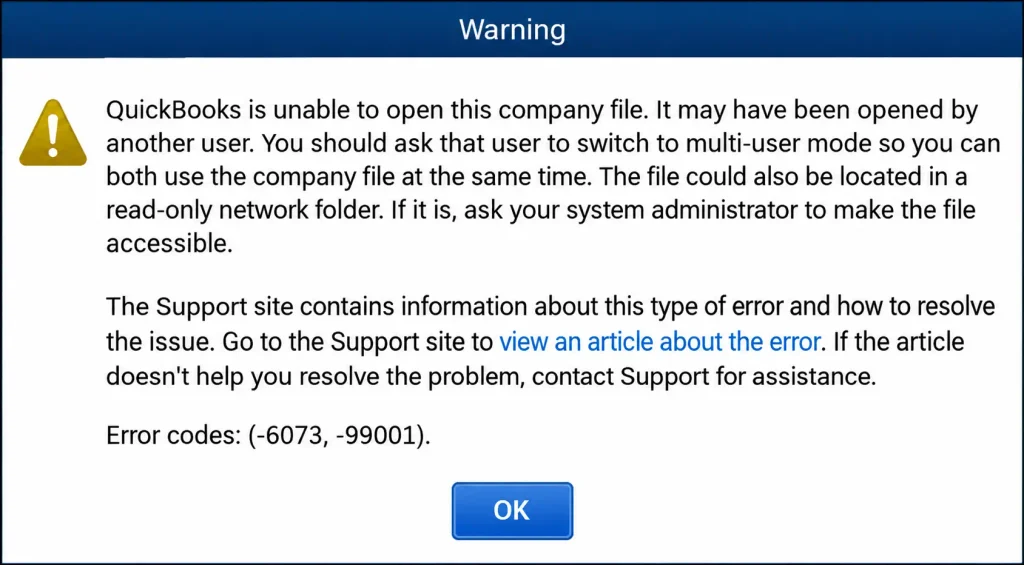
Before you start changing settings, first check how the company file is being accessed. This complete blog explain the common reasons for QuickBooks Error 6073 and what you can try to fix it.
QuickBooks Error 6073, 99001 usually occurs when QuickBooks cannot access the company file correctly. The problem is more common when the company file is stored on a network and accessed from multiple computers. Here are some common reasons behind this error:
There are several situations that can stop QuickBooks from opening a company file and lead to QuickBooks error 6073. The problem can also be related to the way the File is shared, the computer trying to access it, or the connection between the server and workstation. Here are some of the common triggers include:
Once you have identified the possible causes, you can start troubleshooting the error. It’s best to begin with the simpler checks and then move to the network and company file settings if the problem continues. Try the following solutions one at a time and check QuickBooks after each step.
If QuickBooks is having trouble accessing the company file or connecting to the network, start by checking the File with QuickBooks File Doctor. Before running the tool, close QuickBooks on the computers connected to the company file.
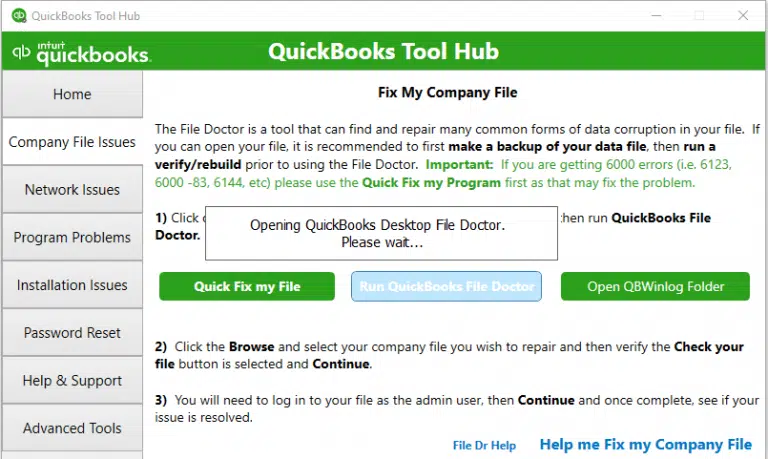
QuickBooks error code 6078 can appear when the company file is already open on another computer in single-user mode. If you’re experiencing broader QuickBooks Multi-User Mode Not Working issues, Make sure the File is closed on other workstations before trying to access it again.
Similar multi-user and network connection problems can also cause QuickBooks Error H202, especially when QuickBooks cannot communicate properly with the server.
If the error still appears, restart the server and workstations before moving to the next solution.
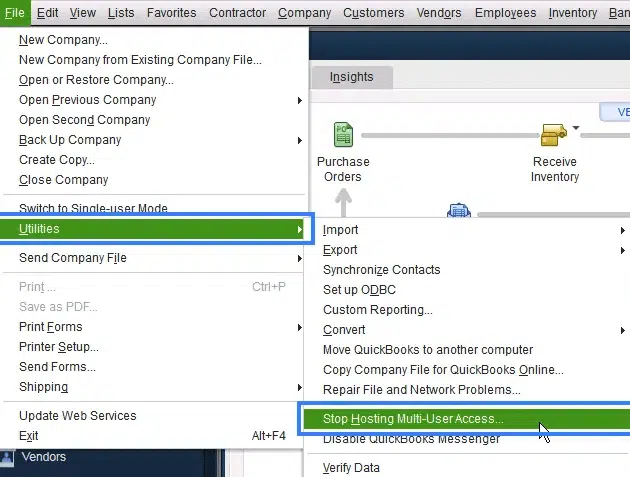
Incorrect hosting settings can prevent the QuickBooks program from opening the company file in a multi-user environment. If QuickBooks Hosting Mode is Off, check the hosting settings before continuing with the troubleshooting steps.
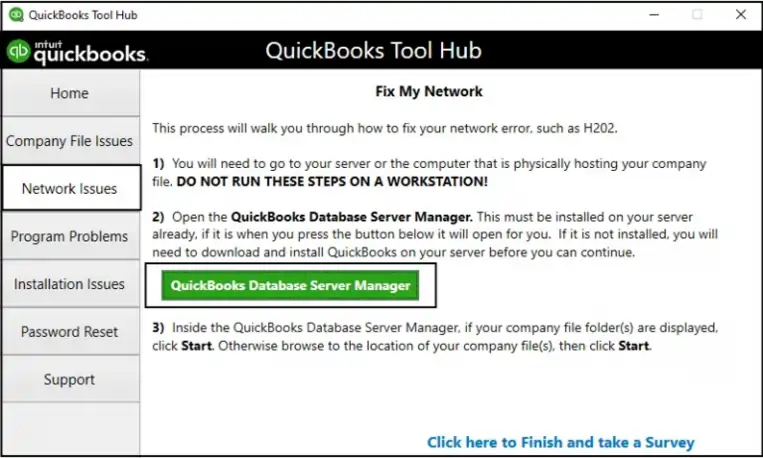
If the company file folder has not been properly scanned or the Database Server Manager is not functioning correctly, QuickBooks may have difficulty accessing the File. Follow these steps:
If the error continues, verify that the company file is stored in a shared folder that the affected users can access.
If the computer hosting the company file is being accessed through remote software such as LogMeIn or GoToMyPC, QuickBooks may still detect the remote user as logged in. This can trigger the Error -6073, -99001. To resolve the issue, run Quick Fix my Program from QuickBooks Tool Hub:
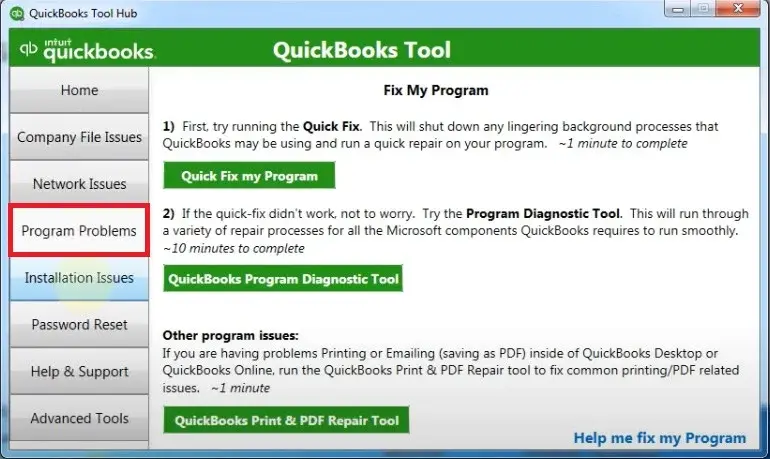
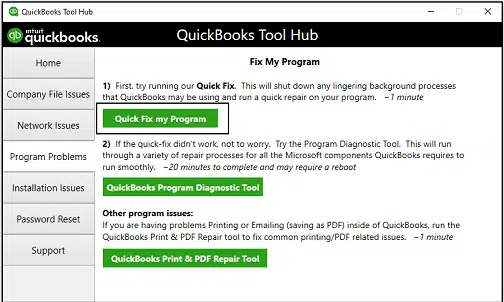
If your company file is stored in a read-only network folder, QuickBooks may not be able to access the File correctly. If QuickBooks cannot locate the company file in the expected folder, you can also check our guide on QuickBooks Company File Not Found for additional troubleshooting steps. Follow these steps on the computer hosting the company file:
If your QuickBooks company file is hosted on a Linux Server, QuickBooks error 6073 and 99001 can occur when more than one set of login credentials is being used to access the shared folder.
Check the credentials being used to sign in to the shared folder and make sure the same shared location is not being accessed with conflicting credentials.
If you are not responsible for managing the Linux server, ask your network or server administrator to check the shared-folder authentication settings.
If QuickBooks still displays error -6073, -99001 after completing the troubleshooting steps above, go back through the setup and identify which situation applies to your company file.
Identifying the specific access problem is more useful than repeatedly changing QuickBooks settings. Once the underlying access or hosting issue is corrected, try opening the company file again.
QuickBooks Error 6073 is generally related to how the company file is being accessed. Before making major changes to your QuickBooks installation or company file, identify the access issue first.
Once the underlying access issue is corrected, reopen the company file and confirm that QuickBooks can access it normally.
Make QuickBooks Work Smarter for Your Business
Spend less time managing data and more time growing your business. Whether you need help setting up QuickBooks, cleaning up your books, reconciling accounts, or resolving errors, our team is here to make accounting easier. Get quick solutions that save time, improve accuracy, and keep your business finances on track.
The QuickBooks error 6073 can stop you from opening the company file, especially when you are working with a shared or network setup. In most cases, checking how the file is being accessed, the network folder permissions, or any active remote session can help you find the problem.
To troubleshoot this error, you can start by running the File Doctor, checking the specific access condition affecting your setup. Once the company file is no longer being accessed incorrectly and the required permissions are in place, try opening it again in QuickBooks Desktop.
If you are still getting the same error after applying the troubleshooting methods, you can reach out the Data Service Team live person at +1(888)-718-7888.
QuickBooks Error 6073 occurs when QuickBooks can not properly access a company file. It can happen if the File is open in Single-User Mode on another computer, stored in a read-only network folder, accessed remotely, or hosted on a Linux server with multiple login credentials.
The error can occur when another computer has the company file open in Single-User Mode or when the shared folder has restricted permissions. Remote-access sessions and conflicting credentials on a Linux server can also cause the issue.
Close QuickBooks Desktop on all computers. Open the company file on the host computer, go to File, and select Switch to Multi-user mode. Then try opening the company file again from the other workstations.
Go to the computer hosting the company file and check the folder permissions. Open Properties, click Security, select the affected user, choose Edit, and allow Full Control. Apply the changes and try opening the company file again.
Yes. Incorrect hosting settings can interfere with multi-user access to the company file. Check that the host computer is configured correctly and that workstations are not unnecessarily hosting multi-user access.
Firewall or security software may interfere with QuickBooks network communication. However, the Intuit guidance for this specific error focuses mainly on Single-User Mode, network-folder permissions, remote access, and Linux server credentials.
Use Multi-User Mode when multiple users need access, maintain appropriate folder permissions, properly close remote-access sessions, and avoid conflicting credentials when accessing a shared folder on a Linux server.
The Intuit guidance does not identify Error 6073 as being specific to a particular QuickBooks Desktop version. The documented causes are mainly related to company file access and network configuration.
QuickBooks Error 6073 primarily affects access to a company file, not necessarily its backups. Verify that your backup is available and intact before attempting recovery or restoring company data.
Yes, save your work and close QuickBooks on connected workstations before troubleshooting shared-file access. Confirm that other users have finished their tasks to avoid interrupting transactions or unsaved changes.
Moving the company file may help only when its current location or permissions contribute to the problem. Back up the file first, verify folder access, and update shared access settings before reopening it.

Get Free Consultation for QuickBooks Upgrade
(2021, 2022, 2023)


