Unable-to-Send-Invoices-in-QuickBooks

Are you unable to send invoices in QuickBooks when billing your customers? This problem can happen when your email settings are incorrect, your internet connection is unstable, or QuickBooks has trouble connecting to your email account. Sometimes, an invoice may show as undelivered even after you send it. This can delay payments and make it difficult to keep track of your business transactions. If QuickBooks is unable to send emails due to a network connection failure, you may need to check your internet connection and email settings.

In this detailed guide, we will explain the common causes of QuickBooks invoice sending problems and share simple steps to help you fix them.

Why Am I Unable to Send Invoices in QuickBooks Desktop?

There are several reasons why you may be unable to send invoices in QuickBooks Desktop to your customers. These problems may be related to incorrect email addresses, internet connectivity, email configuration, or outdated software. Here are some common causes:

  • Incorrect Email Address: A wrong customer email address can prevent invoice delivery.
  • Poor Internet Connection: An unstable network may stop QuickBooks from sending emails.
  • Incorrect Email Settings: QuickBooks may not be configured correctly to use Outlook or another supported email service.
  • Outdated QuickBooks Software: An older version of QuickBooks Desktop may cause email sending problems.
  • Antivirus or Firewall Restrictions: Security software may block QuickBooks from connecting to your email service.
  • Email Delivery Problems: The customer’s email server may reject the message or send it to the spam folder.
  • Temporary QuickBooks Issues: A temporary service or software problem may interrupt invoice delivery.

Things to Check When QuickBooks Cannot Send Invoices by Email

Before moving ahead with the troubleshooting steps, you should check a few things that might be preventing QuickBooks from sending invoices. Checking these details first can help you identify the cause without making unnecessary changes to your QuickBooks settings. Here are some important things you should check before proceeding:

  • Make sure your computer is connected to a stable network. If your connection keeps dropping, QuickBooks may have trouble communicating with your email service.
  • Check the recipient’s email address for spelling mistakes or missing characters. An incorrect address may prevent the invoice from reaching the customer.
  • Open Outlook or your webmail account separately and try sending a test email. This will help you determine whether the issue is limited to QuickBooks or affects your email service as well.
  • Sometimes, security software may block QuickBooks from connecting to your email service. Check for blocked connections before changing any security settings.
  • Make sure QuickBooks is configured to use the correct email application or supported webmail service.
  • An outdated version may cause compatibility issues. Check whether an update is available for your installed version.
  • Before performing major repairs or reinstalling QuickBooks Desktop, create a recent backup to protect your business data.

Once you have checked these points, you can move on to the troubleshooting solutions below to fix the issue and resume sending invoices to your customers.

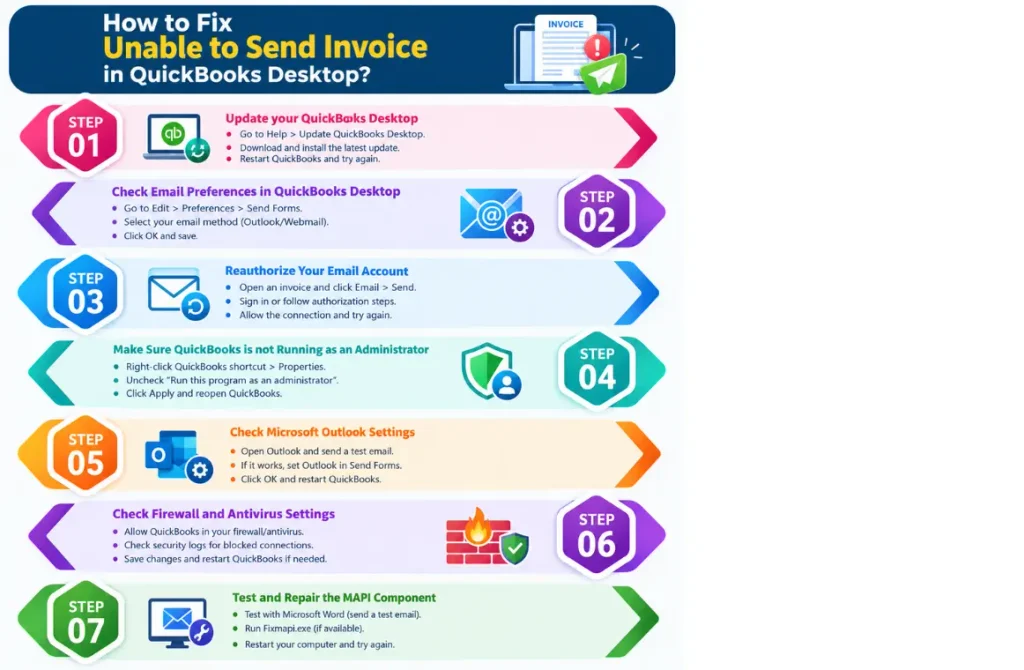
How to Fix Unable to Send Invoices in QuickBooks Desktop?

After checking your internet connection, email address, and QuickBooks preferences, you can move on to the troubleshooting methods. Try the following solutions one by one. After each major change, send a test invoice to check whether the issue has been resolved.
How to Fix Unable to Send Invoices in QuickBooks Desktop

Solution 1: Update QuickBooks Desktop to Fix Invoice Sending Errors

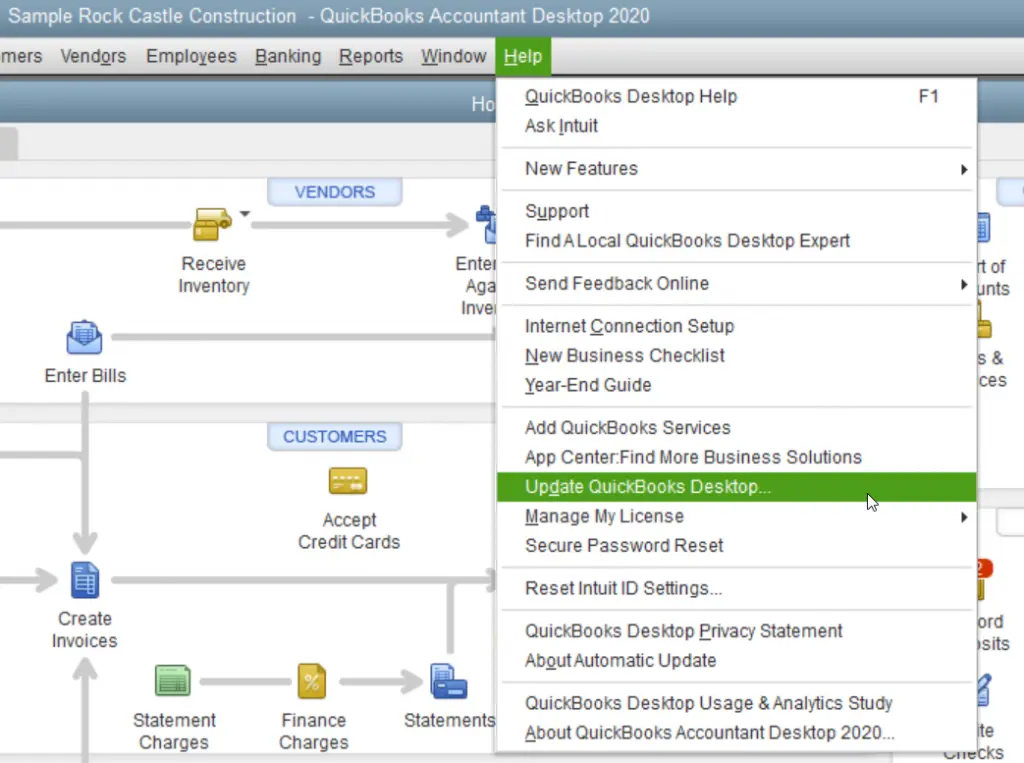
Using an outdated version of QuickBooks Desktop may cause a QuickBooks invoice sending error, especially when the software has compatibility issues with your email application. Follow our guide to Update QuickBooks Desktop to install the latest available updates and improve software compatibility. Intuit releases updates that include product improvements and fixes for certain software problems. Follow these steps to update QuickBooks Desktop:
  • Open QuickBooks Desktop on your computer.
  • Go to the Help menu.
  • Select Update QuickBooks Desktop.
Update-QuickBooks-Desktop
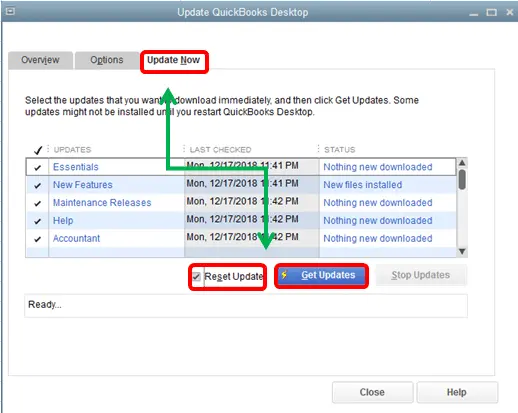
  • Open the Update Now tab.
  • If needed, select Reset Update to clear previously downloaded update files.
  • Click Get Updates and wait for the download to finish.
get-update
  • Close QuickBooks and reopen it.
  • Install the downloaded Update if prompted.
  • Try sending an invoice again to see whether the problem has been resolved.

If QuickBooks still won’t send invoices after updating, proceed to the next solution to check your email preferences.

Solution 2: Check Email Preferences in QuickBooks Desktop

Incorrect email preferences can prevent QuickBooks from connecting to your selected email application. For additional help, follow our guide on QuickBooks Email Setup to configure your email account correctly. Here’s how to check your email preferences:
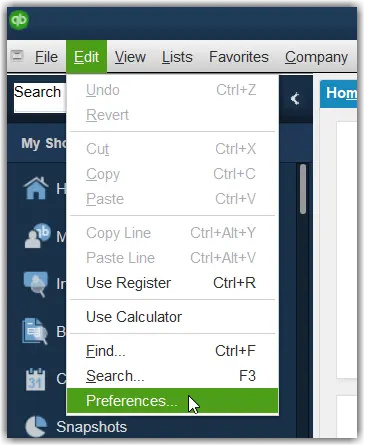
  • Open QuickBooks Desktop.
  • Select Edit from the top menu.
  • Click Preferences.
My Preferences
  • Select Send Forms from the left panel.
  • Open the My Preferences tab.
  • Review the email method selected for sending forms.
  • If you use a compatible Outlook setup, select Outlook.
  • Click OK to save your changes.
  • Close and reopen QuickBooks, then try sending the invoice again.

If you use webmail instead of Outlook, make sure the selected email service is configured correctly and follows your provider’s current security requirements.

If the settings are already correct and the error continues, the next step is to check whether your email account needs to be authorized again.

Solution 3: Reauthorize Your Email Account

Your QuickBooks may fail to send invoices if your email account needs to be authorized again. Follow these steps to restore the connection:

  • Open QuickBooks Desktop and open an invoice or another transaction.
  • Select the Email option and click Send.
  • If prompted, sign in to your email account or follow the authorization instructions.
  • Review the authorization request and select Allow if you recognize and approve the connection.
  • Return to QuickBooks and try sending the invoice again.

If QuickBooks is unable to send email and the problem continues, proceed to the next solution.

Solution 4: Make Sure QuickBooks is not Running as an Administrator

Running QuickBooks with different permission settings from Outlook may cause email-related problems. To check this setting, follow these steps:

  • Close your QuickBooks Desktop.
  • Right-click on the QuickBooks Desktop shortcut and select Properties.
  • Open the Compatibility tab.
  • Look for the Run this program as an administrator option.
  • Uncheck the option if it is selected.
  • If the option is grayed out, select change settings for all users, if available and check it there.
  • Now, click Apply, reopen QuickBooks Desktop, and try sending the invoice again.

Solution 5: Check Microsoft Outlook Settings

If you’re using Outlook to send invoices, incorrect settings or problems with the Outlook application may prevent QuickBooks from sending emails. If QuickBooks cannot send email through Outlook, consult Intuit’s official Outlook email troubleshooting guide for additional solutions.

  • Open Microsoft Outlook separately.
  • Send a test email to confirm that Outlook is working properly.
  • If the test email fails, resolve the Outlook issue first.
  • Open QuickBooks Desktop and select Edit, then click Preferences.
  • Select Send Forms from the left panel.
  • Open the My Preferences tab.
  • Select Outlook if it is supported by your QuickBooks and Outlook configuration.
  • Click OK to save your changes.
  • Close and reopen QuickBooks Desktop.
  • Try sending an invoice again.

If Outlook works independently but QuickBooks still cannot send emails, review our guide on QuickBooks Outlook is not responding for additional troubleshooting steps before proceeding.

Solution 6: Check Firewall and Antivirus Settings

Your firewall or antivirus software may block QuickBooks from connecting to your email service. Read our guide on Windows Firewall is Blocking QuickBooks to learn how to check firewall permissions and resolve blocked connections safely. Reviewing the security settings can help you identify and resolve the restriction.

  • Open your firewall or antivirus application.
  • Check its security logs for blocked QuickBooks applications or email connections.
  • Verify that QuickBooks Desktop is allowed to communicate through the firewall.
  • If necessary, add the appropriate QuickBooks application to the permitted applications list, following your security provider’s instructions.
  • If you use a business network, contact your IT administrator to review any network restrictions.
  • Save the changes and restart QuickBooks if required.
  • Try sending the invoice again.

Avoid permanently disabling your firewall or antivirus protection. Make only the changes needed to allow legitimate QuickBooks connections.

Solution 7: Test and Repair the MAPI Component

If QuickBooks cannot send emails through Outlook, the Windows Messaging Application Programming Interface (MAPI) component may need troubleshooting. You can first test whether another application can send an email.

Test the MAPI functionality using Microsoft Word:

  • Restart your computer.
  • Open Microsoft Word.
  • Create a new document.
  • Select File and look for the option to send the document as a PDF attachment.
  • Send a test email if the option is available.
  • If Word cannot send the email, troubleshoot Outlook or Microsoft Office first.
  • If Word can send emails but QuickBooks cannot, continue with the MAPI troubleshooting steps.

Repair the MAPI component:

  • Close QuickBooks, Outlook, Word, and all other open applications.
  • Open the Windows Start menu and search for File Explorer.
  • Navigate to C:\Windows\System32.
  • Locate Fixmapi.exe, if available.
  • Run the utility and follow the on-screen instructions.
  • Restart your computer after the repair is complete.
  • Open QuickBooks Desktop and try sending an invoice again.

If QuickBooks also encounters PDF creation or attachment problems, see our guide on QuickBooks Missing PDF Component for additional troubleshooting information.

How to Fix QuickBooks Unable to Send Emails Due to Network Connection Failure

If you are unable to send invoices in QuickBooks Desktop, try the following troubleshooting solutions one by one. These methods can help you identify email configuration problems, resolve connectivity issues, and fix common invoice delivery errors. Try the following steps to identify and fix the issue.

  • Check your internet connection: Open a web browser and visit a website to confirm that your internet connection is working properly.
  • Restart your router: If your connection is unstable, restart your router and reconnect your computer to the network.
  • Check your email service: Sign in to your email account separately and try sending a test message. If it fails, the issue may be related to your email provider.
  • Review your email settings: Make sure QuickBooks is configured to use the correct email application or supported webmail service.
  • Check firewall restrictions: Verify that your firewall or network security settings are not blocking QuickBooks from connecting to the email service.

After completing these checks, reopen your QuickBooks Desktop and try sending the invoice again. If the error continues, review the email configuration or contact your email provider for further assistance.

Tips to Prevent QuickBooks Invoice Email Issues

To avoid facing the same problem again, you should keep your QuickBooks software and email settings up to date. Here are some simple tips that can help you prevent the invoice email issue in the future.

  • Keep QuickBooks Desktop Updated: Install your available updates to maintain compatibility and fix potential issues with the software.
  • Check Email Addresses Regularly: Make sure your customer’s email addresses are correct before sending invoices.
  • Maintain a Stable Internet Connection: Use a reliable network to avoid interruptions while sending invoices.
  • Review Email Settings: Check your QuickBooks email preferences whenever you change your email account or provider.
  • Monitor Firewall and Antivirus Settings: Ensure your security software allows legitimate QuickBooks connections without compromising your computer’s protection.
  • Check Invoice Delivery Status: If a customer doesn’t receive an invoice, verify its status and resend it after correcting any email address issues.
  • Back Up Your Company File: Create regular backups to protect your accounting data before performing major software repairs or other changes.

Following these practices can help you reduce the email interruptions and make it easier to send invoices to your customers on time.

Conclusion!

Being unable to send invoices in QuickBooks can be frustrating, especially when you need to send bills to your customers on time. Fortunately, you can resolve this issue by checking your email settings, updating QuickBooks Desktop, verifying your internet connection, and following the troubleshooting steps mentioned in this guide.

If you are still unable to send invoices in QuickBooks, review your email configuration and check whether your firewall or antivirus is blocking the connection. If none of these solutions work, contact a qualified Data Service Team at +1(888)-718-7888 expert for further assistance.

Frequently Asked Questions (FAQ’s)

You may be unable to send invoices in QuickBooks because of incorrect email settings, an unstable internet connection, or outdated software. Problems with Outlook or firewall restrictions can also prevent QuickBooks from sending invoices to your customers.

First, check your internet connection and make sure the customer email address is accurate. Then update QuickBooks Desktop, review your email preferences, and try sending the invoice again to see whether the problem is resolved.

QuickBooks may not send invoices if it cannot connect to your email account or if your email preferences are incorrect. Check whether Outlook or your webmail account is working properly before troubleshooting QuickBooks further.

QuickBooks invoices may get stuck because of a poor internet connection, email server problems, or temporary software issues. Check your network connection, verify your email settings, and try sending the invoice again.

You can start by updating QuickBooks Desktop and checking the email preferences under the Send Forms section. If the issue continues, review your Outlook settings, firewall permissions, and MAPI component.

QuickBooks may fail to deliver an invoice if the customer’s email address is incorrect or the recipient’s email server rejects the message. Verify the email address and ask the customer to check their spam or junk folder.

Open QuickBooks Desktop and select Edit, click Preferences, then Send Forms. Under the My Preferences tab, check whether the correct email method is selected, then click OK to save any changes.

QuickBooks may show an email error because of incorrect settings, an outdated application, or a problem connecting to Outlook or your email provider. Check your internet connection and email configuration to identify the cause.

Yes, an unstable internet connection or incorrect email settings can stop the QuickBooks from sending invoices successfully. Make sure your network is working properly, and your email account is configured according to your provider’s requirements.

As a temporary workaround, save or print the invoice as a PDF and attach it to an email using your regular email application. Verify the recipient’s email address and confirm that the correct invoice is attached before sending it.

About The Author

Steven Moody

Steven Moody is a bookkeeping and payroll specialist dedicated to helping businesses maintain accurate financial records and efficient payroll operations. His expertise includes payroll management, tax compliance, bookkeeping solutions, and financial reporting. Steven regularly shares insights on accounting best practices and business finance strategies. Outside of work, he enjoys traveling, exploring new places, and keeping up with the latest developments in business technology.

Steven Moody

QuickBooks

QuickBooks Tax Filing Problems? Here’s How to Fix It

Read More
QuickBooks

Set Up Direct Deposit in QuickBooks: Easy Step-by-Step Guide

Read More
QuickBooks

How to Upgrade QuickBooks Desktop to 2024 (Old Versions)

Read More
QuickBooks Error

QuickBooks Error 6154: How to Fix Invalid File Path and Access

Read More
QuickBooks Error

QuickBooks Error 6144 82: How to Fix Company File Access Issues

Read More
