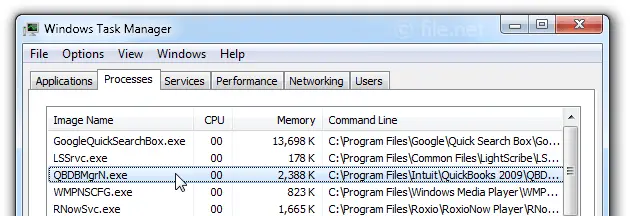
QBDBMgrN-Not-Running-on-This-Computer

Are you facing the QBDBMgrN Not Running on This Computer error while using QuickBooks? There are numerous reasons behind this error including corrupted files, outdated software, or problems with network connection. Users can face issues when QuickBooks is not installed or updated.

There are several solutions available to fix the QBDBMgrN Not Running on The Server Computer problem. To fix this, configure the database server, update QuickBooks to the latest version, and use the QuickBooks Tool Hub to repair QB Software. This article offers step-by-step instructions for each method and makes it convenient for users to troubleshoot this error.

What Does QBDBMgrN Not Running on This Computer Issue Signify?

The QBDBMgrN Not Running on This Computer message signifies that the QuickBooks Database Server Manager service acts as the essential background engine. It allows various users to access and share a single company file over a local network. This can be stopped or blocked.

Your host computer cannot manage the database operations requested by others when this service fails to operate. As a result, QuickBooks is forced into single-user mode, denying any other computer on your local network the ability to open, edit, or view the company file.

What Leads to QBDBMgrN Not Running on This Computer Error?

The QBDBMgrN Not Running on this Computer error hinders QuickBooks Desktop from operating company files in multi-user mode. It arises on your host or server computer due to several main factors:
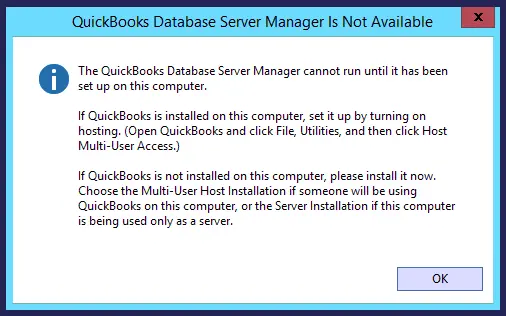
  • Interference from Firewall/Antivirus – Windows Firewall or external antivirus programs often obstruct QBDBMgrN’s communication ports or executable. This mistakenly identifies it as a threat.
  • Inactive Services – The QuickBooks Database Server Manager service may have halted or may not be set to initiate automatically when the server reboots.
QBDBMgrN-not-running-on-this-computer
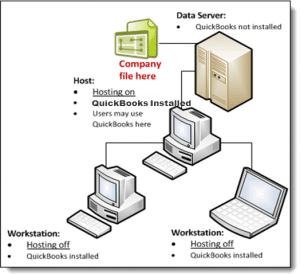
  • Deactivated Hosting – The option for “Host Multi-User Access” is disabled on the server machine that hosts the company files.
  • Corrupted Files/Installation – The primary QBDBMgrN executable file or your Windows Network Data (.ND) file may be damaged. It necessitates repair or a fresh installation.
  • Outdated Software – Using an outdated version of QuickBooks or an older Windows operating system can lead to QBDBMgrN Not Running on This Computer and halt the service.
  • Lack of Permissions – QBDBMgrN can not have the required Windows permissions to operate under the appropriate user account on the server.

Why QBDBMGRN Not Running on this Computer Issue Occurs?

The QBDBMGRN not running on this computer message suggests that the QuickBooks Database Server Manager has stopped functioning or is blocked on your server. This service is responsible for hosting the company file. It allows access for multiple computers. This error arises for several reasons given below:

  • The service is not running – The QuickBooks database service is inactive in your Windows Services panel.
  • Corrupted company file – Issues within your QuickBooks company file or its associated network data (.ND) file can cause the background service to crash.
  • Firewall blockage – The Windows Firewall or a third-party antivirus might mistakenly categorize the QB Database Manager as an unknown service and restrict its internet/network access.
  • Corrupted installation – Damaged QuickBooks installation files or outdated versions of the database manager (for instance, attempting to host a file with an earlier version of the software) can lead to QBDBMgrN not running on this computer in QuickBooks.
  • Hosting disabled – The Host Multi-User Access option was turned off manually on the server computer.
  • Permission issues – The Windows user account assigned to the service (QBDataServiceUserXX) does not have the important permissions to share or access the company file.

Important Tip by the Data Service Team: Firewall settings on your computer may block QBDBMgrN from accessing the necessary ports and protocols. This leads to the QBDBMgrN not running on this computer in QuickBooks.

How to Fix QBDBMgrN Not Running on this Computer Error in QuickBooks?

Users can implement the most suitable troubleshooting solutions to address the problem after knowing the potential causes and symptoms of the QBDBMgrN not running on this computer error message. Adhere to the recommended solutions listed below to resolve this issue:

Solution 1: Update Windows Firewall to its Latest Version

Users will receive the most recent security updates and patches when they update Windows Firewall. They can ensure that the Firewall is not mistakenly preventing QBDBMgrN Not Running on This Computer issue:
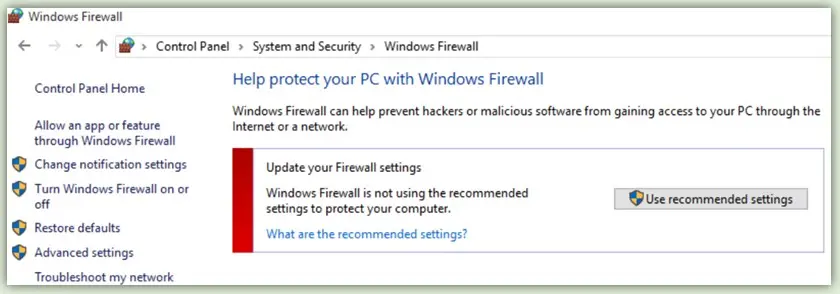
  • Press the Windows + R keys together and type Control Panel in the Run Window.
  • Press the Enter button. Click on the System and Security option.
  • Alternatively, use the firewall.cpl command to open the firewall settings.
  • Choose Windows Firewall and click Check for Updates under the Update your firewall Setting option.
Update-your-Firewall
  • Click on the Update Now and Use Recommended Settings option.
  • Wait until the updates are installed when Windows finds updates.
  • Restart your computer and open QuickBooks again.

Important Tip by the Data Service Team: If you are having trouble updating the firewall, download the update files for 32-bit or 64-bit Windows. Learn the methods for Windows Firewall is Blocking QuickBooks to get the updates and follow the on-screen instructions to install them.

Solution 2: Restart QuickBooks Database Server Manager Service

If you are unable to launch Database Server Manager or encounter an error, restart it on the server computer that hosts your company files. To restart, follow the instructions for your specific setup.

Open QuickBooks Desktop on your server computer in case you have installed both QuickBooks Desktop and Database Server Manager:

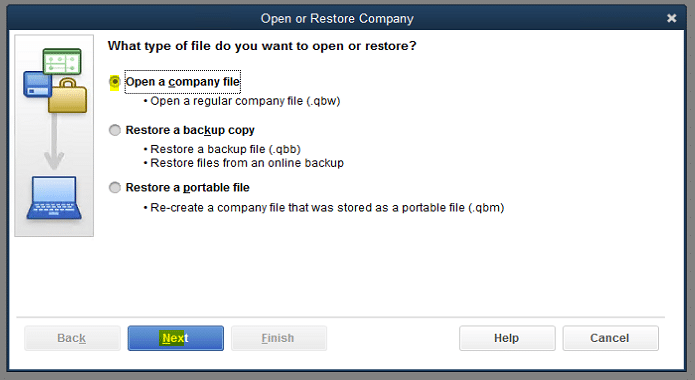
  • Navigate to File, and then click on Open or Restore Company.
  • Choose Open a company file. Locate and open your company file, then click Next.
  • Tick the checkbox for Open file in multi-user mode, and then select Open.
  • Log in to your company file.
  • Go to File and choose Close Company/Log off. It will close your data file on the server.
  • Open the Windows Start menu.
  • Type “Database” into the search field and launch QuickBooks Database Server Manager.
  • If everything is functioning correctly, you’re set to go. If you still encounter an error message, refer to the steps under “If you only installed Database Server Manager.”

If you have only installed Database Server Manager, click on the Windows Start menu.
  • Search for and access Control Panel.
  • Select Administrative Tools and open it.
  • From the list, choose Services.
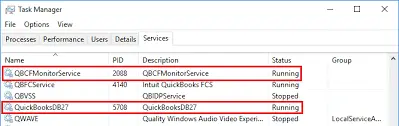
  • Right-click on the QuickBooksDBXX service and then select Restart. Note: XX represents the year of your Database Server Manager. For example, the 2021 version is QuickBooksDB31.

Solution 3: QuickBooks Programs Install on the Server or Host

  • Launch QuickBooks on the host or server.
QuickBooks-Programs-Install-on-the-Server-or-Host
  • The following step is to choose Open or Restore Company from the File menu.
Open or Restore Company
  • Select Open a Company File and click Next.
  • Locate the company file and select it.
  • Choose Open File and then select Open when in Multi-user Mode.
  • Log in to the company file using your usual username and password.
  • Go to File and select Close Company or log off to close the company file on the server.

Important Tip by Data Service Team: To resolve QuickBooks QBDBMgrN not running, uninstall the QuickBooks Database Server Manager from the Control Panel and contact us now for help with QBDBMgrN not running on this computer issue.

Solution 4: QBDM Service is not Included in Firewall

Include the QuickBooks Database Server Manager in your firewall exceptions list:
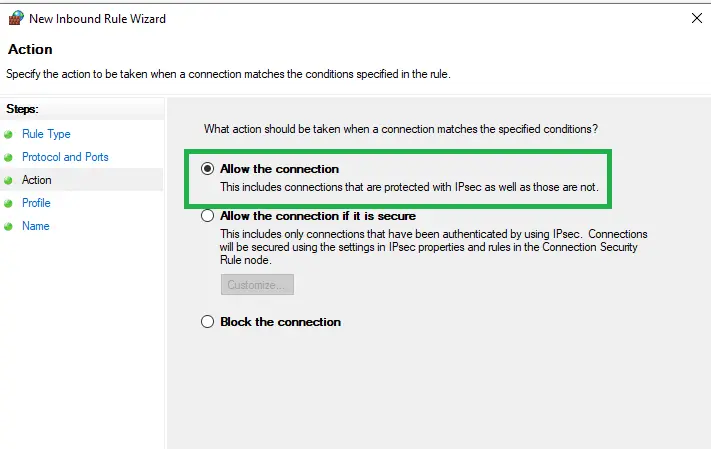
  • Press the Windows key along with R to launch the Run dialog box.
  • Input control firewall.cpl and hit Enter to access the Windows Firewall window.
  • Choose the System and Security option.
  • Select Windows Firewall.
  • Select the Advanced Settings option on the left pane.
  • Click on Inbound Rule and then select New Rule on the right side of the window.
  • Select Next under Programs, followed by Program Path.
  • Locate and exclude the QBDMgrN.exe file.
  • Find this file in the QB folder, then click on the file’s location and press Next.
  • Choose to allow the connection and click Continue.
Allow-the-connection
  • Provide a name for the rule and then click Finish.
  • Restart your computer and open the QBW company file.

When the ” QBDBMgrN Not Running on this Computer error occurs, common causes include insufficient disk space on the server, a corrupt QuickBooks installation, antivirus software interfering with the service, or a damaged Windows user profile.

Solution 5: QBDBMGRN Install on the Server or Host

Consider the following steps if the previous solution was unsuccessful:
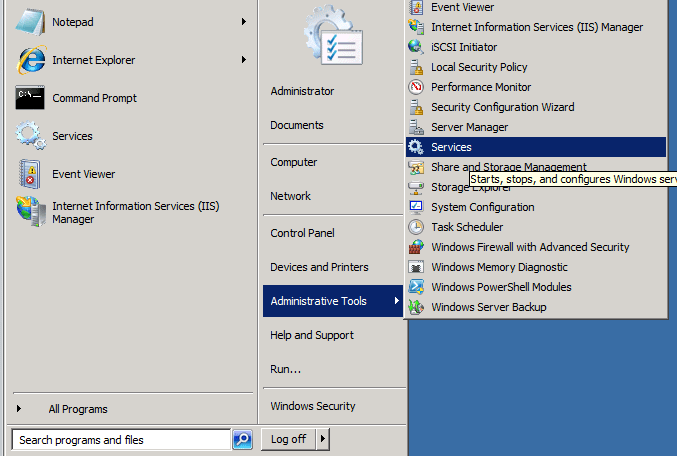
  • Click on the Start or Windows icon. Select the Control Panel option. Double-click on Administrative Tools and then on Services.
QBDBSM-Install-on-the-Server-or-Host
  • Next, right-click on the appropriate data manager:
    • QuickBooksDB28 (QuickBooks 2018) QuickBooksDB27 (QuickBooks 2017) QuickBooksDB26 (QuickBooks 2016)
QuickBooksDB27

Solution 6: Download & Install QuickBooks Clean Install Tool

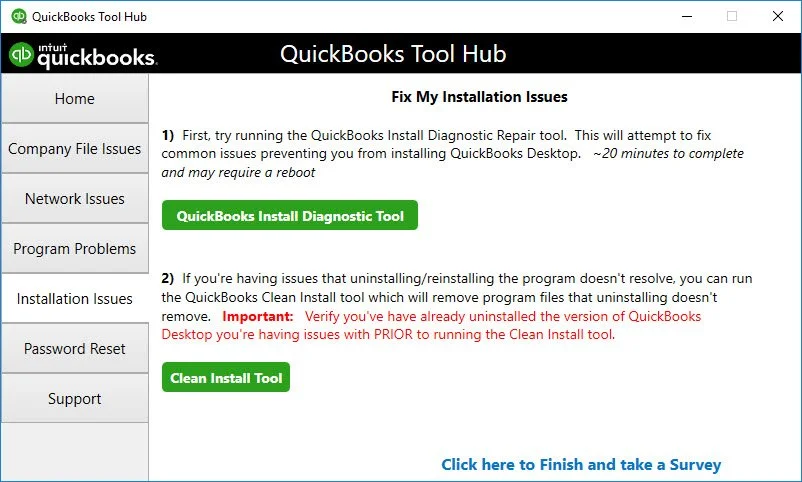
Use the QuickBooks Clean Install Tool to fix the QBDBMgrN not running on this computer in QuickBooks. It is a three-step process that involves uninstalling the software, renaming the installation folders, and then reinstalling QuickBooks.
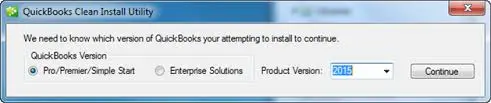
clean-install-tool-in-quickbooks

Uninstall the QuickBooks Application to resolve the QBDBMgrN Not Running Error.

  • Press the Windows + R keys to bring up the Run command.
  • Type Control Panel in the provided space and click OK.
  • Select the Programs & Features option.
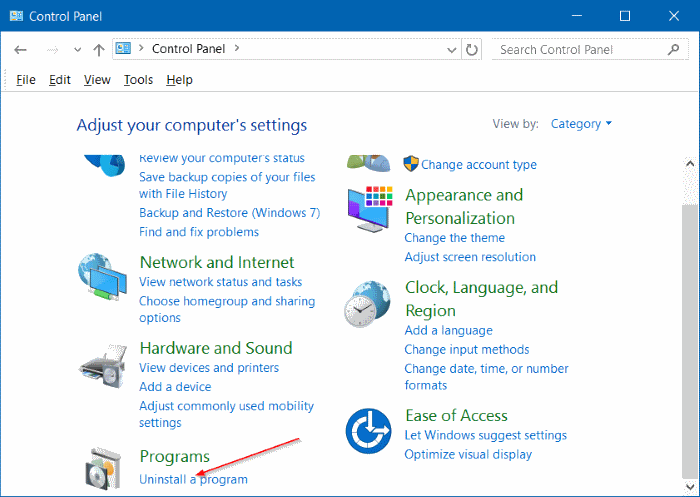
  • Choose Uninstall a Program if the Control Panel is displayed in category view.
control-panel-uninstall-program
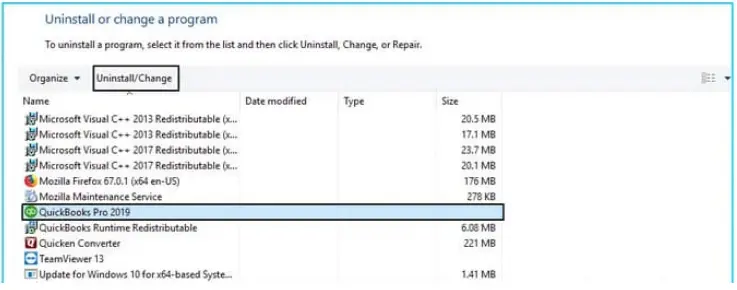
  • Find QuickBooks in the list of programs and select uninstall/change option.
uninstall-or-change-a-program
  • Follow the prompts to complete the process.

Download and run the QuickBooks Clean Install Tool

  • Download the QuickBooks Clean Install Tool.exe file and save it to your desktop.
  • Now open QuickBooks_clean_install_utility.exe.
QuickBooks-clean-install-tool-Screenshot
  • Click on the ‘I accept the license‘ option.
  • Select your version of QuickBooks Desktop and click the Continue option.
  • Click the OK button and install it to the default directory when the message ‘QuickBooks is ready for Clean Install’ appears.
  • Manually Rename the QuickBooks Desktop Installation Folders Ensure that you use Windows Explorer to display hidden files.
  • Be certain to rename each folder location listed for your Windows version. Add ‘old‘ or ‘damaged‘ at the end of the folder name.
  • This will prevent QuickBooks from recognizing the folder so it can create a new one.

Reinstall QuickBooks Desktop.

Lastly, reinstall the QuickBooks application by downloading and installing QuickBooks Desktop.

Solution 7: Fix QBDBMgrN Not Running on This Computer Error Manually

Adhere to the following steps to identify and resolve network or access problems that might be impacting QuickBooks to manually address the problem. This will help ensure your company file is accessible.

  • Download and install the QuickBooks File Doctor tool.
  • Execute the tool and let it evaluate your network.
  • Activate hosting mode to access the company file.
  • Turn off Hosting Multi-User Access.
  • Configure the necessary access permissions in Windows.
  • Modify folder permissions to allow sharing.
  • Run ipconfig to diagnose network connectivity problems.

Note: Avoid QuickBooks data corruption by switching to QuickBooks Premier Cloud Hosting, Enterprise Hosting, Accountant Hosting and Pro Hosting. It offers improved reliability, secure access, automatic backups, and better performance for uninterrupted business operations.

Solution 8: Repair QuickBooks Installation

Fixing QBDBMgrN Not Running on This Computer error can address problems by correcting corrupt or missing files. Follow these instructions to repair QuickBooks on your computer to ensure it works properly:

  • Close any applications that might interfere with QuickBooks.
  • Reboot your computer.
  • Make a backup of your company file.
  • Click on the Start and access the Control Panel.

For Windows 8 and 8.1:

  • Open the Start or Windows menu.
  • Use the Search feature.
  • Search Control Panel and click on it.
  • Navigate to Programs and Features, then click on Uninstall a Program.
  • Locate QuickBooks, choose Uninstall/Change.
  • Click Continue, then Next.
  • Select Repair and click Next.
  • Allow the repair process to complete, then click Finish.
  • Restart your computer once more.
  • Manage Errors During QuickBooks Repair

If you encounter a “File In Use” notification while the repair process is ongoing, follow these instructions:

  • When the File In Use dialogue box appears, select Ignore (a system reboot may be necessary).
  • Press “OK” to continue.
  • You may need to click Ignore several times to move forward with the repair.
  • If Ignore is not an option, select Close and wait for the repair to complete.
  • Restart your computer once the repair process is completed.

Important Tip by Data Service Team: Ensure that you back up all essential files before beginning to fix QBDBMgrN Not Running on This Computer.

Solution 9: Open and Close Company File on Server

Access the company file from the server directly, as it is included in this method. It allows you to open and close the file in multi-user mode. Consider the given steps to ensure complete file access:
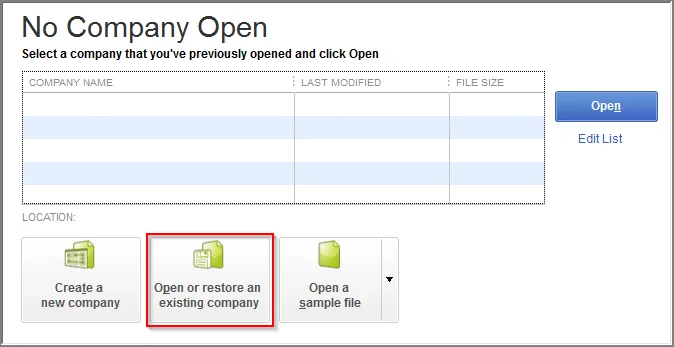
  • Open QuickBooks on the server.
  • Go to the File menu and choose Open or Restore Company.
Open or Restore company
  • Select Open a Company File and click Next.
  • Locate and open your company file.
  • Select the file and hit the Open option in multi-user mode.
  • Log in with your credentials.
  • Go to File > Close the company or select the Log Off option.

How Can Someone Avoid QBDBMgrN Not Running in QuickBooks Error?

Make sure that the service is configured to start automatically on your server to avoid the QBDBMgrN Not Running Error in QuickBooks. Adjust your firewall settings to permit QuickBooks ports. Follow these instructions to prevent and resolve the problem:
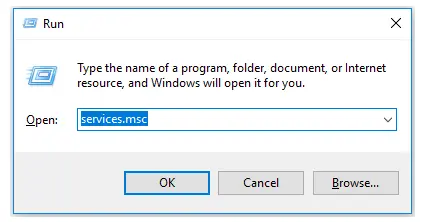
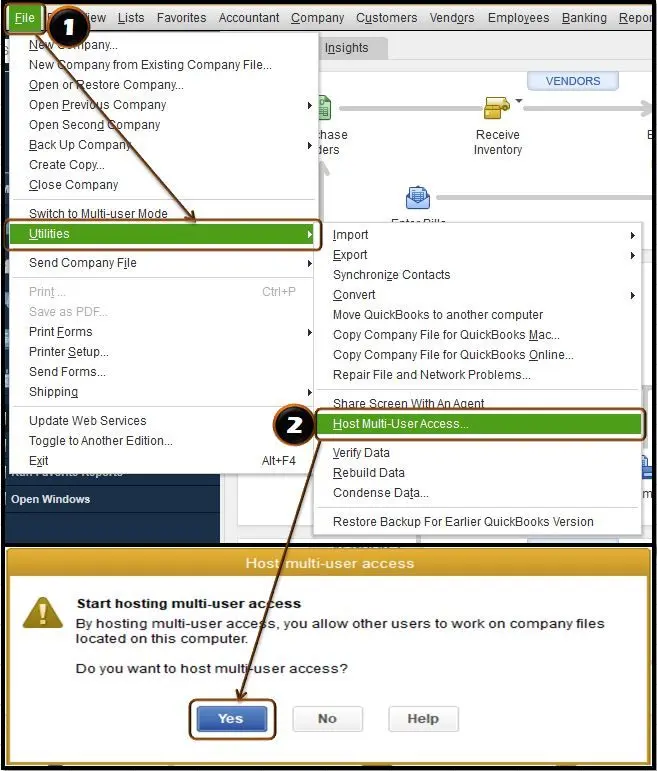
  • Adjust Startup Settings – Open services.msc and find the QuickBooksDBXX service for your version. Change its Startup type to Automatic. Set the options to “Restart the Service” if any failures occur in the Recovery tab.
services-msc
  • Check Hosting Configurations – Ensure that “Host Multi-User Access” is enabled only on the server or host machine and disabled on all regular workstations.
  • Update Firewall/Antivirus – Confirm that your Windows Firewall or any third-party antivirus is not obstructing QuickBooks ports (usually 8019, 56728, 55378-55382). Include QBDBMgrN.exe in your antivirus/firewall exclusions.
QBDBMgrN.EXE
  • Use QuickBooks Tool Hub – Execute the QuickBooks Database Server Manager and QuickBooks File Doctor from the QuickBooks Tool Hub to automatically scan folders and correct network communication issues.
  • Verify QuickBooks Versions – Ensure that the Database Server Manager version precisely matches the version of QuickBooks Desktop installed on client computers.

Conclusion

Encountering the QBDBMgrN Not Running on This Computer error can be quite frustrating. But knowledge of its causes and solutions can simplify the troubleshooting procedure. This problem arises from network settings, firewall configurations, or complications with the QuickBooks Database Server Manager. Confirm all required services are operational and security settings permit adequate communication to fix the issue.

Keep QuickBooks updated and conduct regular maintenance to prevent similar problems in the future. Seek professional help from Data Service Team experts +1(888)-718-7888 to ensure smooth accounting operations.

Frequently Asked Questions (FAQ’s)

This issue arises when the QuickBooks Database Server Manager service stops functioning. It enables your computer to host and share company files and stops functioning. QBDBMgrN not working on this computer error in QB occurs due to inactive Windows services, corrupted installation files, or firewall settings. It prevents the background application from interacting with your QuickBooks software.

Indeed, the QBDBMgrN service is crucial for QuickBooks Desktop to function properly in Multi-User Mode. This vital Windows service serves as the background engine on your host machine. It shares your company files through TCP/IP so that remote workstations can access and read the database at the same time.

The QuickBooks Database Server Manager (QBDBMgrN) functions as a background coordinator that oversees file access. It interacts with the Windows Firewall and facilitates communication between workstations on your local network. If this service is not active, this crucial link is interrupted. This leads to connection issues such as Error H202 and prevents other computers from finding the shared file.

QuickBooks depends on the QuickBooks Database Server Manager background service to enable multiple client workstations to access a hosted company file at the same time. If this service is not running, the host machine will halt its broadcast of file availability. This results in the inability of your multi-user mode to function because your workstation cannot connect. It connects to the shared company database across the network.

Your server is not responding because QBDBMgrN.exe is the background service responsible for hosting and managing your company files. If it ceases to run, client computers will lose their connection to the host system. QBDBMgrN not running on this computer in QuickBooks will result in a failure of multi-user access. It leads to network errors since the database engine needed to access your files is not active.

The quickest method to resolve the QBDBMgrN Not Running on the Server Computer is to reboot the service through Windows Services. Access the Run dialog (Windows+R), enter services.msc, and find the QuickBooksDBXX service (where XX refers to your specific version). Right-click on it and choose Restart. Then change the Startup Type to Automatic.

QuickBooks displays a network error when QBDBMgrN is not running. This service acts as a link for workstations to access company files stored on a server. If it is not active to handle the connection, the software is unable to interact with the data files. This leads to a connection failure.

About The Author

Steven Moody

Steven Moody is a bookkeeping and payroll specialist dedicated to helping businesses maintain accurate financial records and efficient payroll operations. His expertise includes payroll management, tax compliance, bookkeeping solutions, and financial reporting. Steven regularly shares insights on accounting best practices and business finance strategies. Outside of work, he enjoys traveling, exploring new places, and keeping up with the latest developments in business technology.

Steven Moody

QuickBooks Error

How to Fix QuickBooks Error H202 and Restore Multi-User Access

Read More
QuickBooks Error

QuickBooks Error 80029c4a: Why It Happens and How to Fix It

Read More
QuickBooks

QuickBooks Won’t Open? Causes and How to Fix It

Read More
QuickBooks Desktop

QuickBooks Subscription Has Lapsed : How to Renew & Fix It

Read More
QuickBooks

QuickBooks Multi-User Mode Not Working? Get Expert Solutions

Read More