
QuickBooks-Error-6000-83

Are you encountering QuickBooks Error 6000, 83 while trying to access the company file? You are not alone. This error can disrupt workflow and create obstacles in your business processes. Understand the nature of this error to maintain accuracy in the financial management. It indicates a file access issue and can be caused by a different factors.

It includes network connectivity problems, incorrect folder permissions, damaged company files, or interference from antivirus software. In this complete guide, we will walk you through what leads to QuickBooks Error 6000 and 83, how to identify it, and the simple solutions to resolve it.
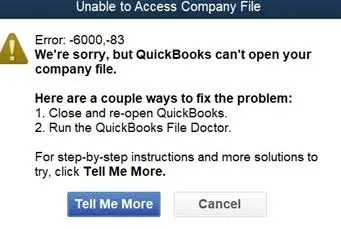
QuickBooks Error 6000 83

What Does QuickBooks Error 6000, 83 Mean?

The QuickBooks error 6000, 83 appears when you are unable to view, restore, or back up the QB Company file. It stems from file corruption, incorrect network setup, or permission problems. This error can occur when the software encounters a discrepancy in the file path or when the company file is located on a network or external drive that is not configured correctly.

It can affect the workflow and affect the process to manage business tasks along with financial data. It impacts overall productivity and necessitates immediate resolution. Understand everything about this error to ensure smooth financial operations.

How is QuickBooks Error 6000, 83 Caused?

QuickBooks Error 6000, 83 suggests that the software is unable to open the company file due to file damage or insufficient permissions in the folder. This stems from network conflicts, corrupted files, or permission errors. Read the pointers below to know the primary causes:

  • The company file, the Transaction Log, or the Network Data configuration files are damaged.
  • Multi-user hosting is turned on across multiple computers. The server or main computer should be hosting the company file.
  • The Windows user does not have the necessary Read/Write folder permissions to access or modify the company file.
  • Your Windows Firewall or third-party antivirus blocks QuickBooks from communicating with the server.
  • When you attempt to restore a backup file. It has an invalid name or is corrupted.
  • The folder path to the company file is too long.

What are the Symptoms of the QuickBooks Error 6000, 83?

QuickBooks error 6000, 83 indicates a company file corruption or an issue with folder permissions and network hosting. It prevents you from accessing or restoring the financial data. The common signs and symptoms include:

  • The QuickBooks error 6000, 83 indicates the program failed to access the company file.
  • The company file refuses to open, or it appears grayed out and unavailable.
  • QuickBooks freezes, becomes sluggish, or unexpectedly shuts down when attempting to load a file.
  • You are not able to back up your current company file or restore a previous backup in QuickBooks.
  • Multi-user mode disconnects or stops working entirely.
  • The computer or the network server responds slowly when trying to open the shared file.

Data Service Team Tip: Many users often experience the QuickBooks Error 6000, 83. It indicates a problem in the company file, such as damage or wrong hosting settings.

Proven Methods to Resolve the QuickBooks Error 6000, 83

Are you struggling with QuickBooks Error 6000, 83 while opening, restoring, or backing up your company file? Do not stress! We have outlined different methods to fix QuickBooks File Backup Error 6000, 83:

Method 1: Turn Off Hosting on Your Workstations

Ensure that the Host Multi-User Access feature is disabled on your workstations to manage your company files via a network. These workstations are the computers linked to your network that do not host your company files. The server computer should be responsible for hosting.
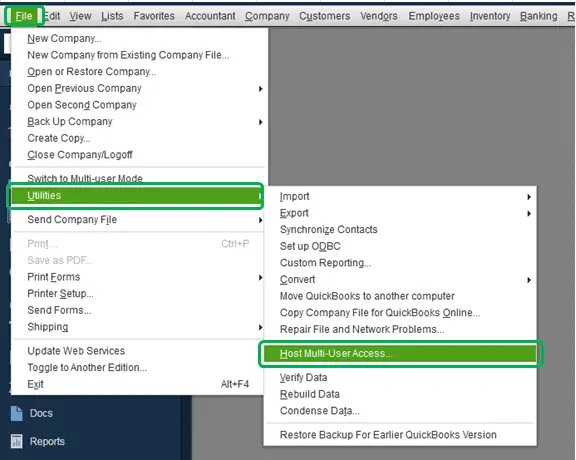
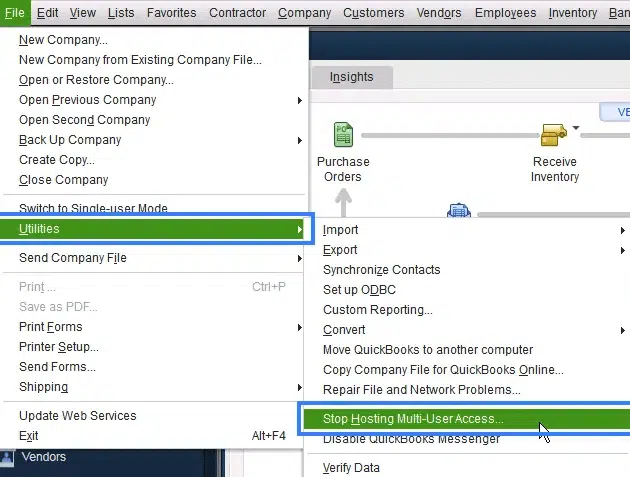
  • Launch QuickBooks on one of your workstations.
  • Do not open your company file.
  • Instead, go to the File menu and hover over Utilities.
  • If you notice the Host Multi-User Access option, avoid selecting it.
Host-Multi-User-Access
  • Proceed to the next workstation.
  • This one is not the source of the QuickBooks File Backup Error 6000, 83.
  • Go ahead and choose it if you have the option to select Stop Hosting Multi-User Access.
Stop-Hosting-Multi-User-Access.png

Method 2: Use QuickBooks File Doctor

Users can download the QuickBooks File Doctor tool from the official Intuit website and run it to resolve the QuickBooks Desktop Error Code 6000, 83. The tool can be used through QuickBooks Tool Hub or can be downloaded. We will discuss the steps to be followed through the tool hub:
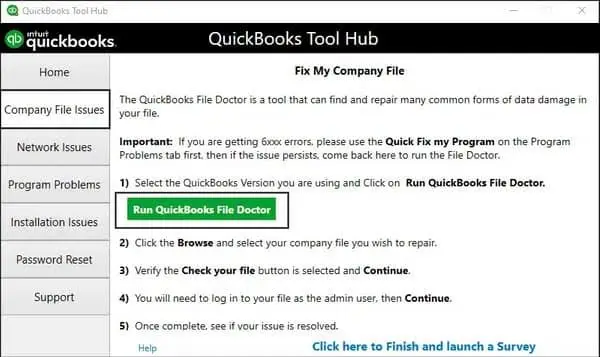
  • To start, download the QuickBooks Tool Hub program.
  • Move to the Company file issues tab once the download process comes to an end.
  • Click on a Run QuickBooks File Doctor option from the file issues tab.
Company-File-Issues-run-Quickbooks-file-docotor
  • It might take a few moments to open up.
  • Select Browse button to choose a damaged company file name in the File Doctor tool.
  • Select the Check your File option and hit Continue.
  • Type the credentials and click the Next button.
  • The process might take some time based on the file size.
  • The bug will be resolved on its own, and you are good to go once the scan process completes.

Method 3: Check & Edit Host File

Users can see the QuickBooks 6000, 83 if there is an issue with the host file or network. Check and edit the Windows host file using the steps below:

  • Verify the computer name and IP address of the server along with all the workstations.
  • Open the v on your screen to check this.
  • Enter ipconfig/all.
  • It will display your system name and IP address.

Now, edit the host file using the given steps:

  • Quit your QuickBooks application.
  • Move to the Windows Start button on the server system.
  • Click on the Computer tab.
  • Consider the provided path: C:\Windows\System32\Drivers\Etc.
  • Find and double-click on the hostname and select Notepad.
  • Write the IP address with the computer name.
  • Enter a space using the Tab key.
  • Select File menu and click Save once you complete updating the IP addresses in your Notepad on your server and workstations.
  • Fill in the file name as host with the quotation marks.
  • Select Desktop and click Save.
  • Search for the file and right-click on it.
  • Click on the Rename option.
  • Rename the host file and click on Continue.
  • Press Ctrl+V and select the Continue tab.

Method 4: Fix the Issue Manually

If you are seeking a way to fix QuickBooks Error 6000, 83, adhere to these guidelines:

  • Ensure that you have updated the QuickBooks application to its latest version.
  • Change the firewall settings accordingly.
  • Configure your Internet Security or Windows Firewall to prevent QuickBooks from being blocked when trying to connect to the server.
  • Once completed, scan the folder with the QB company file and confirm that you have permission to access the business file to create the Network Description.
  • Attempt to open it from a different location to check if the location of the company file is causing QuickBooks Desktop Error Code 6000, 83.
  • Move on to the next step if it is indeed affected.

If Necessary, Adjust the Permissions:

  • Use QBDBSM to ensure that the server machine is operating in hosting mode, and also disable PC hosting.
  • Confirm that the task manager displays the QBSBMgrn.exe file.
  • Try to open the QB company file on the host system.
  • Copy the original and cloned files to your Windows desktop and open them.
  • Employ the QB auto data recovery tool to restore the backup if the problem persists.
  • Select Rename tab and copy it back to its original destination once the company file successfully loads.
  • The final step is to launch QuickBooks along with the company file.
  • Check whether the QuickBooks Company File Error 6000, 83 is still present.

Method 5: Run QuickBooks Database Server Manager

The QuickBooks Database Server Manager is an excellent tool as it can address a variety of issues within QB Desktop.

  • Open the Windows Start menu.
  • Navigate to Programs and Files.
  • Look for the QuickBooks Database Server Manager.
  • Go through the list of applications and select the same program.
  • Click on the Add Folder button.
  • Try to locate the QuickBooks installation folder.
  • If you are unable to find it, go to the location C:\Users\Public\Documents\Intuit\QuickBooks.
  • Select the Scan button.
  • Click Close once the scan shows all the data and company files.
  • Ensure that you have created a .nd file for your company file.

Method 6: End All QuickBooks Processes

Users need to end all the QuickBooks processes. Go through the given steps to do so:

  • Log in as an administrator on the server.
  • Press Ctrl + Shift + Esc to access the Task Manager.
  • Select Users tab and click on the Show processes.
  • Highlight the QuickBooks processes such as QBDBMgr.exe, qbupdate.exe, and QBW32.EXE.
  • Select the End task button.
  • Choose the Company file in multi-user mode.
  • Check if the problem has been resolved or not.

Data Service Team Tip: One of the most common reasons for QuickBooks Error 6000, 83 is insufficient folder permissions. Contact US to get immediate assistance and fix this issue quickly.

Case 1: When You Are Creating a Backup of Your Company File

  • Close QuickBooks Desktop on the server computer that hosts your company file.
  • Access the File menu and choose Quit QuickBooks Desktop.
  • Open the Windows Start menu.
  • Search for File Explorer and launch it.
  • Select My Computer from the navigation menu, which may be referred to as This PC.
  • Select it to open your C: drive.
  • Right-click on an empty area of the screen.
  • Choose New, and click Folder to create a new folder.
  • Name it something straightforward, like QB Test Folder.
  • Proceed to create a backup of your company file.
  • Select the folder you just made on your C: drive when prompted by QuickBooks about where to save the backup.
  • Follow the necessary steps to restore your company file using the backup you created.
  • Use your backup as your primary company file if the QuickBooks Desktop Error Code 6000, 83 message no longer appears.
  • Do not use your old company file from this point on.
  • Rename it to prevent any accidental usage.
  • If you continue to encounter QuickBooks Company File Error 6000, 83, refer to the section for your server setup (Windows or Linux) and complete the outlined steps.

Case 2: When You Restore Your Company File

Solution 1: Check Your Backup Filename

Ensure that your backup company filename and the folder containing it do not have any symbols, special characters, or spaces.

  • Access the Windows Start menu.
  • Input File Explorer in the search bar and launch File Explorer.
  • Locate and open the directory that contains your backup company file.
  • Right-click on the file ending with .QBB and choose Rename.
  • This file is your backup company file.
  • Remove special characters, symbols, or spaces from the filename.
  • Right-click on the folder that contains the QBB file and select Rename.
  • Remove any special characters, symbols, or spaces.
  • Proceed with the steps to restore your company file.

Solution 2: Create a Portable Company Filename

  • Go back to and open the company file you created the backup from if you cannot restore your QBB file.
  • Consider the steps to make a portable company file.
  • Use the portable file to restore the company file.

Case 3: When You Keep Company File on a Windows Server

Solution 1: Restore a Backup Company File

QuickBooks utilizes the backup company file (.qbb) to generate a new company file (.qbw) when you perform a restore.

  • Go to the File menu and choose Open or Restore Company in QuickBooks.
  • Select Restore a backup copy option and click Next.
  • Select Local Backup and click Next.
  • Find backup company file on your computer.
  • Choose a folder where you would like to save your restored company file, and then click Open.
  • Rename either your existing company file or the backup so that the names are distinct to prevent overwriting any information.
  • Save the backup in a different folder.
  • When you are ready, click Save.
  • Choose the option that suits your requirements best If you get notifications about the possibility of overwriting your data.
  • Do not overwrite anything unless you are certain that is what you want to do.

Data Service Team Tip: If you restore the backup file in the same directory as your current company file, you could accidentally overwrite your data.

Case 4: When You Keep Your Company File on a Linux Server

Solution 1: Configure Your Linux Server

Open Linux Database Server Manager on the server.
Implement the steps to configure Database Server Manager and directory in the Initord. confconf file.
Restart QuickBooks Enterprise on your host computers.

Solution 2: Scan Your QuickBooks Company File

You should initiate the scanning process for the company files through the QuickBooks Database Server Manager. This will address and fix any problems caused by network-related issues. Perform the scan only once to initiate the process. Follow the steps below again to scan the company file.

  • Find the Windows Start menu on your computer. Click on it
  • Type Database into the search field and open the QuickBooks Database Server Manager.
  • Navigate to the Scan Folders tab.
  • Click on Browse and select the folders containing your company files (QBW).
  • Click OK to finish the process.
  • Choose Start Scan when you are ready.

Folders will be displayed in the QuickBooks Company files found section once the scan completes. Users can access the files in these folders from other computers connected to the same network.

Preventive Tips To Avoid QuickBooks Company File Error 6000, 83

Check out the given tips to avoid facing this error in the future and enjoy a smooth experience with QuickBooks:

  • Must have a fresh backup of your company file.
  • You must have sufficient permission to open the company file.
  • The file location must be convenient and easy to reach.
  • Constantly use QuickBooks Tool Hub and File Doctor.
  • Use QuickBooks Database Server Manager on a daily basis for .ND and .TLG files.

Data Service Team Tip: Computer crash and need to restore company backup on another computer. It cannot restore the company file and is receiving 6000 -83 error. The error indicates that QuickBooks cannot communicate with the company file because of permission issues, network configuration problems, damaged company files, or incorrect folder settings.

Conclusion!

It can be frustrating to encounter a QuickBooks Error 6000, 83 but you can resolve the issue with ease with knowledge of its causes and possible solutions. Address these aspects to restore your QuickBooks functionality whether it occurs due to a damaged company file, misconfigured settings, or insufficient permissions. Back up your company file daily and keep your software updated to mitigate future errors. It ensures seamless financial management.

If the problem persists, reach out to the Data Service Team professional at +1(888)-718-7888 for further assistance. Stay informed and proactive to maintain a smooth financial management experience.

Frequently Asked Questions (FAQ’s)

QuickBooks error 6000, 83 occurs when the software is blocked from communicating with the company file. This happens due to corrupted configuration files, incorrect multi-user hosting settings across your network, insufficient Windows folder permissions, or a corrupted company file. All these causes prevent complete access.

Yes! Users can fix QuickBooks error 6000, 83 without losing the data. The safest approach is to use the QuickBooks Tool Hub to run the Quick Fix My File tool or the QuickBooks File Doctor. It automatically repairs file and network issues without the requirement of core financial records.

QuickBooks error 6000, 83 occurs when the program cannot communicate with or access your company file. It happens due to file corruption, improper folder permissions, or network connectivity issues. It is triggered by a damaged configuration file, restrictions caused by Windows Firewall, antivirus software, or trying to host a file on different computers at the same time in a multi-user environment.

Yes! It is safe to use the Rebuild Data but it is not the primary fix for QuickBooks error 6000, 83. This error is caused by network connectivity, incorrect folder permissions, or corrupt configuration files rather than damaged files. Safely resolve the issues by hosting the file, renaming configuration files, or running the QuickBooks File Doctor from the tool hub to attempt an internal rebuild.

Yes! Users can resolve QuickBooks error 6000, 83 when they move the company file to a local drive. This issue occurs during file hosting, backup, or restoration when network connectivity fails or folder permissions block access. A user can easily resolve this issue and bypass server interruptions by bringing the file local. It allows you to open or restore the file.

The company file or its hosting environment has severe data corruption or network misconfiguration when basic troubleshooting fails to resolve Error 6000, 83. Restore the recent backup copy of your company file to a local drive to avoid the network and seek Intuit support or a data recovery professional for advanced file restoration.

About The Author

Steven Moody

Steven Moody is a bookkeeping and payroll specialist dedicated to helping businesses maintain accurate financial records and efficient payroll operations. His expertise includes payroll management, tax compliance, bookkeeping solutions, and financial reporting. Steven regularly shares insights on accounting best practices and business finance strategies. Outside of work, he enjoys traveling, exploring new places, and keeping up with the latest developments in business technology.

Steven Moody

Payroll

How to Resolve QuickBooks Payroll Update Not Working Problems?

Read More
Payroll

QuickBooks Assisted Payroll: Setup, How It Works & Benefits

Read More
QuickBooks Error

QuickBooks Error H303: How to Fix Multi-User Mode Connection Issue?

Read More
QuickBooks Error

How to Fix QuickBooks Error 6000 77 While Accessing Company File

Read More
QuickBooks Error

Can’t Install QuickBooks Desktop? Here’s How to Fix It

Read More
