When working with QuickBooks Desktop, users may face issues that prevent the software from connecting properly with company files. One such issue is the QBCFMonitorService Not Running error, which generally appears when the service fails to start, stops unexpectedly, or crashes in the background.
This Error can occur due to various reasons like incorrect service settings, firewall restrictions, outdated QuickBooks components, or problems with the QuickBooks database server manager.
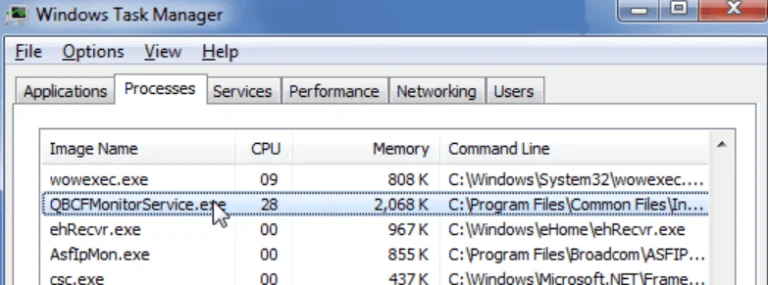
This guide covers everything you need to know about the QBCFMonitorService Not Running error, like its possible causes, symptoms, and effective solutions to get QuickBooks working properly again.
The QBCFMonitorService Not Running error indicates that the QuickBooks background service responsible for network communication is not working as expected. The service may be stopped, disabled, or unable to start due to system or software-related issues.
When this happens, QuickBooks may fail to communicate with the server where the company file is stored. As a result, users may experience problems while opening company files, accessing multi-user mode, or connecting to QuickBooks over the network.
This depends on the QuickBooks or Windows version; you may face multiple variations of this error message:
When QBCFMonitorService stops working, QuickBooks may not function as expected. Instead of showing the Error immediately, you may first notice certain signs that indicate the service isn’t running properly.
Here are some common symptoms to look for:
If you notice one or more of these symptoms, checking the status of the QBCFMonitorService should be one of the first troubleshooting steps.
The QBCFMonitorService Not Running error can occur for several reasons. Identifying the exact cause can make it easier to apply the right solution and get QuickBooks working again.
Below are some of the most common reasons behind this Error:
If the QBCFMonitorService is disabled in Windows Services, QuickBooks won’t be able to use it when needed. As a result, the service may fail to start, causing connection issues with the company file.
The QuickBooks Database Server Manager works alongside QBCFMonitorService to allow multiple users to access the same company file. If the Database Server Manager is outdated, damaged, or not configured correctly, it can prevent the service from operating properly.
Your Windows Firewall or third-party antivirus software also blocks the QuickBooks services from communicating over the network. This can stop QBCFMonitorService from starting or maintaining a stable cOutdated QuickBooks Desktop
If your QuickBooks program files are corrupted or deleted, QBCFMonitorService Not Running in QuickBooks Desktop correctly. This constantly happens after an incomplete installation, an interrupted update, or unexpected system shutdowns.
Using an older version of QuickBooks Desktop can lead to compatibility issues with Windows and other QuickBooks components. Installing the latest updates often resolves service-related problems.
In a multi-user environment, the server computer should host the company file, while workstations should not. If hosting is enabled on the wrong computer, QuickBooks may experience network conflicts that affect QBCFMonitorService. Incorrect hosting settings can also cause Incorrect hosting settings can also cause QuickBooks Hosting Mode is Off errors. errors.
QBCFMonitorService requires the necessary Windows permissions to start and run properly. If the service doesn’t have the required access, it may stop unexpectedly or fail to launch.
When QBCFMonitorService not running, QuickBooks may face problems connecting with company files or working in multi-user mode.
To fix this problem, start with the basic troubleshooting methods first, and then move toward advanced fixes if the problem continues.
In some conditions, the service may stop because of a temporary system issue. Restarting this manually can help you refresh the connection. Here are the steps to follow:
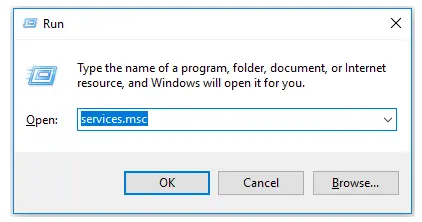
After restarting the service, you can try to open the company file and check whether QuickBooks is working normally.
If QBCFMonitorService not running automatically after turning on your computer, you can change its startup settings to fix it. Here’s how:
Incorrect hosting settings are one of the common reasons behind network-related QuickBooks issues. To check hosting settings, follow these steps:
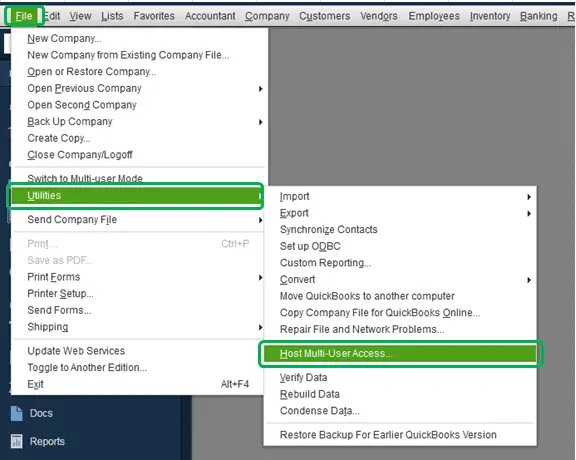
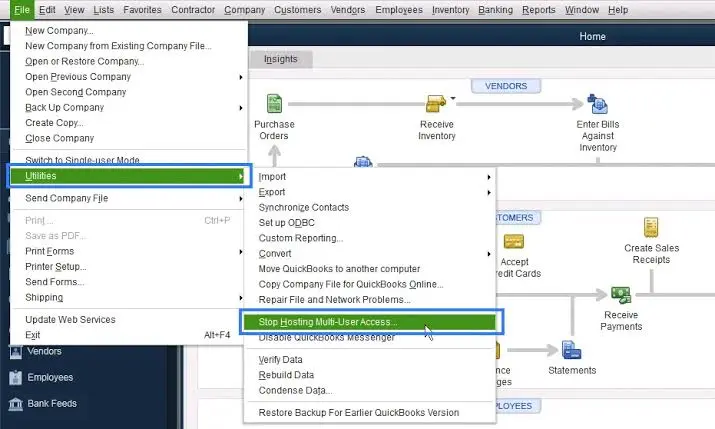
After changing the settings, you can restart your QuickBooks and check whether the QBCFMonitorService issue is fixed.
QuickBooks Database Server Manager helps manage company files stored on a network. If this tool is not working correctly, it can affect QBCFMonitorService and cause connection problems. Follow these steps:
This process refreshes the network connection and helps QuickBooks detect company files properly.
Running the outdated version of QuickBooks can create compatibility problems with Windows services. Here’s how to update QuickBooks:
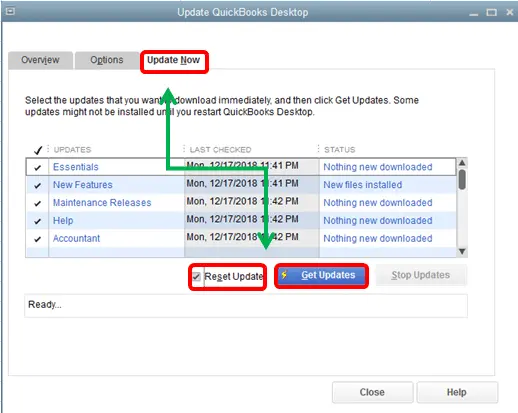
The QBCFmonitorservice not running problem also happens due to firewall or antivirus programs. These prevent QuickBooks from accessing the required files and network connections.
QuickBooks uses various executable files to perform different tasks, and blocking any of these files can affect services like QBCFMonitorService.
To fix this issue, you need to add QuickBooks program files as firewall exceptions. Here’s how:
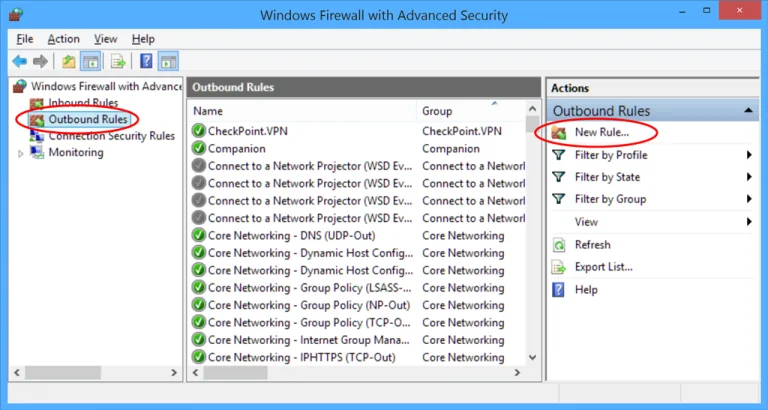
Repeat the same steps under Outbound Rules to allow QuickBooks files to communicate through the network.
QuickBooks Executable Files to Add as Firewall Exceptions
| Executable File | Default File Location |
| AutoBackupExe.exe | C:\Program Files\Intuit\QuickBooks YEAR |
| Dbmlsync.exe | C:\Program Files\Intuit\QuickBooks YEAR |
| DBManagerExe.exe | C:\Program Files\Intuit\QuickBooks YEAR |
| FileManagement.exe | C:\Program Files\Intuit\QuickBooks YEAR |
| FileMovementExe.exe | C:\Program Files\Intuit\QuickBooks YEAR |
| QuickBooksMessaging.exe | C:\Program Files\Intuit\QuickBooks YEAR |
| QBW32.exe | C:\Program Files\Intuit\QuickBooks YEAR |
| QBDBMgrN.exe | C:\Program Files\Intuit\QuickBooks YEAR |
| QBServerUtilityMgr.exe | C:\Program Files\Common Files\Intuit\QuickBooks |
| QBCFMonitorService.exe | C:\Program Files\Common Files\Intuit\QuickBooks |
| QBLaunch.exe | C:\Program Files\Common Files\Intuit\QuickBooks |
| QBUpdate.exe | C:\Program Files\Common Files\Intuit\QuickBooks\QBUpdate |
| IntuitSyncManager.exe | C:\Program Files\Common Files\Intuit\Sync |
| OnlineBackup.exe | C:\Program Files\QuickBooks Online Backup |
Note: If you are using a 64-bit Windows operating system, some QuickBooks files may be located in the Program Files (x86) folder instead of the regular Program Files folder.
After adding these exceptions, restart your computer and open QuickBooks again. Check whether the QBCFMonitorService Not Starting or Crashing issue has been resolved.
Apart from allowing QuickBooks program files through the firewall, you may also need to open specific QuickBooks firewall ports. If these ports are blocked, QuickBooks may face connection issues.
Follow these steps to add QuickBooks port exceptions:
Repeat the same process for Outbound Rules to create outgoing connections for QuickBooks.
The required ports may vary depending on your QuickBooks Desktop version. Here is the list of common QuickBooks Desktop ports:
| QuickBooks Desktop Version | Firewall Port Numbers |
| QuickBooks Desktop 2020 | 8019, 56729, 55373-55377 |
| QuickBooks Desktop 2021 | 8019, 56730, 55373-55377 |
| QuickBooks Desktop 2022 | 8019, 56731, 55373-55377 |
| QuickBooks Desktop 2023 | 8019, 56732, 55373-55377 |
| QuickBooks Desktop 2024 | 8019, 56733, 55373-55377 |
Note: If you are unsure about your QuickBooks port number, you can open the QuickBooks Database Server Manager and use the Port Monitor tab to check the ports assigned to your QuickBooks version.
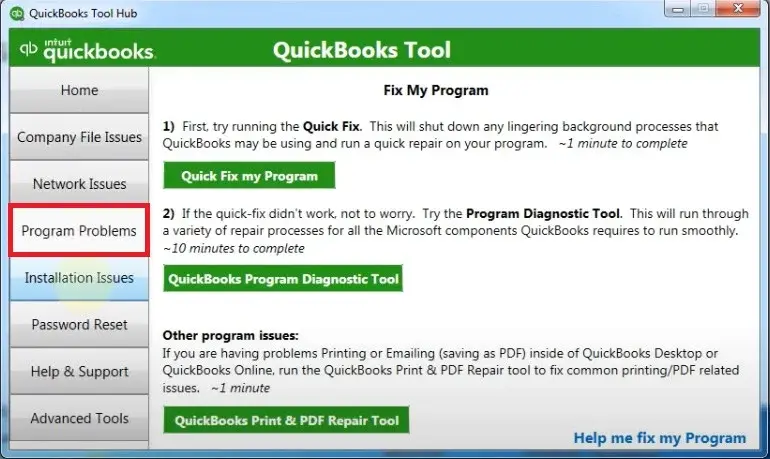
Repairing QuickBooks by using QuickBooks Tool Hub can help you fix issues with QuickBooks components and background services. Here’s how to fix:
Prevention Tips to Stop QBCFMonitorService Not Running Issues
To avoid facing the QBCFMonitorService Not Running error again, follow these simple tips:
Always install the new QuickBooks updates to avoid compatibility issues.
A reliable connection helps QuickBooks communicate with company files smoothly.
Make sure firewall and antivirus settings do not block QuickBooks services.
Correct configuration helps prevent multi-user connection problems.
Keep backups of your company files to protect your important data.
Hopefully, you have understood why the QBCFmonitorservice not running problem occurs and how to easily fix it by following the above-mentioned solutions. Users may face these errors due to stopped services, firewall restrictions, network problems, or damaged program files.
By restarting the service, checking QuickBooks settings, updating the software, and configuring firewall permissions, you can resolve the problem and restore normal QuickBooks operations. If you are still facing the same error or need further help, immediately get in touch with Data Service Team experts at +1(888)-718-7888.
To fix this error, you can restart your QBCFMonitorService from Windows Services. You can also update QuickBooks, verify hosting settings, and configure firewall permissions if required.
When QBCFMonitorService stops working, QuickBooks may face problems connecting with company files.
The service may fail to start due to incorrect Windows settings, disabled services, firewall restrictions, or damaged QuickBooks components. Updating or repairing them can help you resolve the issue.
You should restart your computer first and check whether QuickBooks services are running properly. If the issue continues, run QuickBooks Database Server Manager or repair QuickBooks files using QuickBooks Tool Hub.
Yes, users can encounter this error in different QuickBooks Desktop versions, like newer releases. It is related to service settings, network configuration, or system restrictions.
Before troubleshooting, you must check your QuickBooks version, internet connection, firewall settings, hosting configuration, and QuickBooks Database Server Manager status.
Yes, this error can affect QuickBooks Multi-User Mode because the service helps maintain communication between the server and workstations.
If the service keeps stopping, restart it and change its startup type to Automatic. You should also check for QuickBooks updates, firewall blocks, or damaged program files.
No, fixing this error does not delete your company data because the troubleshooting steps focus on QuickBooks services and settings.




