QuickBooks Web Connector Error QBWC1039 appears when QuickBooks Desktop fails to connect with a third-party application. This usually happens when the application does not have the required permission to access the QuickBooks company file or when the connection settings are incorrect.
When this error occurs, QuickBooks Web Connector may stop syncing data or prevent you from adding a new application. Users may see messages related to application permissions, company file access, or problems adding the application.
In this guide, we will explain the common causes of the QuickBooks Web Connector Error QBWC1039 and provide step-by-step solutions to fix the issue.
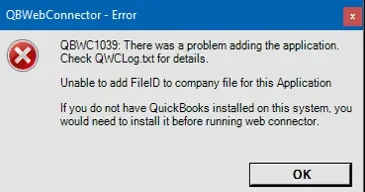
You may notice the following signs when the QuickBooks Web Connector error QBWC1039 occurs:
QBWC1039 usually occurs when QuickBooks Web Connector cannot properly authorize or connect a third-party application to the company file.
If QuickBooks cannot locate the company file after it has been moved or renamed, see our guide on QuickBooks company file not found for additional troubleshooting steps. This can interrupt the connection and trigger QBWC1039.
Your QuickBooks program requires authorization before a third-party application can access company file data. If the application does not have proper permissions, it can display error code QBWC1039.
The Web Connector Error QBWC1039 in QuickBooks also occurs when you try to add an application that is already connected to QuickBooks Desktop. Adding the same application multiple times can create an OwnerID/FileID conflict and prevent the web connector from establishing the connection.
Wrong Web Connector settings can prevent a third-party application from accessing QuickBooks, especially when QuickBooks Desktop is closed. Enabling the required automatic login and authorization settings may resolve the error.
An outdated QuickBooks version may contribute to compatibility problems with Web Connector. Before you troubleshoot the problem, check that your installed QuickBooks versions are updated to the latest version of QuickBooks.
If the QWC file was added without signing in as the QuickBooks Admin, the application may not have permission to access the company file. Sign in as Admin, switch to Single-User Mode if required, and add the application again.
The QuickBooks Web Connector error QBWC1039 can appear with different messages depending on what’s causing the connection problem.
Before trying a troubleshooting method, check the exact message shown on your screen. Once you identify the message, follow the solution that matches your situation.
This can happen if you renamed the company file, moved it to another location, or if the third-party application isn’t compatible with the current setup. It can also occur when Web Connector isn’t configured to run while QuickBooks Desktop is closed.
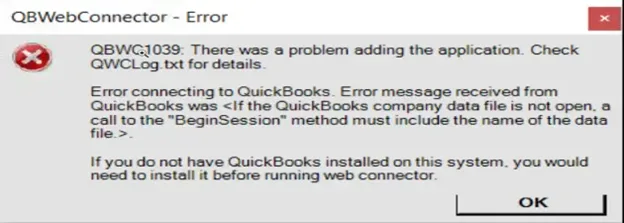
Here’s how you can fix this:
If you recently renamed the company file, change it back to its previous name. If you moved the File, create a backup and restore it to its previous location.
If you’ve intentionally moved the company file, you may also need to contact the third-party application’s support team and ask them to update the file location.
If Web Connector doesn’t run when QuickBooks is closed
You can enable automatic login for the connected application by following these steps:
After completing these steps, try running the Web Connector again to check whether the QBWC1039 error has been resolved.
This QuickBooks Web Connector error QBWC1039 can occur when the Web Connector cannot locate the QuickBooks company file because its location has changed. If QuickBooks is also having trouble connecting to the server, see our guide on QuickBooks not connecting to server.
First, locate your QuickBooks company file and verify its current location. If the company file is stored on a network and QuickBooks cannot access it correctly, you may also need to check the QuickBooks Database Server Manager. You can also find the File manually through File Explorer:
The usual location for QuickBooks Desktop company files is: C:\Users\Public\Public Documents\Intuit\QuickBooks\Company Files.
If the company file was moved, the connected application may still be referring to its previous location. In that case, you may need to contact the third-party application’s support team to update the file location.
Once the correct company file location is confirmed, try connecting the application through QuickBooks Web Connector again.
This message can appear when the QuickBooks company file isn’t open, or its location has been changed. If the QuickBooks update itself becomes stuck or fails to complete, see our guide on QuickBooks Update Stuck. Steps to fix this error:
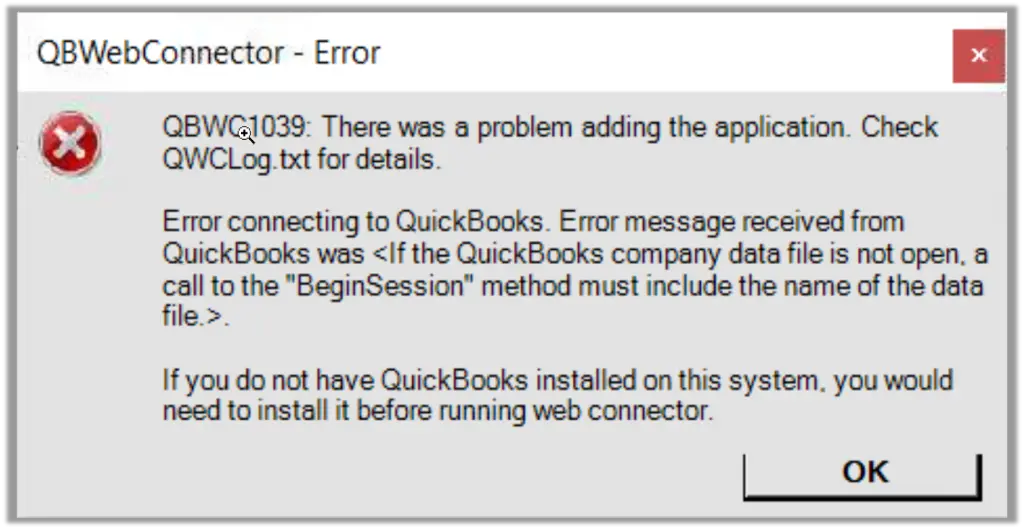
This error is generally related to Web Connector not being configured to work when QuickBooks isn’t open. A renamed or relocated company file can also contribute to the problem.
To allow the connected application to log in automatically when QuickBooks is closed:
If you recently renamed or moved the company file, restore its previous name or location and then try connecting the application again.
If QuickBooks is asking for administrator access or you cannot complete the authorization process, see our guide on the QuickBooks Administrator Permission Needed Error.
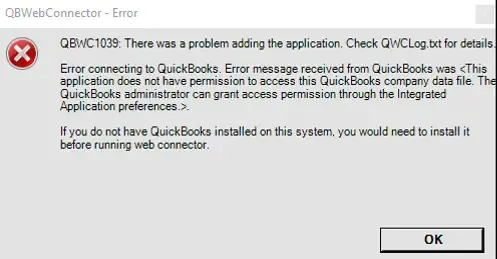
If you’re not the QuickBooks Admin, ask the Admin to follow the steps below. How to fix it:
Once the application has been authorized, try connecting it through QuickBooks Web Connector again.
Note: For more information about application permissions, see Intuit’s guide on managing permissions for apps to access a QuickBooks company file.
This message can appear when you add the application’s QWC file to QuickBooks Web Connector without being signed in to QuickBooks as the Admin. How to fix it:
After adding the application with Admin access, you can fix the QuickBooks Web Connector error QBWC1039 and try running the Web Connector again.
This message can occur when an application has been added to Web Connector multiple times. Intuit recommends adding an application only once in a particular location.
Repeated attempts to add the same application can therefore lead to a FileID-related conflict. Here’s how to fix this:
This message appears when an application is already registered with QuickBooks, and you attempt to add it again.
QuickBooks uses the OwnerID/FileID combination to identify an application connection. If the same application is already associated with the company file, attempting to create another connection can result in this error.
You can use the CP3 Tool to remove the existing Owner ID and then reconnect the application. Here’s how to fix this:
Once you have fixed QuickBooks Web Connector error QBWC1039, a few simple practices can help prevent the error from coming back:
Hopefully, this detailed guide has helped you understand what causes QuickBooks Web Connector error QBWC1039 and how to deal with its different error messages. Since the QBWC1039 issue can occur for different reasons, the solutions depend on the exact message you see.
Before making any major changes, you should check the company file location, application permissions, Web Connector settings, and QuickBooks Desktop version. If the error still appears after trying the relevant solution, check the Web Connector log or contact the Data Service Team +1(888)-718-7888 for further help.
QuickBooks Web Connector error QBWC1039 normally occurs when Web Connector can not properly connect a third-party application with the QuickBooks company file. Users encounter this error code due to permission issues, changed file locations, duplicate connections, or outdated software.
Yes, you can easily remove an application you no longer need or want to reconnect. Before removing it, make sure you have a recent backup of your QuickBooks company file.
Reinstalling Web Connector can help if the issue is related to its installation or version. However, permission, company-file, or duplicate-application issues may require a different solution.
Keep QuickBooks and Web Connector updated and avoid unnecessarily moving or renaming your company file. Also, add each third-party application only once and maintain the required permissions.
Yes, problems can occur if different users add or authorize an application incorrectly. Application setup should generally be handled by the QuickBooks Admin using the required Single-User Mode settings.
Yes, creating a recent backup is recommended before making changes to your company file or application connections. This gives you a way to restore your data if something goes wrong.
Check the exact error message again and follow the solution that matches it. If the error continues, review the company file location, permissions, Web Connector settings, and QuickBooks version.




