
Getting QuickBooks Error 1603 while installing or updating QuickBooks Desktop can stop the setup before it finishes. You may see messages such as “The update installer has encountered an internal error,” or There was a problem installing Microsoft .NET Framework.”
The error generally occurs when Windows can not complete the QuickBooks installation or update. Damaged installation files, pending Windows updates, problems with Windows components, insufficient permissions, or software conflicts can all be involved.
This guide explains what QuickBooks error 1603 means, what can cause it, and what you can do to troubleshoot the problem step by step.
The QuickBooks Desktop Error 1603 is an installation-related error that can prevent QuickBooks from completing an installation or update. You may encounter it when:
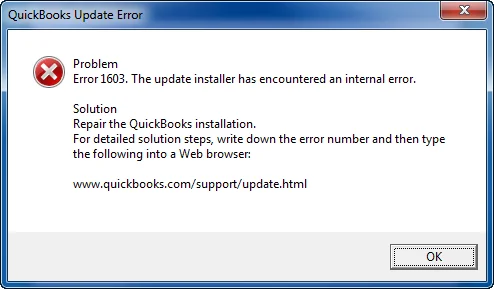
Here are some messages associated with error 1603 include:
If the message identifies a particular Windows component, make a note of it. That information can help you choose the right troubleshooting step.
The QuickBooks Error 1603 in QuickBooks Desktop does not always have a single cause. It can occur when Windows can not access, install, update, or configure something required by QuickBooks. Some common causes include:
Checking the exact error message before troubleshooting can help you determine where to start.
Try the following Solutions in order. Start with the less invasive options and test QuickBooks after each one. If the error disappears, you can stop without completing the remaining steps.
QuickBooks Tool Hub includes the QuickBooks Install Diagnostic Tool, which can help you identify and repair certain problems that interfere with QuickBooks installation.
If QuickBooks Tool Hub is not already installed:

If Tool Hub is already installed, make sure you’re using the current version before continuing.
In QuickBooks Tool Hub:
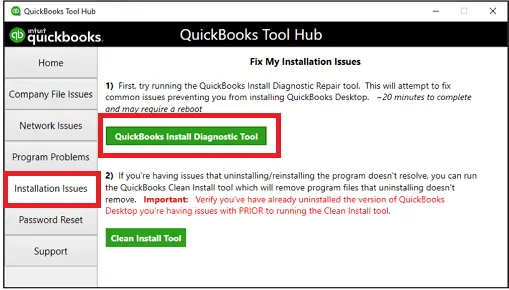
The diagnostic process can take some time, so don’t close the tool while it is running. If QuickBooks installs or updates successfully, there is no need to continue with the remaining methods.
QuickBooks relies on Windows components during installation and updates. If Windows has pending updates or needs to restart to finish an earlier update, completing those updates may help. To check for Windows updates:
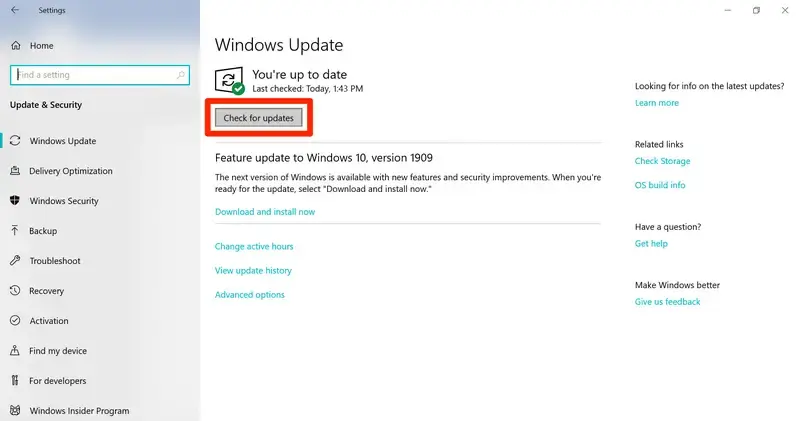
If Windows reports that everything is up to date but QuickBooks Error 1603 continues, make sure you have also updated QuickBooks Desktop before moving to the next method.
If Error 1603 mentions Microsoft .NET Framework, or the installation continues to fail after using the Install Diagnostic Tool, check the Windows components involved in the installation.
If the error specifically mentions .NET Framework:
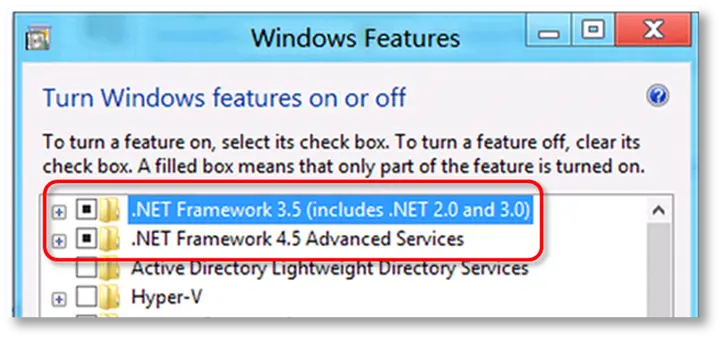
Avoid using outdated commands or registry changes from unofficial troubleshooting websites. The appropriate repair process can vary depending on the Windows version and .NET Framework version installed.
MSXML is another Windows component that may be involved in QuickBooks installation problems.
If QuickBooks still fails to install and the error points toward MSXML:
Use current official instructions rather than older procedures designed for previous versions of Windows.
Note: If you encounter another Windows-component-related installation problem, you can also review our guide on QuickBooks Error 1904.
If the previous methods haven’t resolved error 1603 in QuickBooks, a program or service running in the background may be interfering with the QuickBooks installer.
Windows Selective Startup allows you to start the system with a limited set of services so you can test the installation without unnecessary background programs.
Before changing startup settings, make sure you have your QuickBooks product and license information available. If you work with company files, keep a current backup as well.
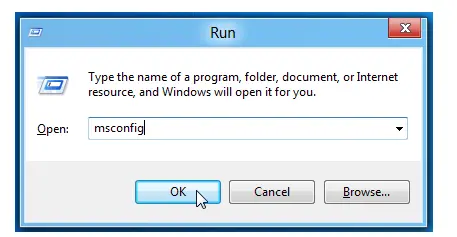
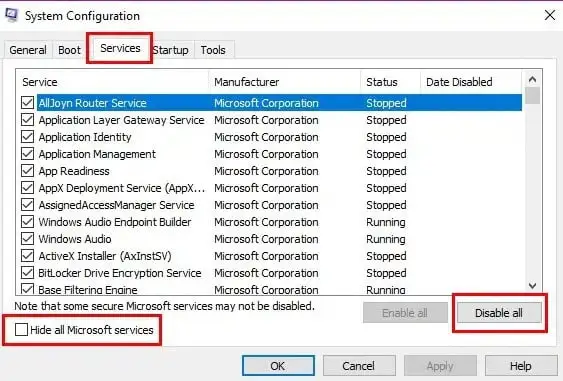
Use the current Intuit instructions for the exact selective startup procedure for your QuickBooks version and Windows configuration.
After Windows restarts, run the QuickBooks installer again.
If QuickBooks installs successfully in Selective Startup, a background application or service may have been interfering with the normal installation.
After completing the troubleshooting:
Make sure Windows is returned to its normal startup configuration after testing.
If the QuickBooks Desktop Error 1603 continues after the earlier troubleshooting steps, the existing QuickBooks installation may be damaged or incomplete. Reinstalling QuickBooks with a fresh installation file may resolve the problem. If you need help with the installation process, see our guide on Install QuickBooks Desktop.
Before uninstalling QuickBooks, make sure your company files are backed up and that you have the information needed to activate the product again.
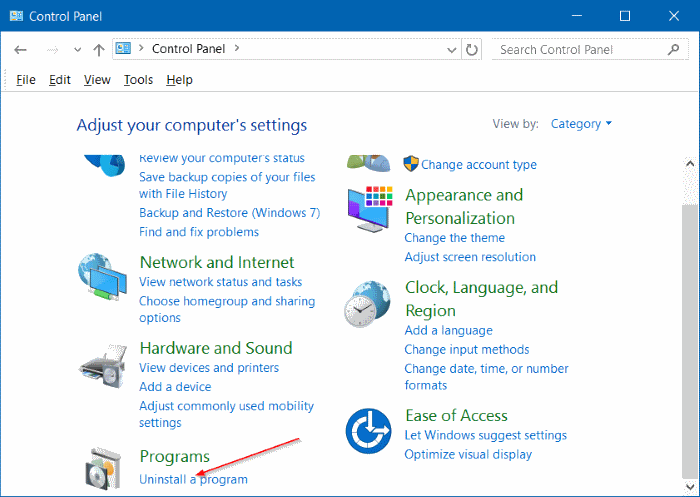
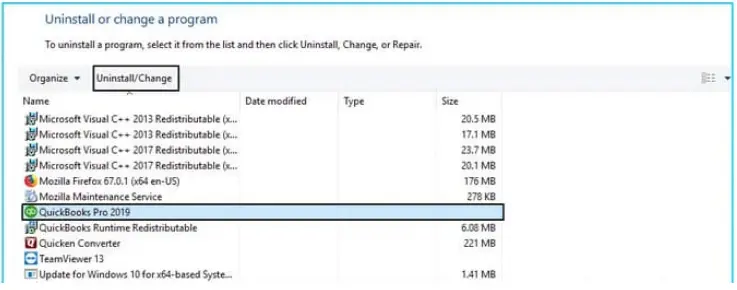
If the previous installation left behind files or settings that interfere with the new installation, you can use the QuickBooks Clean Install Tool before reinstalling QuickBooks.
Download QuickBooks Desktop using the appropriate installation files for your product and version. Choose the appropriate:
Avoid relying on an old installer if you suspect that the existing installation files are damaged or incomplete.
Open the downloaded installation file and follow the on-screen instructions.
After the installation:
QuickBooks error 1603 can be caused by the QuickBooks installation, but the problem may also involve Windows. These checks can help narrow down the cause:
Identifying which of these situations applies can help you avoid repeatedly reinstalling QuickBooks when the underlying problem is actually related to Windows.
If QuickBooks Desktop error 1603 continues after tried the troubleshooting methods above, avoid repeatedly reinstalling QuickBooks or making random changes to Windows.
Once you have resolved Install Error 1603 in QuickBooks, these practices can help you reduce the chance of similar installation problems:
QuickBooks Error 1603 can prevent QuickBooks Desktop from completing an installation or update. The right solution depends on what is causing the failure, so start by checking the error message and work through the troubleshooting steps one at a time.
If the problem continues, QuickBooks Desktop Error 1603 may be related to Windows or another application rather than QuickBooks itself. In that case, identifying the underlying issue can help you avoid repeated installation attempts and unnecessary changes to your computer.
QuickBooks Error 1603 is an installation or update error that comes when Windows can not complete the QuickBooks setup. It can be caused by damaged installation files, Windows component issues, permissions, or software conflicts.
Common causes include damaged QuickBooks files, outdated Windows, problems with .NET Framework or MSXML, insufficient permissions, and interference from other programs. An incomplete previous installation can also cause the error.
Run the QuickBooks Install Diagnostic Tool, update Windows, check the required Microsoft components, and try installing QuickBooks in Selective Startup. If the error continues, the issue may require a deeper Windows check.
Consider getting professional help if the error continues after you’ve tried the recommended solutions. You should also ask for help if you’re uncomfortable changing Windows settings or repairing system components.
Yes, problems with Microsoft .NET Framework can interfere with the QuickBooks installation process. Repairing the affected component may help QuickBooks complete the installation or update successfully.
Yes, damaged or improperly functioning MSXML components can prevent QuickBooks from installing correctly. Repairing the relevant component may resolve the error if MSXML is the underlying cause.

Get Free Consultation for QuickBooks Upgrade
(2021, 2022, 2023)


